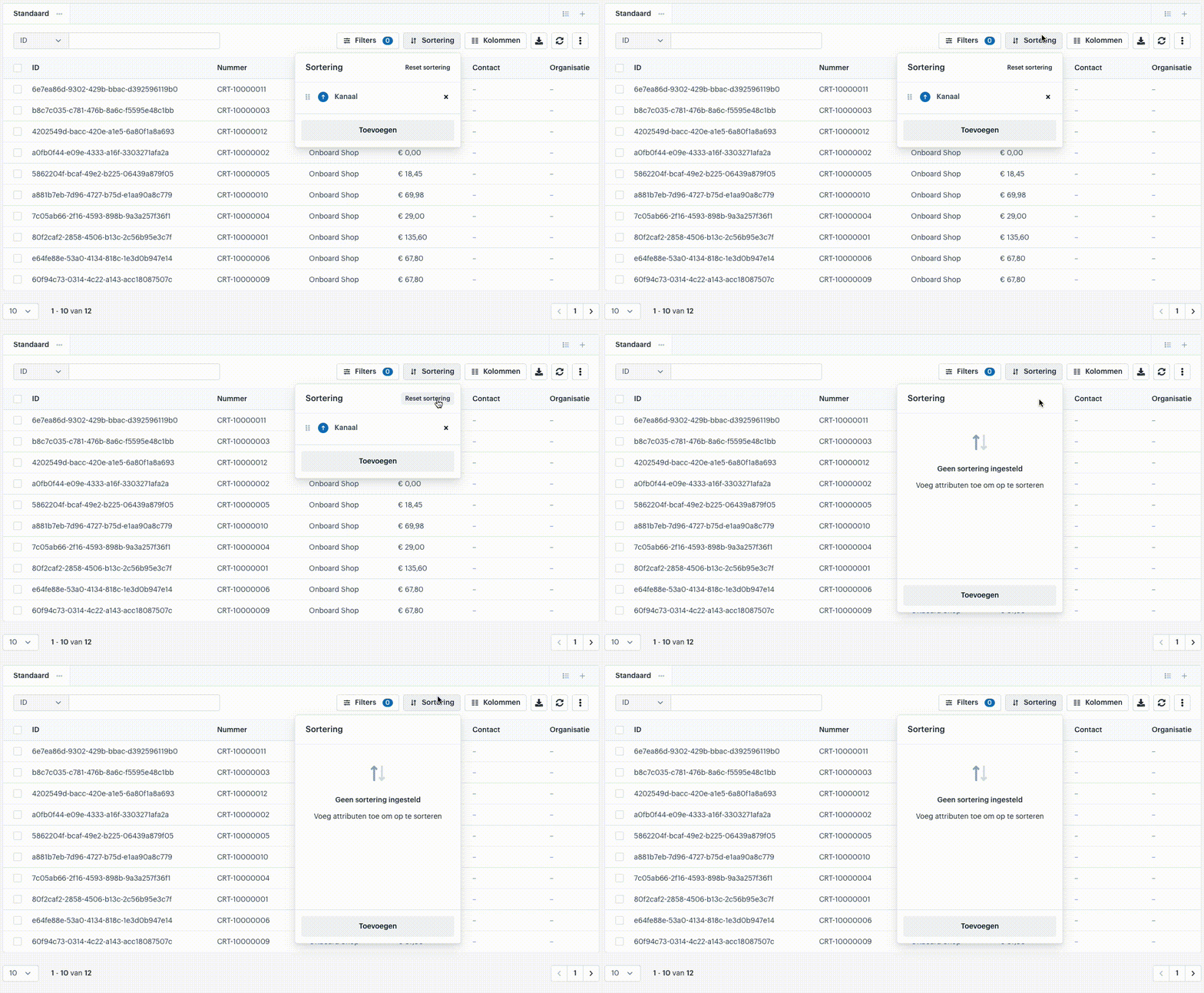
Sorting
Datasets are constantly growing. To analyze this data effectively, you can sort the data in our datagrid.
- Almost every column can be sorted in ascending or descending order.
- In our datagrid, you can even set sorting priority, which determines the order in which the columns are sorted first.



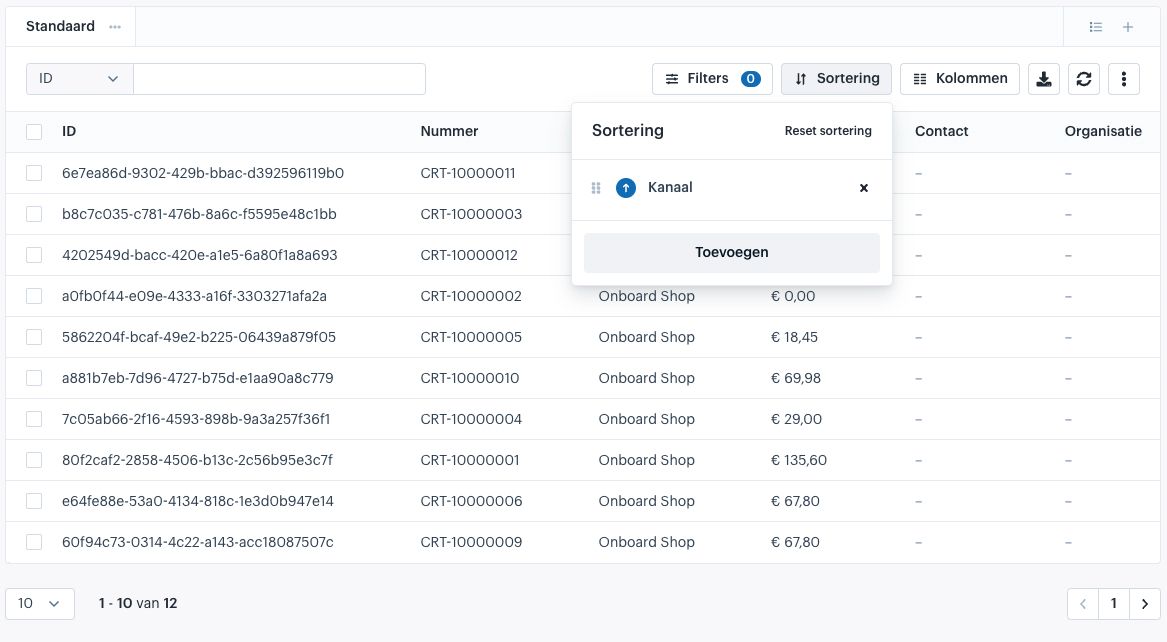
Adding a Sort
In the sorting menu, click “Add” at the bottom. The menu will switch to the list of available columns to sort by.
- You can add a column by clicking the plus icon or by double-clicking it.
- When you return to the active sort list, click the blue circle to adjust whether the sorting should be ascending (↑) or descending (↓).

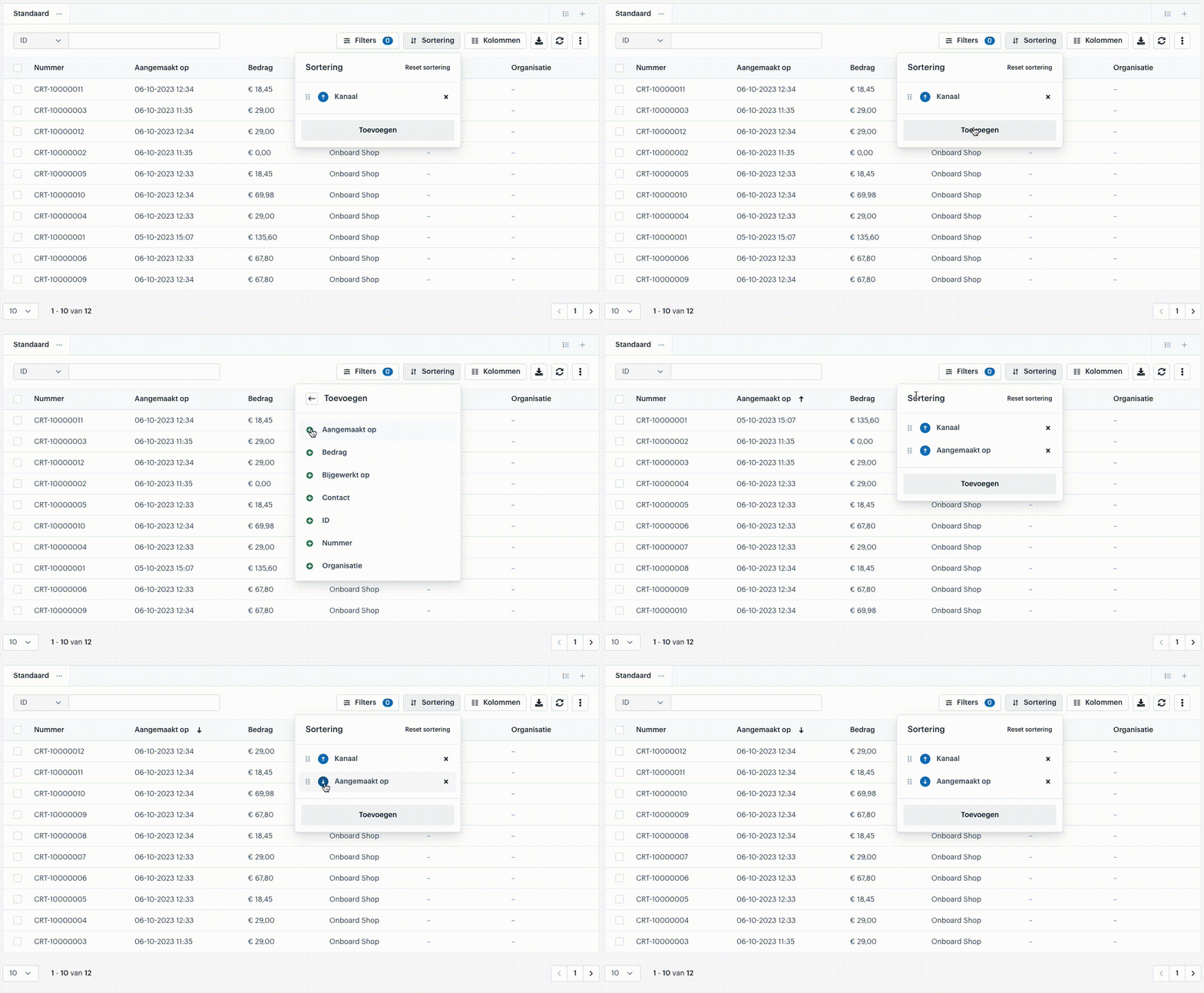
Sorting Directly from Columns
You can also sort columns ascending or descending (or turn off sorting) directly from the column headers.
- When you hover your mouse over a column title, two buttons appear.
- Left button: controls the sorting
- Right button: shortcut for filtering
- If the left button is light gray (⇅), the column is not sorted.
- Click once: sorts the column ascending (↑)
- Click twice: sorts the column descending (↓)
- Click a third time: turns sorting off for that column (⇅)
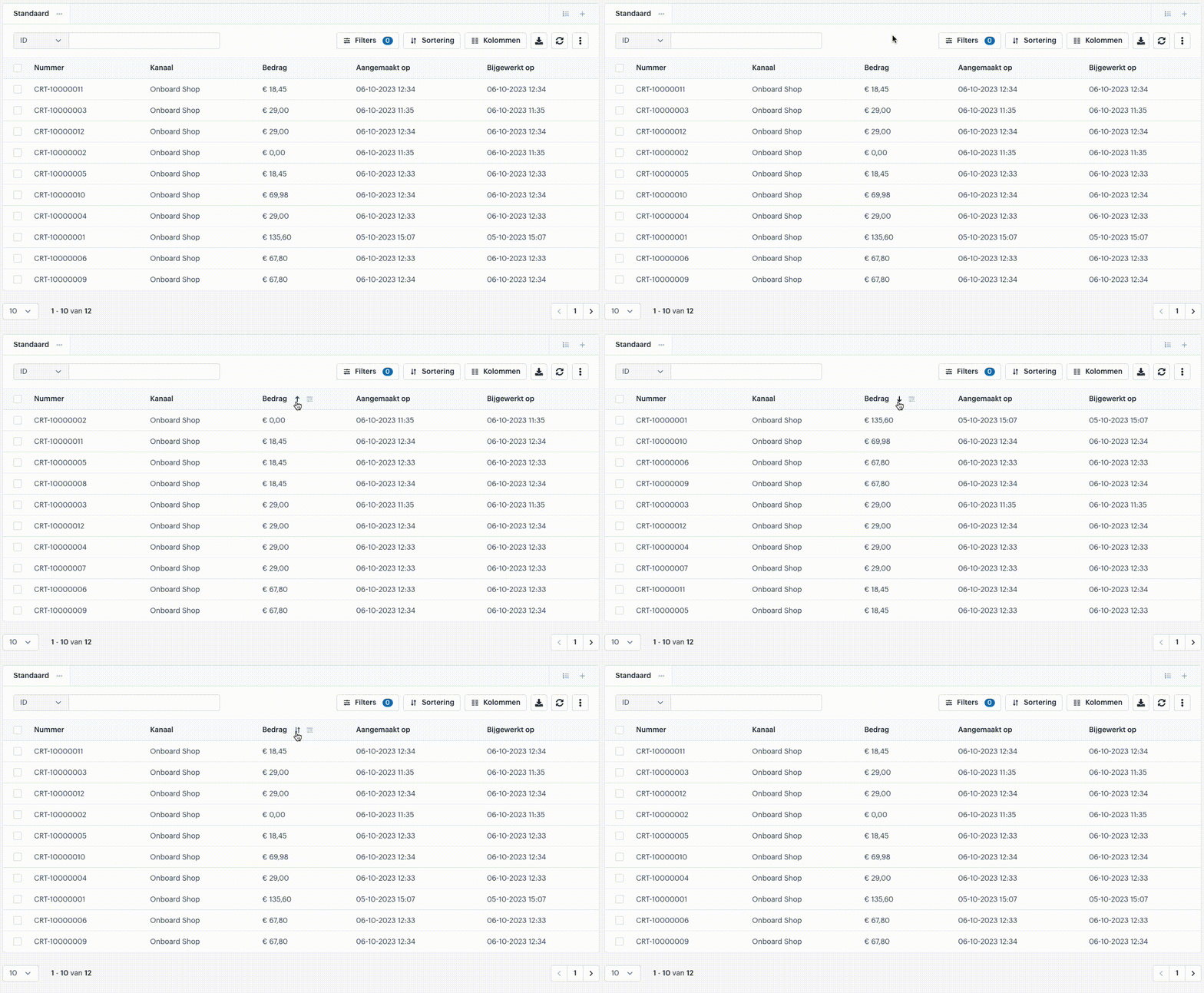
Sorting Priority
Since you can sort by multiple columns, it’s useful to set the order of sorting.
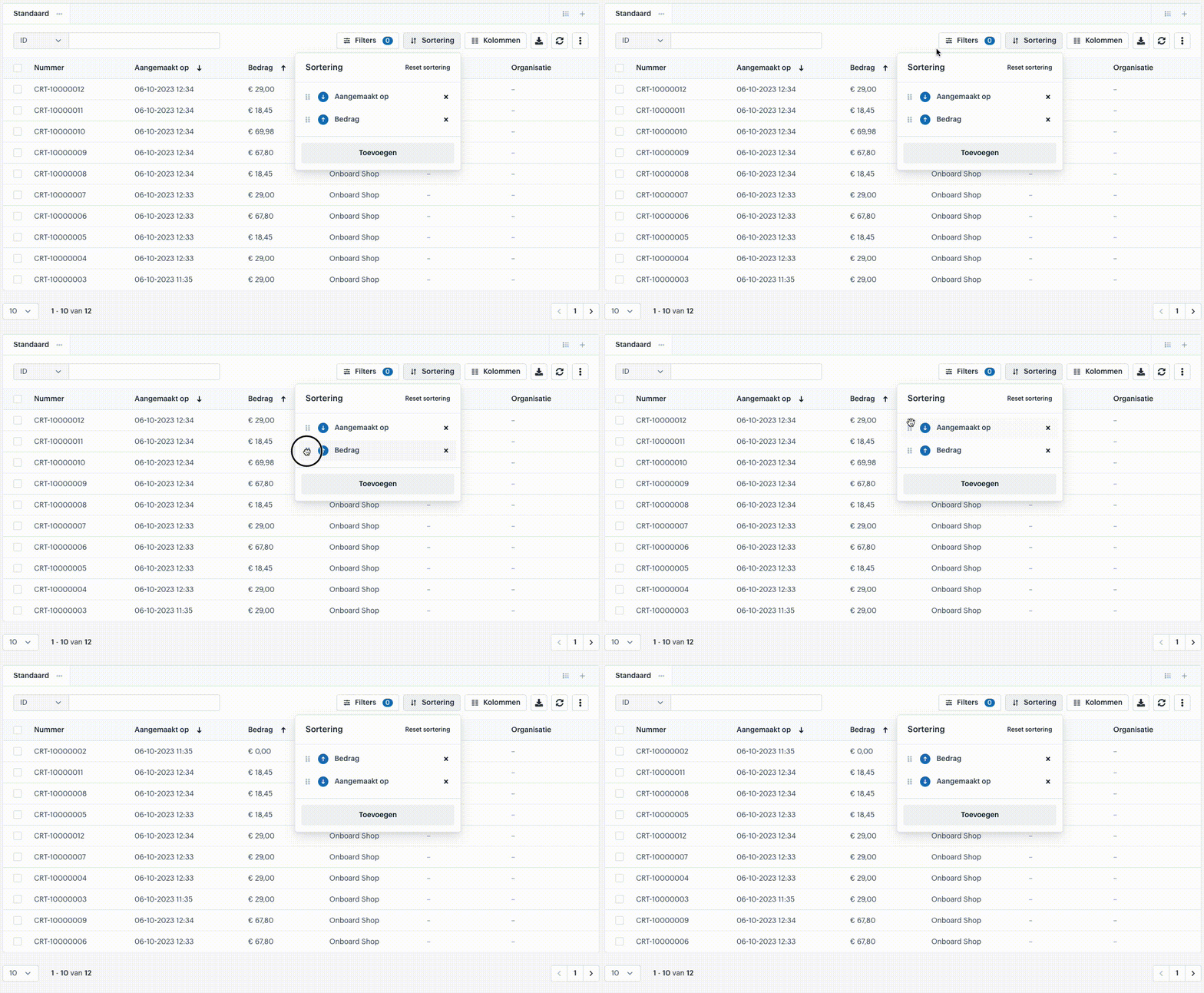
- In the menu, you can drag the sorting rules up or down to adjust priority.
- Example:
- First, the data is sorted descending by the “Created On” date.
- Then, within that order, it is sorted ascending by “Amount”.
- If you change the order of the rules, the data will first sort by “Amount” and then by “Created On”.
This functionality allows you to create complex sorting schemes, ensuring the most relevant information appears first.
Removing a Sort
You can remove a single sorting rule by clicking the X icon on that rule.
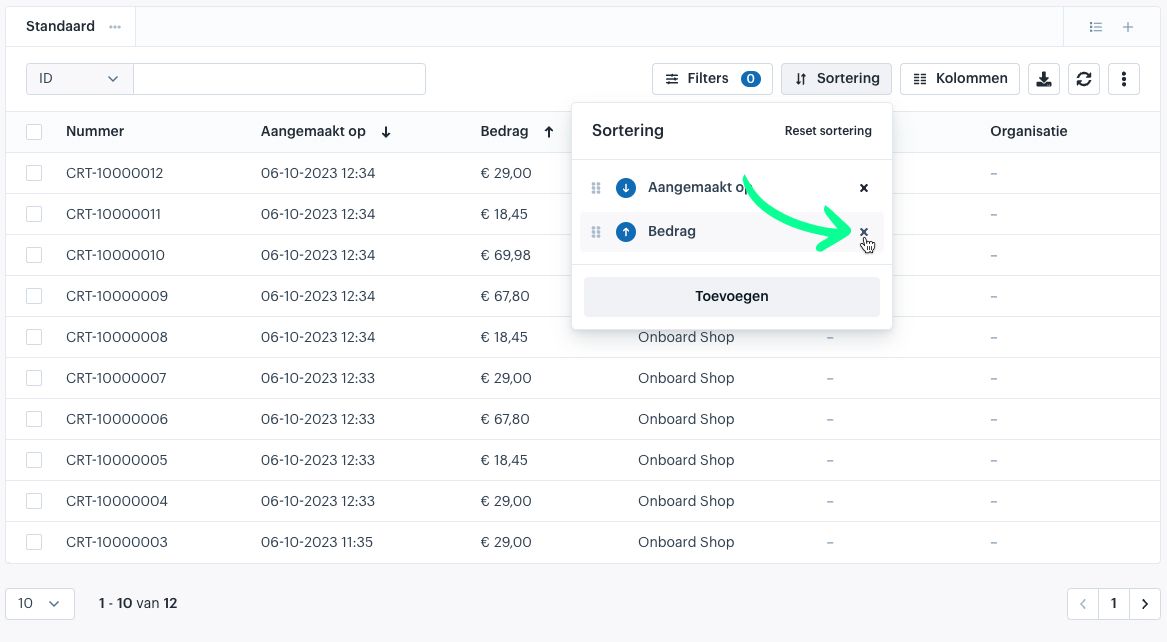
To remove all sorting rules, click “Reset Sorting” in the sorting menu. This will clear the list, allowing you to start with an empty sorting configuration.