Payment method rules
In this manual, we explain how to use the Rule Builder to create rules for your payment methods. You can set rules for two different purposes:
- Showing or hiding a payment method.
- Determining the costs for a payment method.
To find these rules, go to payment methods in the management environment of your Afosto account.
Show/hide payment method
Sometimes you only want to show certain payment methods under specific conditions, such as for certain order amounts, destination countries, or customer groups. With the Rule Builder, you can set rules to show or hide payment methods based on conditions you choose.
Follow these steps to do this:
Go to the payment methods in the Afosto SaaS platform and select the payment method for which you want to set rules.
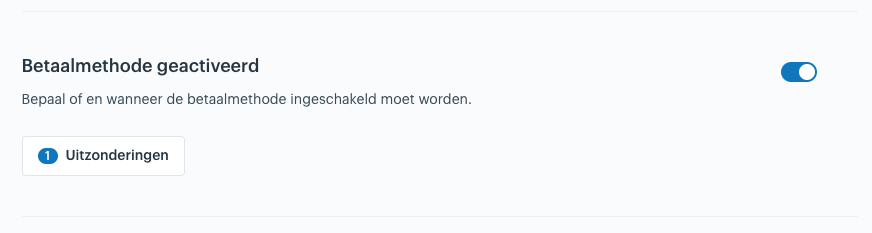
- Find the section: Payment method activated.
- Click 'Exceptions' to open the Rule Builder.

- In the selection window, choose the variables you want to use to show or hide the payment method, such as order amount, destination country, or customer group.
- Connect the chosen variables with the desired conditions. For example: "If {Order Amount} is greater than {100} AND {Shipping Country} is {Netherlands}, then {show payment method}."
- If necessary, add extra rules to cover different situations. Use 'AND' or 'OR' to indicate how conditions should be combined. You can apply multiple rules at the same time to the same payment method.
- Save the rules and check if the payment methods are correctly shown or hidden based on the set conditions.
Payment method costs
- Some payment methods incur costs, such as transaction fees. With the Rule Builder, you can set rules to calculate the costs for payment methods, tailored to the specific needs of your business.
- Follow these steps to do this:
- Go to the payment methods in the Afosto platform and select the payment method for which you want to set the rules.
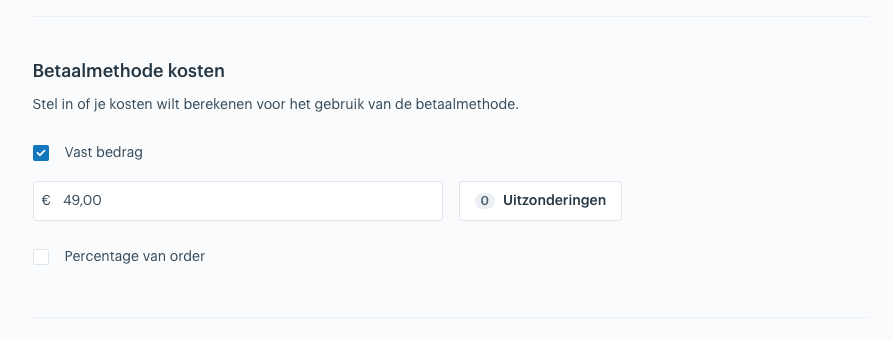
- Go to the section 'Payment method costs'. Check here if you want to set costs for this payment method.
- Click 'Exceptions' to open the Rule Builder.

- In the selection window, choose the variables you want to use for calculating the costs, such as total order value or customer group.
- Connect the chosen variables with the desired conditions. For example: "If {Total order value} is less than {500} AND {VAT Number} is {Not filled}, then Method costs: {1.5% of the total order value}."
- If necessary, add extra rules to cover different situations. Use 'AND' or 'OR' to indicate how conditions should be combined. You can apply multiple rules at the same time to the same payment method.
- Save the rules and check if they are correctly applied when calculating the costs for the payment method.
- Test the rules by simulating different orders with different values for the selected variables (such as order amount or customer group) to verify that the costs for the payment method are calculated as expected.
Order of rules
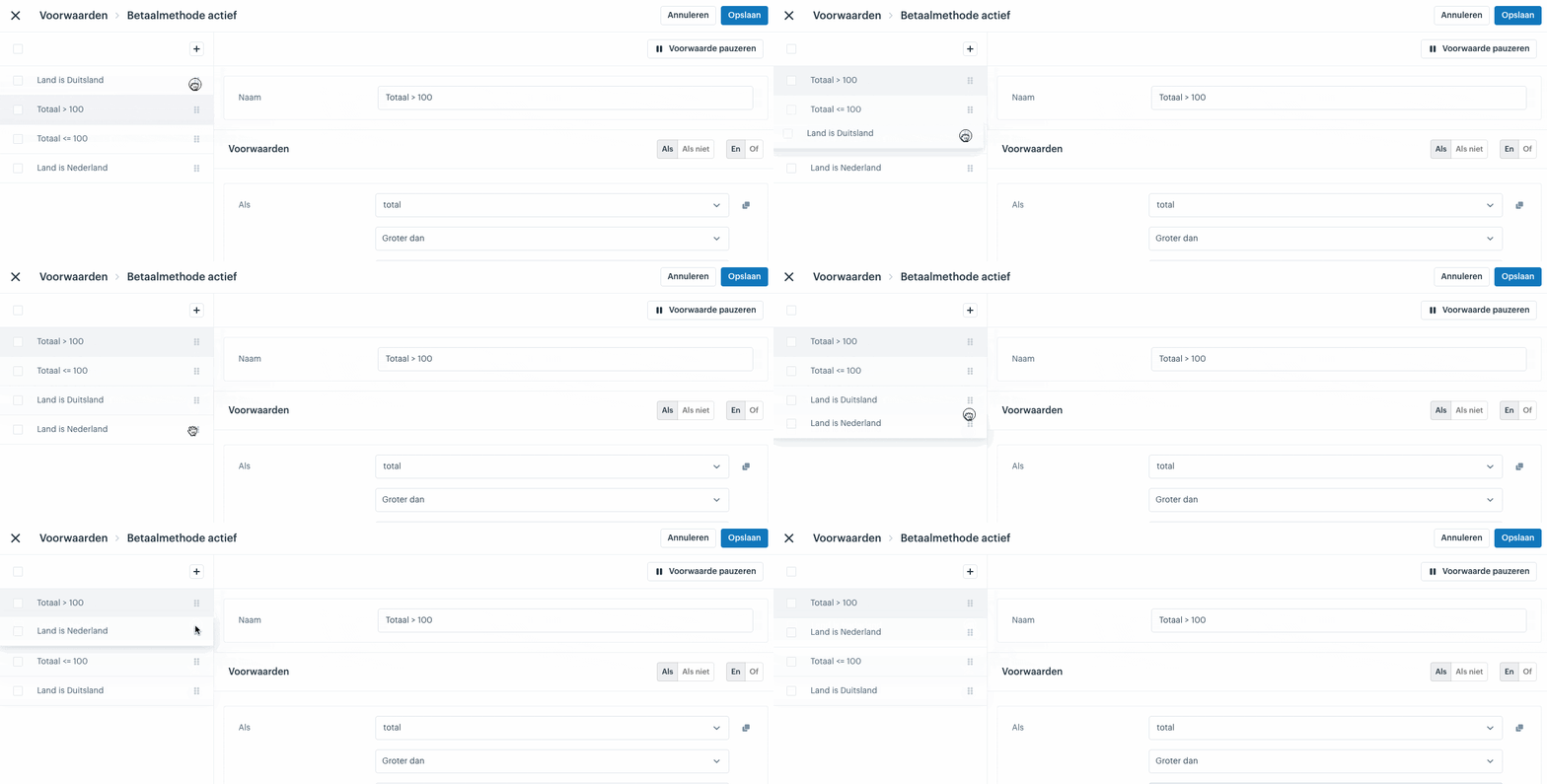
- It is important to understand that the order of the rules in the Rule Builder determines which rule is executed. The system will go through the rules one by one, from top to bottom. As soon as a rule is found that meets the set conditions, that rule will be applied, and the system stops evaluating the remaining rules.
- This means it is crucial to arrange your rules in the correct order. For example, if there is a specific exception that should take precedence over a more general rule, make sure that exception is higher in the list. This way, the system will first evaluate the exception and, if applicable, apply it before assessing the more general rule.
- To adjust the order of your rules, you can simply drag and drop them to the desired position in the list. It is recommended to test the system after arranging your rules to ensure that the desired rule is applied in every situation. By paying attention to the order of your rules, you can ensure that the Rule Builder works effectively and efficiently within the Afosto platform.
- By using the Rule Builder to configure rules for showing or hiding payment methods and setting costs for payment methods, you can make the payment process of your webshop more efficient and flexible. This helps you better meet the needs of your customers and optimize your business operations.

Examples of Rules
In the following section, you will find some example rules that demonstrate the versatility and potential of the Rule Builder within the Afosto platform. These examples are intended to inspire you and help you create your own rules to personalize and optimize your platform.
Show between certain amounts
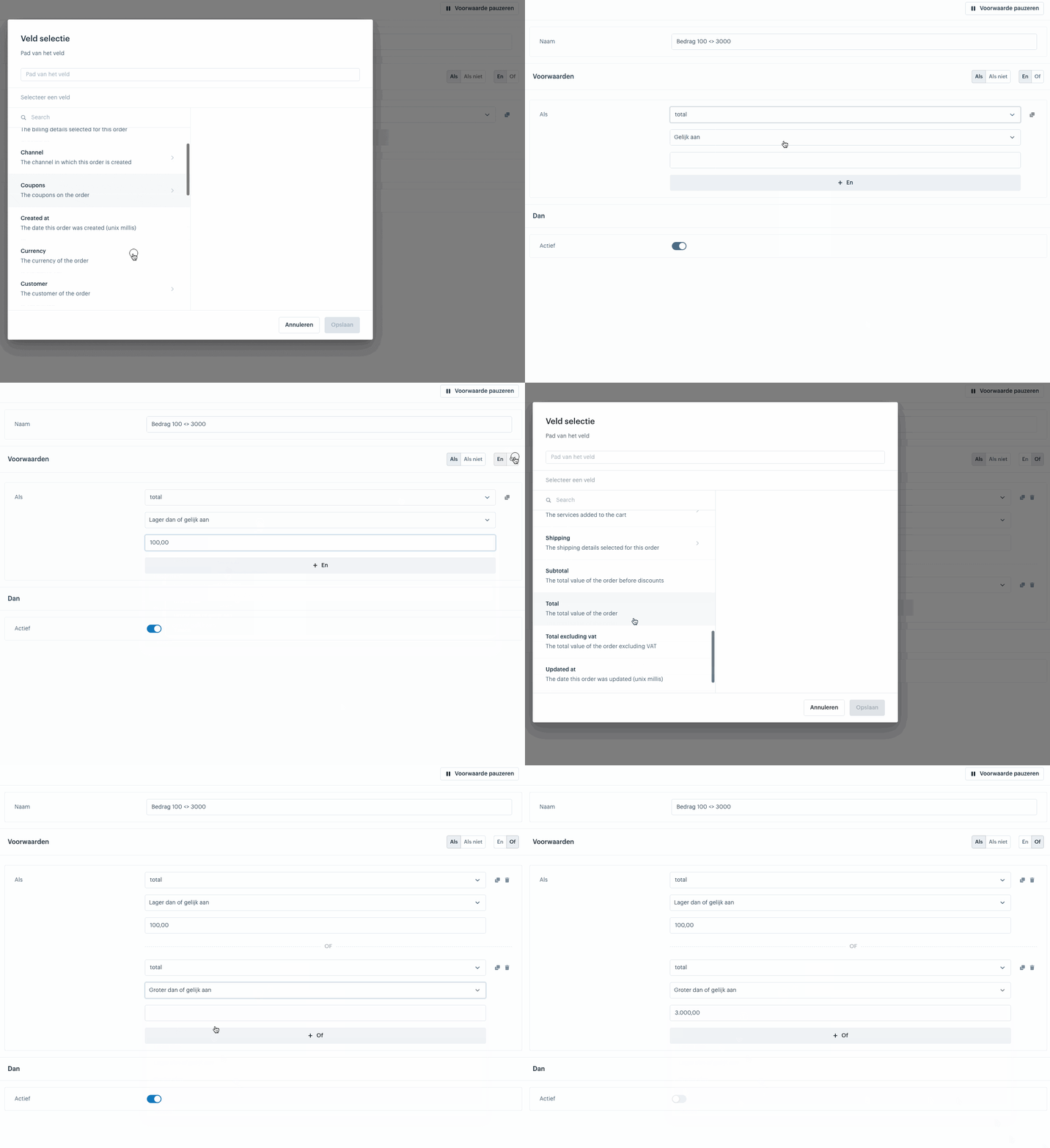
In the example below, a payment method is set to be shown only for amounts between 100 and 3000 euros. We therefore set it to be hidden for amounts less than or equal to 100 OR amounts greater than or equal to 3000.

Do not show for a specific country
In the example below, we set a payment method to not be shown for customers from Germany.
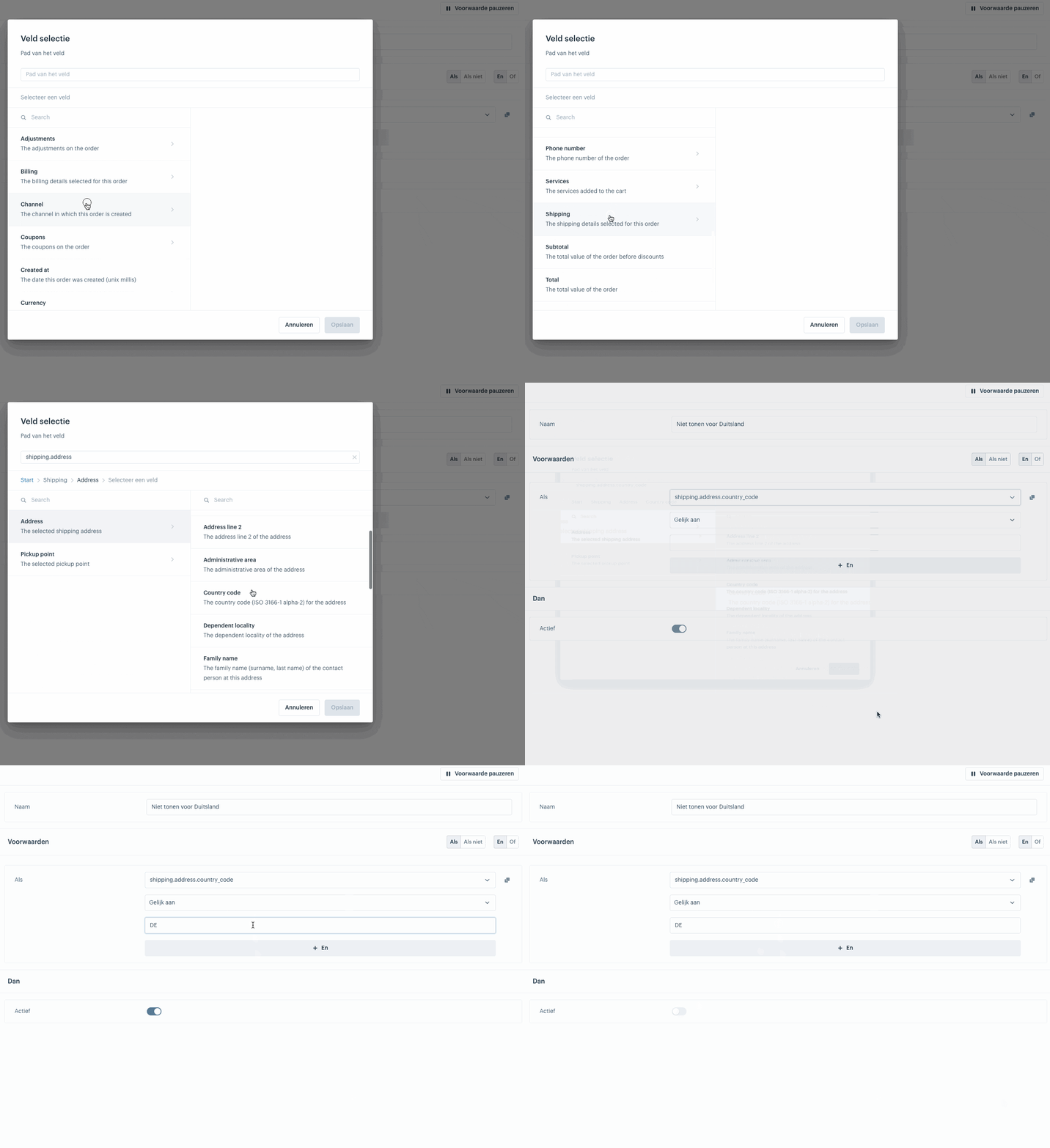
To select countries, you must use ISO ALPHA-2 codes (these are 2-letter codes per country, such as NL for the Netherlands). A complete list of country codes can be found on Wikipedia.