Create Pick List Types
Within Afosto, you can use pick list types. These are preset configurations that you can save, allowing you to generate a pick list with just one click. Examples include:
- Single line orders
- Pallet shipments
- Products from orders for a specific country
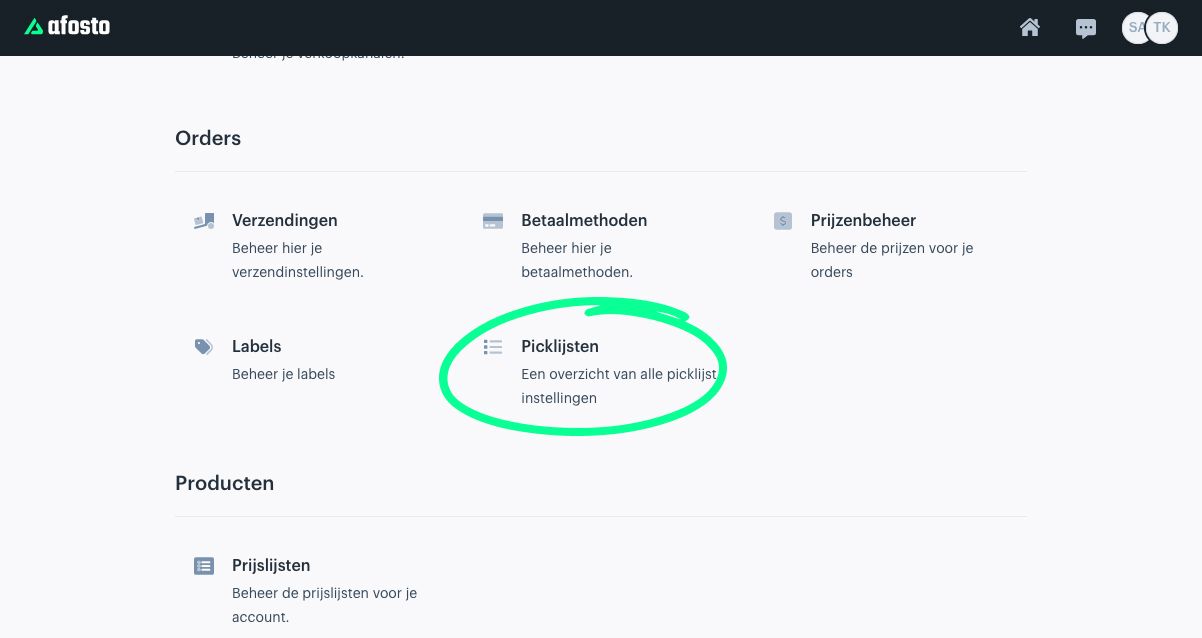
To configure these types, go to the Admin section of Afosto and select Pick Lists, as shown below.

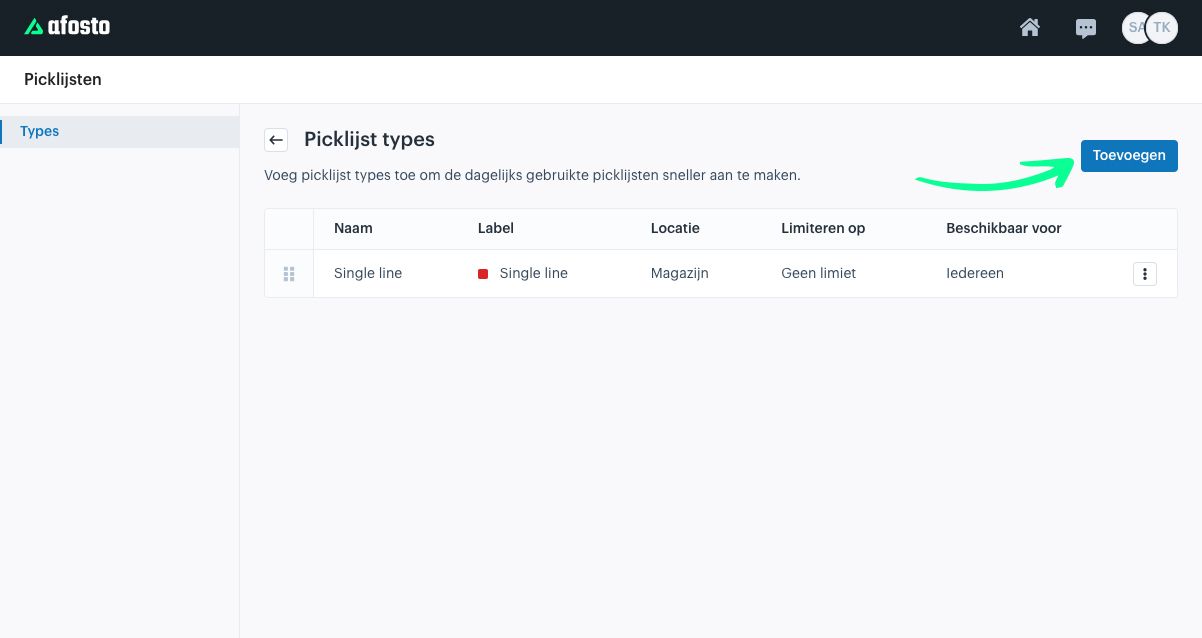
A screen will now open showing all configured types.
To add a new type, click Add.
A screen will now appear where you need to configure several options. These are explained below:
Name
Enter a clear and recognizable name for your pick list type.
Tip: keep it short.
Label
You can assign a custom-colored label to your pick list. This improves recognition and distinction when using it in your fulfillment app.
Processing location
If you have multiple warehouses, select the warehouse where the picking will take place.
Limit by
You can limit your pick lists by setting a maximum number of orders or a maximum number of products.
Only orders from specific channels
Select the sales channels you want to include when generating the pick list.
Only single line orders
Choose this option if you only want single line orders on the pick list.
A single line order contains only one unique SKU (this SKU may include multiple quantities).
Only products with specific shipping methods
Select this option if, for example, you only want to pick pallet shipments.
Only products with a specific shipping date
Choose this option to pick only products with today’s shipping date.
Assign to
If you want a specific employee to see and handle this pick list, you can assign it to them here.
Use a pick wall
Enable this option if you are working with a pick wall setup.
Creating Pick Lists Based on a Type


Once you have created the type, it will appear under Pick Lists in the app in the location shown above.