Innosend
Manual: Set up Innosend connection in Afosto
In this manual, we explain step by step how to set up the Innosend connection within Afosto. Follow the steps below to successfully activate your integration.
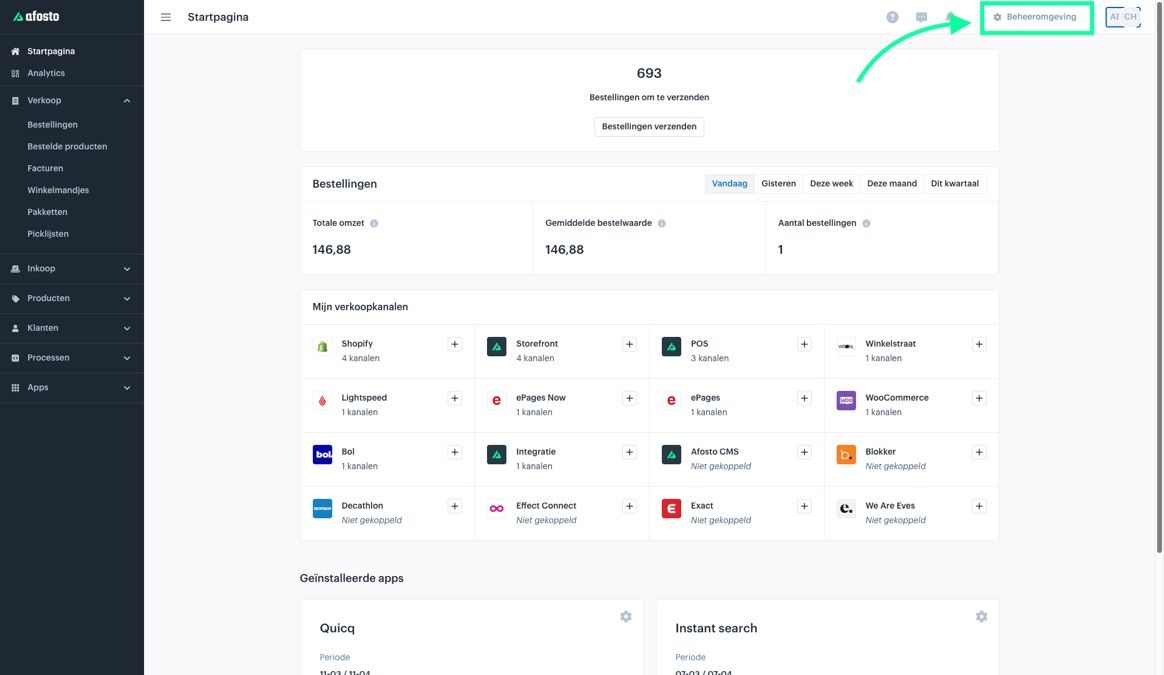
Step 1: Log in to Afosto
Log in to your Afosto account and go to the admin environment.

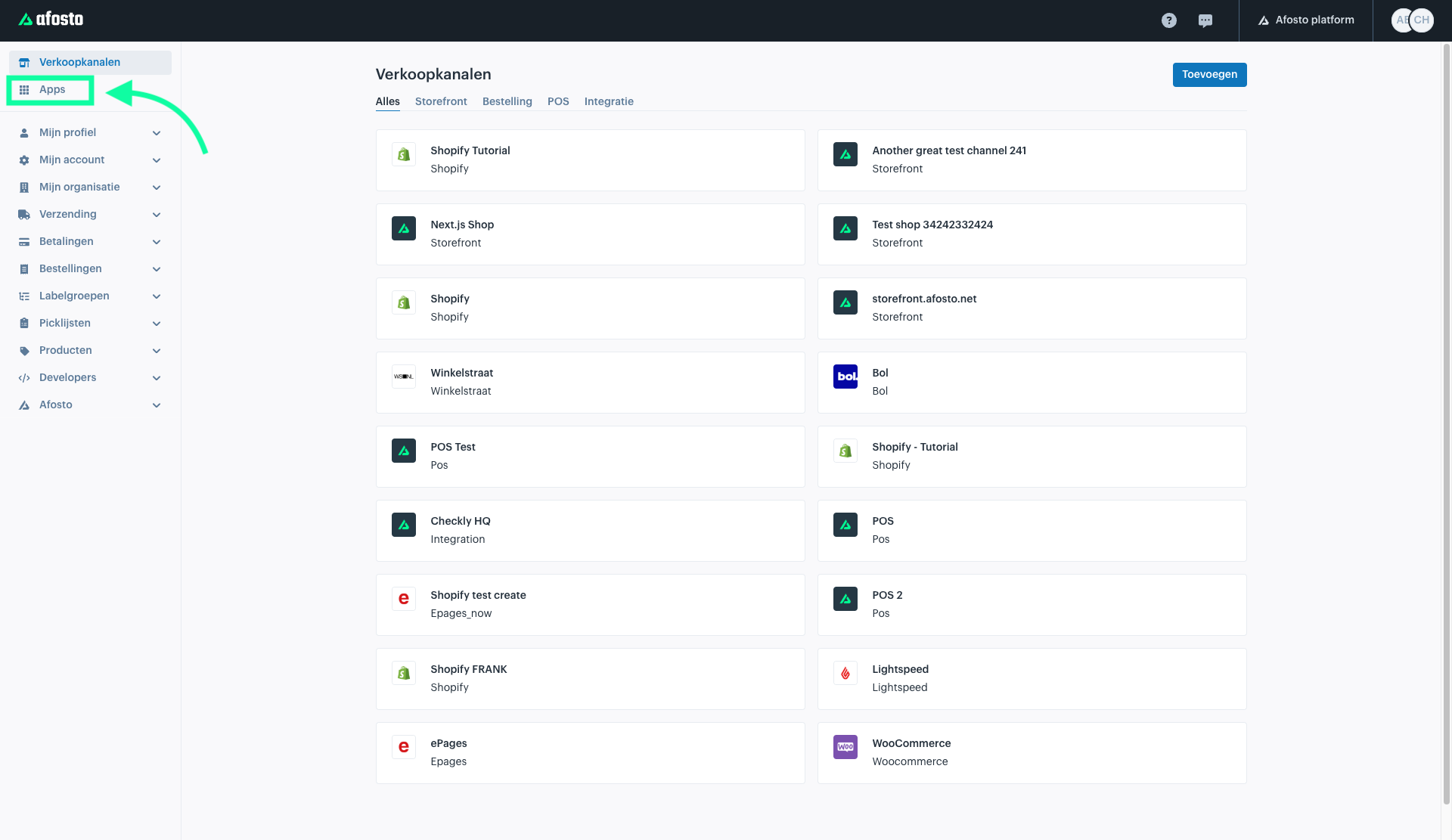
Step 2: Open the apps overview
Click on the “Apps” option at the top left of the menu.
Here you will find an overview of all available connections and integrations within Afosto.

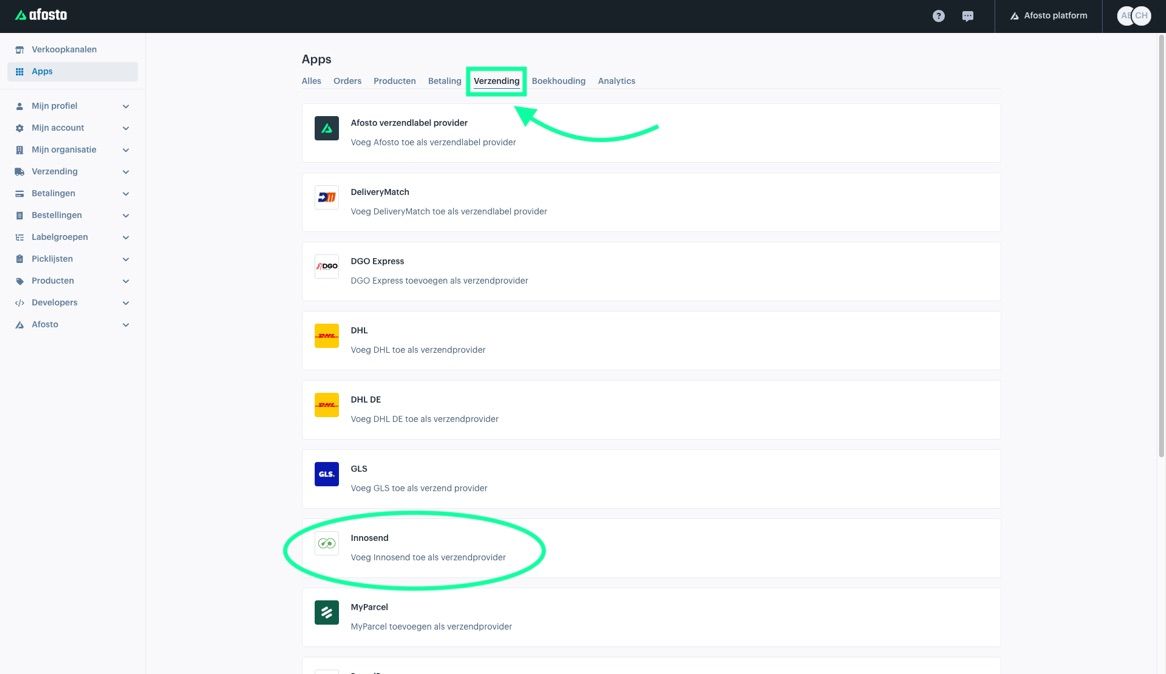
Step 3: Find the Innosend connection
In the overview, you will see different categories.
Under the “Shipping” section, you will find the Innosend connection.
Click on Innosend to continue.

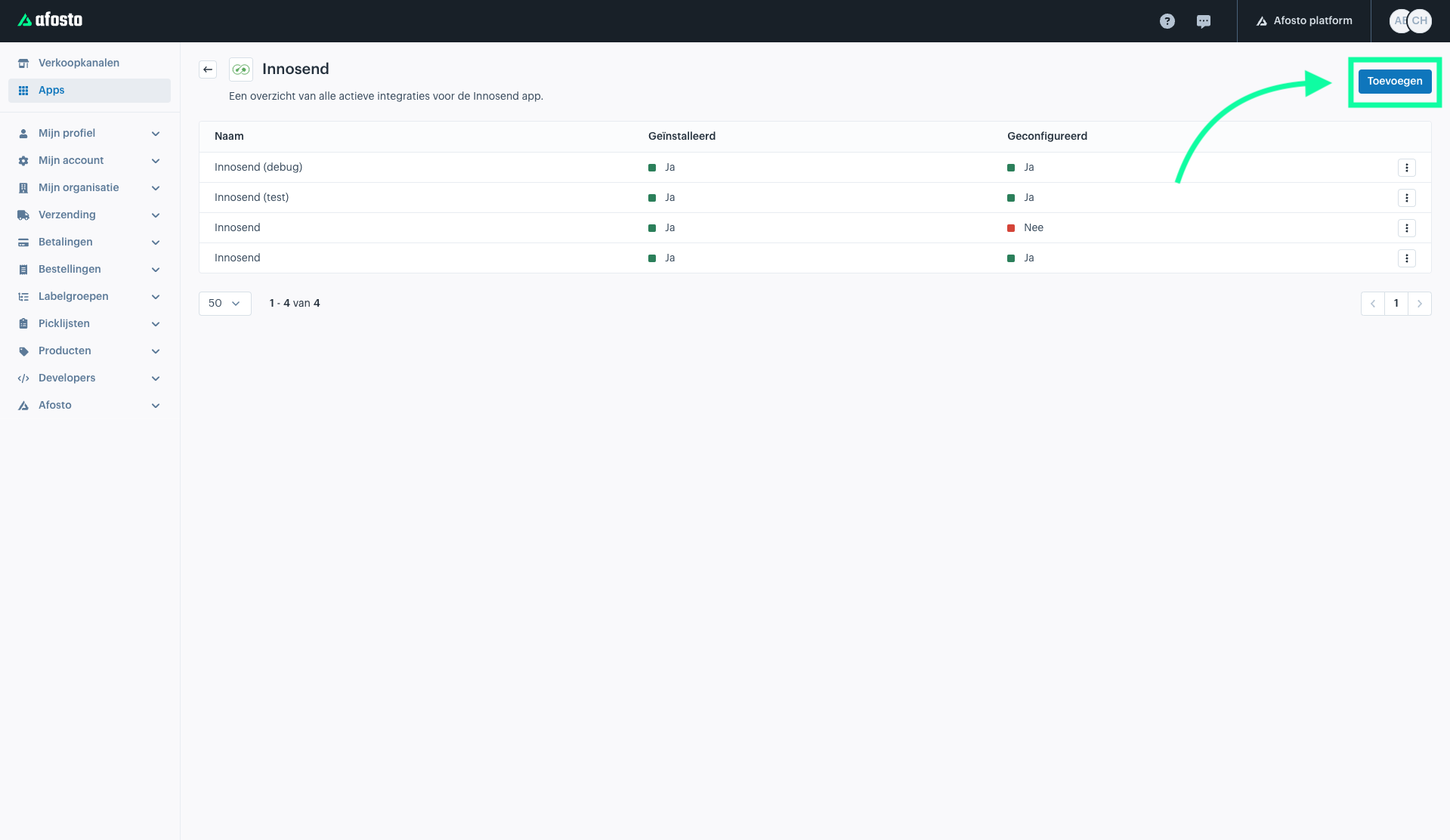
Step 4: Add integration
Click the “Add” button at the top right to create a new Innosend integration.

Step 5: Enter your API details
You will now be asked to enter the required API details.
You can retrieve this information from your Innosend account.
Log in to Innosend and navigate to “shops” and then select integrations to find the required information.

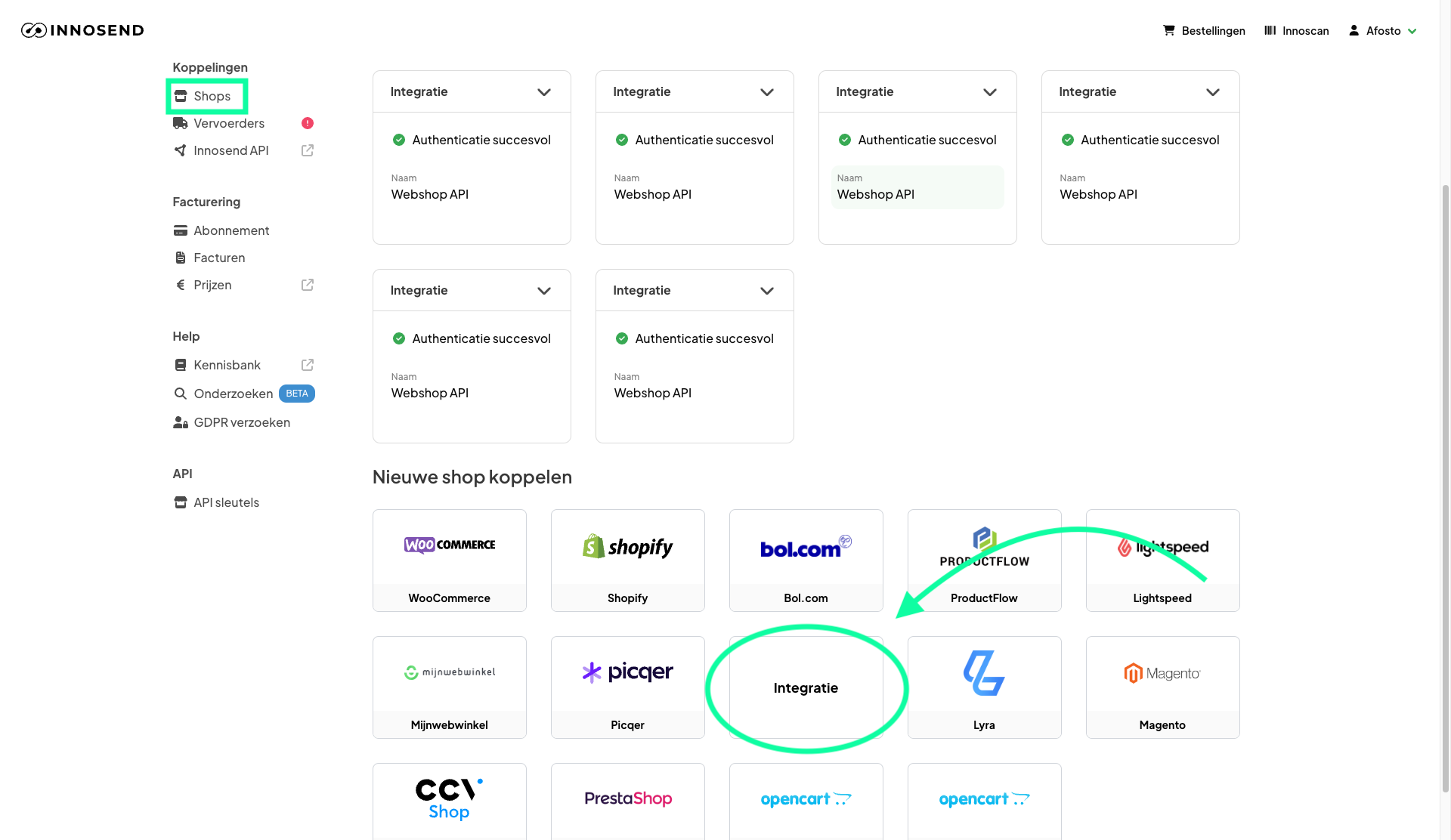
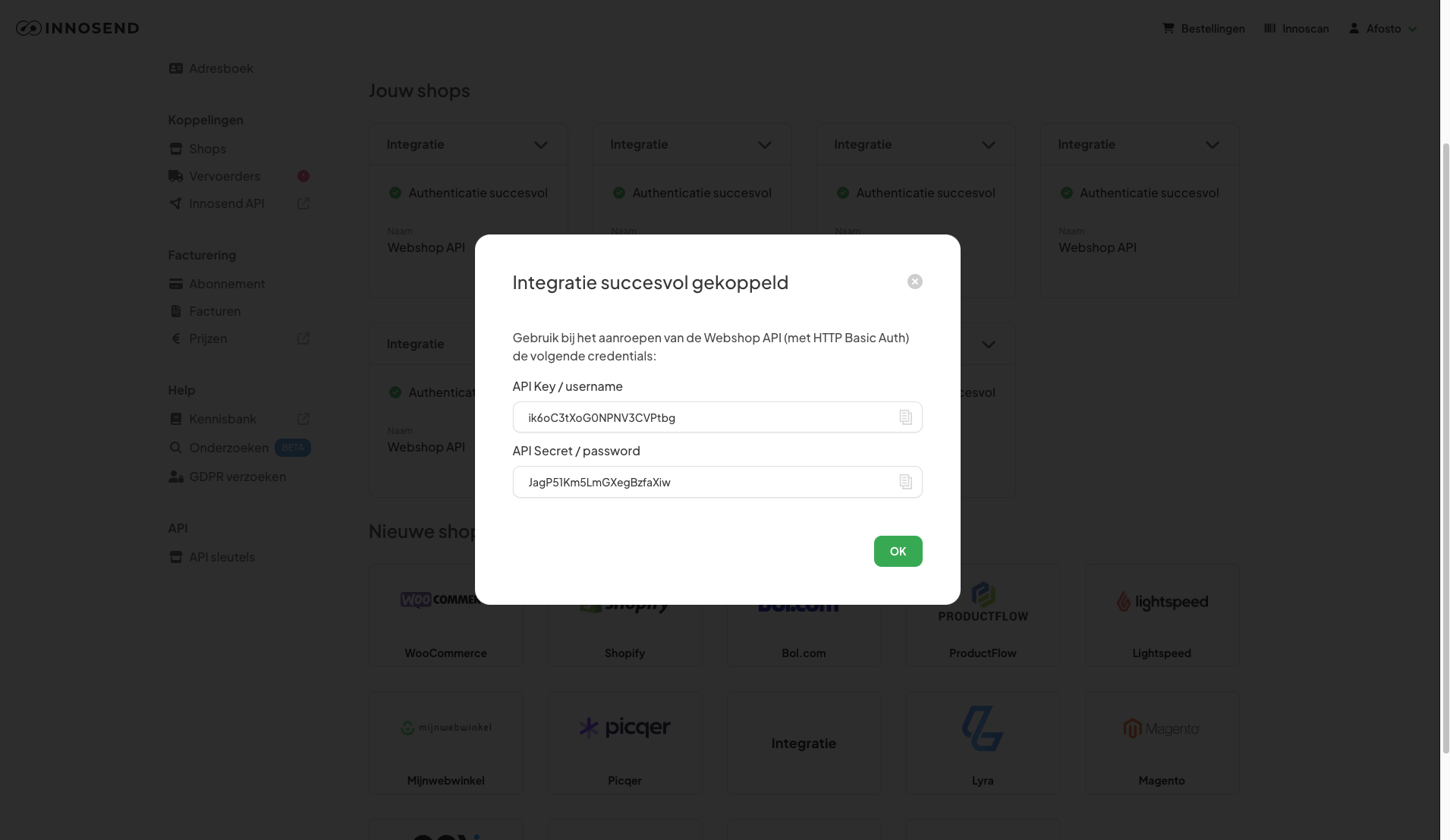
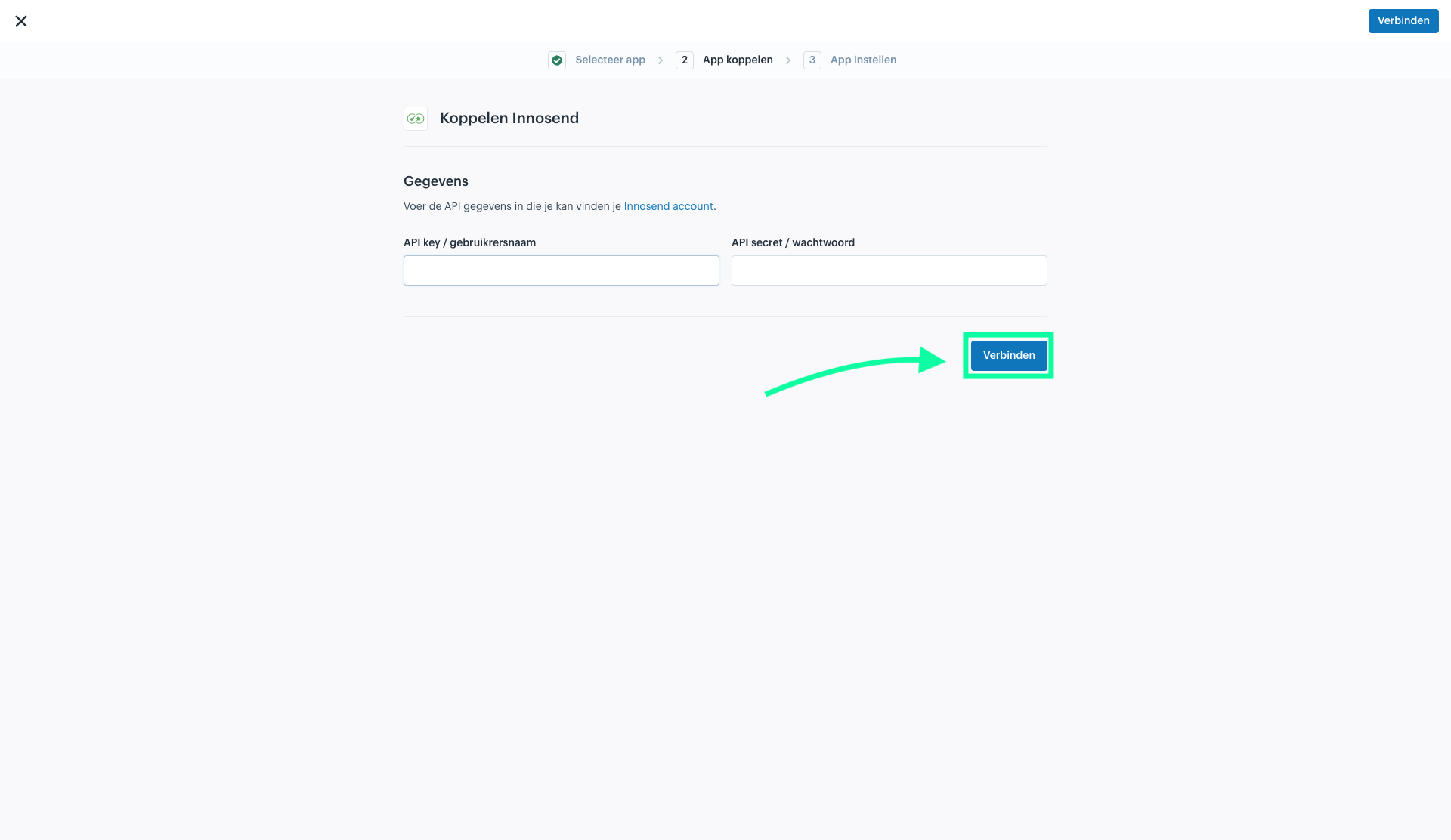
Step 6: Retrieve the API details and carefully enter them in Afosto

Step 7: Check the connection
After saving, the connection will become active. Check whether the connection has been set up correctly by creating a test shipment or by checking if your shipping options via Innosend are visible.
FAQ - Set up Innosend connection in Afosto
Where can I find the Innosend connection in Afosto?
In the Afosto admin environment, go to Apps (top left in the menu) and under the Shipping section, look for the Innosend connection.
How do I add the Innosend connection?
Click the Add button at the top right once you have selected Innosend.
What information do I need for the connection?
You need API details from your Innosend account. Log in to Innosend, go to Shops > Integrations, and retrieve the API information there.
Where do I enter the API details?
After clicking Add in Afosto, a form will appear where you can enter the API details. Fill them in carefully.
How do I know if the connection is working?
After saving, the connection becomes active. Check this by seeing if the Innosend shipping options are visible in Afosto.
- Manual: Set up Innosend connection in Afosto
- Step 1: Log in to Afosto
- Step 2: Open the apps overview
- Step 3: Find the Innosend connection
- Step 4: Add integration
- Step 5: Enter your API details
- Step 6: Retrieve the API details and carefully enter them in Afosto
- Step 7: Check the connection
- FAQ - Set up Innosend connection in Afosto
- Where can I find the Innosend connection in Afosto?
- How do I add the Innosend connection?
- What information do I need for the connection?
- Where do I enter the API details?
- How do I know if the connection is working?