Working with labels
Labels help you recognise, distinguish and group orders, contacts and organisations more easily. Among other things, you use them to filter datagrids and build your own views, to give customers discounts, and for segmentation and automations. Labels work in Afosto at three levels — orders, contacts and organisations — and in the same way at all three.
How labels are structured
Labels are organised into label groups and subgroups. A label group is a block consisting of one or more subgroups, and each subgroup contains one or more labels. A subgroup can start with an empty value; if it doesn't, every new item gets the first label of the subgroup by default.
The three levels
You manage label groups in the Afosto admin under the Label groups menu, with a choice of three levels:
Orders: to recognise and distinguish orders in the orders datagrid, for automations and for segmenting and organising your orders.
Contacts: to label individual customers, for example for targeted discounts or segmentation.
Organisations: to label business customers at the organisation level.
An organisation sits hierarchically above a contact: a contact can be linked to an organisation. Labels on an organisation apply to the linked contacts. If you give a discount based on an organisation label, for example, it applies to all contacts under that organisation — those contacts don't need to have the label themselves. For B2B, the organisation is therefore often the most logical level to label.
Creating a label group
Go to Label groups and choose the level you want to create labels for. Click Add at the top right and then set:

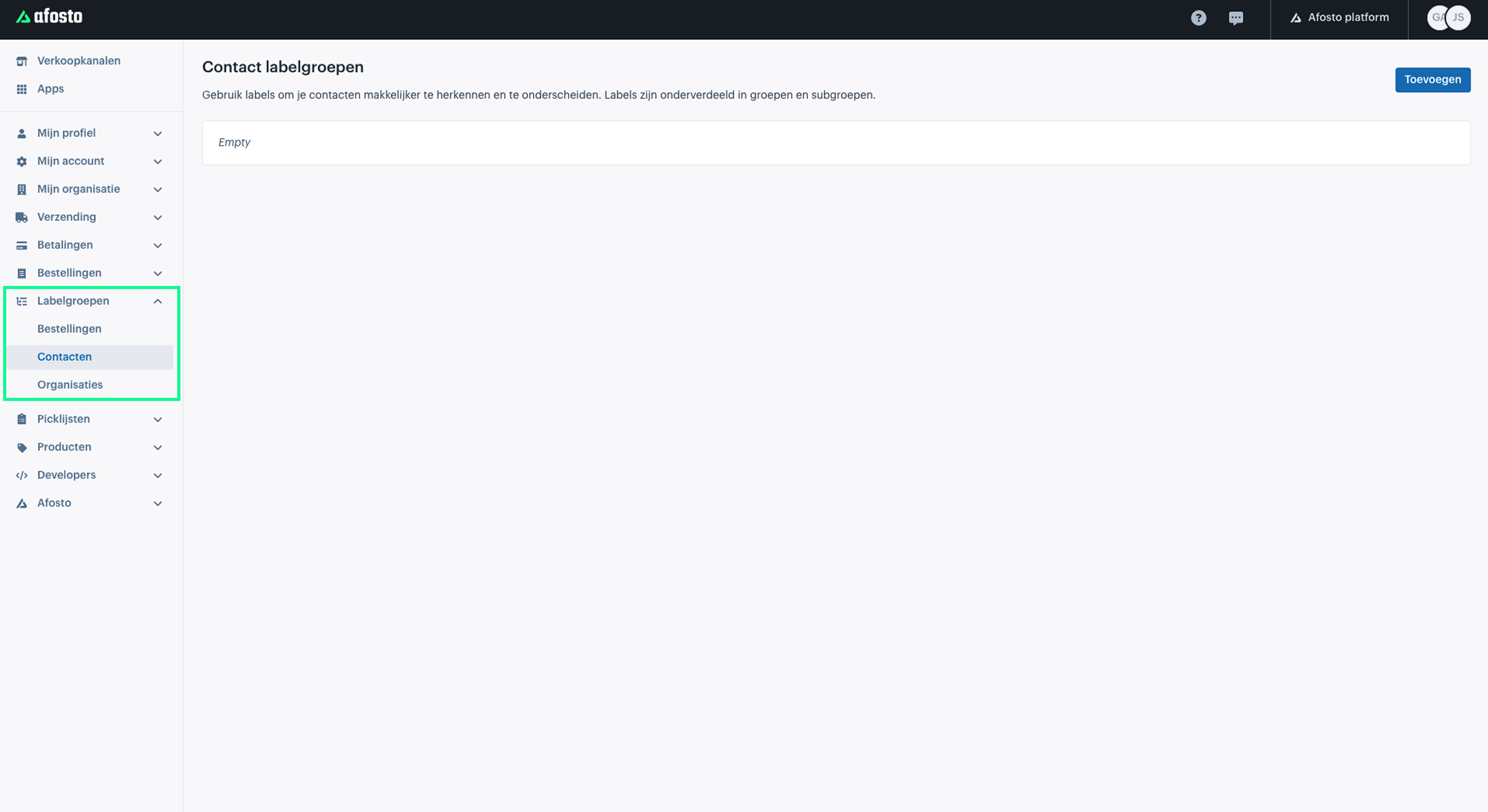
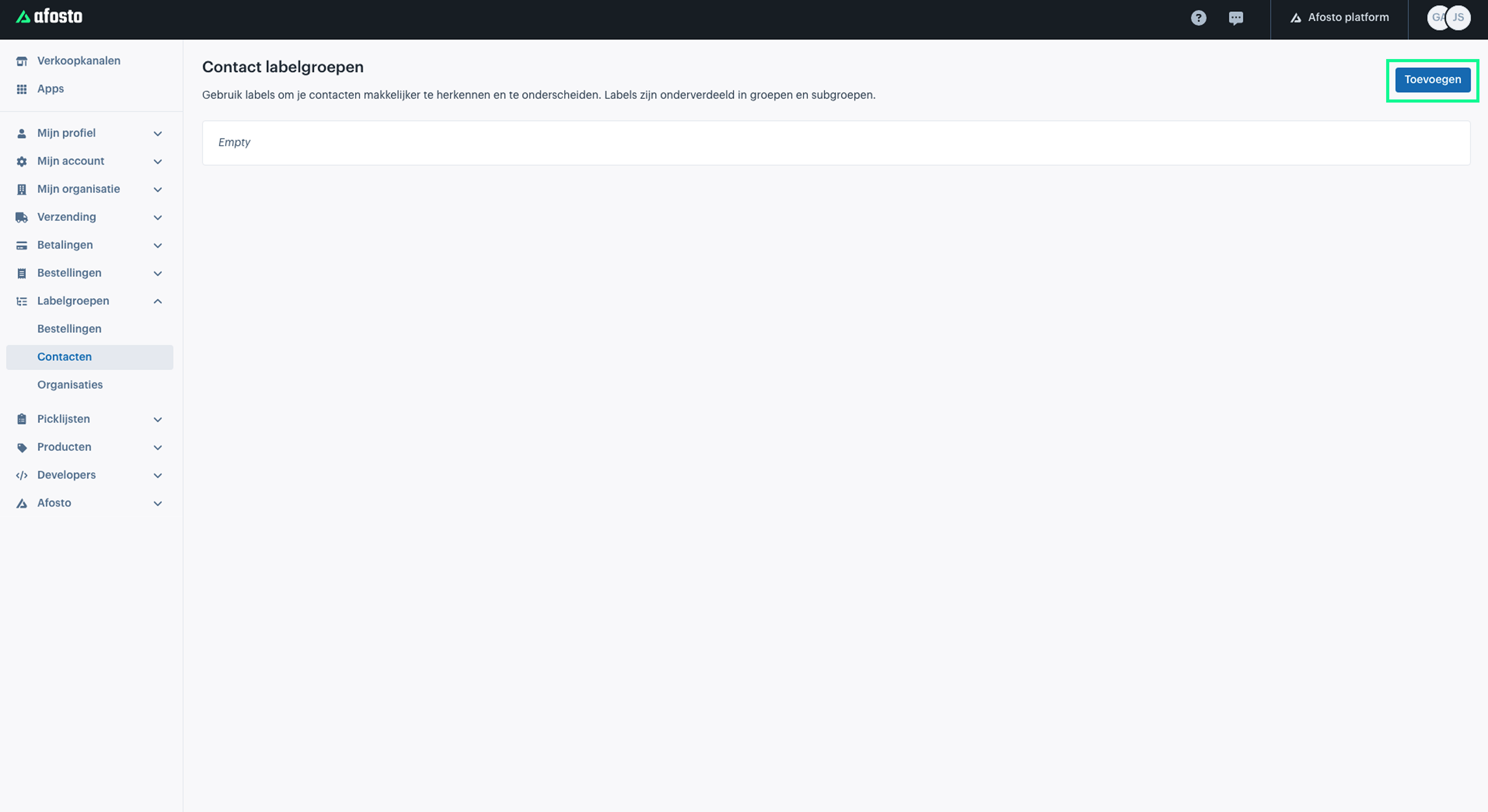
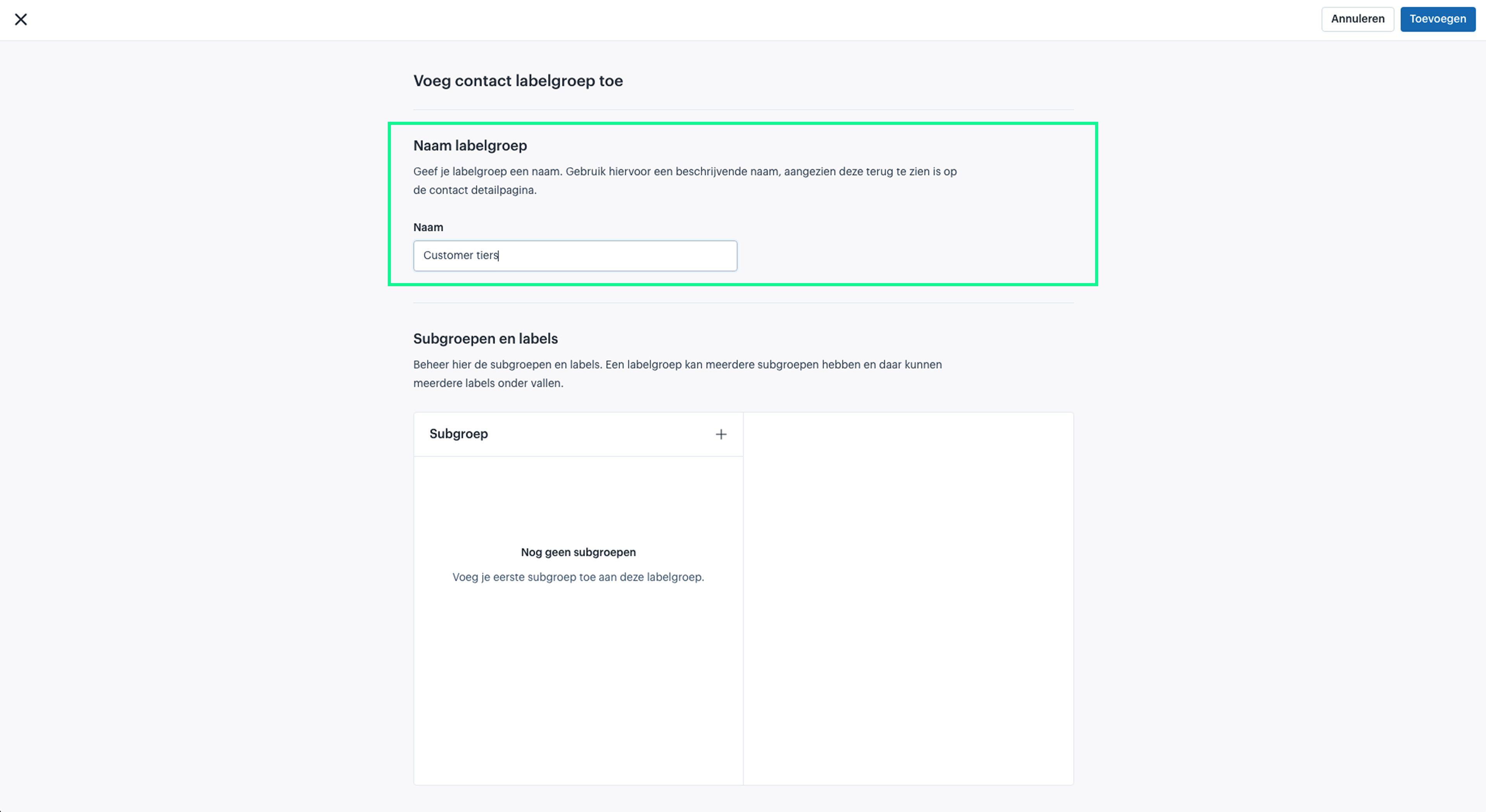
Label group name: give the label group a descriptive name; it appears on the detail pages of the item in question.

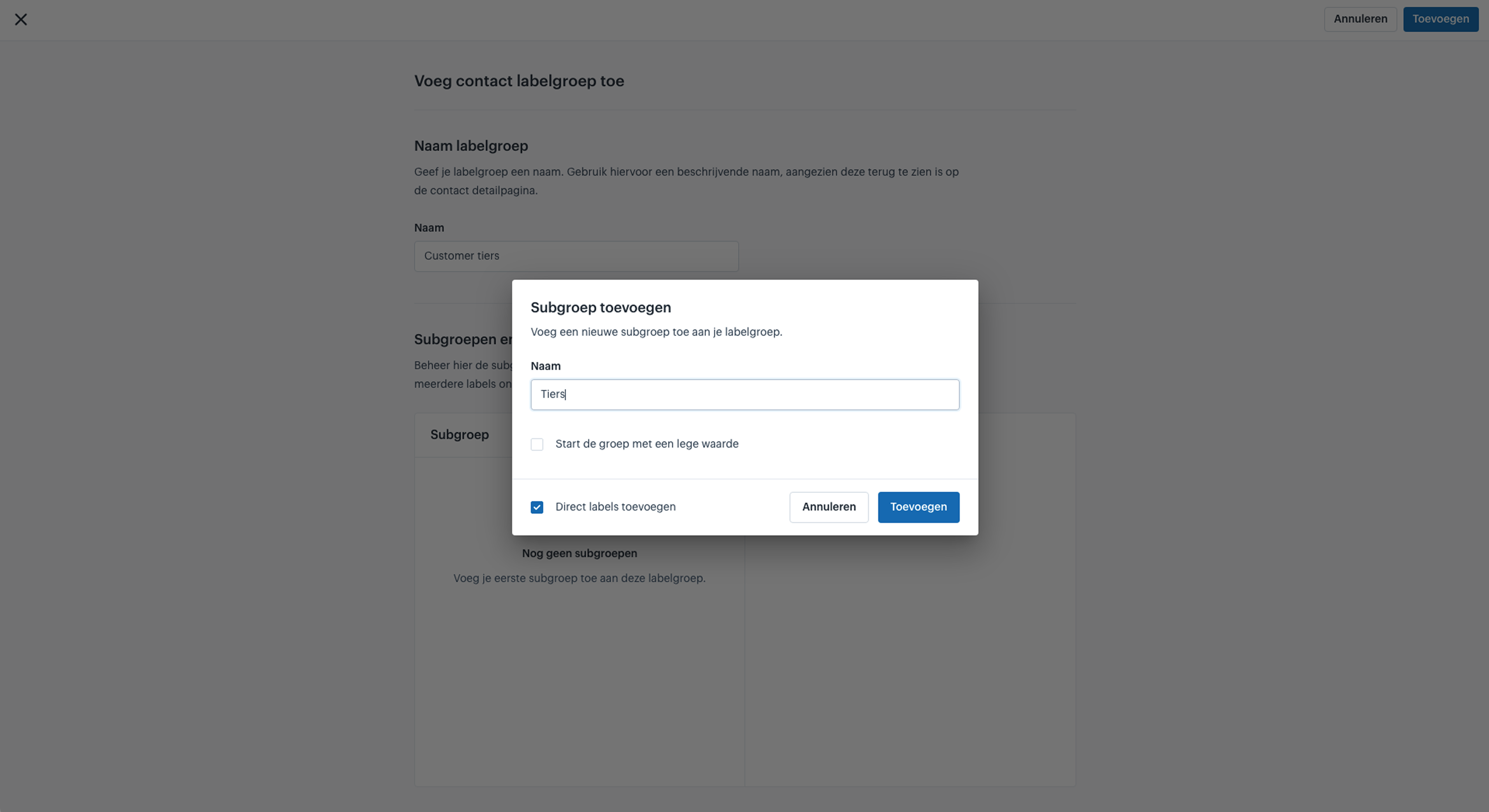
Adding subgroups: add one or more subgroups and give each a name. For each subgroup, decide whether it starts with an empty value or with the first label by default.

Adding labels: add one or more labels per subgroup, with a name and optionally a colour code.

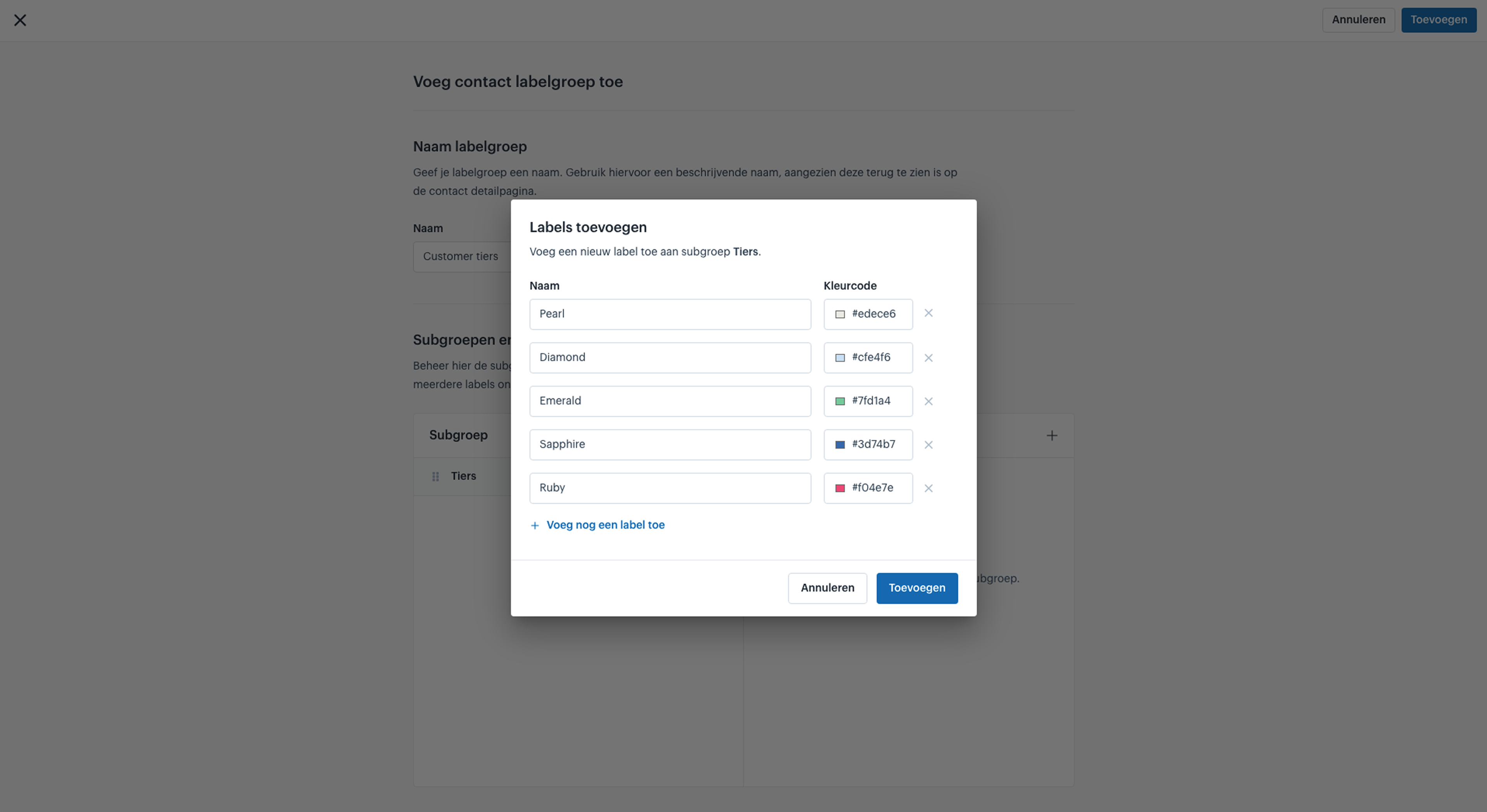
Then save the label group with its subgroups and labels.
Steps
- Go to Label groups and choose the level (Orders, Contacts or Organisations).
- Click Add.
- Give the label group a name.
- Add one or more subgroups and give them a name.
- For each subgroup, decide whether it starts with an empty value or the first label.
- Add one or more labels per subgroup, with a name and an optional colour code.
- Save the label group.
Assigning and changing labels
After saving, a block appears for each label group on the detail page of the item (order, contact or organisation), where you can set or change the label. For contacts and organisations you can also assign labels in bulk based on email address, via the bulk actions in the platform (Processes > Bulk actions). There is no bulk assignment for orders.
Managing label groups
You manage existing label groups in the same place: Label groups > the relevant level.
Reordering: drag the label groups by the handle on the left.
Editing or deleting: use the three-dots menu next to a label group.
Note when deleting: if you delete a label, subgroup or label group, the label also disappears from all orders, contacts or organisations that had it. Afosto reads labels in real time, so a price rule that filters on that label immediately stops applying to those items — you don't need to update the rule manually, but keep in mind that such a rule then filters on a label that no longer exists.