Creating Products Bundle
The Afosto platform makes it easy to create product bundles, combining multiple items into a single package. You can manage bundle stock dynamically based on its components, or pre-assemble the bundle and keep it in stock as a ready-made product. You can also choose whether the price is calculated from the components or set as a single fixed bundle price.
You can create a bundle in two ways: manually (this page) or create multiple bundles at once via a bulk action.
How to Create Products Bundle
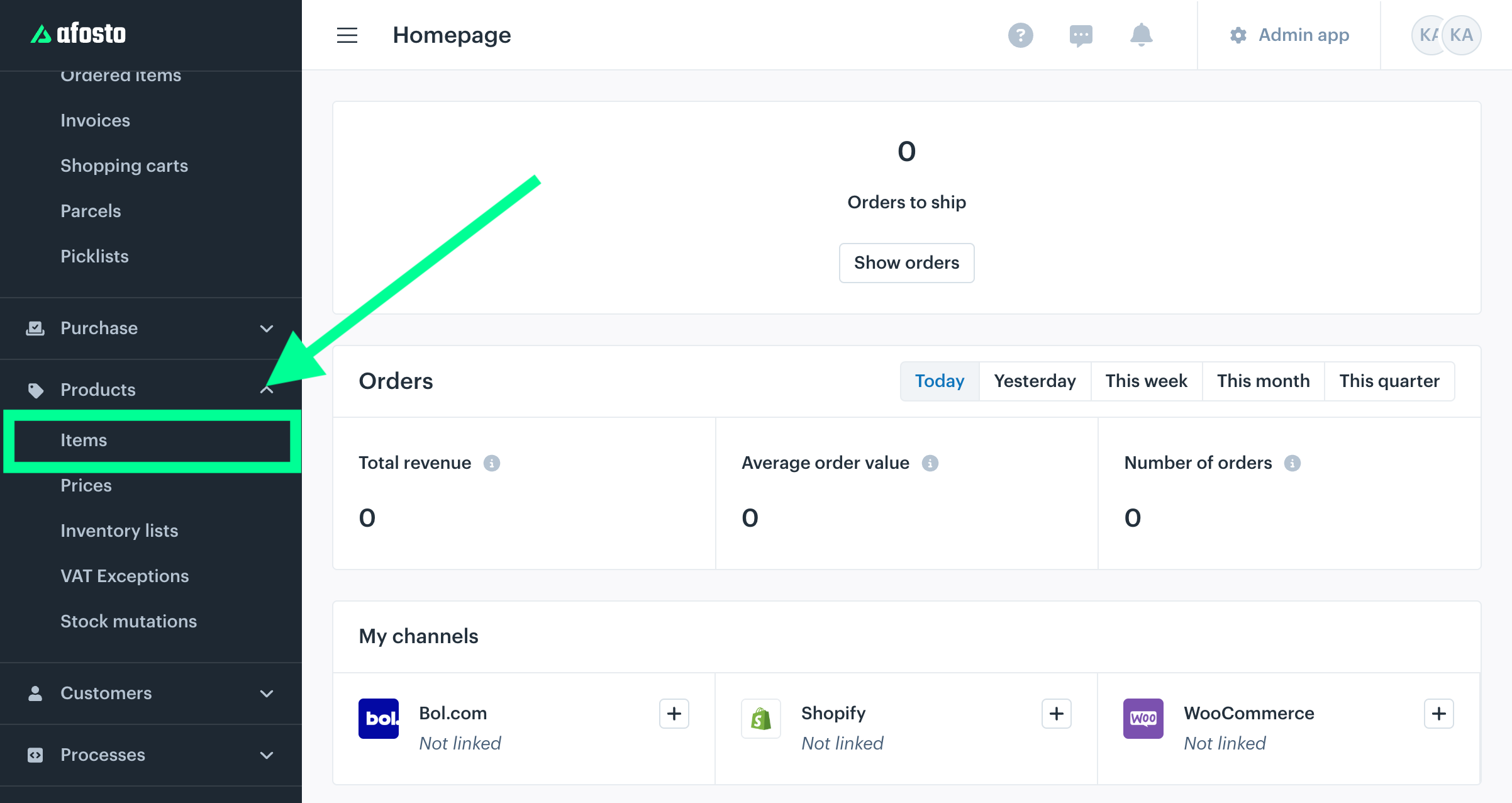
Click the “Products” option in the left sidebar of the screen and select “Items” from the dropdown.

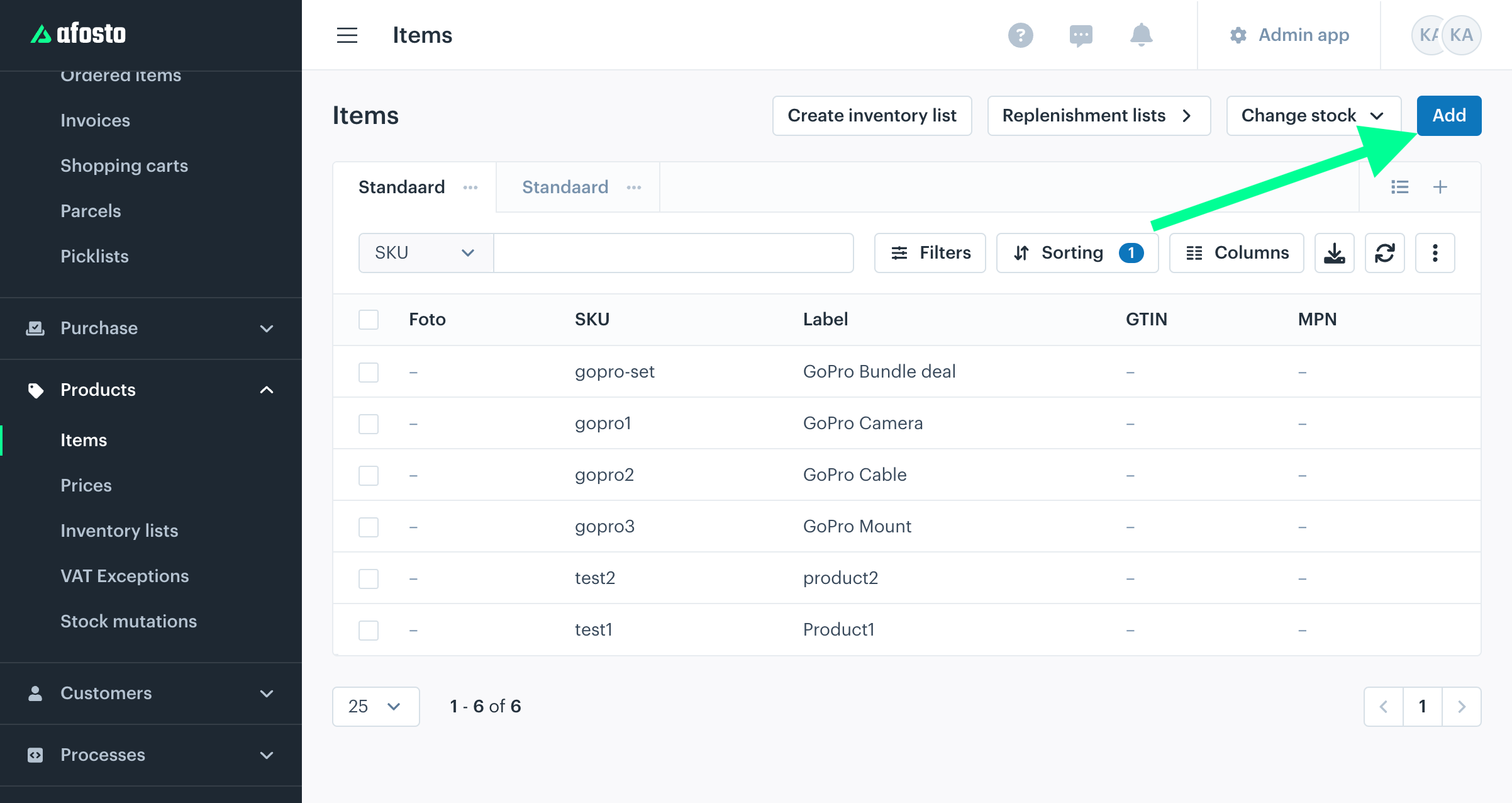
An items list screen will appear. Click the “Add” button at the top-right corner of the window to create a bundle of multiple products/items.
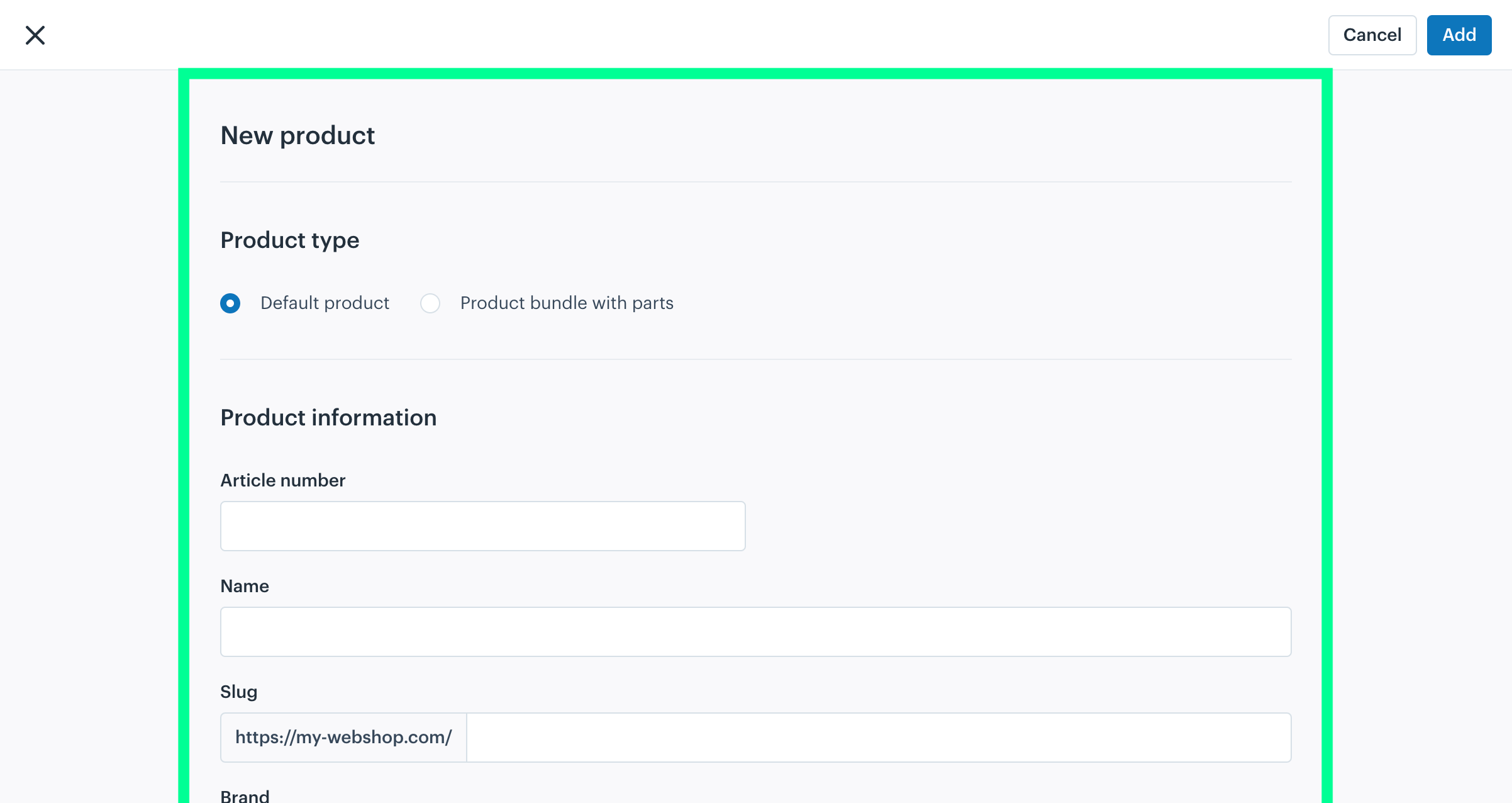
A “New Product” window will appear, requiring all the details of the new bundle.
Product Type
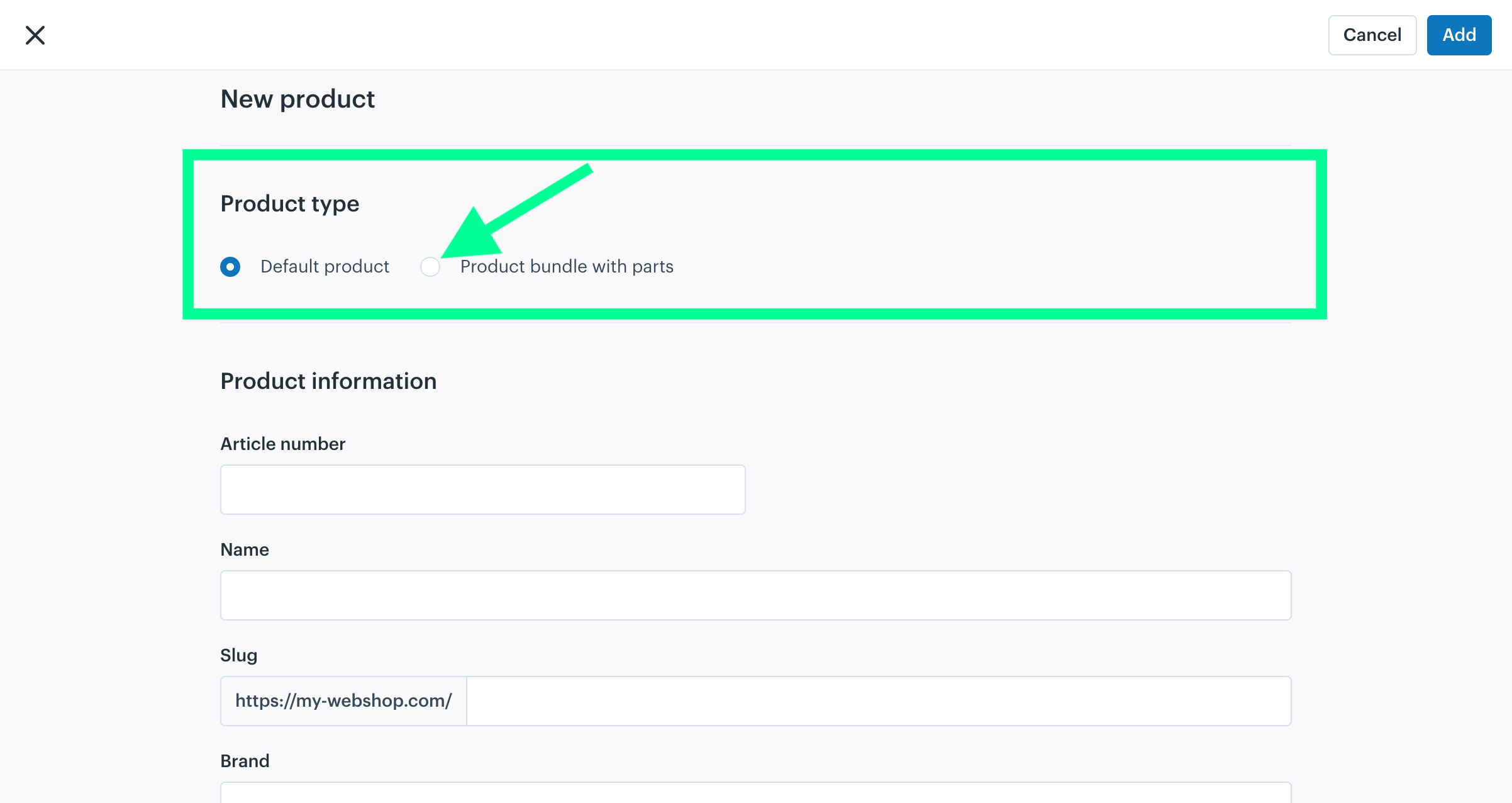
The Product Type section lets you choose between:
- Default Product: A standalone item sold individually.
- Product Bundle with Parts: A group of items managed as a single bundle.
Click to select the “Product bundle with parts” option. By default the product type is set to “Default product”.
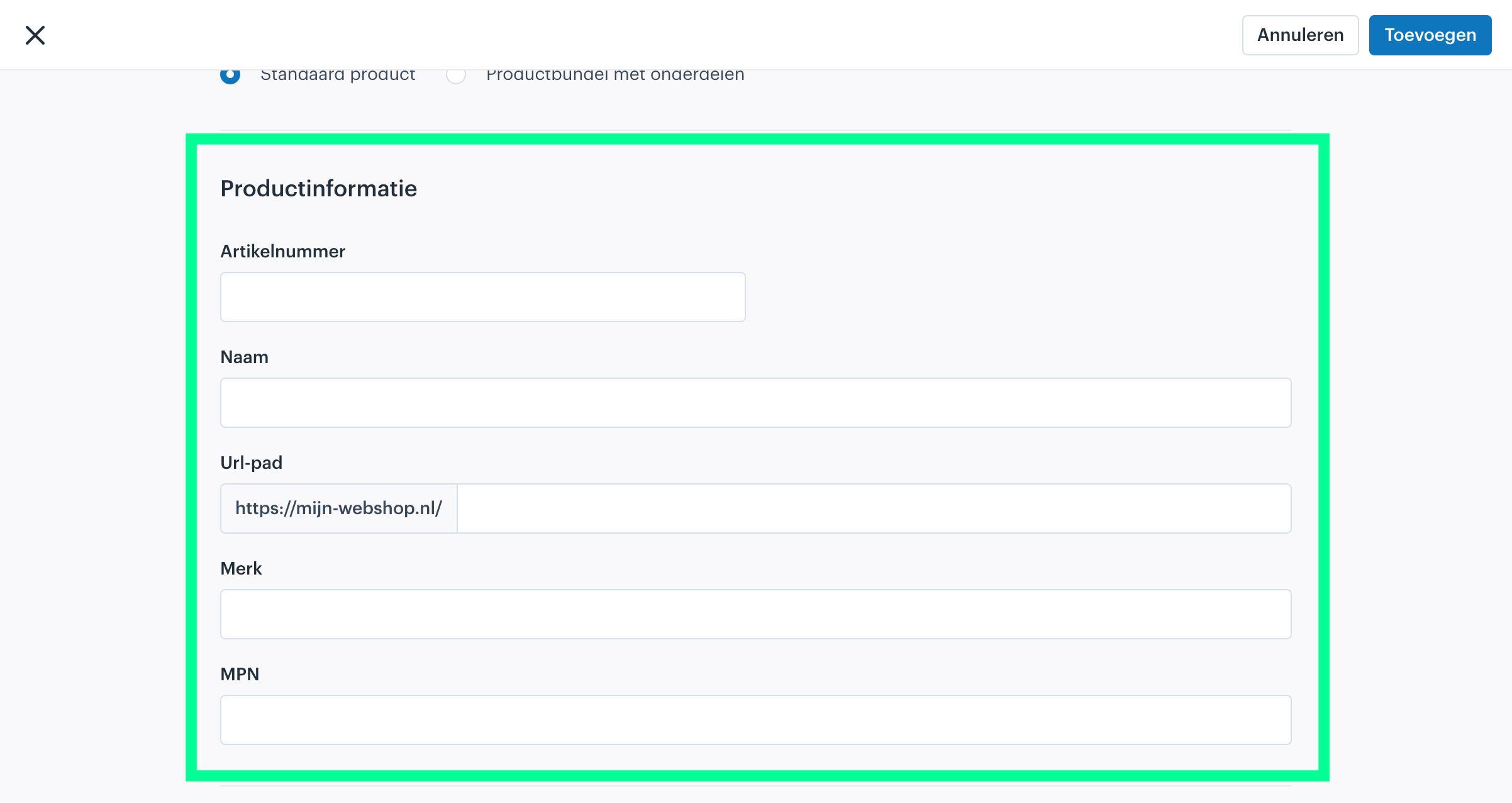
Product Information
Article Number: a unique identifier or SKU assigned to the bundle, used for tracking and inventory.
Name: the title of the bundle shown to customers; keep it clear and descriptive.
Slug: a URL-friendly version of the bundle name (e.g. summer-gift-bundle), used for SEO and links.
Brand: the manufacturer or brand associated with the bundle.
MPN: a Manufacturer Part Number that identifies the bundle, useful for vendor-specific identification.
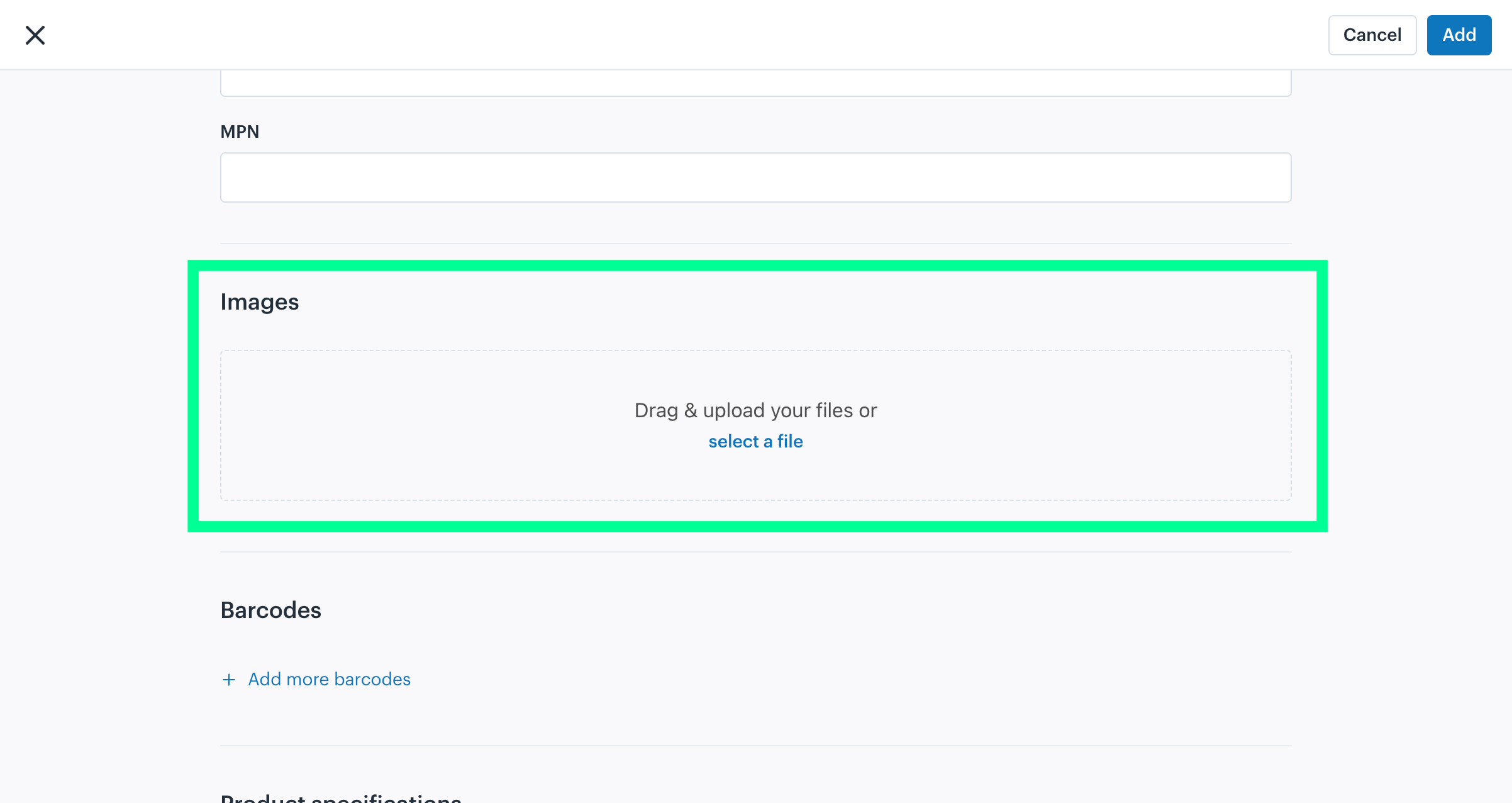
Images
Visual representations of the product bundle. Upload high-quality images that showcase the items in the bundle. Drag and upload your files or select a file.
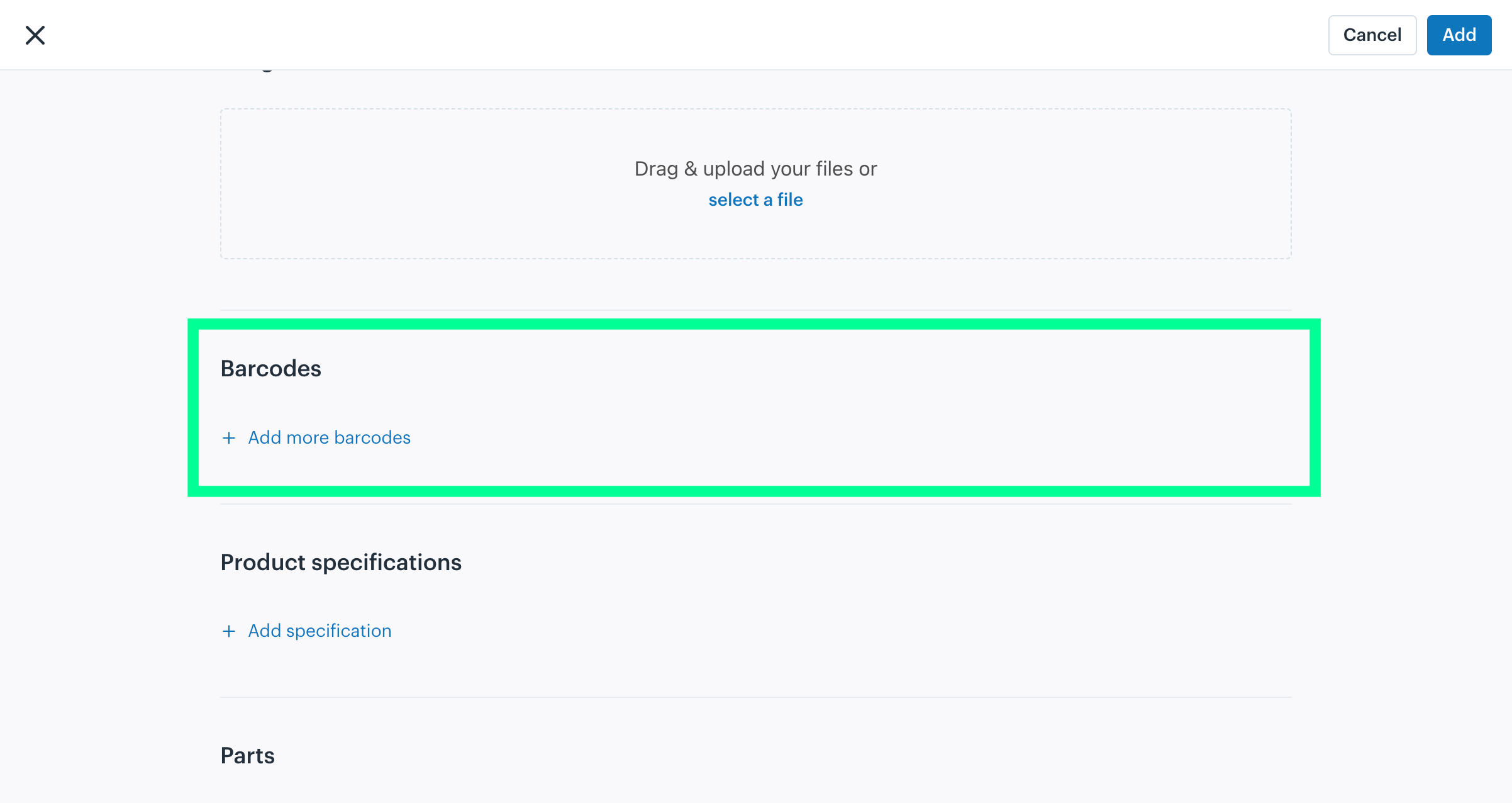
Barcodes
Unique codes such as UPC or EAN assigned to the bundle for identification and tracking. Click “+Add more barcodes”.
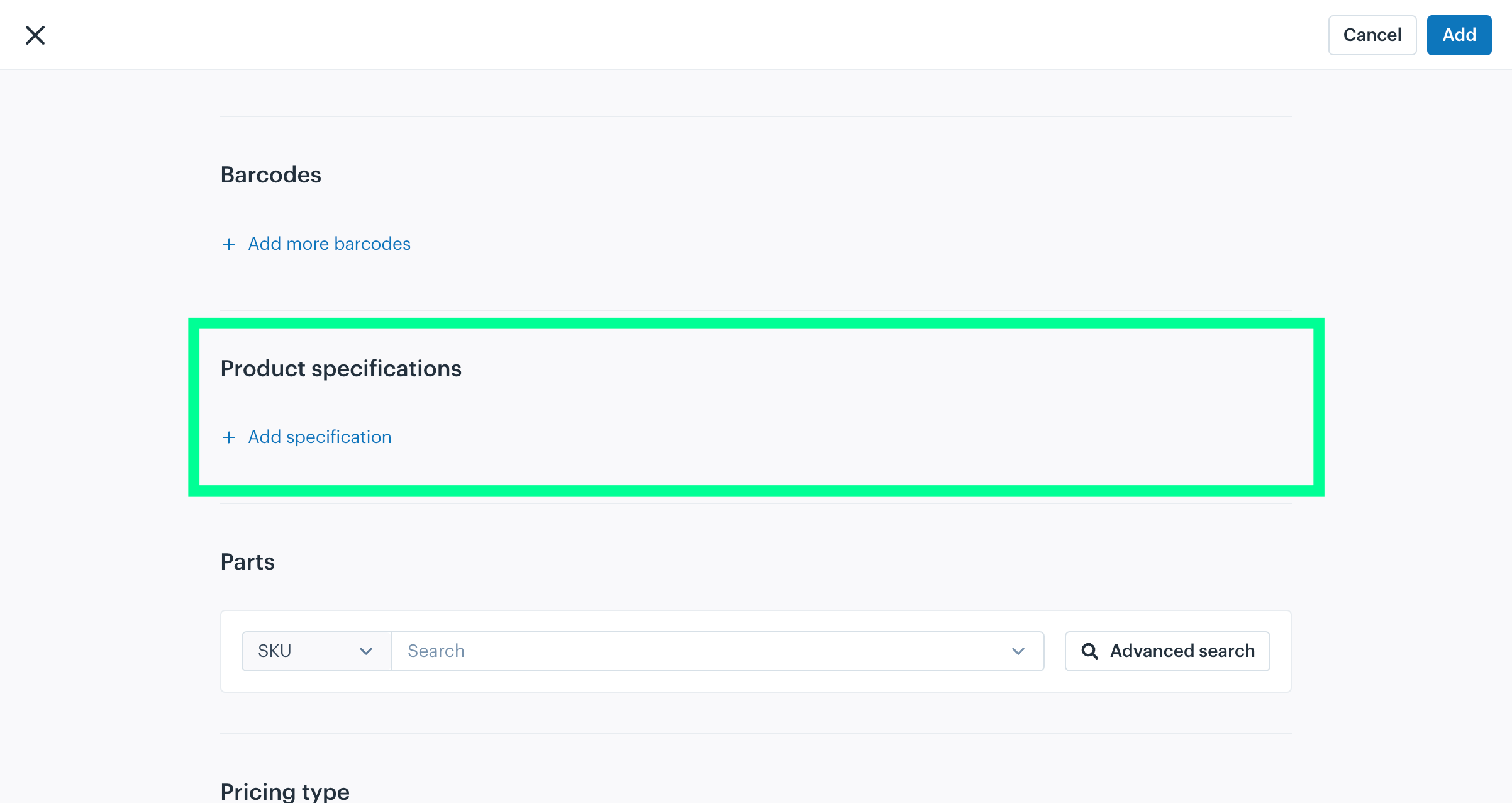
Product specifications
Details that define the bundle, such as dimensions, weight or material. Click “+ Add Specification”.
Parts
The Parts section lets you assign multiple products/items to a bundle.
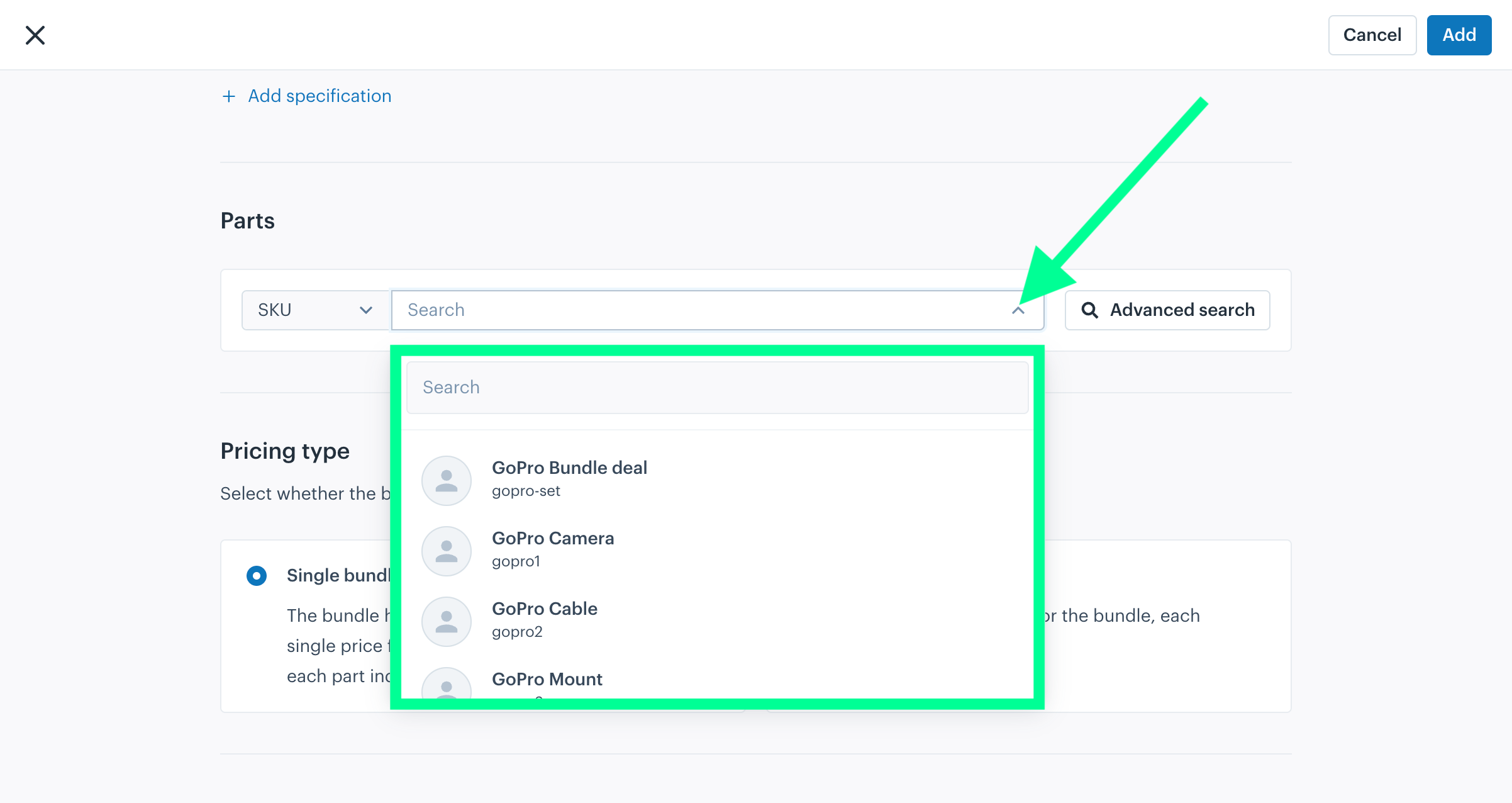
- Search Bar: search for and select specific products or items (such as "GoPro Camera" or "GoPro Cable") by SKU or name to include in the bundle.
- Advanced Search: filter and locate products more precisely when needed.
Click on any desired products/items you want to assign to the bundle. The selected item will be added to the bundle.
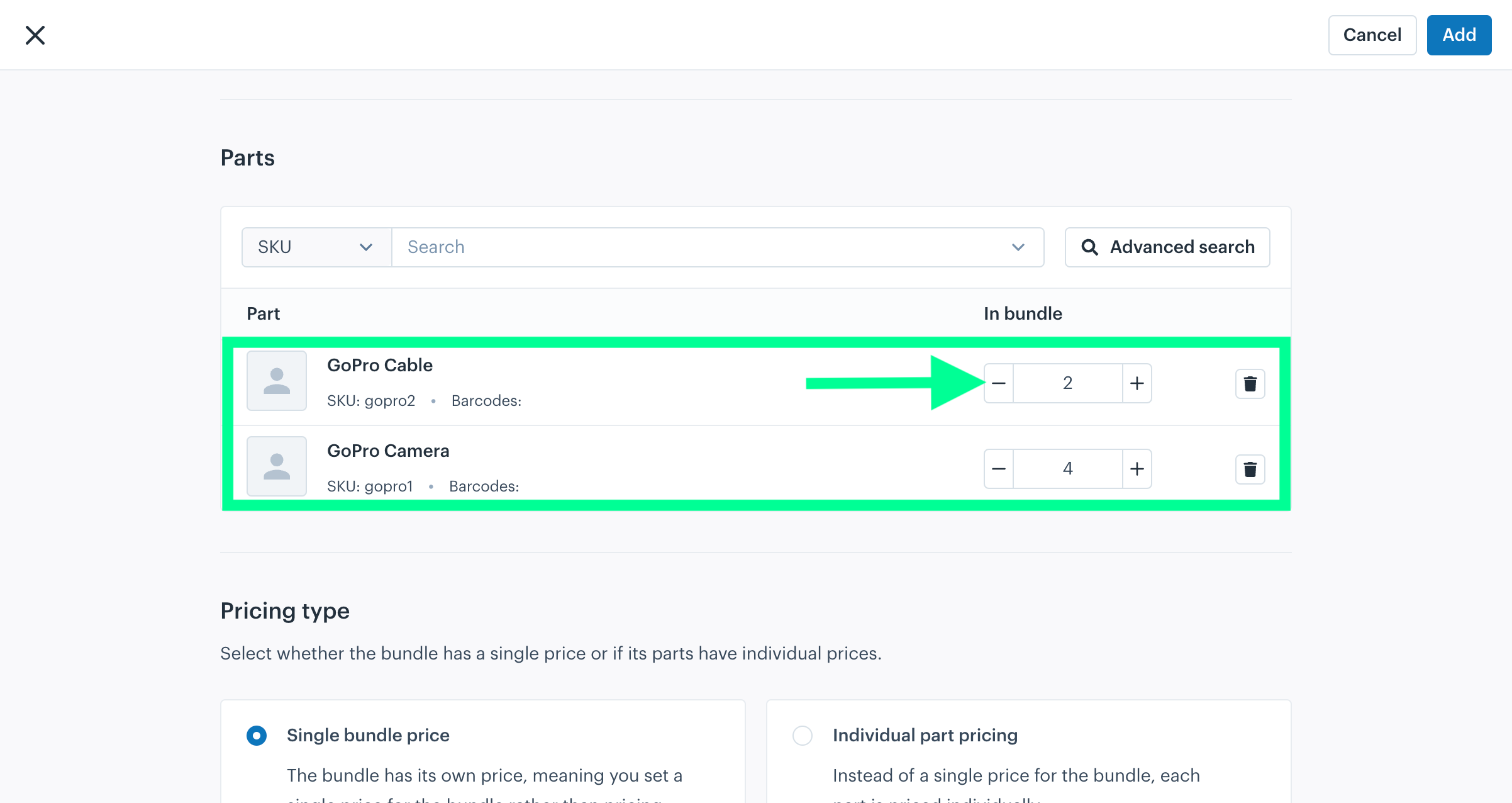
For your understanding, two products have been added to the bundle: GoPro Cable and GoPro Camera. Each product is listed with its name, SKU, and other details.
Quantity Adjustment: the quantity for each product can be increased or decreased with the + and - buttons. For example:
- The GoPro Cable has a quantity of 2 in the bundle.
- The GoPro Camera has a quantity of 4 in the bundle.
Any product can also be removed from the bundle using the trash icon next to each product entry.
Pricing type
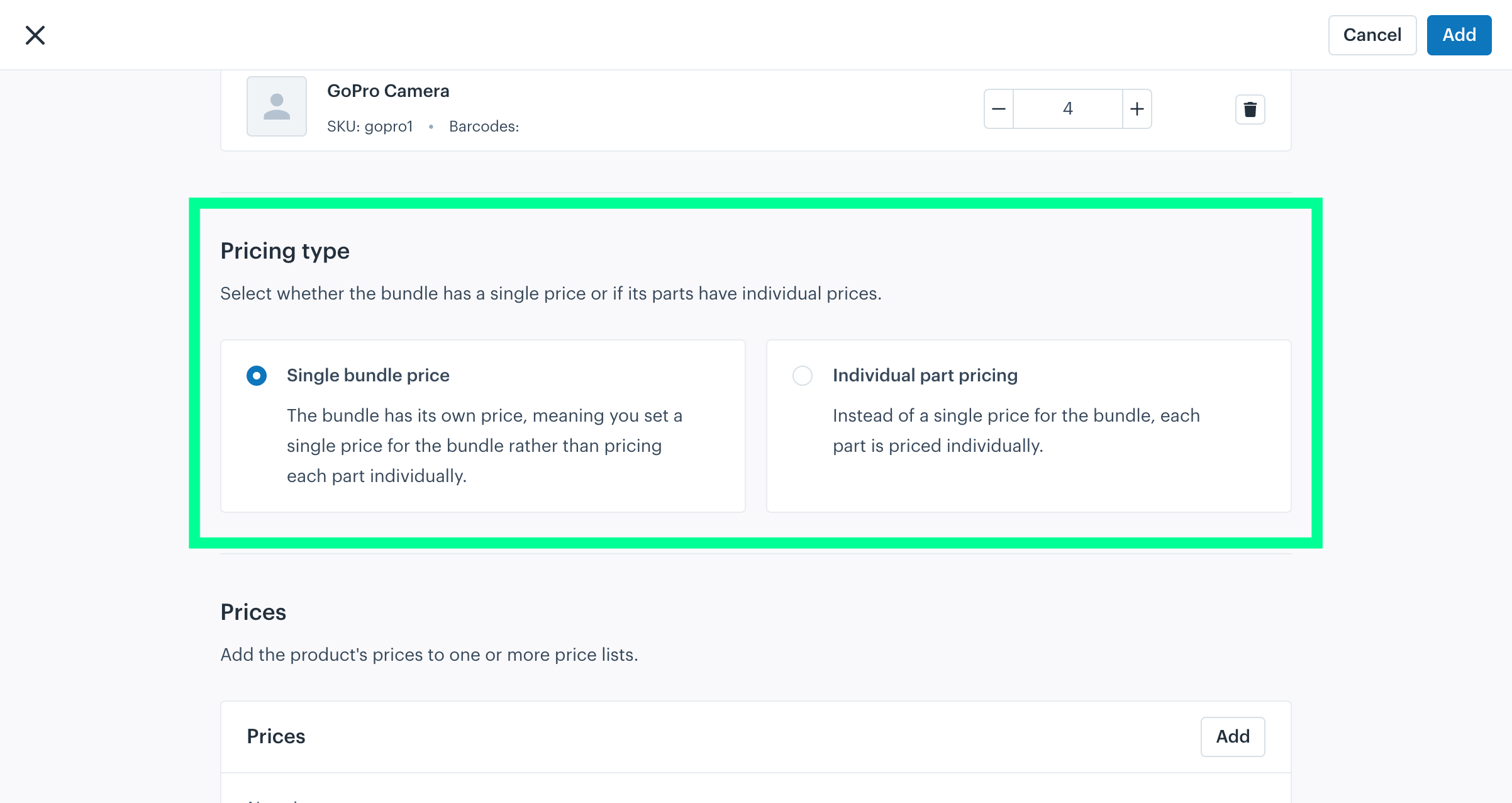
The Pricing type section lets you define how the bundle's price is set. You can choose between two options:
- Single Bundle Price: set one unified price for the entire bundle, sold as a whole.
- Individual Part Pricing: each part is priced separately; the bundle price is the sum of the parts.
Prices
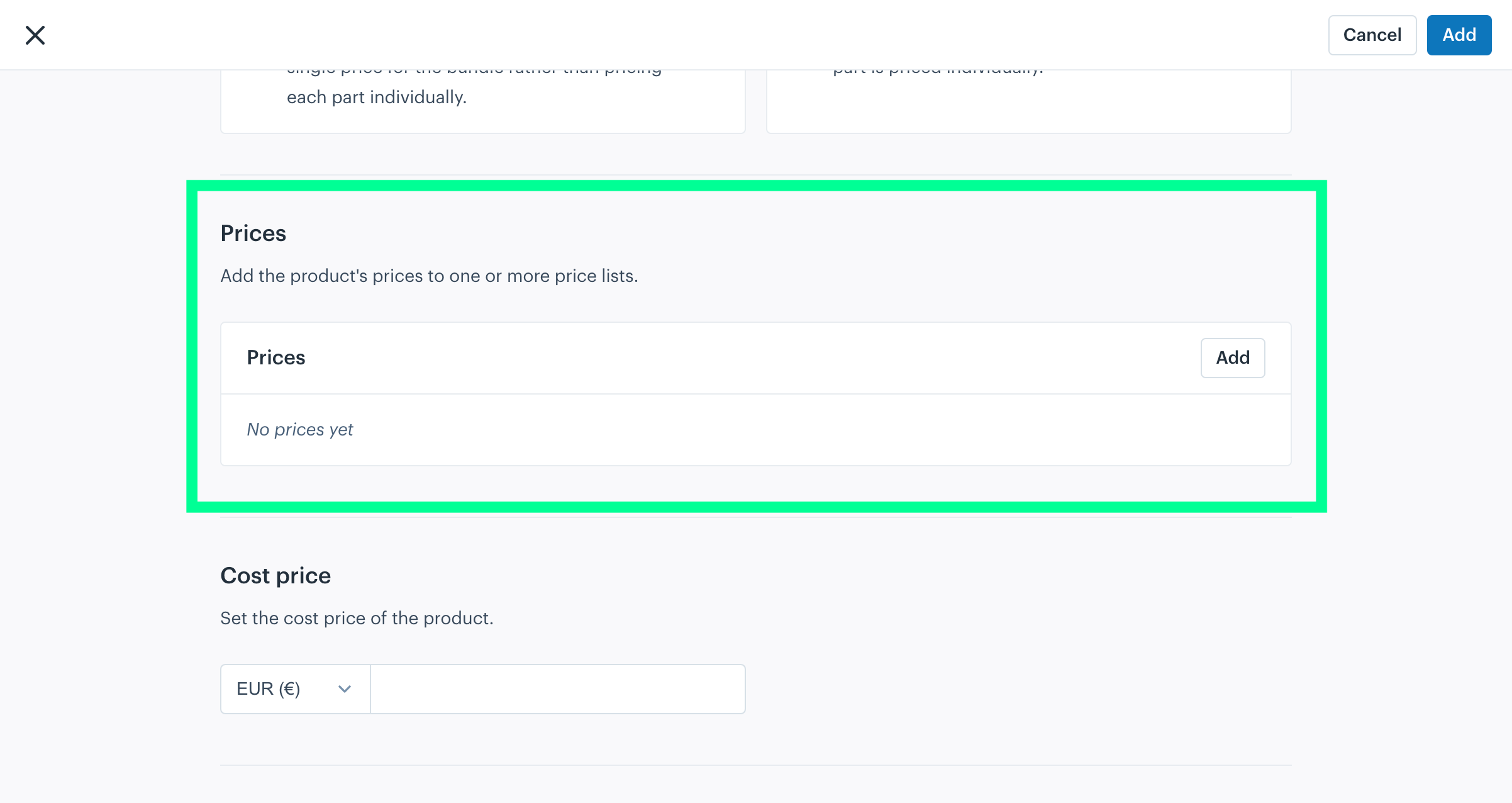
The Prices section lets you assign prices for the bundle. Click “Add” to define prices for different lists or markets.
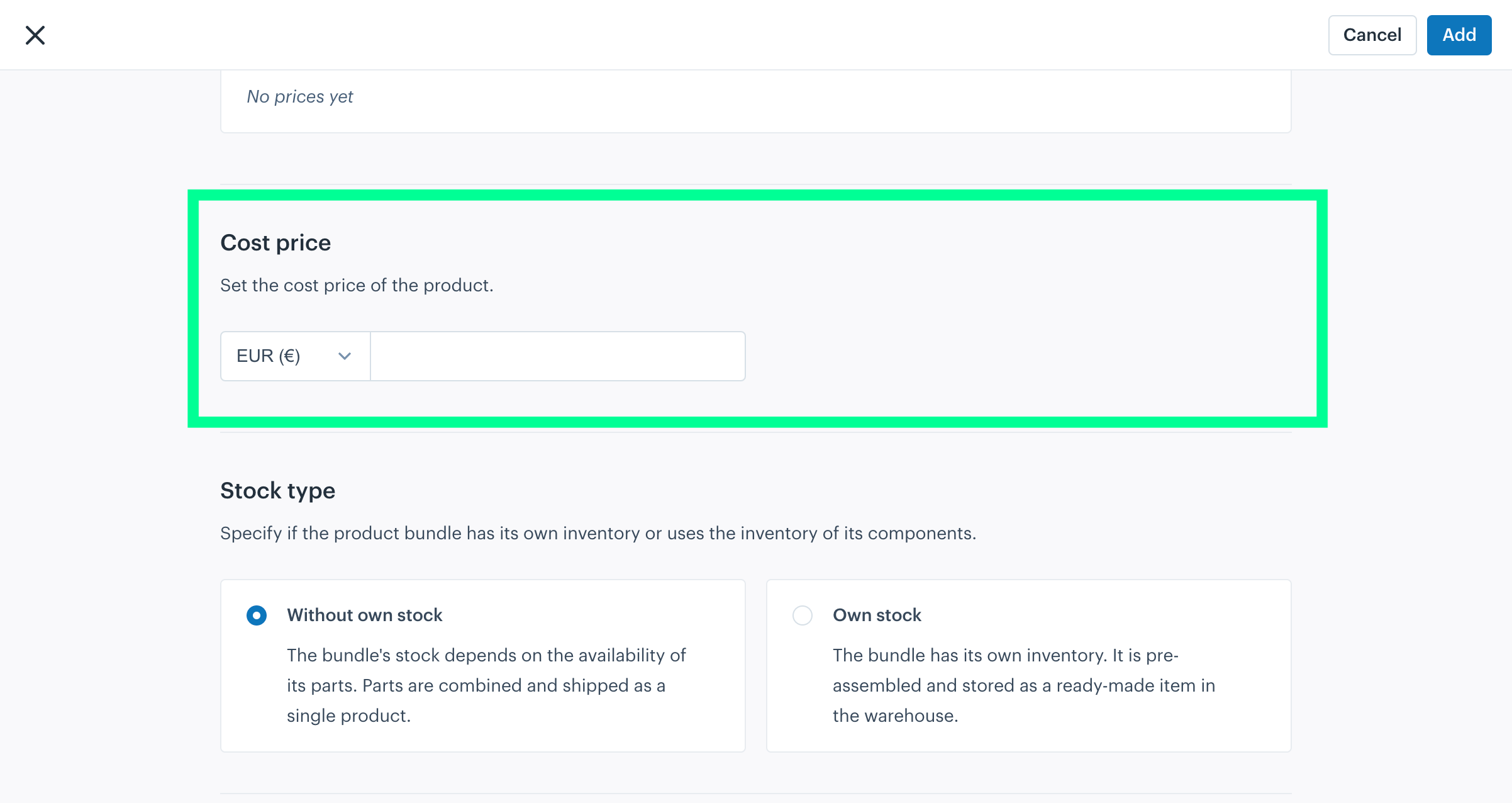
Cost price
The Cost Price section lets you set the production or acquisition cost of the product for accurate financial tracking.
Stock Type
The Stock type section lets you define how inventory is managed for the bundle.
- Without Own Stock: the bundle is assembled from the stock of its parts when ordered. For a "GoPro Starter Kit" with a camera, a cable and a mount, the system checks each part's availability and combines them. If any part is out of stock, the bundle cannot be fulfilled. When the bundle is sold, the components are automatically deducted.
- Own Stock: the bundle has its own dedicated inventory, pre-assembled and stored as a single unit. The system only checks the stock of the pre-assembled bundle, ensuring faster processing and delivery. Components are not automatically deducted on sale.

Own Stock — additional notes: after creating the bundle you can add stock per warehouse, business and position. Warehouse settings let you set the desired stock per warehouse and business. Shipping, cancellation and returns work the same way as for standard products: there must be sufficient bundle stock before the bundle can be released for shipping. See the standard shipping, cancellation and return documentation for details.
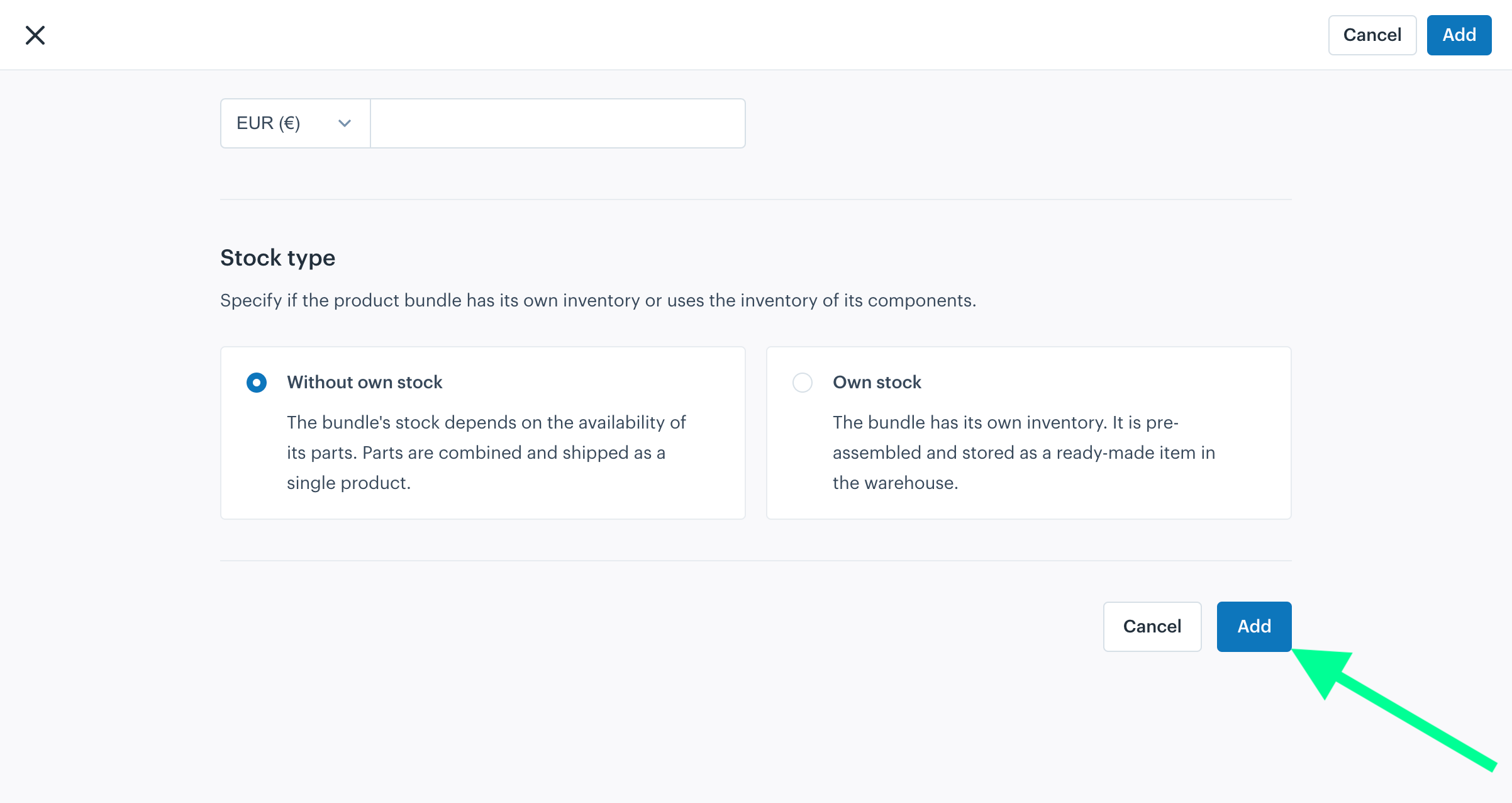
Click the "Add" button to save the bundle configuration. This finalizes the creation or update of the product bundle in Afosto.
Frequently asked questions
Can I refund the components individually after cancellation or return?
Components are not invoiced or refunded separately. The bundle appears as the main product on the invoice and cannot be refunded per component.
What happens to stock when a bundle is returned?
For a bundle without own stock you return the parts; they are booked back into stock on receipt. Once all parts have been returned, the bundle itself is marked as returned.
For a bundle with own stock you cannot take back the parts individually — the bundle is already assembled and is returned and booked back as a whole.
How do I change an existing product into a bundle?
- Go to the product in the Afosto platform via Products > Items.
- Click the Edit button in the top right.
- Change the product type from Default product to Bundle with parts.
- Scroll down.
- Select the stock type: Without own stock or With own stock.
- Finally, add the components of the bundle.
Can I convert a bundle back into a regular product?
Yes, via the same route (Edit > change the product type). Be aware of the consequences: the link with the parts is removed and the stock calculation changes — the product gets its own stock instead of the virtual bundle stock. Check the product's stock after converting.
Does the bundle price update automatically when a part's price changes?
Yes. With individual part pricing, the bundle price is automatically recalculated as soon as a part's price changes. With a single bundle price, the fixed price remains unchanged.
Can a bundle itself be a part of another bundle?
No, a bundle cannot be a part of another bundle. Use individual standard products as parts.
What does the warehouse see on the picking list: the bundle or the parts?
For almost all bundles you pick the individual parts; only for a bundle with own stock do you pick the pre-assembled bundle. The difference is in what you ship: for a bundle with own stock you ship the bundle as a whole, for a bundle without own stock you ship the parts — regardless of the chosen pricing type.
How does VAT work when parts have different VAT rates?
VAT follows the parts: the rate is split across the parts of the bundle, even when you use a single fixed bundle price.
Is component stock deducted when I add stock to the bundle?
No, no stock is currently deducted from the components of the bundle. After adding stock to the bundle, you must also update the components so the totals stay aligned. Contact us to discuss the options if you would like this behaviour.
- How to Create Products Bundle
- Product Type
- Product Information
- Images
- Barcodes
- Product specifications
- Parts
- Pricing type
- Prices
- Cost price
- Stock Type
- Frequently asked questions
- Can I refund the components individually after cancellation or return?
- What happens to stock when a bundle is returned?
- How do I change an existing product into a bundle?
- Can I convert a bundle back into a regular product?
- Does the bundle price update automatically when a part's price changes?
- Can a bundle itself be a part of another bundle?
- What does the warehouse see on the picking list: the bundle or the parts?
- How does VAT work when parts have different VAT rates?
- Is component stock deducted when I add stock to the bundle?