

Supplementary, upsell, impulse and addon products
To boost your sales, Afosto has built a plugin that lets you offer related products at strategic locations within your web store. This way, customers can easily find similar products or useful extras and quickly add them to their cart.
Want to use this plugin? Contact our support team at support@afosto.com
At the bottom of the product form you will find a section with 4 tabs: supplementary products, upsell products, impulse products and addon products. Within these tabs you can link products that can be shown alongside this product in your web store.
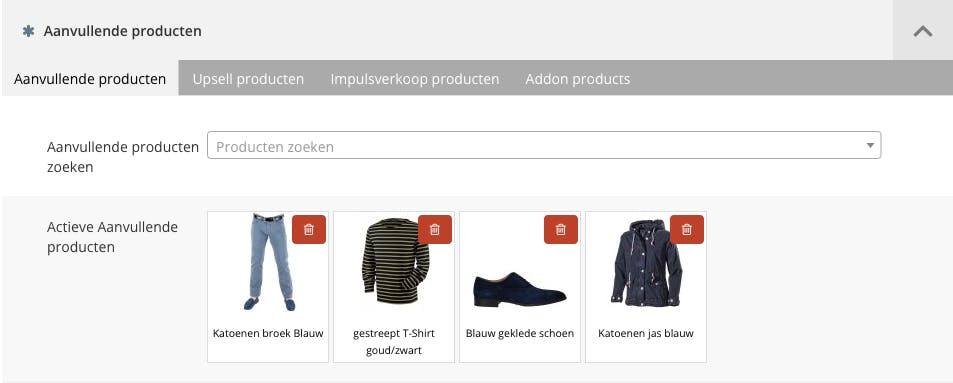
Where these are displayed in your web store depends on your specific store setup. The explanation below only describes the locations within our standard templates. If the products do not appear, contact your Afosto partner or email support@afosto.com.
Supplementary products
Supplementary products are items that are frequently bought together with the main product. For example, when buying a smartphone, many customers also purchase a case or an extra charger. These products are shown at the bottom of the product page.
Upsell products
Upsell products are more expensive or comparable variants or versions of the product the customer originally intended to buy. The goal is to present the customer with a more advanced or premium product. For example, when looking at a smartphone, you could show models with more storage capacity or additional features. These products are shown at the bottom of the product page.
Impulse products
Impulse products allow you to offer items that customers can add to their cart at the last moment. In essence, these are the equivalent of the products displayed near the checkout in a physical store -- for example, a cleaning kit to maintain your smartphone. These products are only shown in the shopping cart.
Addon products
Addon products are additional items specifically tied to the main product. Using the smartphone example, you could add an insurance plan as an addon. These products can be shown on both the product page and in the shopping cart. Note that they are not displayed by default in the standard template -- contact your Afosto partner or support@afosto.com for this.
Automatic linking
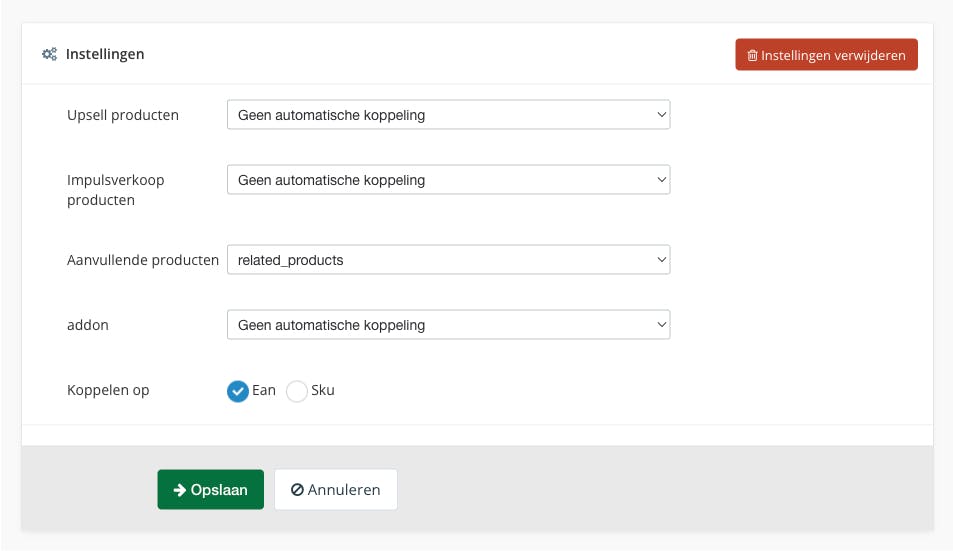
Because managing these links manually can be time-consuming, it is possible to automate this process. A separate plugin is available that lets you manage the links through product specifications.
In the settings of this plugin you can specify which specification should populate which product group. The "Link on" setting determines how the matching is done -- either by EAN or by SKU.
About Afosto
Till, webshop, bol and Kaufland on one stock.