

Apps 4.0 - Spooler - Printers (EN)
This list displays all printers within the account. A printer can be accessed by clicking on its line. For the printer to function properly, it must have network functionality (wifi or ethernet).
Overview
-Empty
Settings
Name: The name of the printer
Hub: The hub to which the printer is connected
Type of encoding:
-
ESCPOS: Receipts (receipt printer)
-
ZPL: Label Printer
-
PCL: ‘Normal’ a4 printer
Type of connection:
-
Ethernet: Network connection (wireless or wired)
-
Usb: Connection via usb (only possible for receipt printers)
Scan hub network:
- This button scans the hub network for all available devices (including printers).
Address:
- After the network scan is complete, the appropriate printer can be selected from the list.
Other options
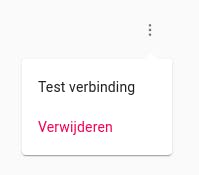
Test Connection: You can test the connection of the printer using this button. When the printer is connected to the network, a test printout will be printed on the printer.
Remove: This will remove the printer from the network.
Add a printer
To add a printer you need to click on ‘Add printer’. Then follow the steps described under settings above.
Related documentation
Apps 4.0 - Spooler - ESC/POS settings (Star printer)
Read all about how to set your Star Printer to ESC/POS here
Spooler Printing Language reference
Apps 4.0 - Spooler - Picker app: Automatically print shipping labels
Afosto Spooler supports automatic printing of shipping labels when the order is picked. This tutorial explains how the Picker app works that makes this possible.
Apps 4.0 - Spooler - Print packing slips automatically
Afosto Spooler offers the possibility to print packing slips automatically with an incoming order. Here is explained how to enable this feature.