Setting up shipping methods in Afosto
This guide provides a step-by-step process for creating and managing shipping methods within the Afosto admin panel. These methods can be configured for different sales channels and customised to suit your needs.
The bigger picture
A shipping method is connected to a few other components, similar to payment methods:
- Shipping method - what the customer selects at checkout (e.g. PostNL, DHL). The equivalent of a payment method.
- Provider (label provider) - the party that issues the shipping labels. This can be the carrier itself (PostNL) or an aggregator such as QLS or Sendcloud. One provider can issue labels for multiple methods.
- Shipping zones - the countries/regions where a method is valid.
- Exceptions (the Rule Builder) - for further refining validity and costs.
Unlike payments, shipping has no condition layer; there is no shipping equivalent of payment conditions.

Shipping methods
https://admin.afosto.app/shipments/shipping-methods
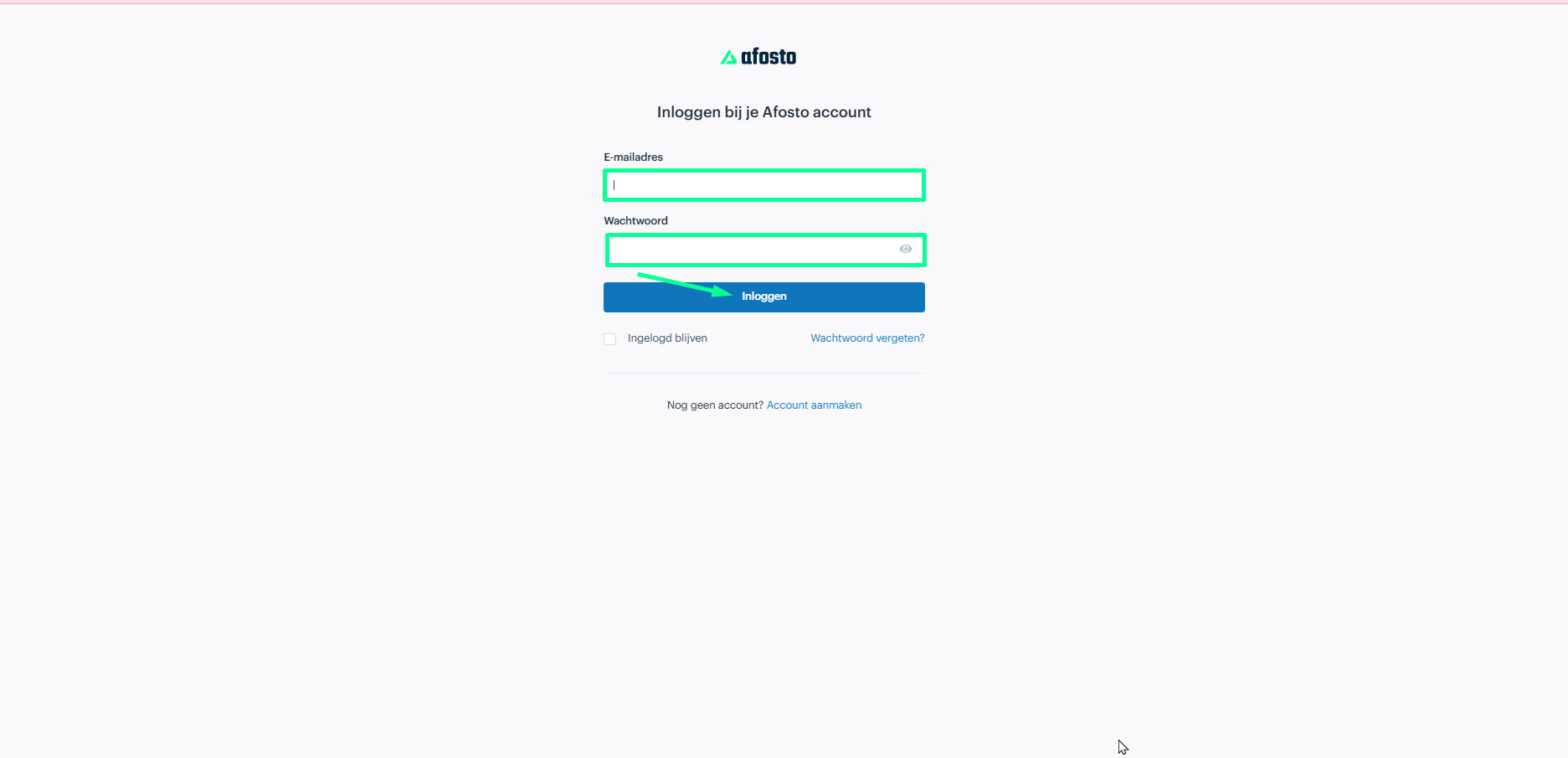
After logging in to your Afosto account, go to the Admin app by clicking the Admin app button in the top right corner of your screen.
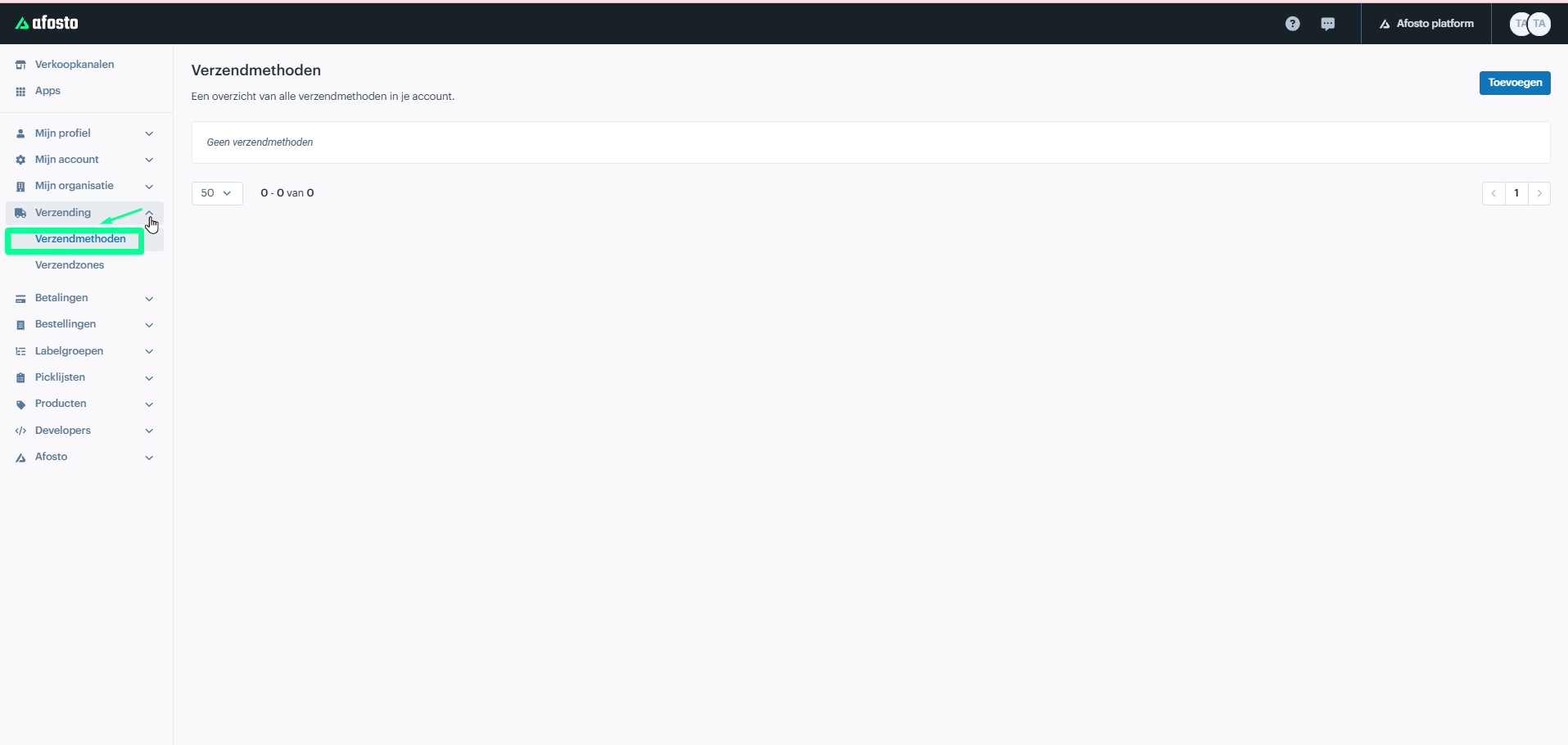
When you reach the Sales channels page, which lists your existing channels, navigate to the Shipping methods page by selecting Shipping in the menu on the left and then clicking Shipping methods.
On the Shipping methods page you see a list of all shipping options that are currently configured and available for shipping orders to your customers. This can include various carriers (such as UPS, DHL or FedEx) or other shipping methods you have set up for your store.

Adding a new shipping method
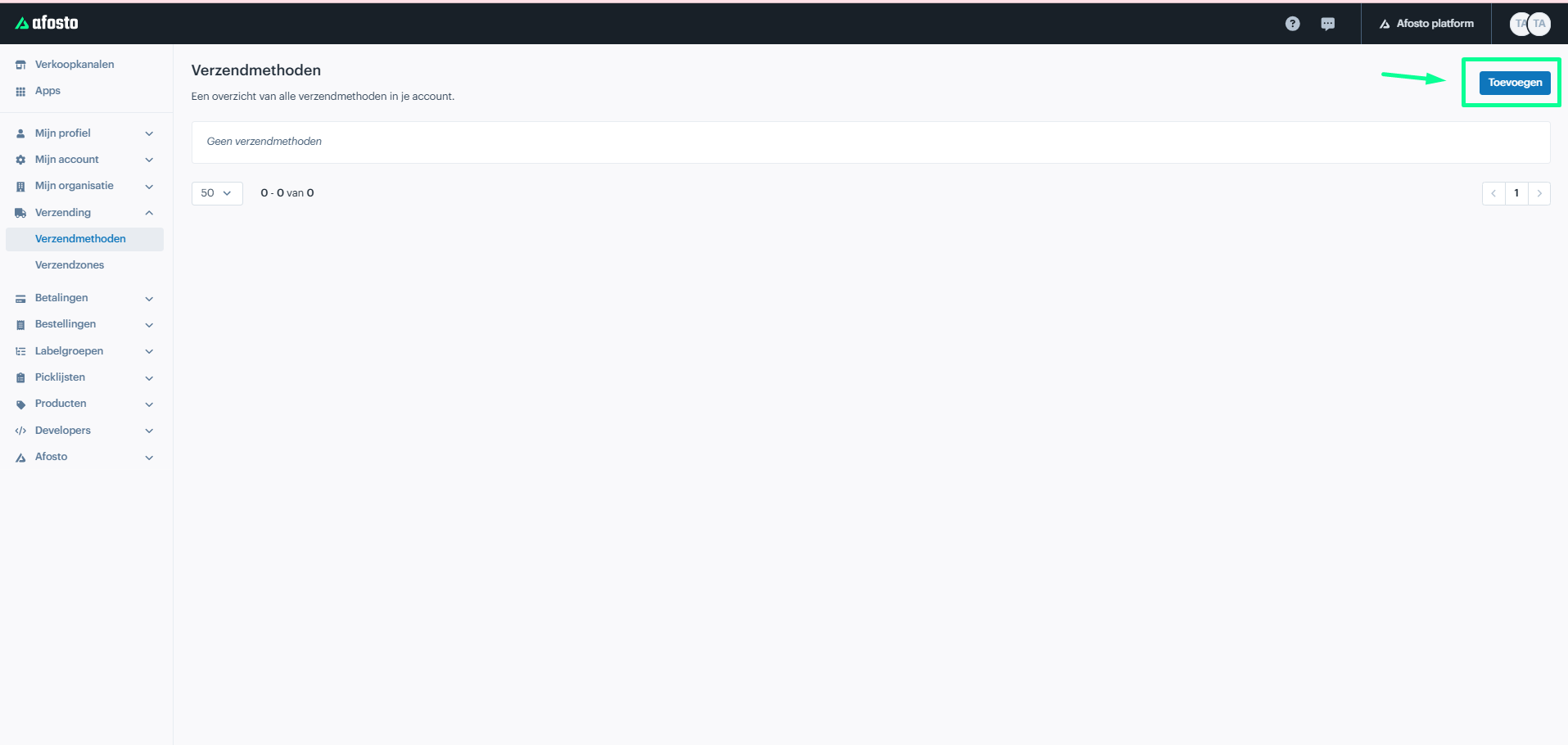
By clicking the Add button in the top right corner, you can set up a new shipping method, such as specifying the carrier, the pricing and other related details.
Choosing the carrier
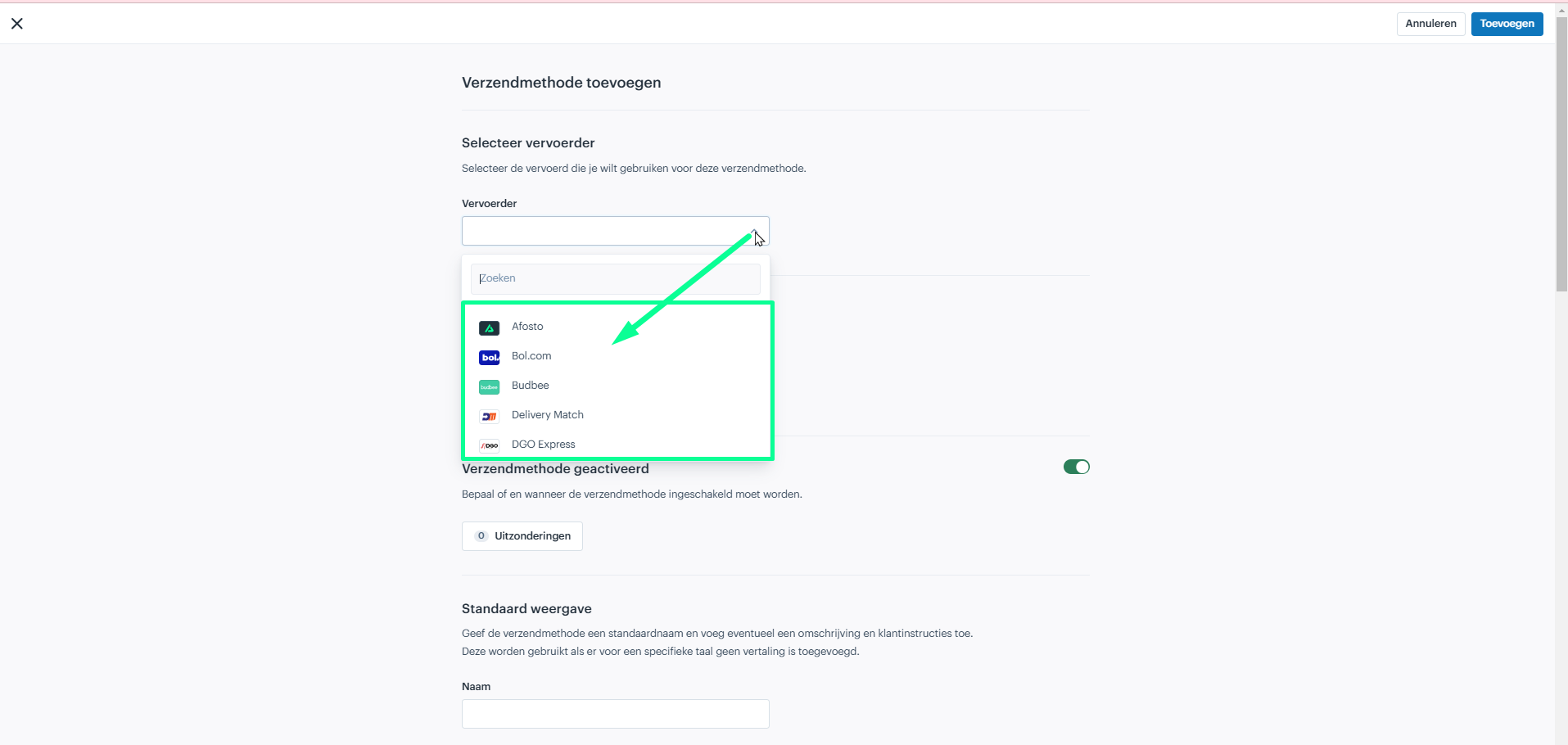
Choose the carrier that will handle the shipping of your orders from the list of available carriers. Some common carriers are:
UPS, FedEx, Royal Mail, and local courier services (depending on your country or region).
Adding a shipping zone
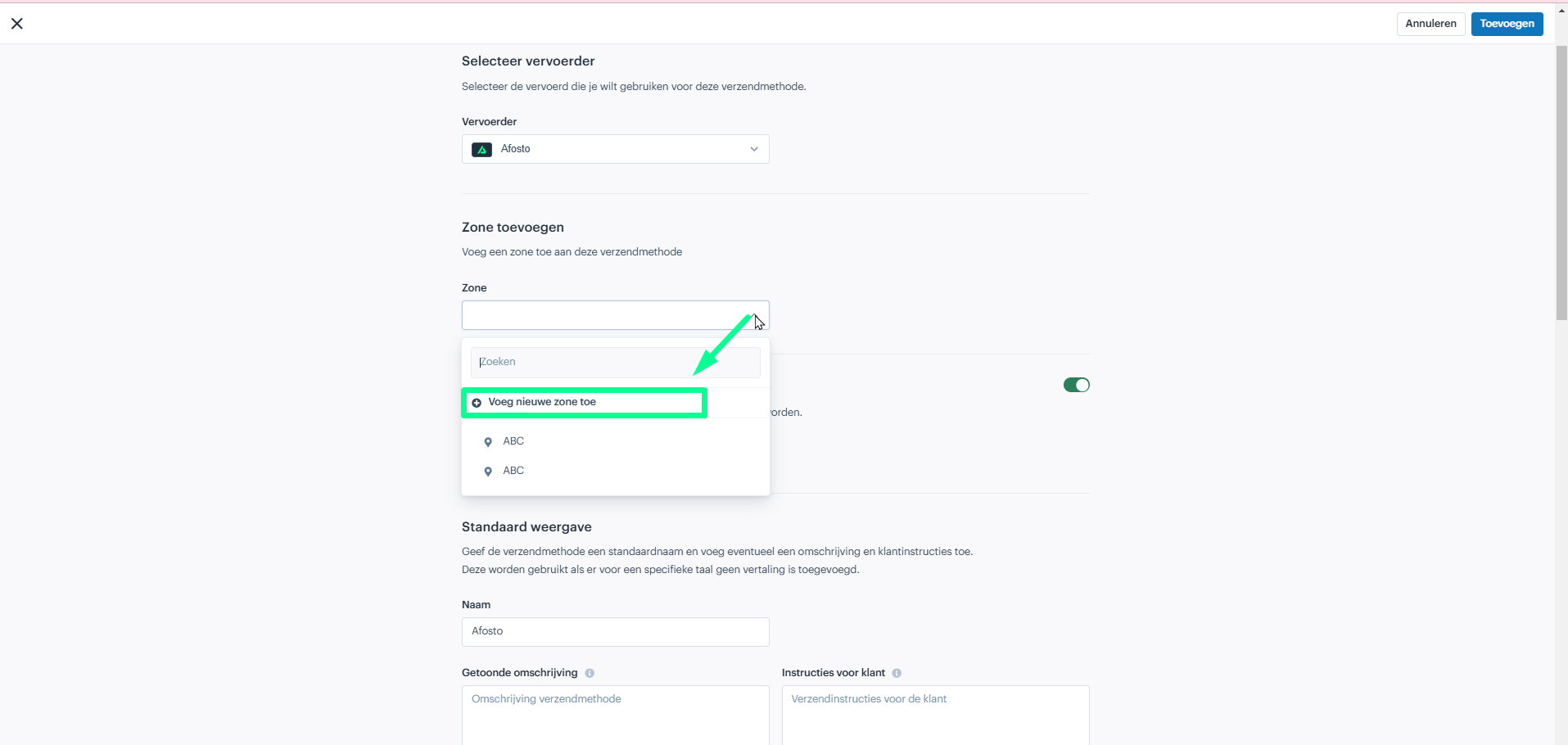
Determine where the shipping method will be valid by selecting an existing shipping zone or adding a new one. Zones are a simplified form of exceptions.
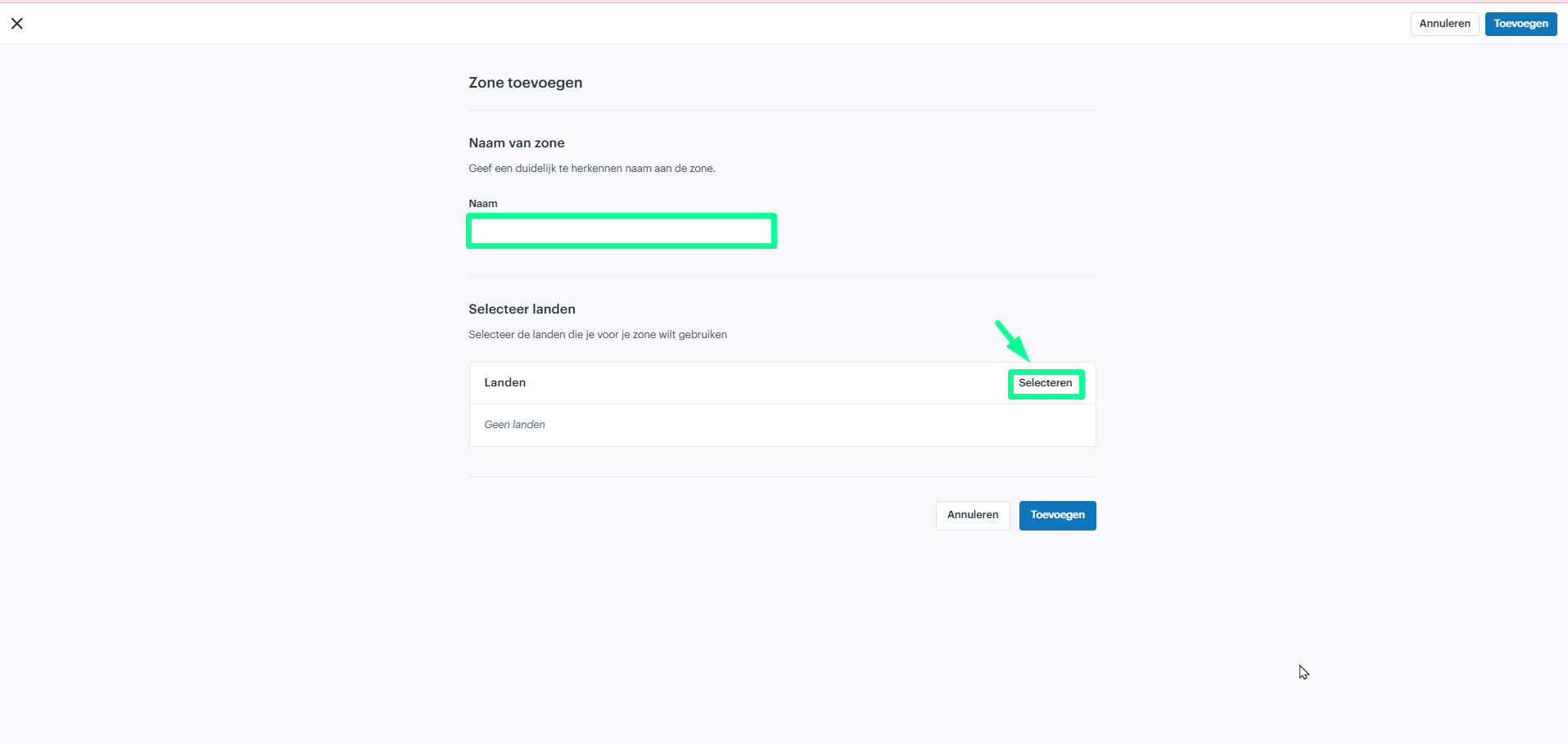
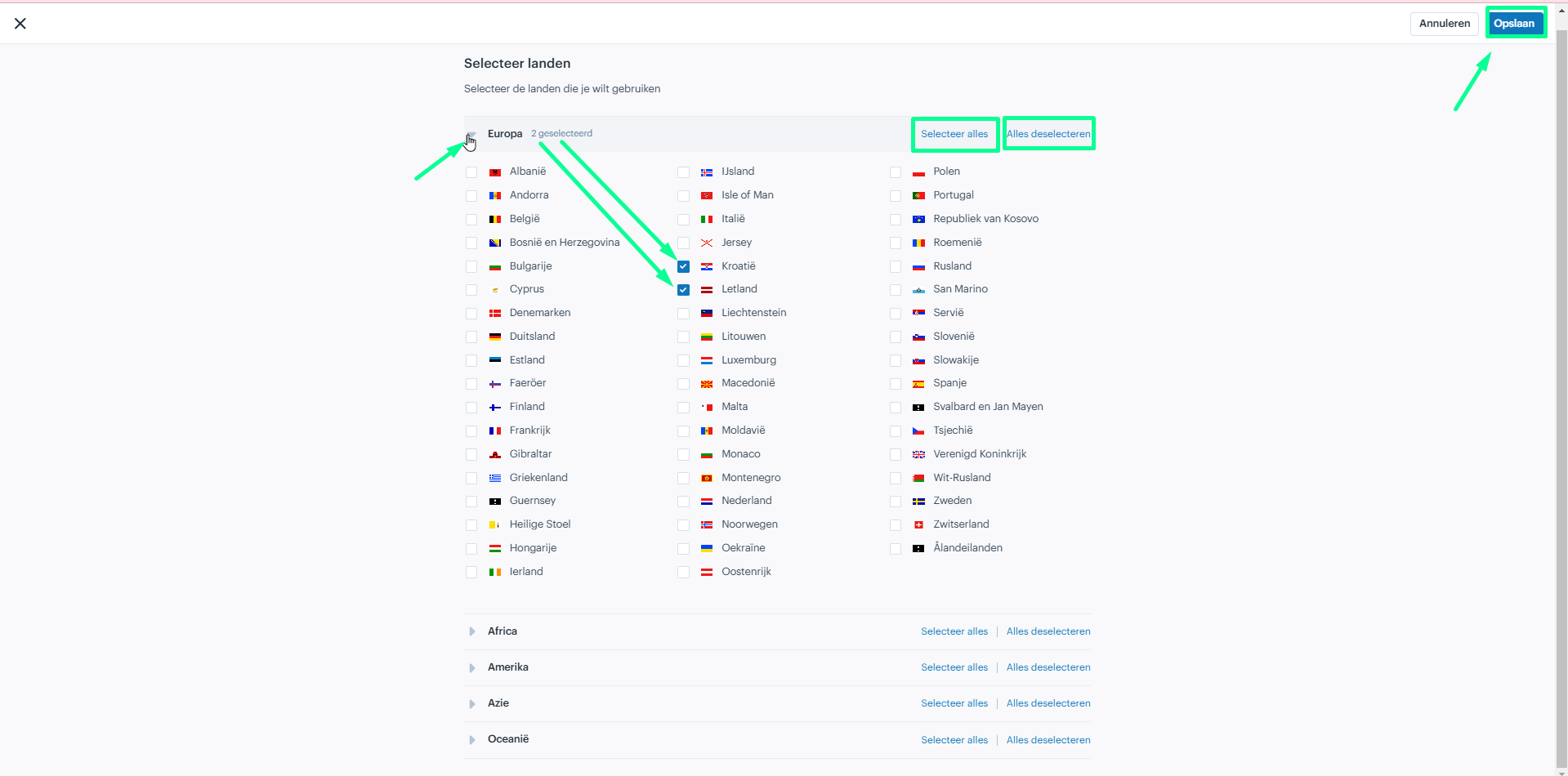
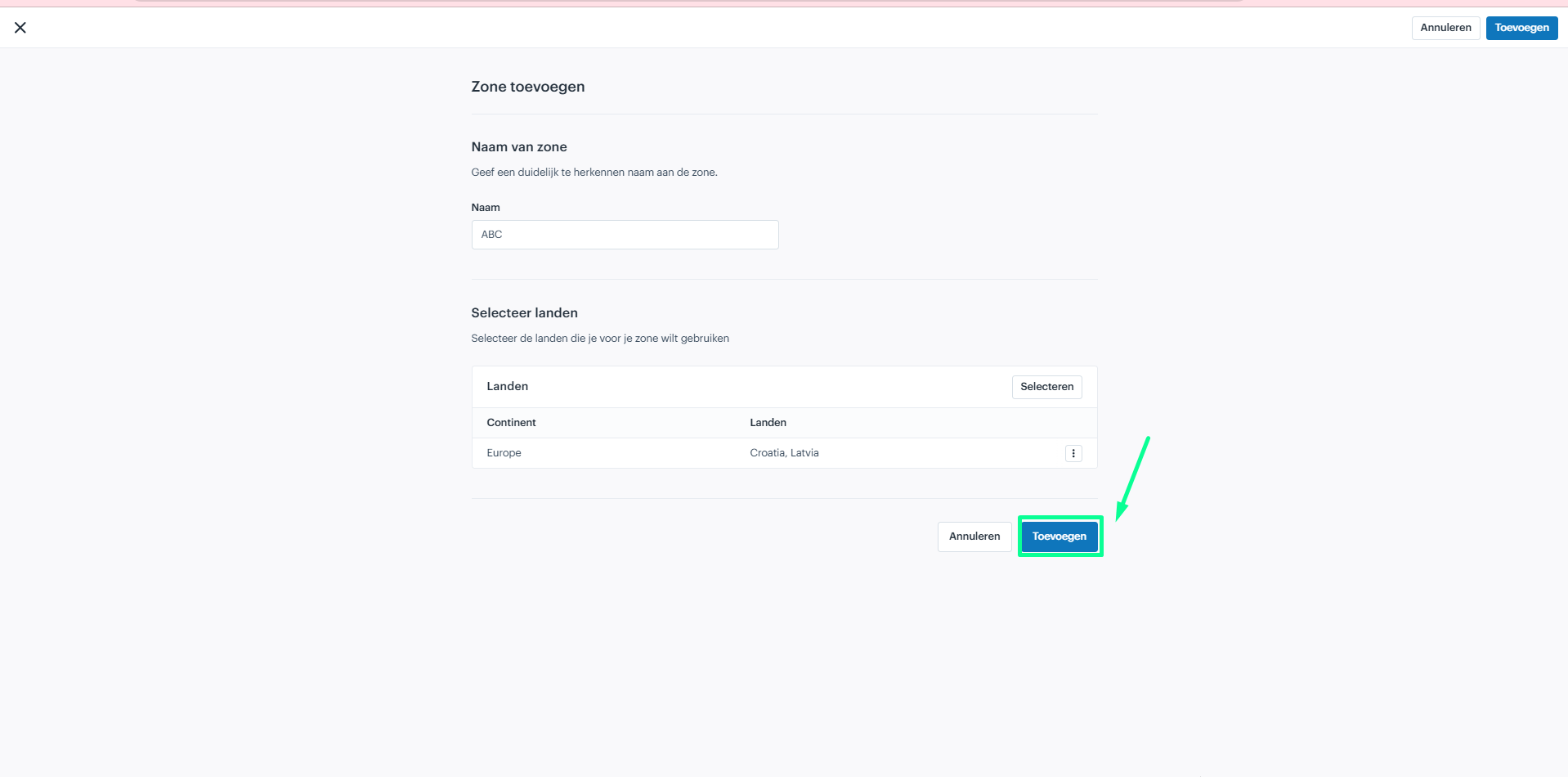
When creating a new shipping zone you must specify the countries or regions where the shipping method will be valid. If you want to ship to multiple countries, simply tick the boxes next to the desired countries.
Set additional rules
With additional rules you can further specify where your shipping method is valid. For example, you can offer this shipping method only for certain areas within a country or exclude specific places where shipping is not available. This is the same Rule Builder as for payment methods; the order of rules matters and for countries you use ISO ALPHA-2 codes (e.g. NL, DE).


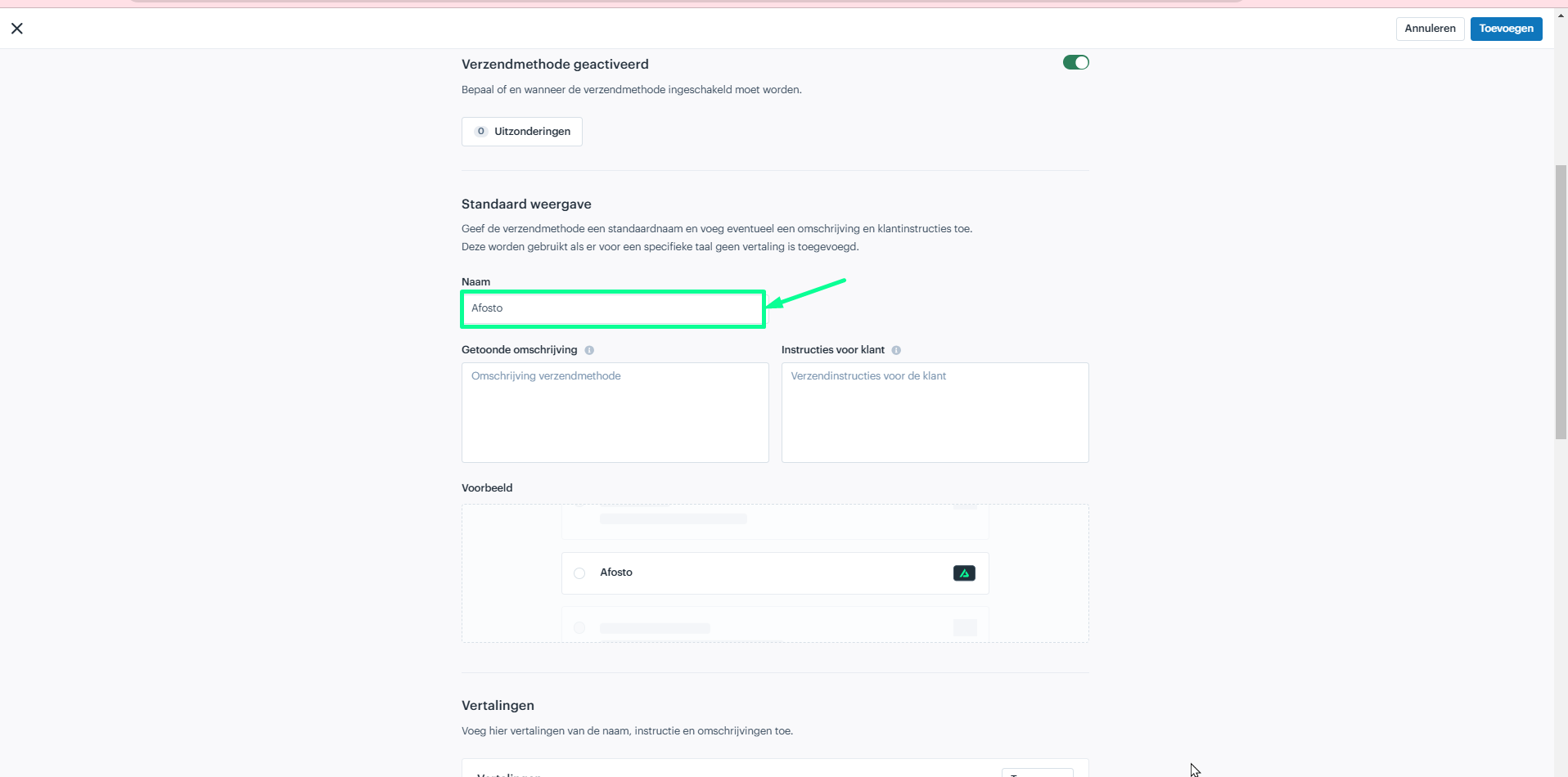
Naming your shipping method
When you create or edit a shipping method in Afosto, you are asked to enter a name for the shipping method. This name is important because it is displayed in two key places:
In the Afosto backend: it helps you identify the shipping method when managing your orders, shipping settings and configurations.
At the checkout page for customers: the name is also visible to customers when they choose their preferred shipping method during checkout in your store.

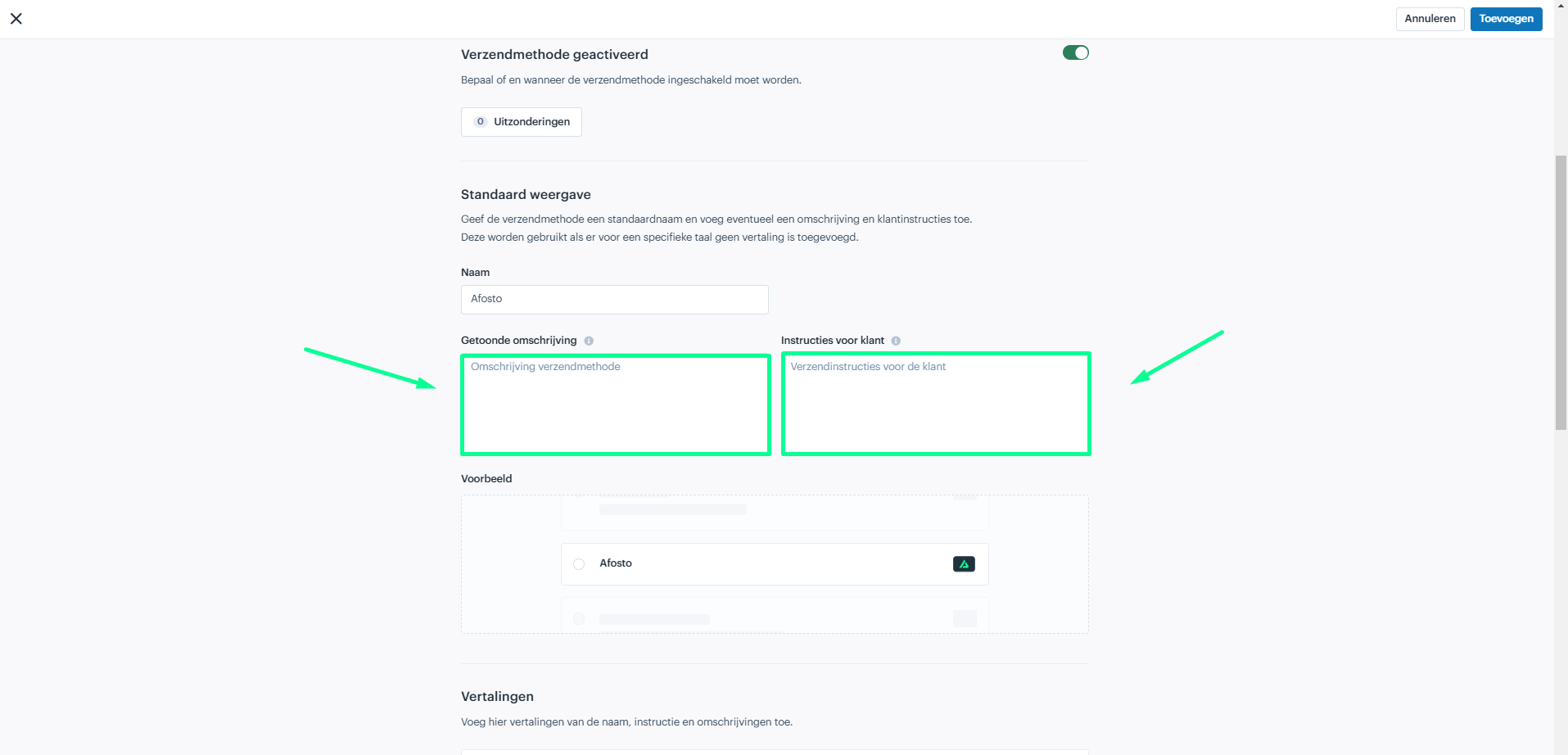
Description and instructions for the customer
When configuring a shipping method it is important to provide clear descriptions and instructions for your customers. This information appears at the checkout page and helps customers understand the details of each shipping option, making their decision easier.
Why it matters to provide descriptions and instructions
Clarify expectations: providing clear descriptions and instructions helps set the right expectations with your customers. They will know what to expect in terms of delivery time, costs and any special conditions related to the shipping method.
Reduce customer confusion: without proper descriptions and instructions, customers can get confused about the shipping options available to them. Clear explanations help customers make informed choices and prevent dissatisfaction.

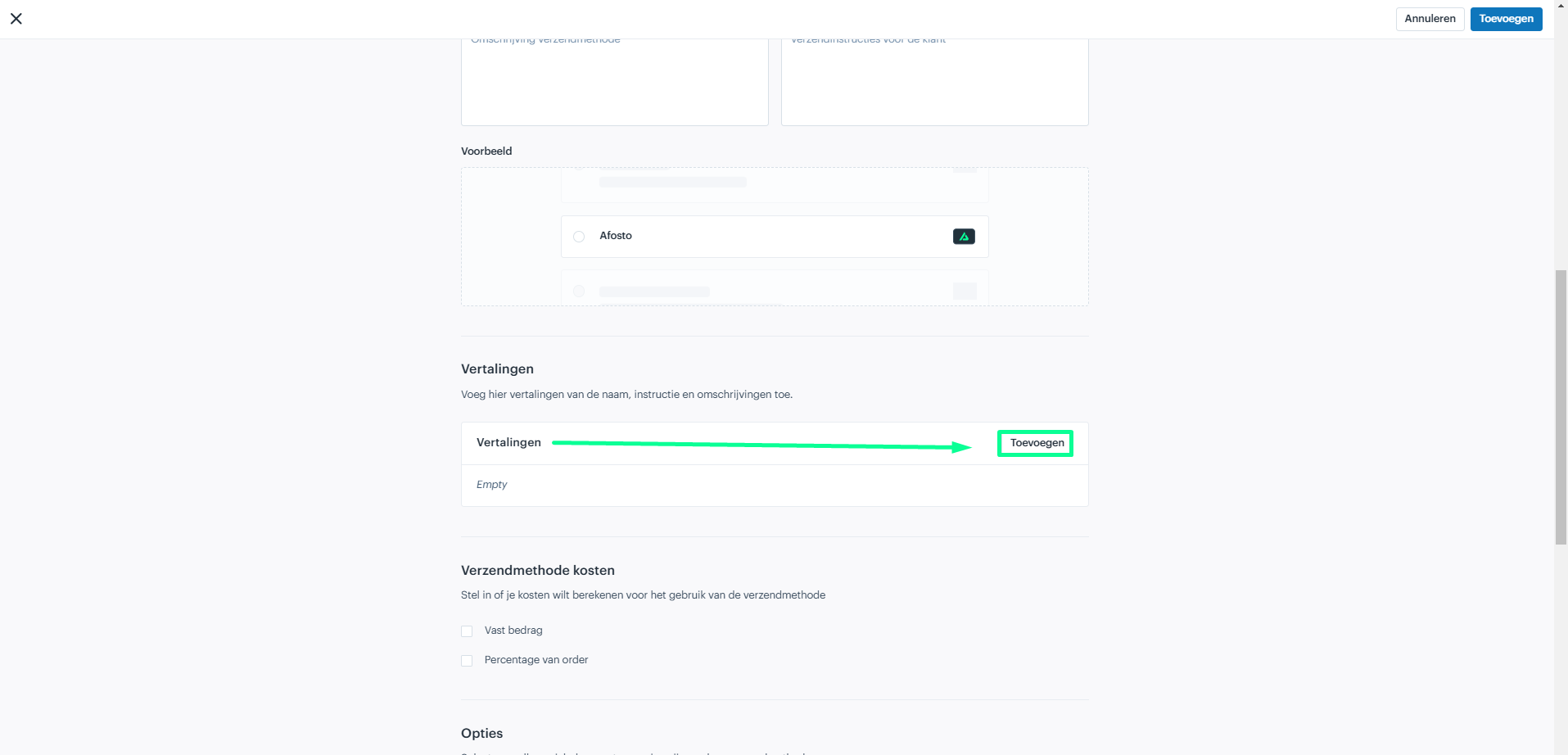
Translating the name, description and instructions
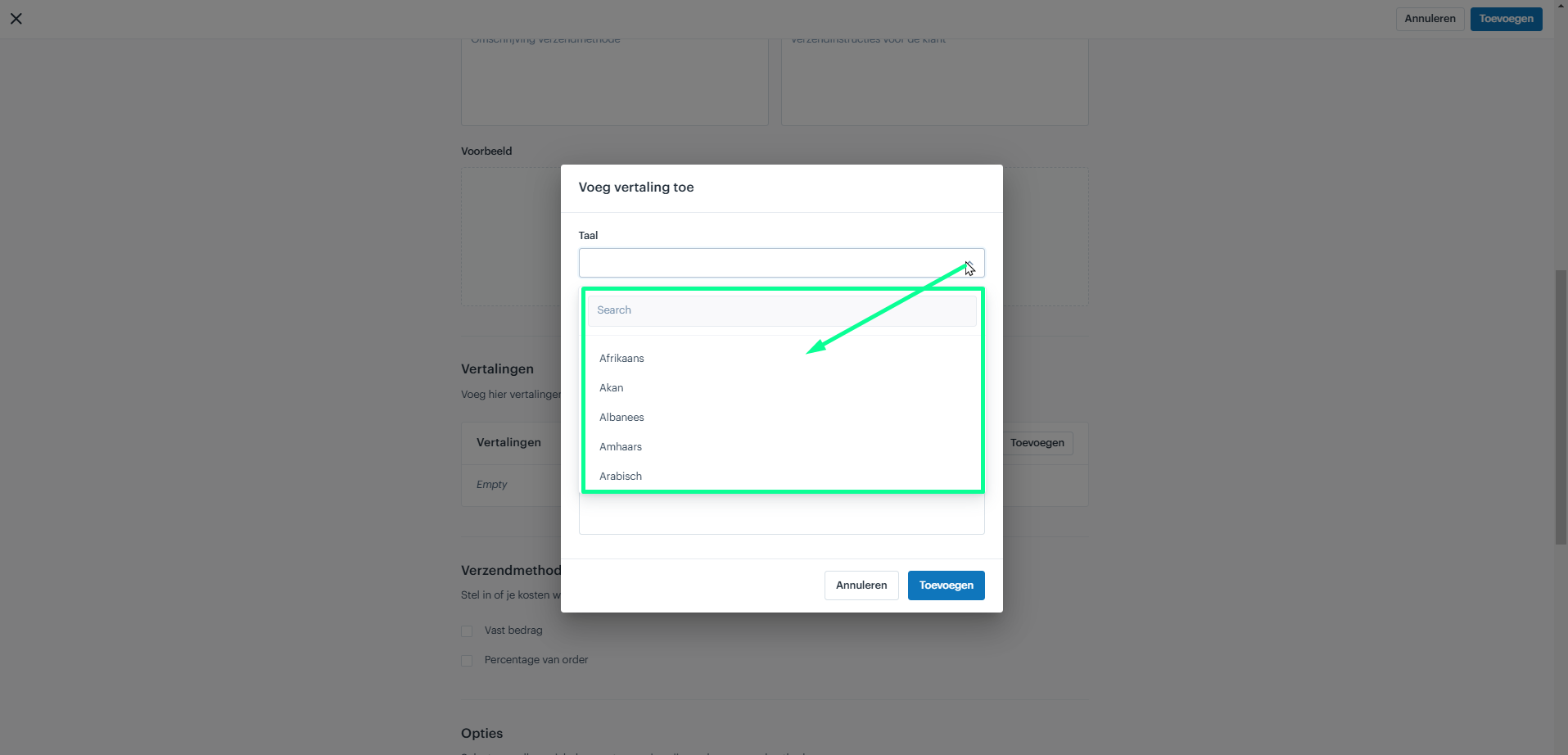
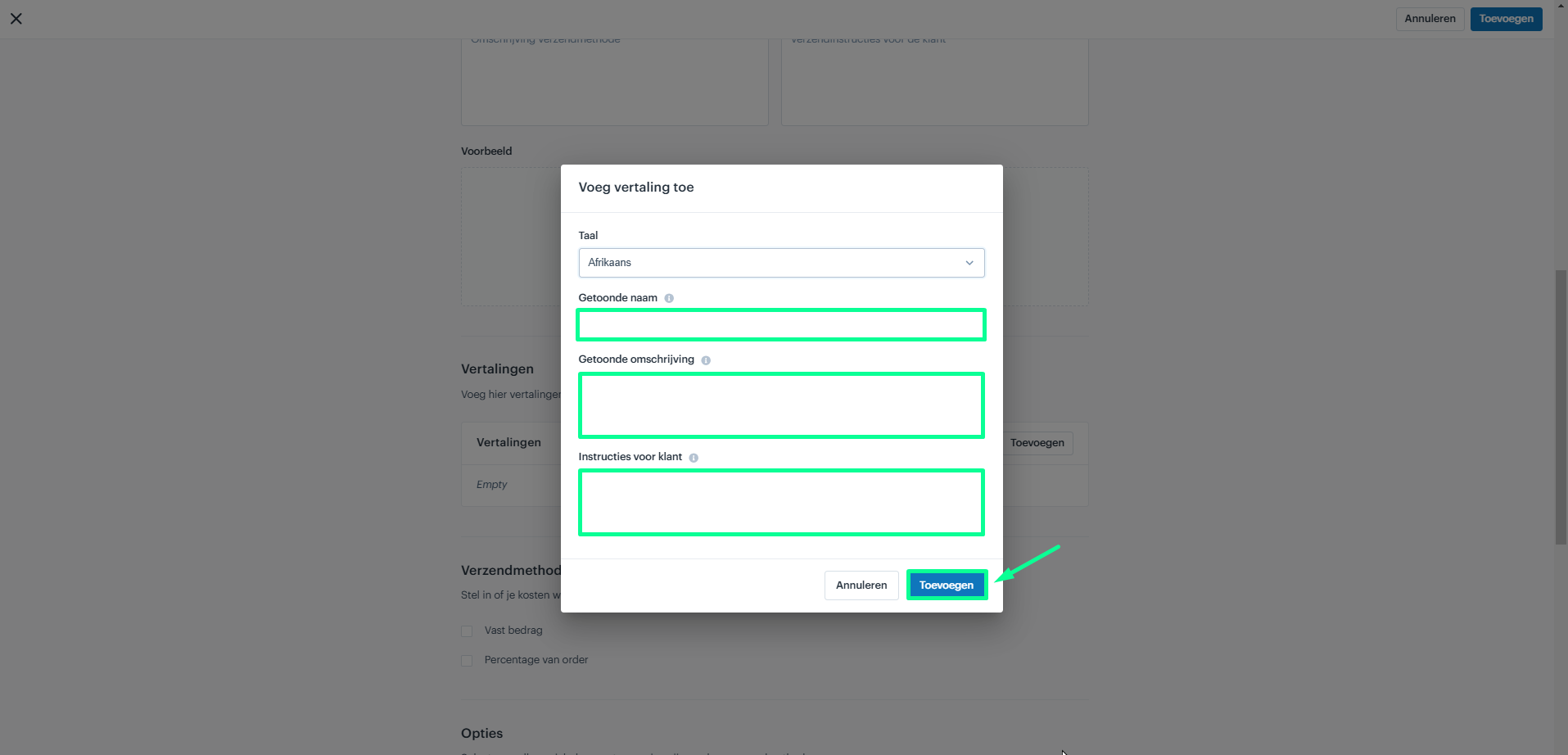
This section allows you to provide translations for all key fields, including Name, Description and Instructions.
- Select a language: choose the language for which you want to add or edit a translation.
- Enter translations for each field: fill in the translated name, description and instructions in the selected language. Example: for Standard Shipping in French you could enter Expedition standard, and for the description Livraison sous 3 a 5 jours ouvrables.
Set the costs for the shipping method
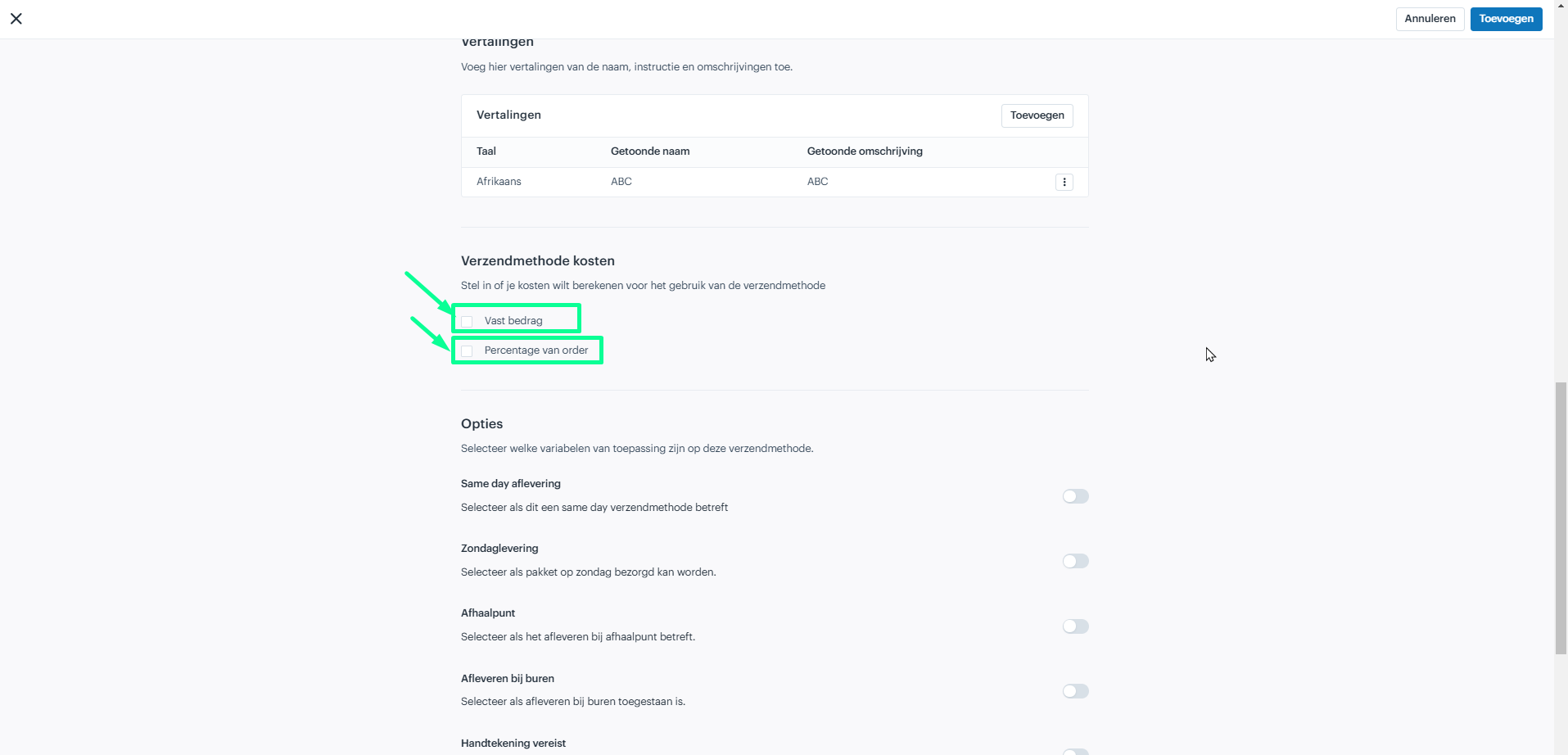
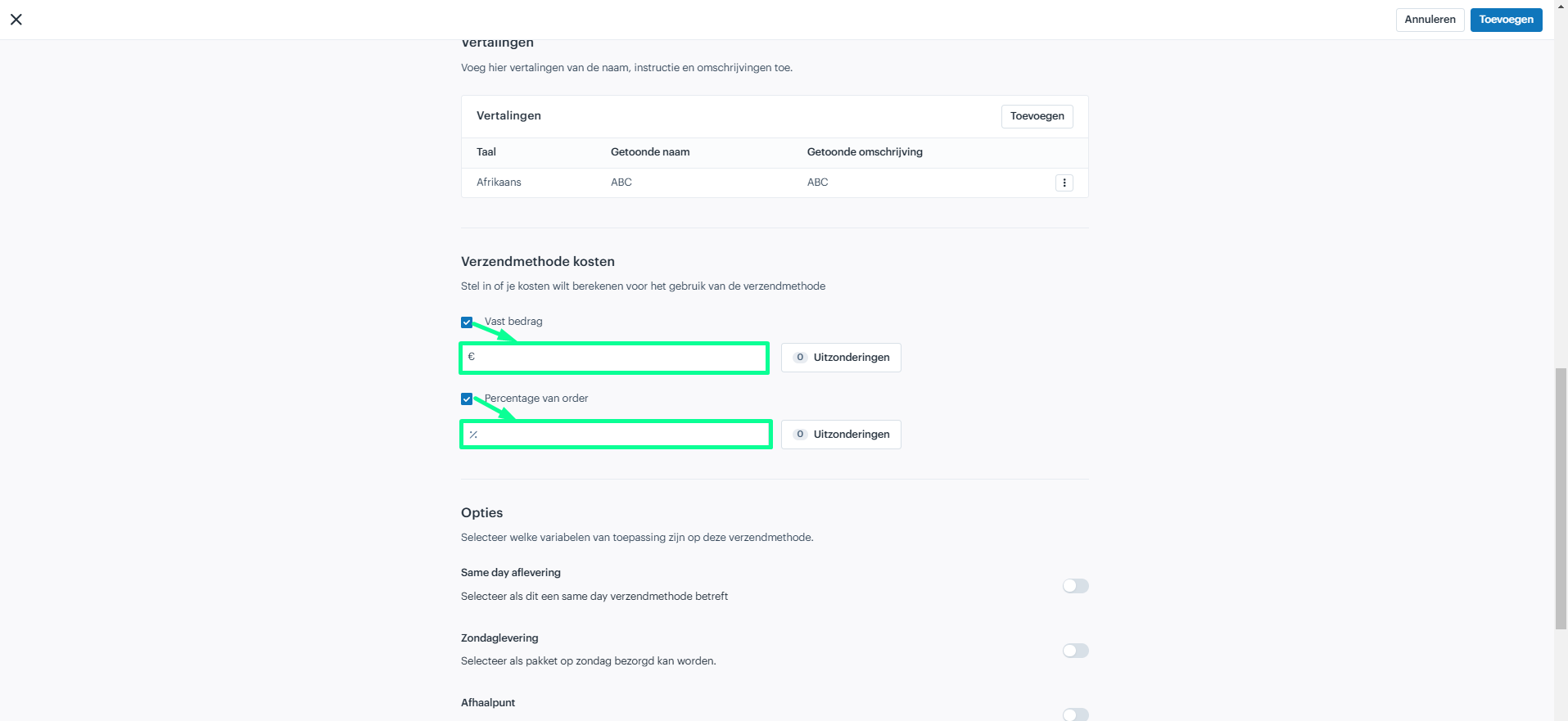
In this section you enter the costs for the shipping method. Choose the cost type (Fixed or Percentage). Costs follow the VAT settings of the sales channel - for an order with a mix of high- and low-rate items the VAT is calculated proportionally - and appear as a separate line on the order.
- Fixed costs: this is a fixed amount for the shipping method, regardless of the order value. Example: if you set fixed costs of EUR 5, the customer always pays EUR 5 for this shipping method.
- Percentage costs: this option sets the costs as a percentage of the total order. Example: at 10% the shipping costs are 10% of the order value; for an order of EUR 50 the customer pays EUR 5 for shipping.

Additional rules for shipping costs
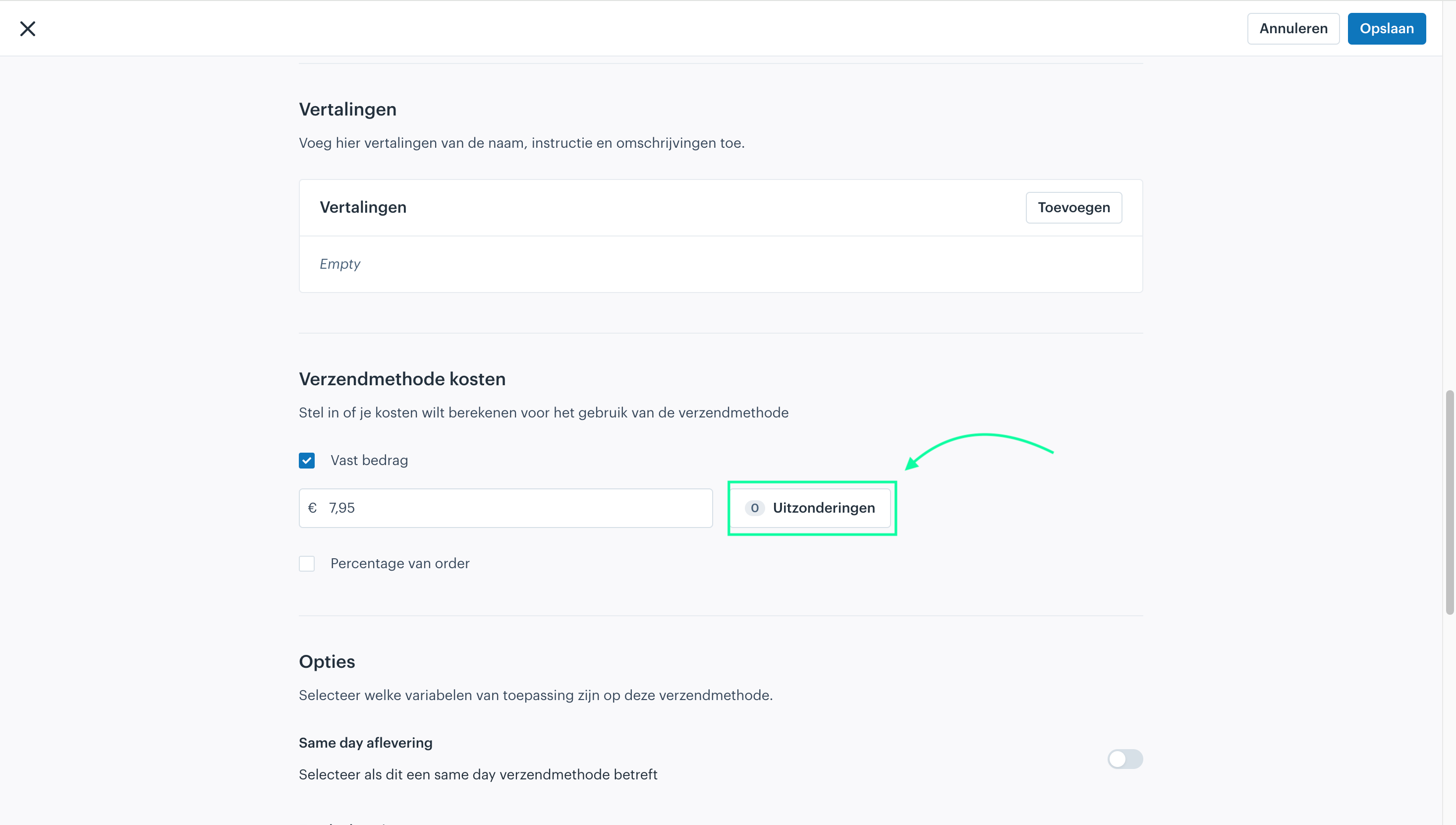
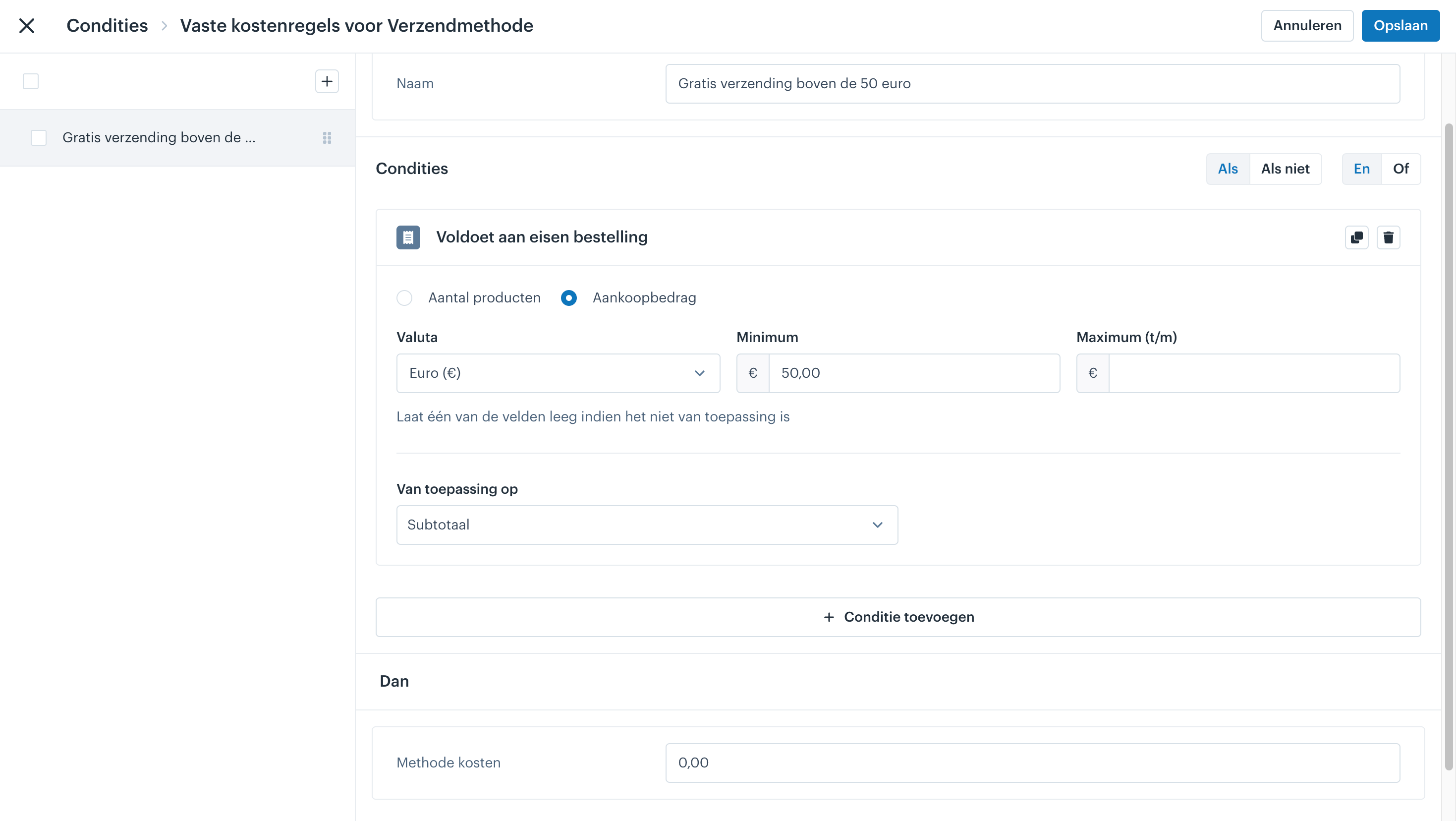
With additional rules for shipping costs you can further specify which shipping costs apply based on specific conditions. For example weight-based costs, or destination-based costs such as higher costs for international shipments. Within Afosto you can flexibly refine shipping methods using exceptions, such as free shipping above a certain purchase amount.

Steps:
- Open the shipping method for which you want to set the exception.
- Click Exceptions and give the rule a clear name, such as: Free shipping above 50 euro.
- Add a condition: in this case we choose Meets order requirements.
- Under Conditions, add the following settings:
- Condition: Meets order requirements
- Type: Purchase amount
- Currency: Euro (EUR)
- Minimum: EUR 50.00
- Maximum (optional): leave empty
- Applies to: Subtotal
- Then method costs: EUR 0.00
This exception ensures that customers who order at least EUR 50 worth of products (based on the subtotal) pay no shipping costs for this specific method.

Shipping options as a filter
In the Options section you set requirements for the shipping method. These options work as a filter: if you enable an option, all carrier options that do not meet it are filtered out during selection. Which options are available depends on the chosen carrier/provider. Below is an overview of common options:
- Same-day delivery: orders placed before a certain time are shipped and delivered the same day. Use: for urgent or last-minute orders.
- Sunday delivery: for delivering on a Sunday, usually in areas where postal or courier services operate on Sundays. Use: for customers who prefer to receive orders at the weekend.
- Pickup points: customers collect their order at a designated pickup point instead of home delivery. Use: for customers who are not home during delivery times.
- Delivery to neighbours: the parcel may be delivered to a neighbour if the recipient is not home. Use: prevents returns or rescheduling.
- Signature on delivery: the customer signs for receipt; an extra layer of security. Use: for valuable items or important documents.
- Identity check: ensures the parcel is delivered to the right person. Use: for regulated or age-restricted products and valuable goods.
For each option you want to enforce, enable the corresponding option. If you do not want to set a requirement, leave the option disabled.
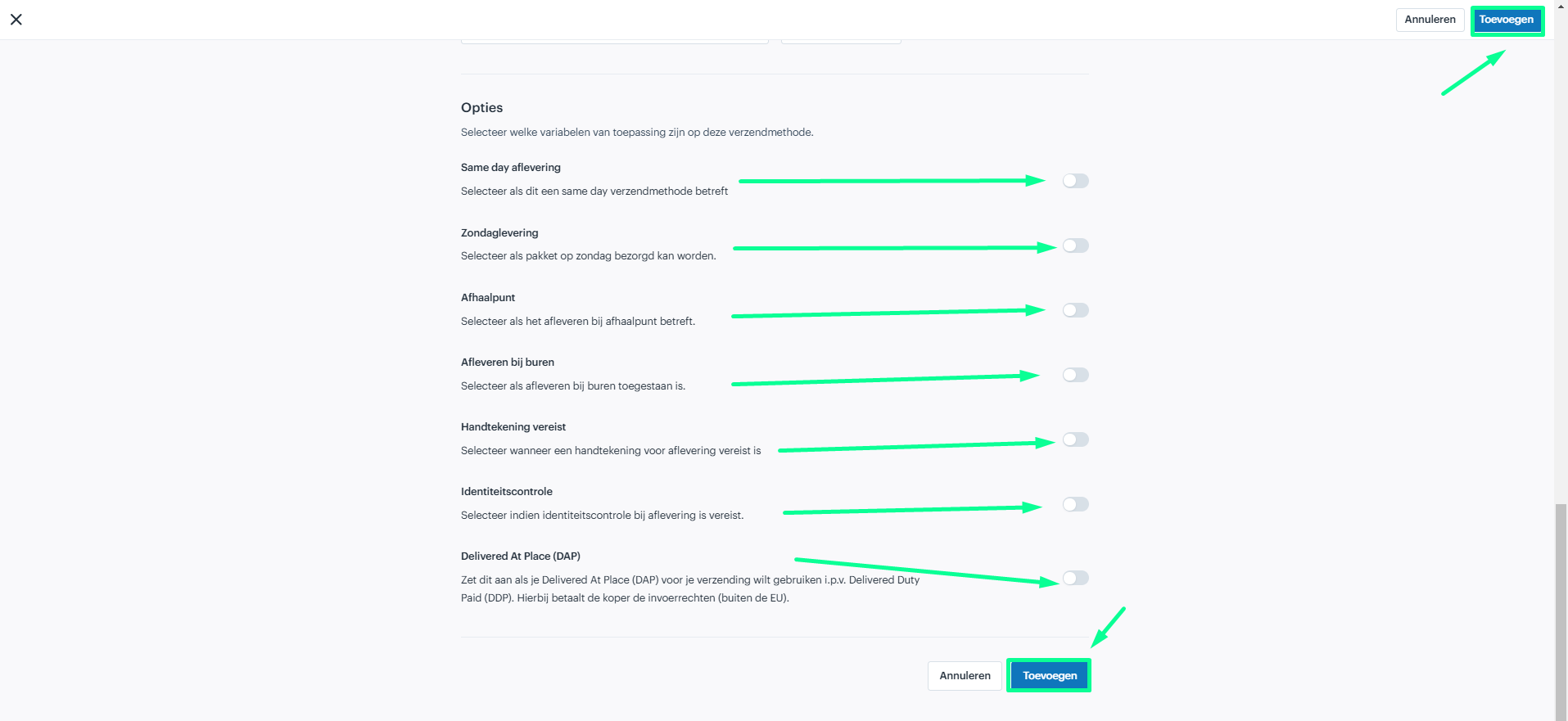
Note: the available options depend on the chosen carrier. With these steps you can create custom shipping methods tailored to the needs and preferences of your business.
Connecting the provider (label provider)
- If you have not already done so, connect the provider app under Apps (e.g. PostNL, QLS or Sendcloud). Without a connected provider app you cannot issue labels.
- Then connect that app to the shipping method, in the same way you connect a payment service provider to a payment method.
- A connected provider can issue labels for multiple shipping methods.
Related articles
- Shipping method rules - the Rule Builder for conditions, costs and rule order
- Setting up pickup at location
- Afosto shipping label provider
- Adding a payment method - similar structure (method + provider + Exceptions)
- The bigger picture
- Shipping methods
- Adding a new shipping method
- Choosing the carrier
- Adding a shipping zone
- Set additional rules
- Naming your shipping method
- Description and instructions for the customer
- Why it matters to provide descriptions and instructions
- Translating the name, description and instructions
- Set the costs for the shipping method
- Additional rules for shipping costs
- Shipping options as a filter
- Connecting the provider (label provider)
- Related articles