

Paperless picking on your handheld scanner
Afosto's order picker app puts the pick list on your handheld scanner. For every item you see the location and a photo, you confirm with a scan and ship with a label. An item that is not on the list does not get past the scan.



Trusted by ambitious retailers


What is paperless picking?
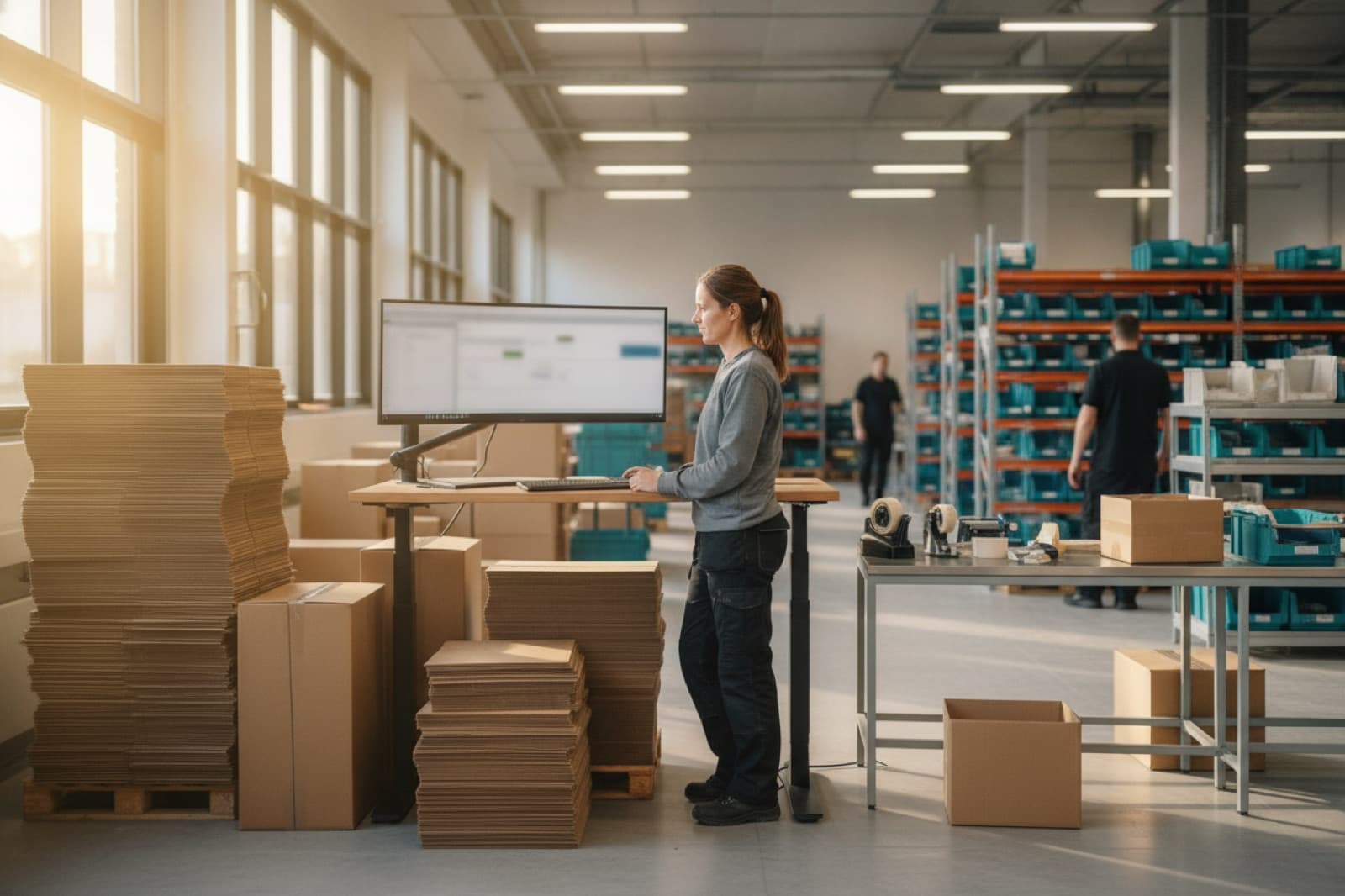
Paperless picking means your warehouse staff gather orders from a digital pick list on a handheld scanner instead of a printout. An order picker app shows the location, the product photo and the quantity for every item, and you confirm each pick with a barcode scan. Without an app, a warehouse runs on printed lists. That works fine until it gets busy, and then you see three things happen:







Afosto's order picker app is part of the WMS and works on the same stock as your order management, webshop and point of sale. Stock is reserved as soon as an order comes in, so no other channel sells the same item.
Does something still need to happen to an item before it ships, such as embroidery or gift wrapping? Services like that run as a task within the same pick and pack flow.
How it works
From pick list to parcel, with the scanner in hand
This is the path every order takes through your warehouse, from pick list to parcel. Everything you now print, search for or retype is on the handheld scanner.
- Step 1
Shopify orders land on a pick list
A pick list preset filters pickable orders by channel, shipping method, shipping date or location and caps the list at a maximum number of orders. One click creates the next list, and Shopify orders land on a pick list automatically. Assign the list to one or more members of staff and open it on the scanner.
- Step 2
Scan at the location, with the photo on screen
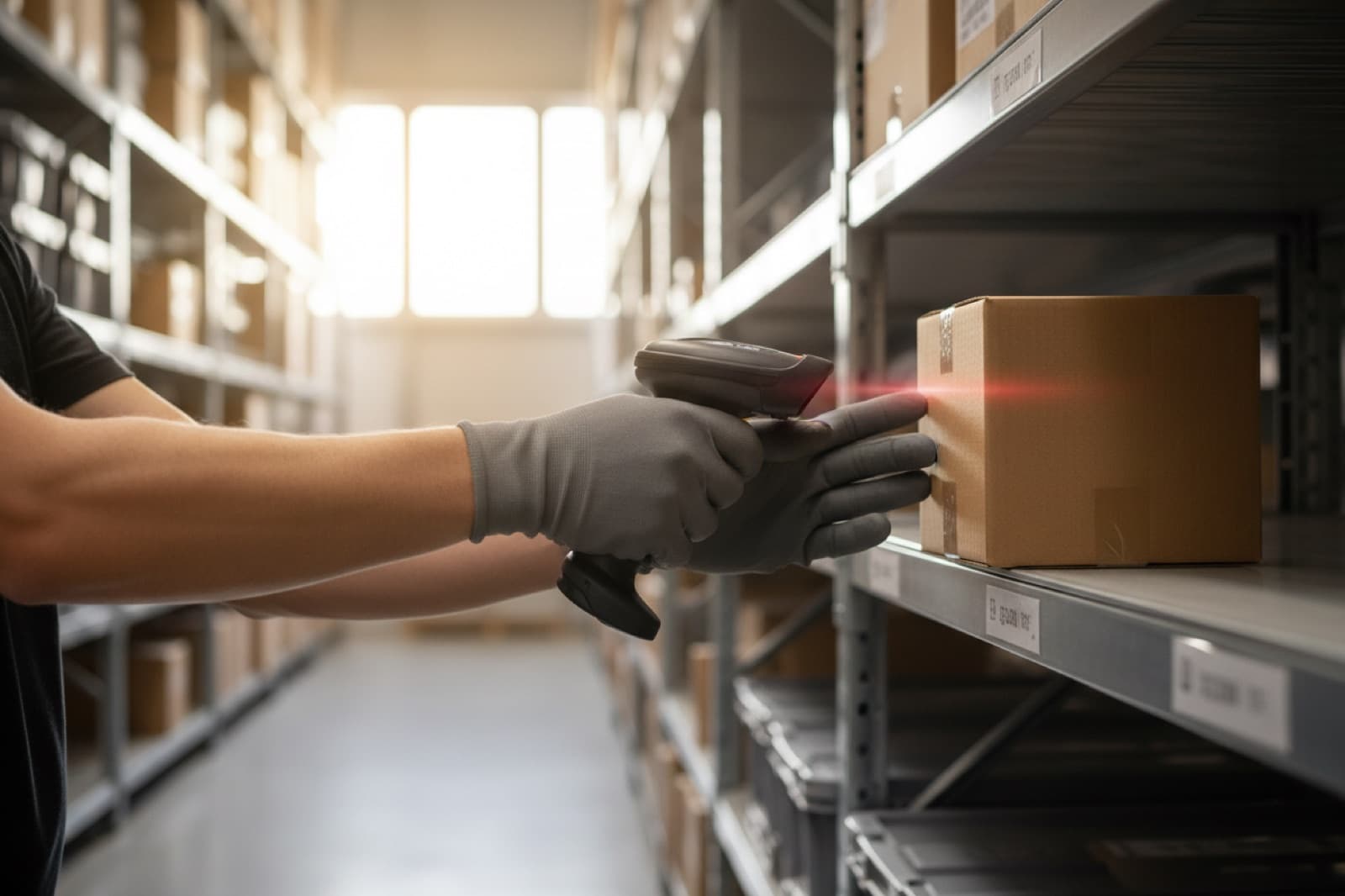
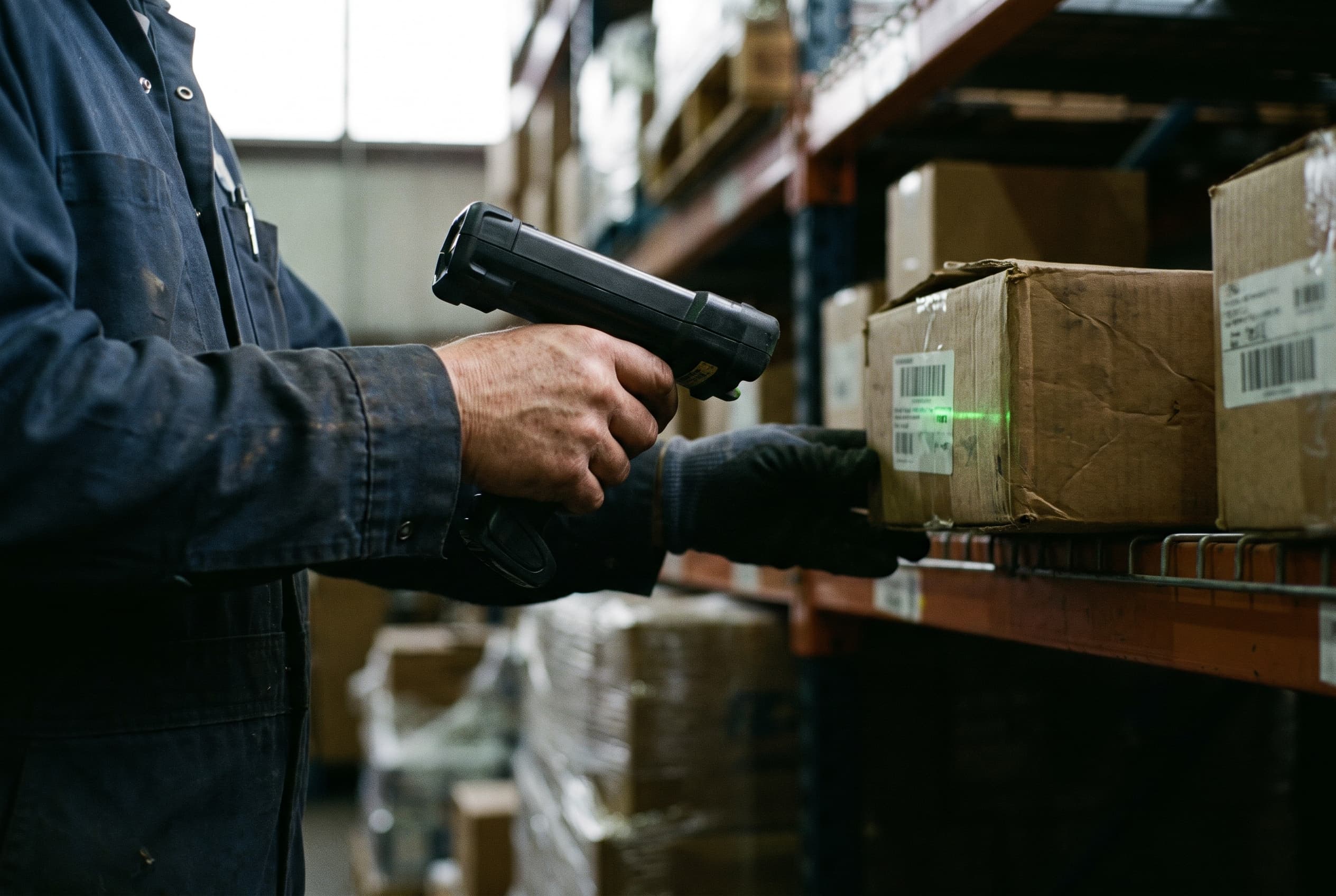
For every item you see the product photo, the barcode and the location in your warehouse, such as A-01-02. The list follows the order of your locations, and you decide that order yourself. Scan the item and the counter goes up. Scan an item that is not on the list and there is no match, so the pick does not go through.
- Step 3
Item not there? Skip it and carry on
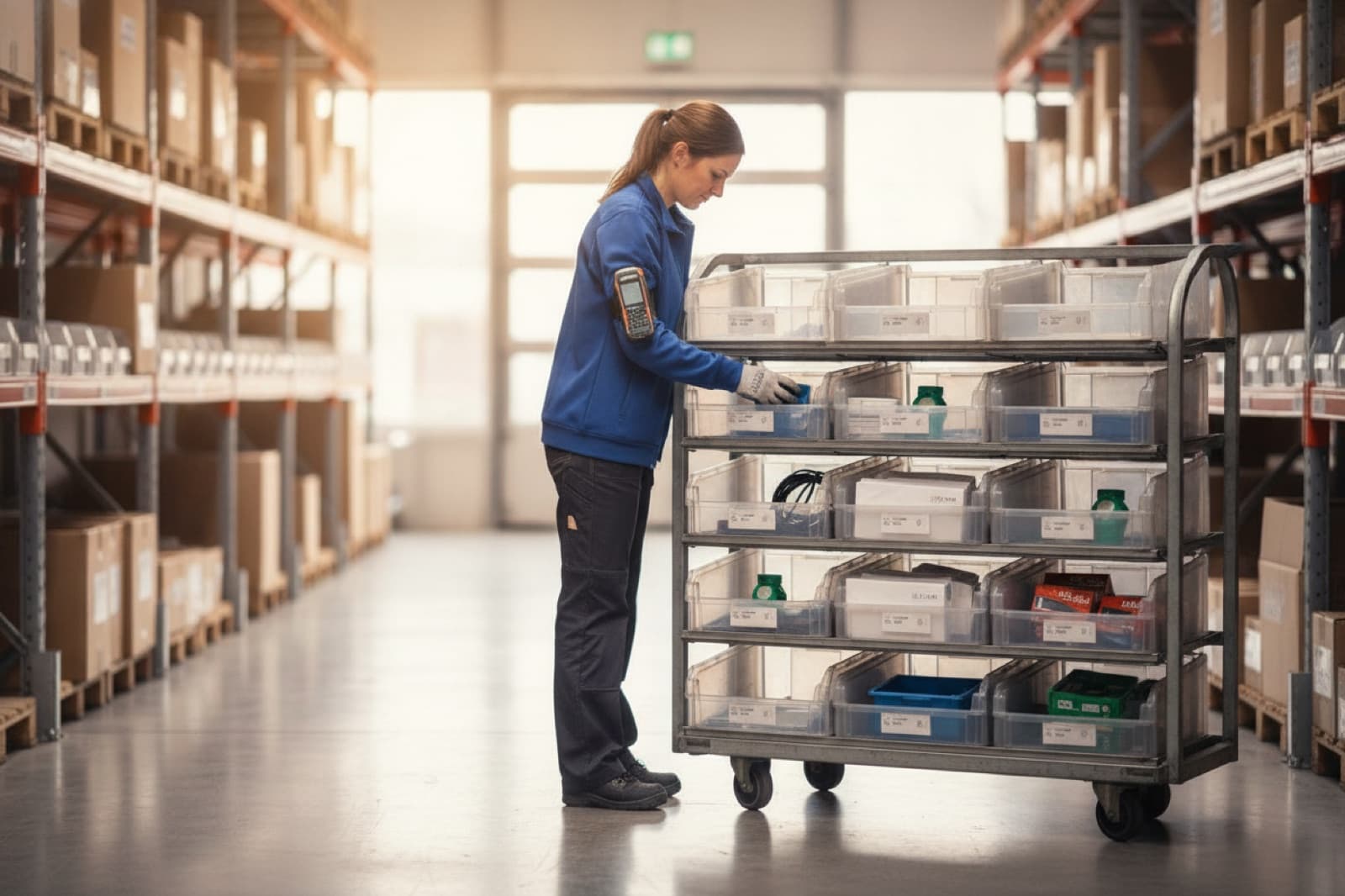
If an item is not there, you mark it as unavailable. Only that item is skipped and the rest of the list carries on. The order line then shows as missing on the order, and you deal with it later in the platform, for example by cancelling and crediting it.
- Step 4
Ship with a label and tracking
After picking you choose the shipping method, or Afosto takes the first one automatically. Afosto creates the parcel with a tracking code, and through the Spooler app the shipping label comes out of your printer. As soon as the shipment is on its way, the customer and the sales channel get the tracking code and the invoice is emailed to the customer.



Stock was already reserved when the order came in, so no other channel sells the item your team is picking. That way your team keeps going all day without retyping statuses.
More than a digital packing slip
The features that make the difference on a busy day
Digitising a pick list is step one. The difference shows when it gets busy: lots of orders, several pickers, stock that does not match.

Afosto in numbers
Built for warehouses that ship every day
Paperless
Picking from the handheld scanner, without a printed pick list
75+
Retailers and wholesalers work with Afosto
250
Orders per pick list, as the maximum you set in a preset
3
Scan flows per device, from scan only to entering a quantity yourself
Paper pick list versus order picker app
Printing works, until it gets busier. This is the difference you notice every day:
| Feature | Paper pick list | Afosto order picker app |
|---|---|---|
| Finding the location | From memory or searching | Shown per item |
| Wrong item | You only spot it at the customer | No match, no pick |
| Order cancelled | Printout knows nothing | Item drops off the list straight away |
| Multiple orders at once | Sorting stacks of paper | Batch with sorting step |
| Reserving stock | Afterwards, by hand | As soon as the order comes in |
| Shipping label | Separate print step | Automatic on shipping |
The order picker app is not a standalone tool: it is part of the Afosto WMS, on the same stock as your webshop, order management and point of sale. See all features of the order picker app or the pricing for OMS and WMS.
Not sure the flow fits your warehouse? Book a demo and we walk through it with you on your own data.
How FrancisbyFB picks with the scan app
“Afosto really listened to our feedback and built the system so it truly works for us. Almost everything a webshop needs is in there now.”
FAQ
Frequently asked questions about the order picker app
The questions warehouse managers ask us before they move from paper to the scanner.
What exactly is an order picker app?
An order picker app is software that guides warehouse staff through gathering orders. Instead of a printed pick list, a handheld scanner shows the location, the product photo and the quantity for each item, and you confirm with a barcode scan. At Afosto the app is part of the WMS, on the same stock and orders as your webshop and point of sale.
What types of handheld picker apps work with online orders and point of sale?
Broadly two types. A standalone picker app connects to one shop platform and picks its orders. A picker app inside a warehouse management system works on the orders and stock of every channel. Afosto's app is the second type: orders from your webshop and marketplaces land on pick lists, and the same stock serves your point of sale, so there is no separate sync between systems to maintain.
How does the app prevent the wrong item from being picked?
Scan an item that is not on the pick list and the app finds no match, so the pick does not go through. You choose one of three scan flows per device. In the scan-only flow only a scan counts and nobody can add to the count by hand. The other two flows also let you enter a quantity, which is quicker for large numbers of the same item. The product photo and location are on screen as a check.
Which order picker scanner do I need?
A handheld scanner, tablet or smartphone with a browser. The scan app runs at scan.afosto.app as a progressive web app: there is nothing to install, you add it to the home screen and updates happen by themselves. On a Zebra handheld you set up DataWedge so a scan arrives as keystrokes followed by Enter. Our Zebra TC52 guide shows the settings.
Which language is the scan app in?
The screens of the scan app are in Dutch. Most of a pick runs on what is shown on screen: the location, the product photo, the barcode and a counter. Whether that works for your team depends on your staff, so book a demo and see the flow for yourself before you decide.
Does the app work without an internet connection?
No. The scan app only works with a network connection, there is no offline mode. The pick list and every scan run through the platform, so without a connection you cannot continue. Make sure there is good wifi or mobile internet everywhere you pick, including the back of the warehouse and the packing table.
Does the app also plot a walking route through the warehouse?
The walking route follows the order of the locations in your warehouse, and you decide that order yourself. Per warehouse you set one picking route by sorting your locations, for example in a spreadsheet; the picking route guide shows how. For now you create zones by giving locations a prefix. Afosto does not calculate a shortest route: put fast movers near the packing table and you keep walking distances short.
Can I pick multiple orders at once?
Yes. With batch picking, one of the common order picking strategies, you bundle several orders into one pick list and pick everything in a single round. A sorting step follows in which you gather each order at a spot on your pick wall, so every parcel is complete. A preset decides which orders join a list. Batch picking is part of WMS Pro.
Can several members of staff pick at the same time?
Yes. You assign a pick list to one or more members of staff, so it is clear who picks which list. Everyone opens their own list on their own scanner. With presets per channel, shipping method or location you split the work, for example one list with the orders that must ship today and one for the rest.
What happens to my stock while picking?
Stock is reserved as soon as the order comes in, not when it is picked. That way no other channel sells the same item while your team picks it. If an item is not there, you mark it as unavailable and the line shows as missing on the order. You then deal with that line in the platform, for example by cancelling and crediting it.
How quickly can my team work with this?
The pick flow is kept deliberately simple: open the list, walk to the location on screen, scan and move on. The product photo helps anyone who does not know the items yet. At FrancisbyFB new packers are productive within 1 to 2 days. How quickly your own warehouse is ready depends on your products, your locations and your integrations.
What does the order picker app cost?
The order picker app is part of the WMS, which starts at the Pro plan. You pay a fixed monthly price based on your order lines and warehouses, with no fees per user and no transaction fees. See the pricing for OMS and WMS for what that means at your volume, and which plan includes features such as batch picking.
See your own pick list on the scanner
Create a free account and see for yourself how Afosto brings orders, stock and shipping together on one platform. Prefer to look at it together first? Book a demo: we follow up within one working day with a walkthrough on your own data, from pick list to shipping label.