

Filters
In the datagrid you can refine your dataset based on filters. A filter can be set for almost every column. This allows you to limit your dataset to the data that is relevant to you. Depending on the column, there are different types of filters that offer different options.
Add filter
Filters can be added in multiple ways. You can quickly add a filter by choosing in the cell to exclude or filter for the value. In the column name there is also a shortcut to add a filter for that column. The complete overview can be found in the filters menu.
Filters menu
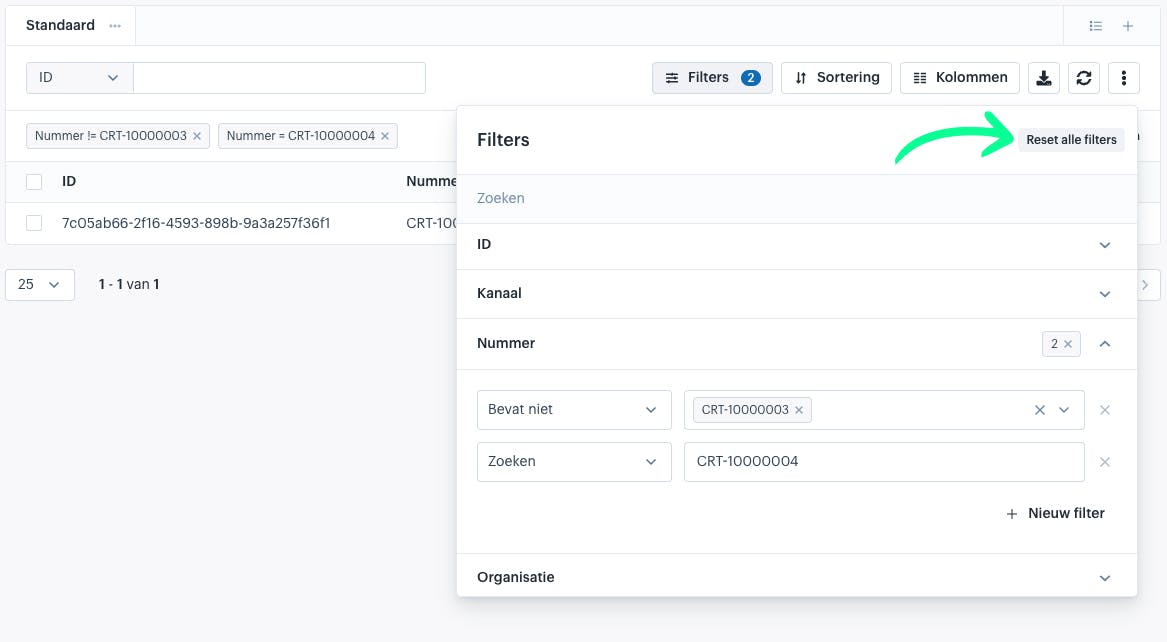
The filters menu is where you can edit all filters in one overview. Here you can search, add, adjust, and delete filters.

Within the filters menu you can search for a filter by typing your query in the gray bar.
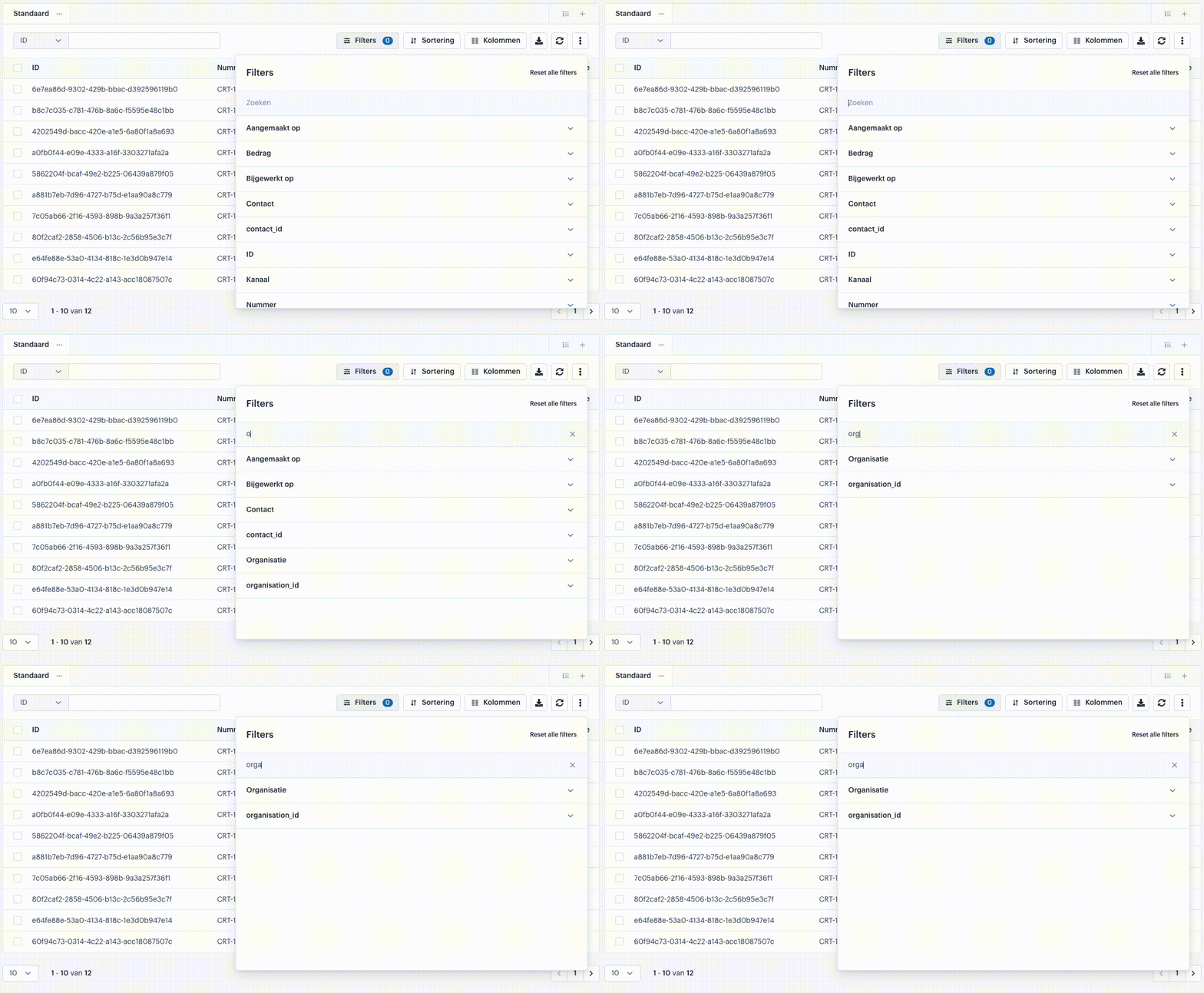
For each filter, you can create multiple rows. Each row starts with an "operator." An operator is used to indicate what the conditions must meet. For a number, this is for example 'Is greater than' or 'Is less than.' Each operator can only be used once per filter.
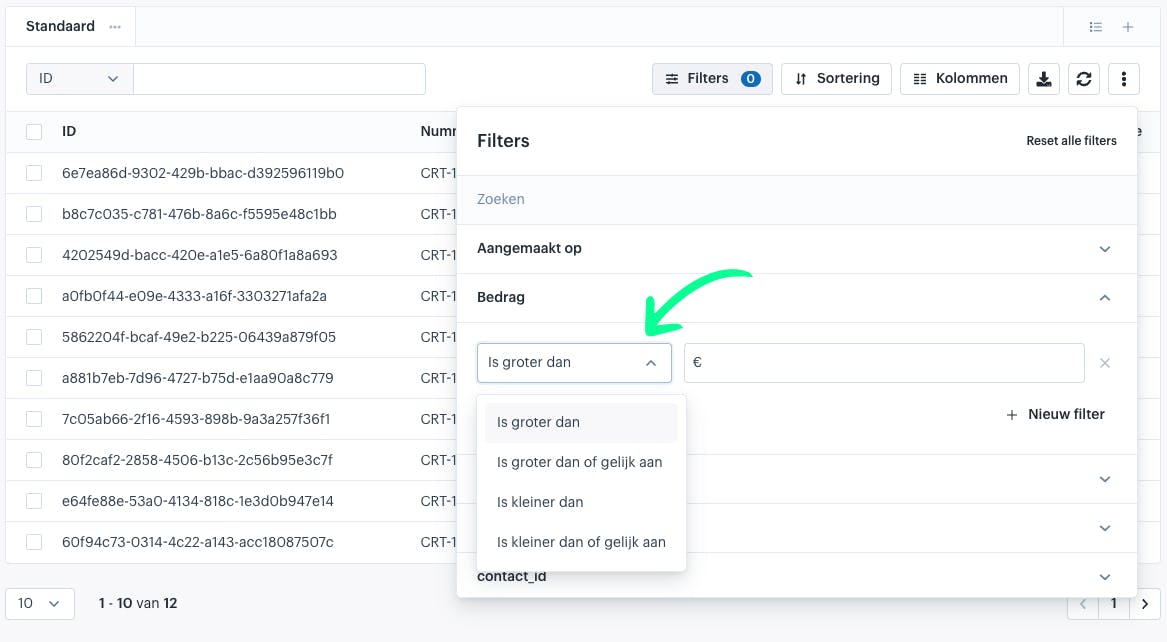
Depending on the selected operator, you then enter the value you want to filter by. Continuing with the above example, we can, for instance, enter that we only want rows where the amount is less than €20.00.
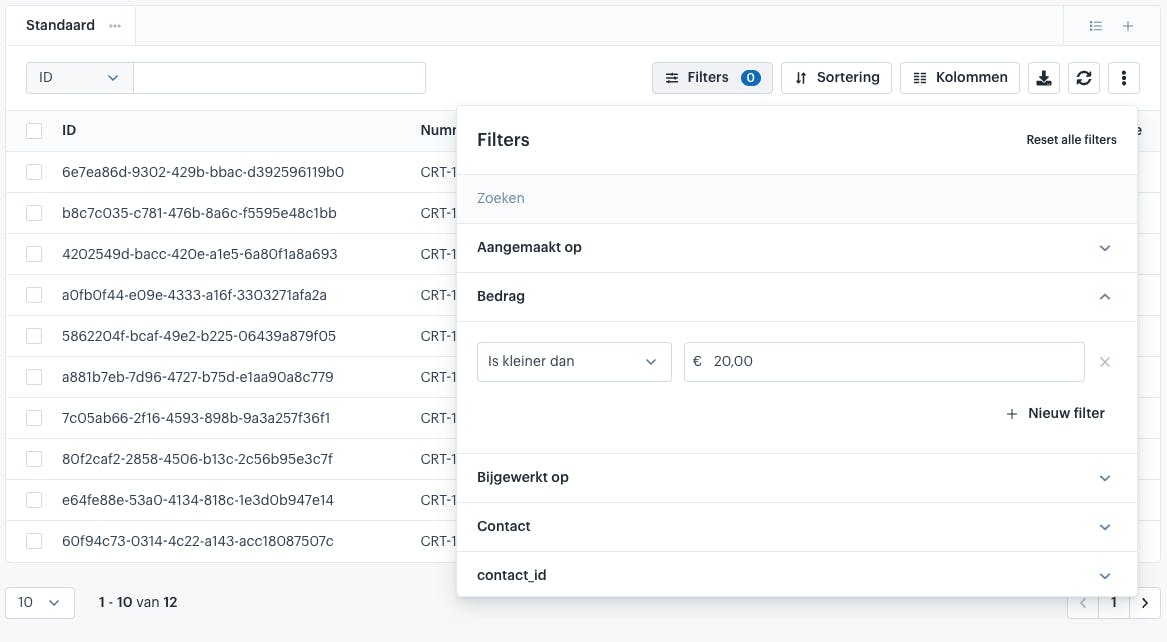
After entering the filter, if you click next to the filters menu, you will see that the datagrid is updated or being updated. You will only see results that meet your filters.
Column shortcut
Next to the column name is a shortcut to the filter. As soon as you click on it, the filters menu opens with the filter for that column expanded. This way you can quickly add a filter for a specific column.

Cell buttons
An even faster way to add filters is by using the buttons in the cell. This allows you to quickly filter the results by, for example, using a specific channel as the filter value or excluding it.
Not every column has these buttons available. Depending on the type of filter behind it, we can make them available or not. For example, for an amount or date, we cannot add them.
When you move your mouse over a cell, two icons appear. One with a plus and one with a minus. The plus means that you want to see results with this value. You then filter by this value.

The icon with a minus ensures that all results with this value are excluded. You then exclude all rows with this value.

Edit filter
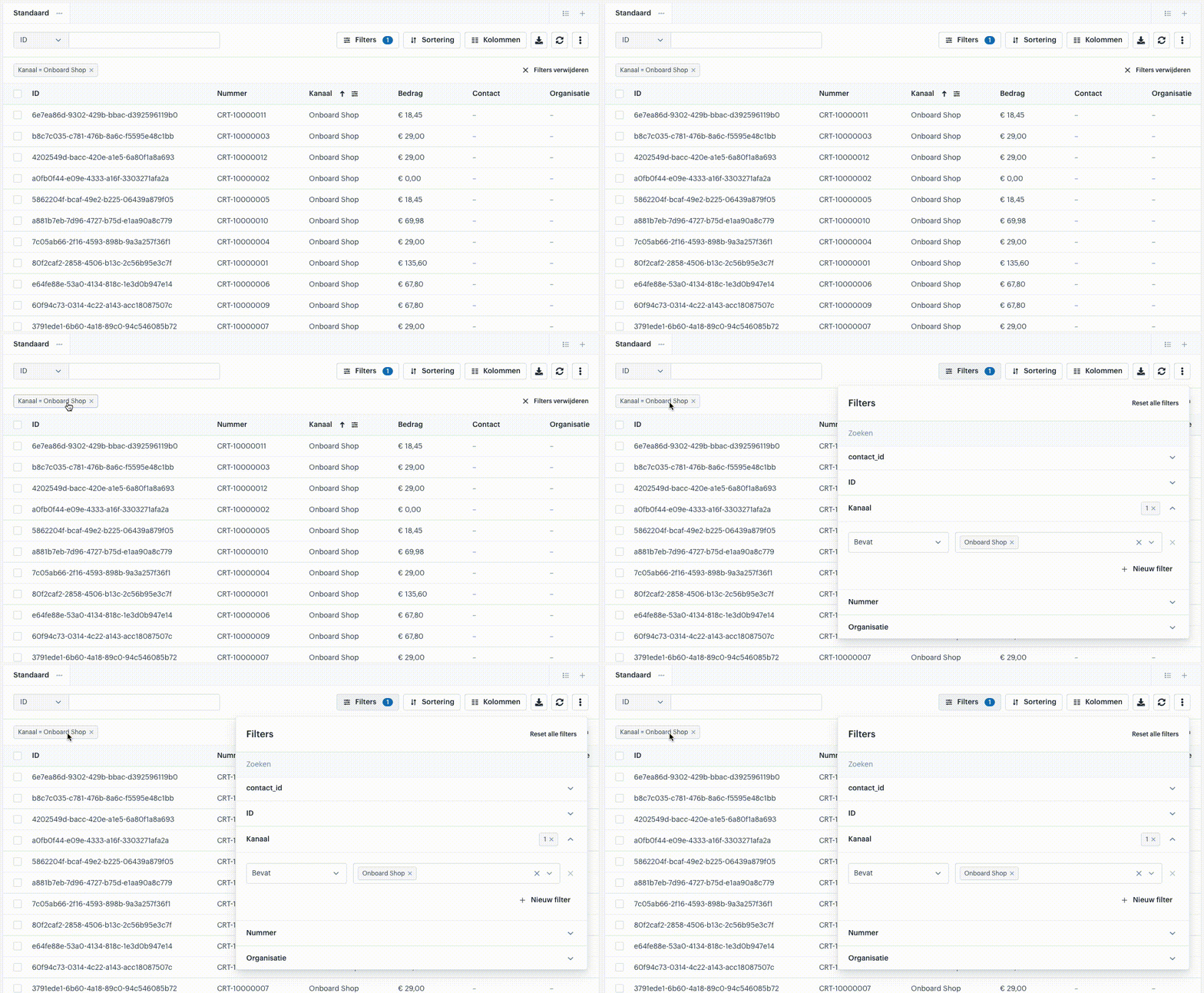
To edit a filter, you can open the filters menu to go to the filter you want to edit. A faster way is to click on a filter in the bar with active filters. By clicking on it, the filters menu opens with the corresponding filter already expanded. This way you can quickly make changes to an existing filter.
Delete filters
Filters can be deleted in multiple ways.
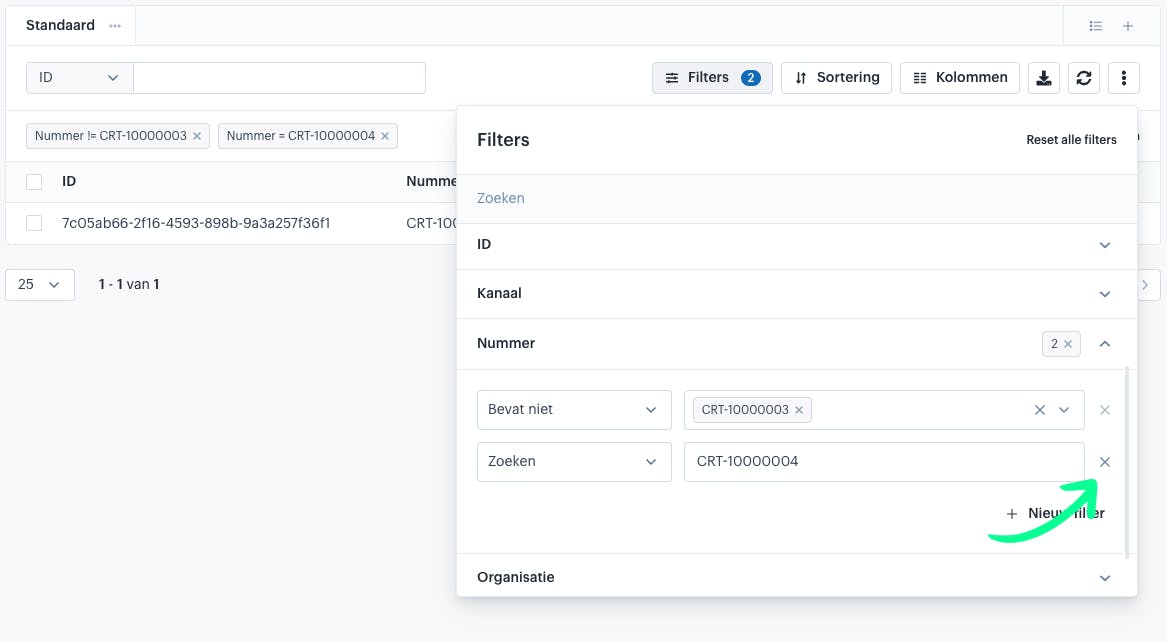
In the filters menu, you can click the cross behind each filter row to delete that row.
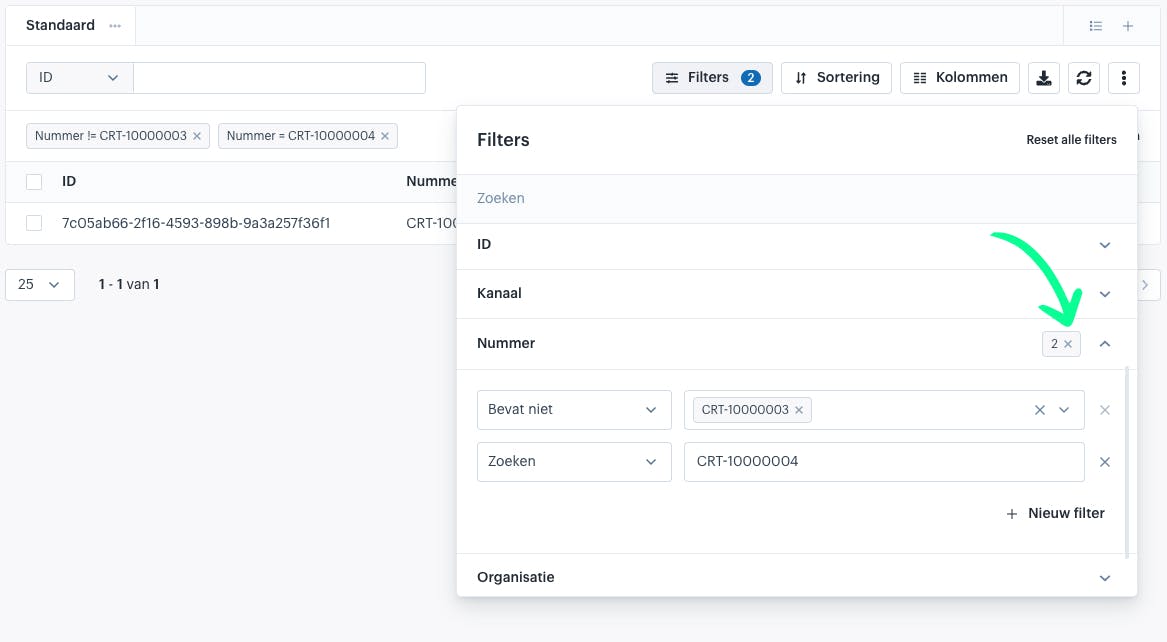
If you want to delete all rows for a certain filter, you can click the cross on the badge with the number of rows. This deletes all rows for that filter.
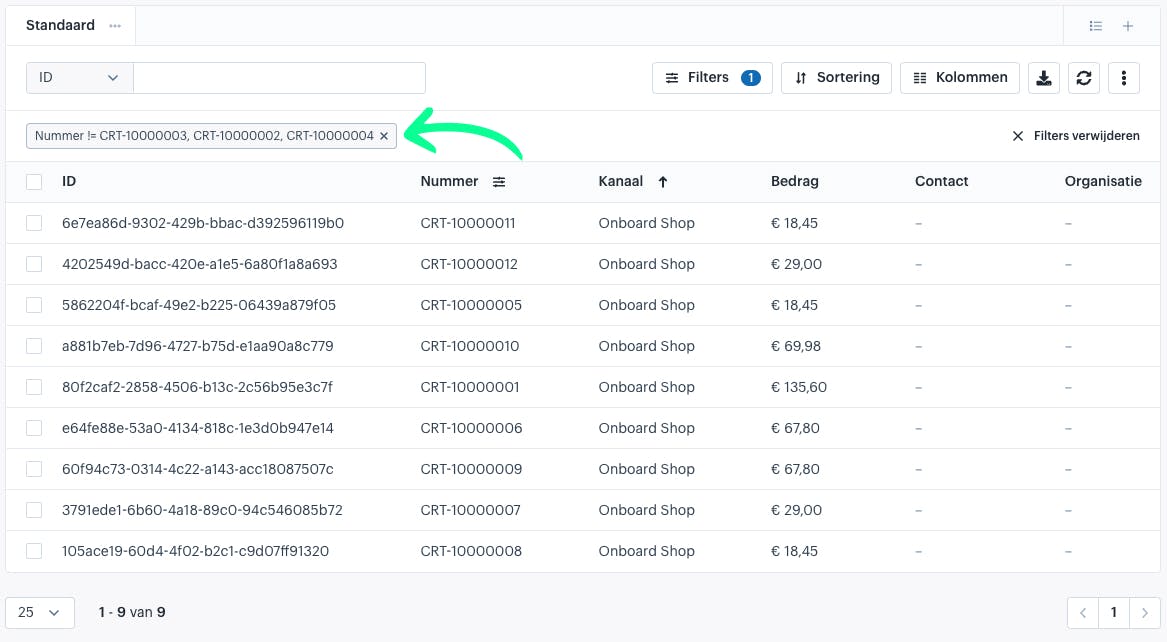
Within the active filters bar, you can also click the cross on each row to delete that row.
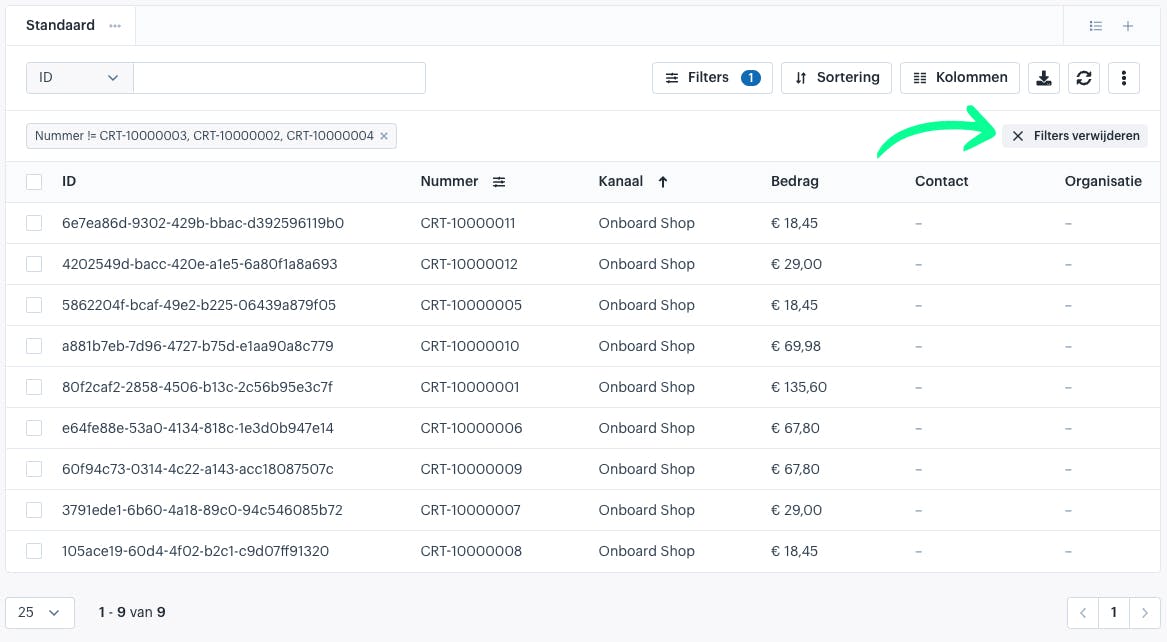
You can also delete all filters at once by clicking 'Delete filters' in the active filters bar.
Within the filters menu, there is also a button available to delete all filters. Click the 'Reset filters' button to delete all filters.
About Afosto
Till, webshop, bol and Kaufland on one stock.