

Product bundles bulk action
In addition to creating product bundles manually, it is also possible to create multiple bundles at the same time using a bulk action.
Go to 'Processes' and click 'Bulk actions'.
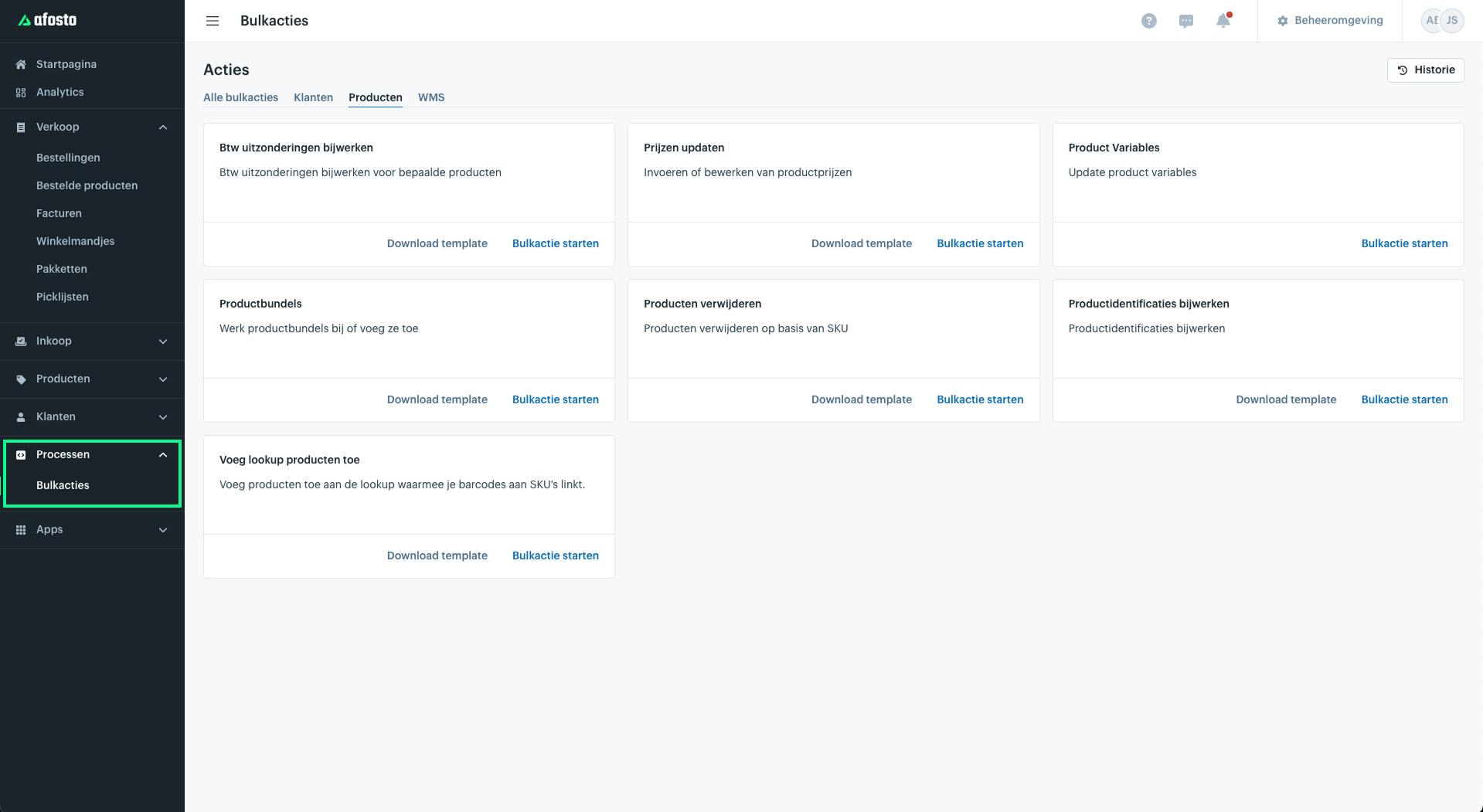
Go to the 'Products' tab, find the 'Product bundles' bulk action, and click 'Start bulk action'.
For efficient use of bulk actions, familiarity with spreadsheets (Google Sheets or Excel) is recommended. You can download the template for the bundle creation bulk action via the 'Download template' button in the platform, or through the following link: Link to Google Docs. The template explains how the spreadsheet should be structured before you paste your data or upload a CSV file. Make sure the spreadsheet is in order before continuing with this guide.
Reference
Once you have started the bulk action, give it a reference so you can easily identify it later. Beyond that, this reference has no functional purpose. You can always leave the pre-filled reference as is.
Select data type
In the second step, you choose from three options:
-
Existing dataset: if you have previously uploaded a CSV file and want to use it again.
-
Spreadsheet: for quickly pasting your data from the template or another spreadsheet.
-
CSV integration: for uploading a new CSV file.
Because the second option (spreadsheet) is the fastest, we will follow that option here.
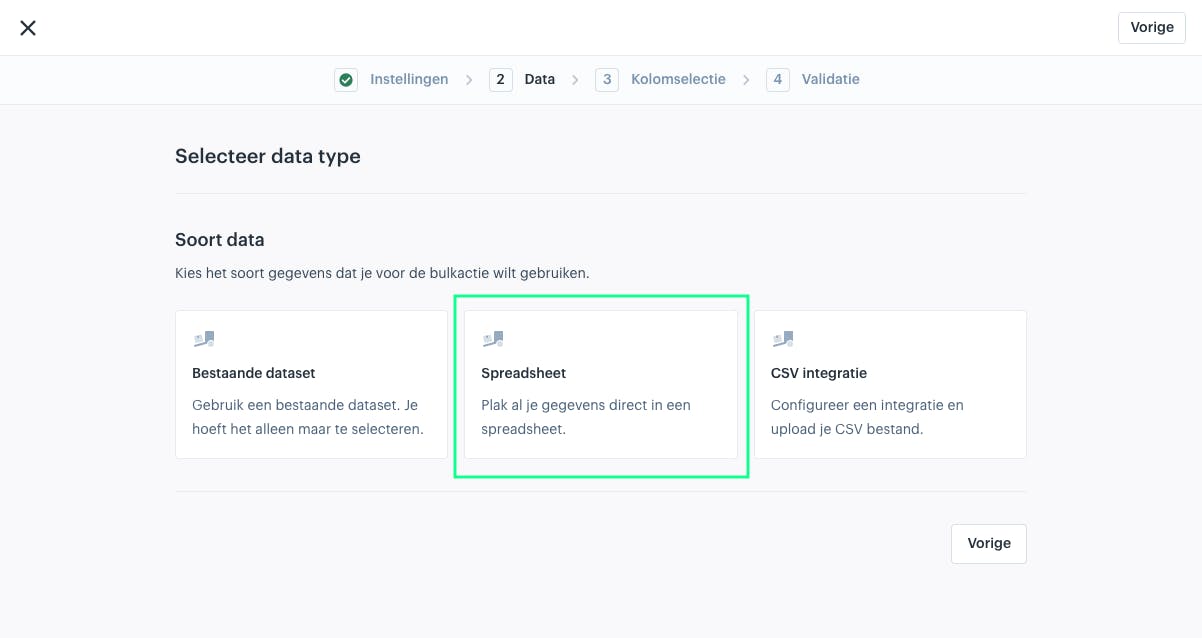
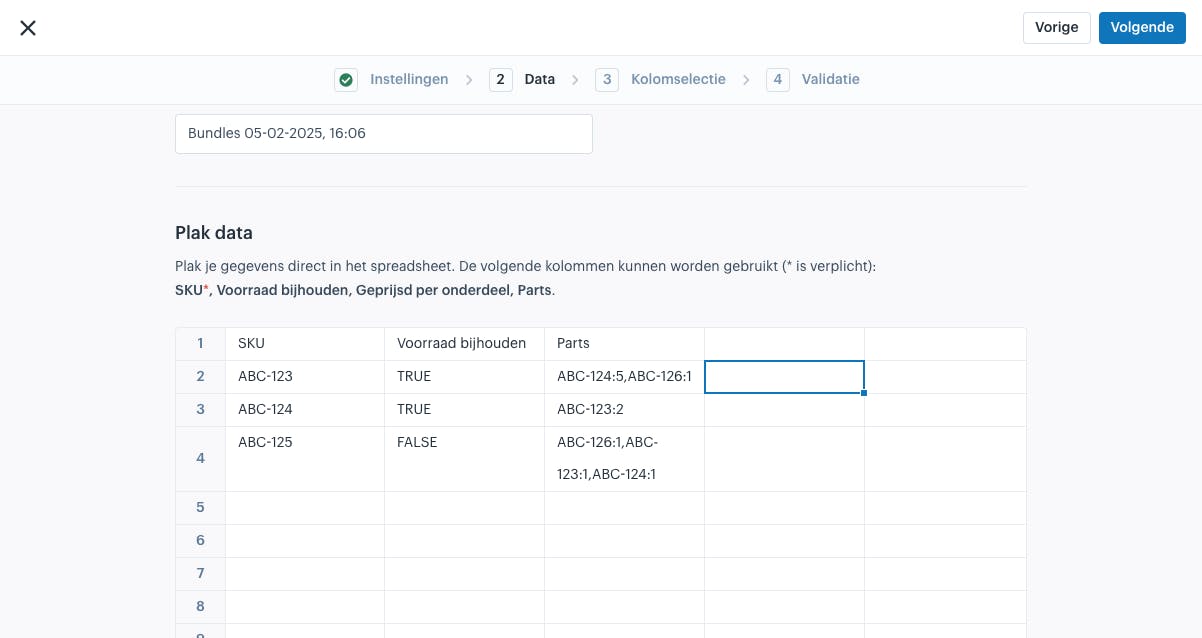
Paste data
In the next step you will see a table. You can paste the values from your spreadsheet into this table as shown below. Click 'Next' once the fields have been imported correctly.
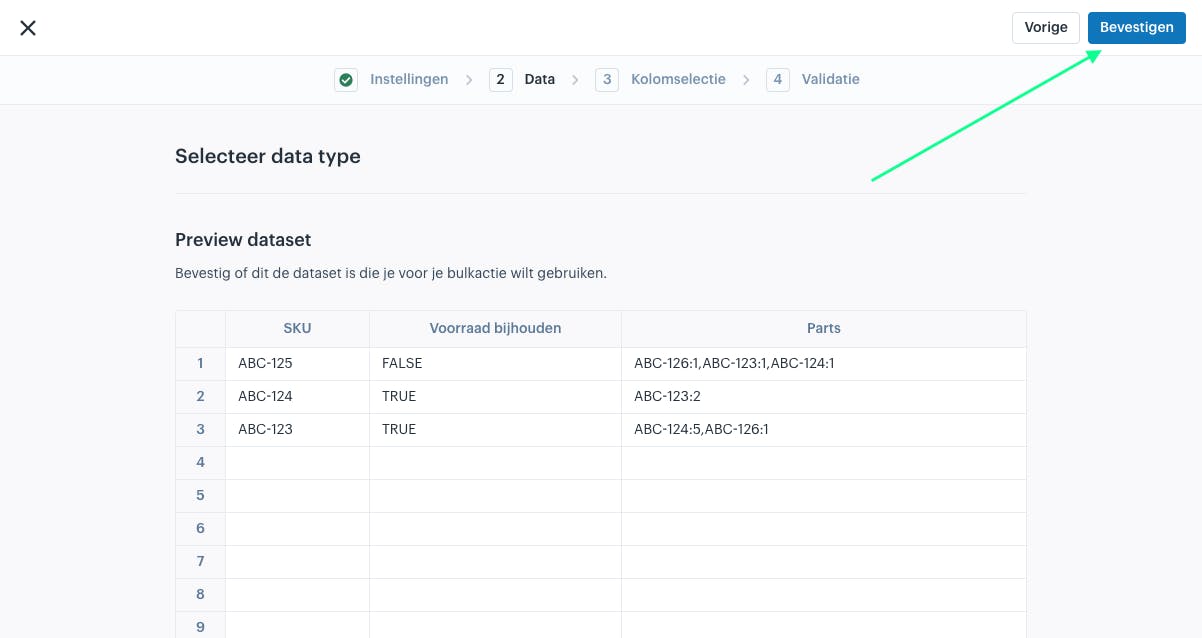
Review the entered data in the following step and confirm your dataset when you are satisfied, or go back if you want to make changes.
Column names as first row Always enter the column names of the columns you want to upload in the first row.
Column mapping
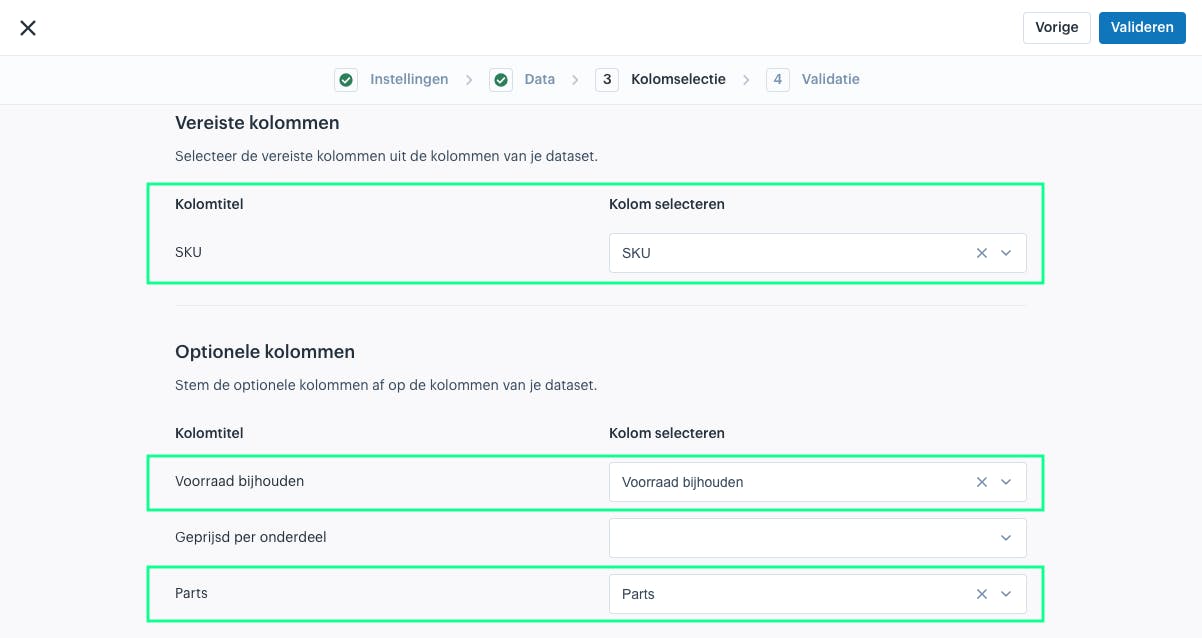
In the next step you need to map the columns from your dataset to the columns in Afosto. If you used the same column names from the template, the columns will be matched automatically because the system recognises them.
Validation
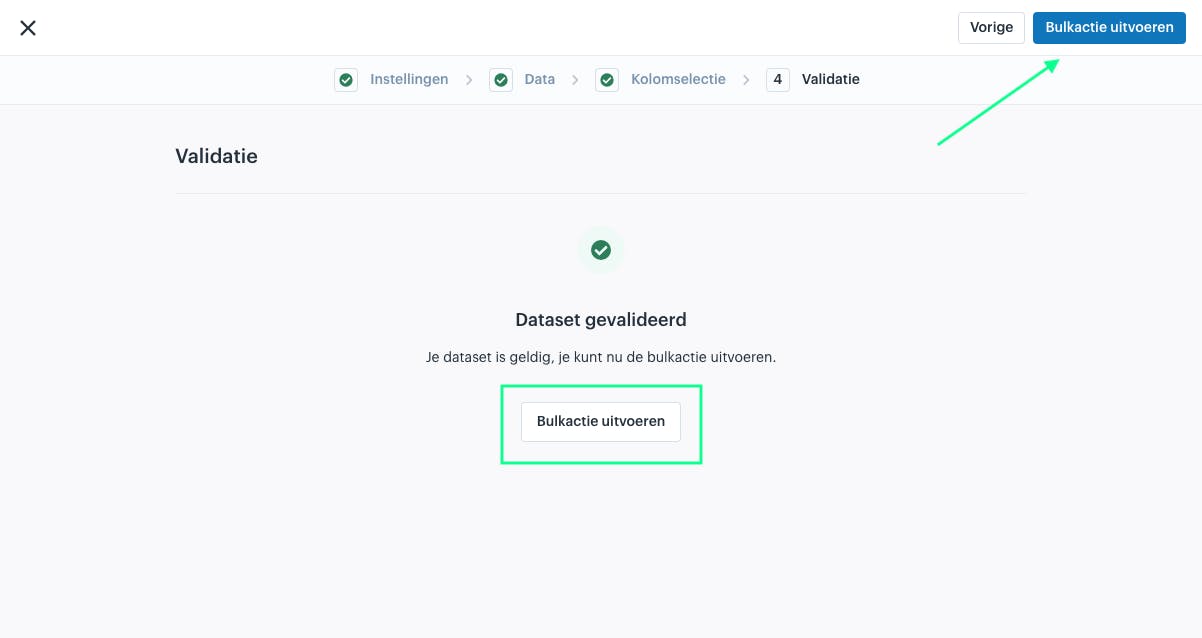
Once you click 'Next', the dataset will be validated. If there are no errors, you can click 'Run bulk action' to execute the bulk action.
About Afosto
Till, webshop, bol and Kaufland on one stock.