

Let customers choose a free gift above an order amount
Want customers to choose a free gift once their order reaches a certain amount? For example: on orders from €50, the customer picks a tote bag, a sample sachet or a chocolate bar. You set this up with a pricing rule based on the Free product promotion template.
How it works:
- In the pricing rule, you set the minimum amount and choose which products the customer can pick as a gift.
- Once the cart reaches the minimum amount, the gifts are offered in the cart. They are not added automatically.
- The customer picks a gift in your webshop. The webshop adds that product to the cart and the pricing rule sets its price to €0.00.
You show the choice itself (which gift, which flavour) in your own webshop or cart. The Afosto checkout does not show the offer by itself. You can read how to build this under For developers at the bottom of this page.
Add the pricing rule
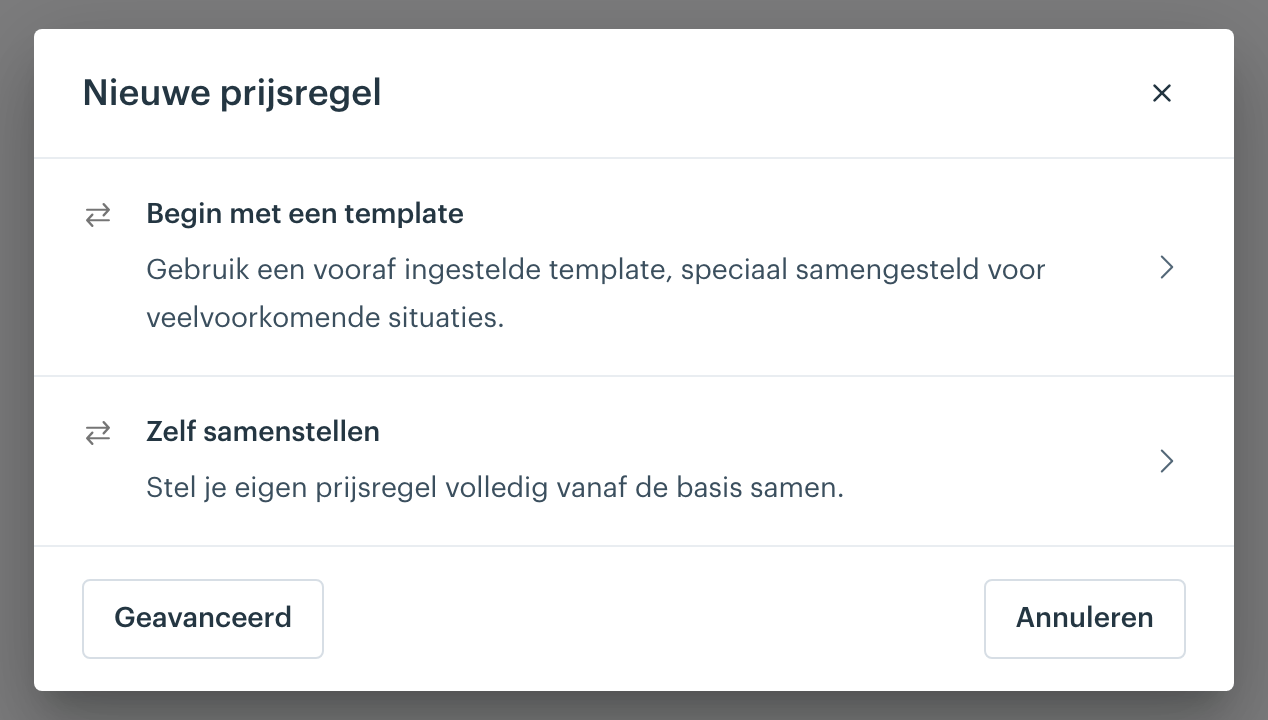
In the Afosto admin, go to Orders > Pricing rules and click Add in the top right corner. Choose Start with a template. For pricing rules in general, see Discounts and Price Rules. The screenshots below show the Dutch interface.
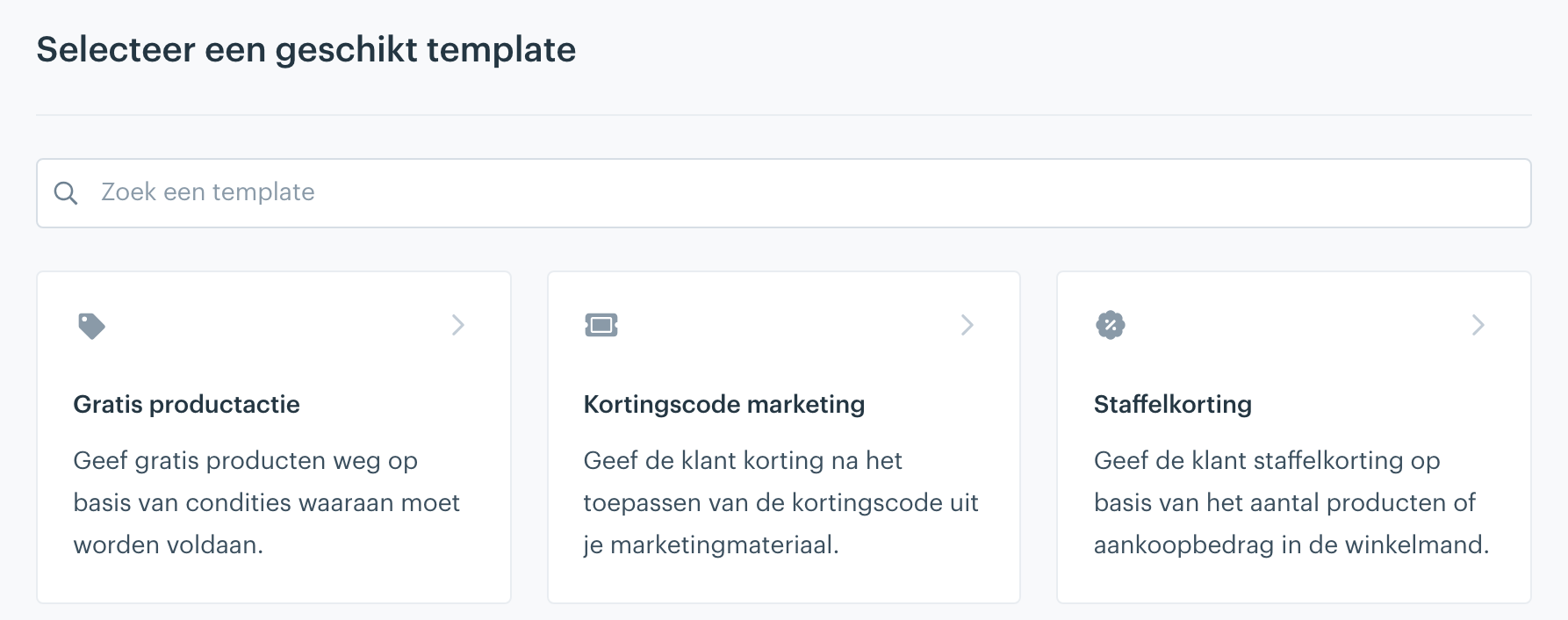
Select the Free product promotion template.
Period and name
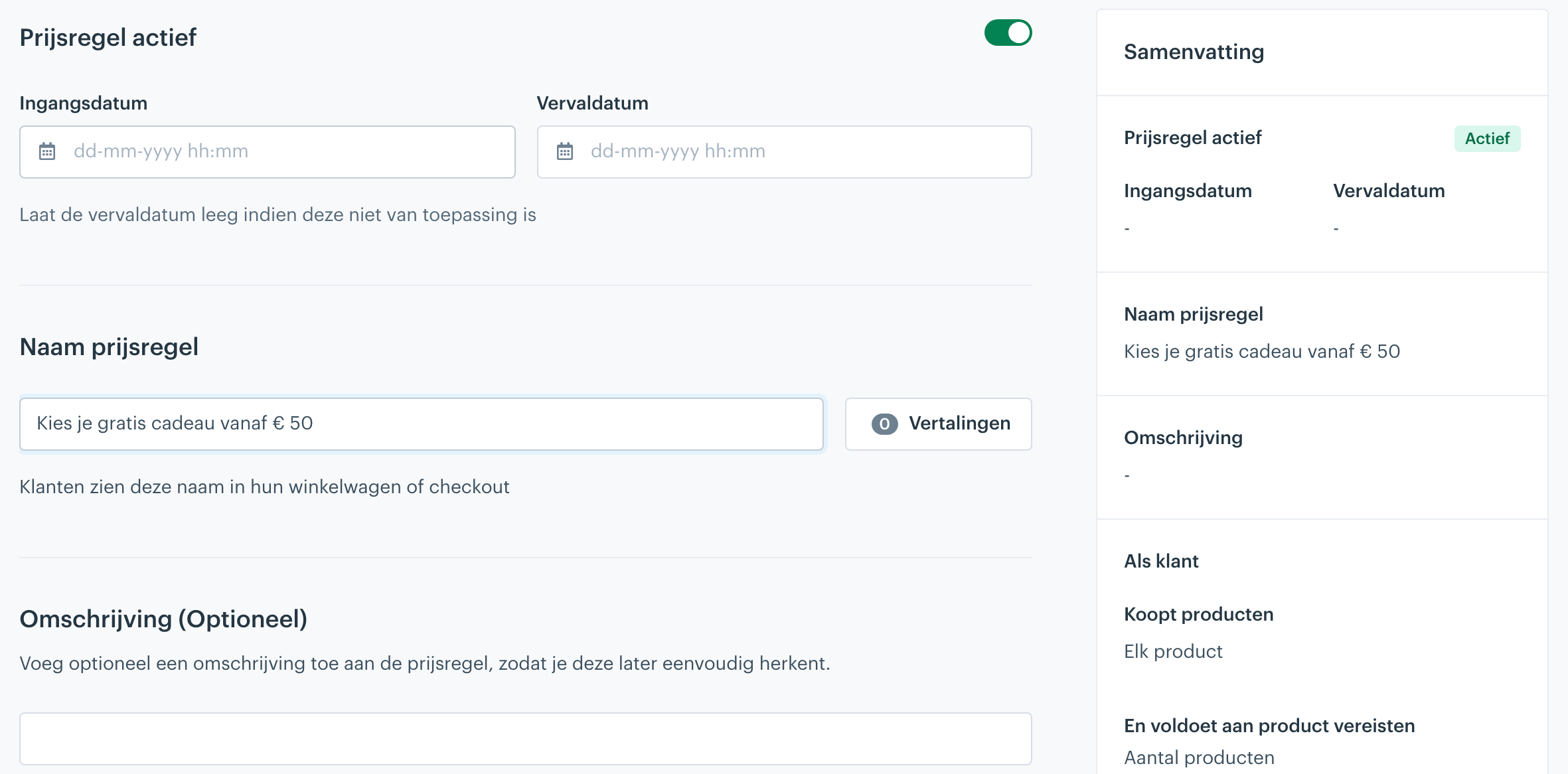
At the top, Pricing rule active is already switched on. Want the promotion to run for a set period only? Fill in a Start date and an Expiration date. Leave the expiration date empty if the promotion keeps running.
Then give the pricing rule a clear name, for example "Choose your free gift from €50". Customers see this name in their shopping cart or in checkout, and on the order it appears as the description of the free product. If you sell in more languages, add a translation of the name for each language.
If customer: buys products above an amount
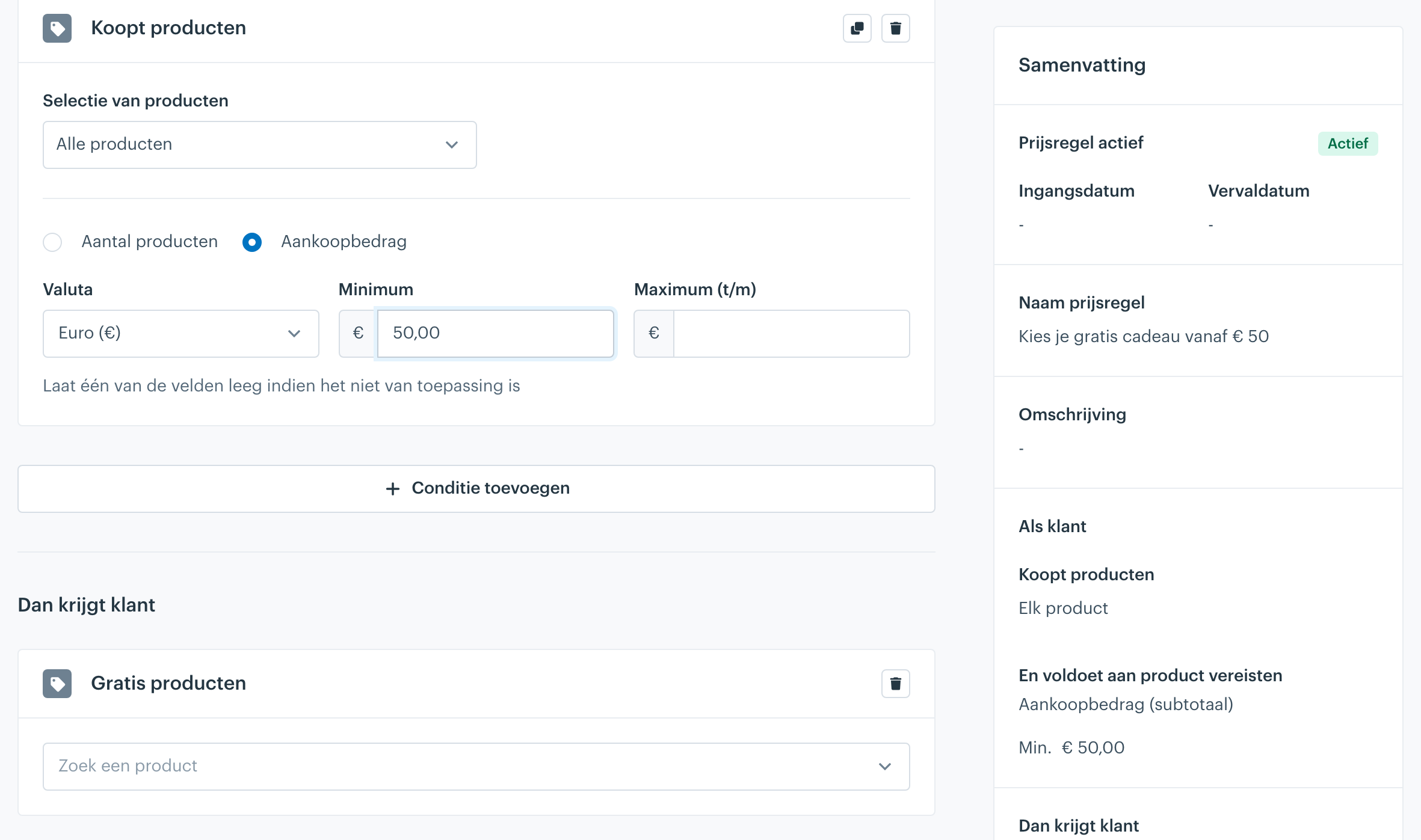
The template has already added the condition on the products the customer buys. Set it up like this:
- Leave the product selection on All products.
- Choose Purchase amount instead of Number of products.
- Under Currency, choose Euro (€).
- Under the minimum, enter the amount from which the customer may choose a gift, for example 50.00.
- Leave the maximum empty.
The summary on the right shows that the amount applies to the order subtotal.
Then customer gets: free products
Under Then customer gets you will find the Free products block. Use Search a product to find the products the customer may choose as a gift and add them one by one. Under Number of free you set how many of that product are free. For a gift, that is usually 1.
Does a gift come in variants, such as a sample sachet in three flavours? Each variant is a separate product with its own SKU. Add each variant separately. The customer can then choose between, for example, the chocolate, vanilla or strawberry sachet.
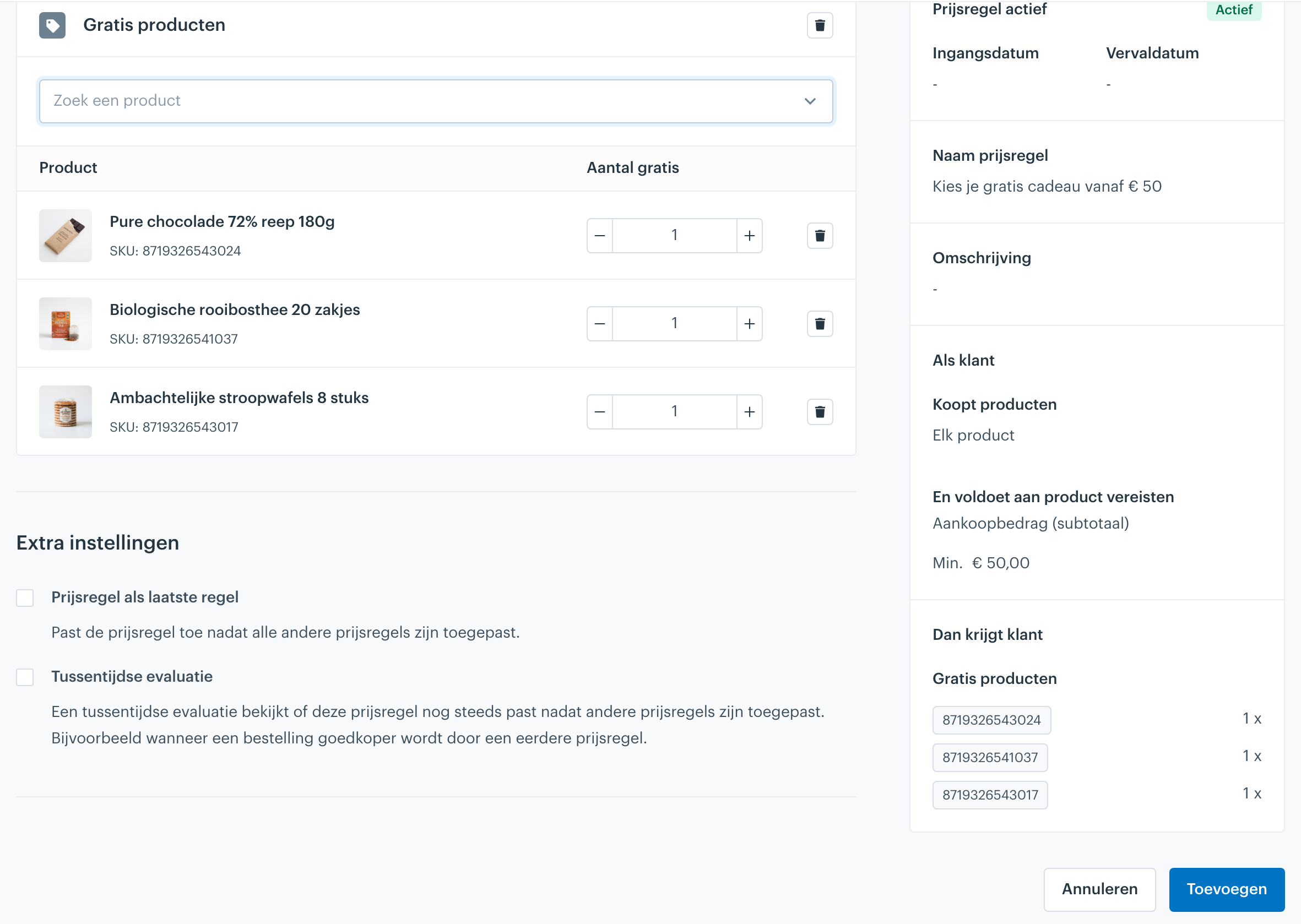
You can leave the Extra settings switched off for a gift promotion. Click Add. The pricing rule now appears in the overview and is active straight away.
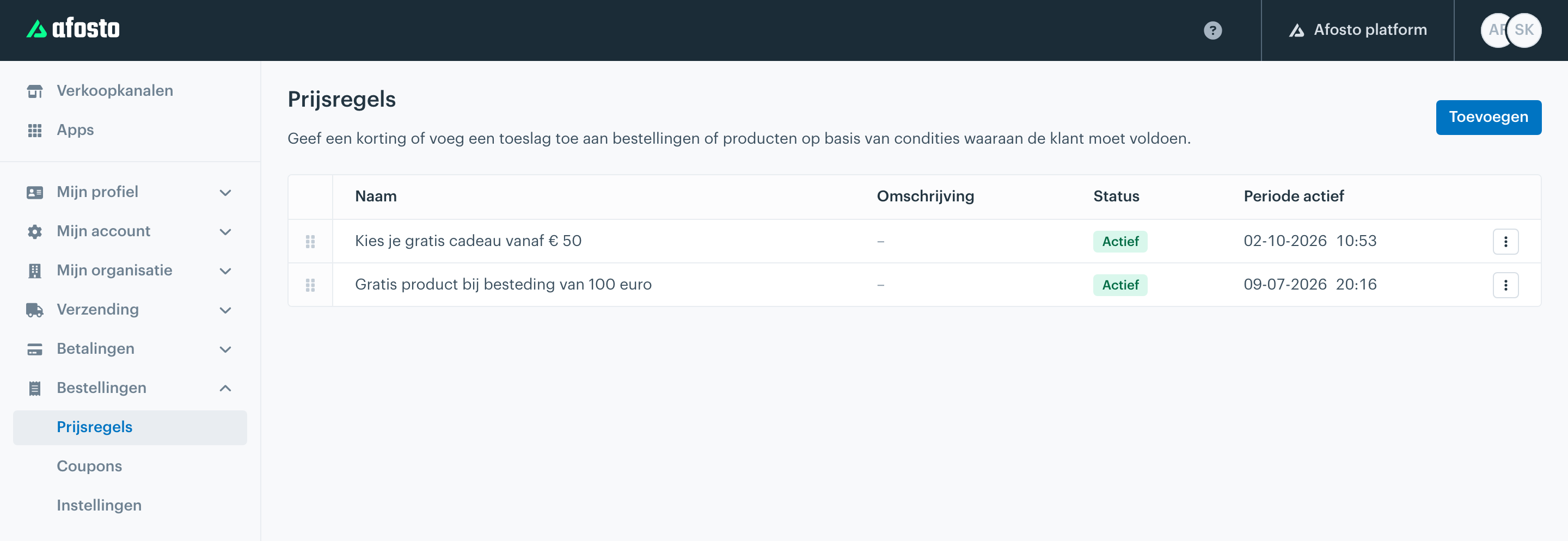
The gift on the order
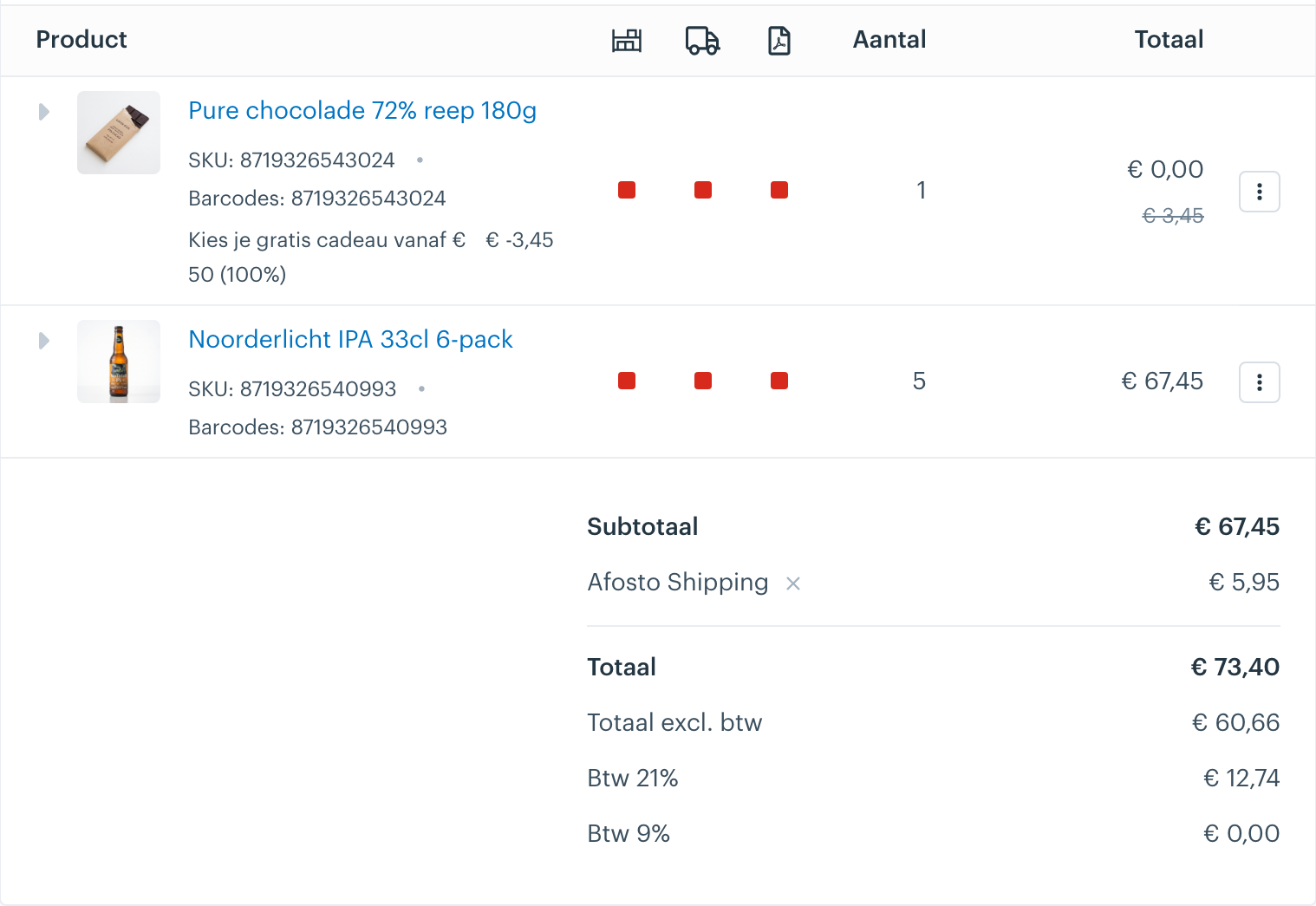
When the customer chooses a gift, the product is added to the cart with a 100% discount. On the order, the gift appears as a €0.00 line, with the original price struck through and the pricing rule name as its description. This way your warehouse also sees which gift to pack.
Things to watch out for
We tested this setup. A few things are not handled by the pricing rule itself. Your webshop needs to take care of them.
The pricing rule does not limit the number of gifts. If you offer three gifts, a customer gets all three for free when all three end up in the cart. When the customer picks one, the other two stay on offer. Should the customer pick only one? Show the choice as a single selection and replace the gift when the customer picks another one.
The gift counts towards the minimum amount. In our test, a cart with €49.42 worth of products was below the €50 threshold. Adding a gift worth €3.45 took it over: the gift became free and the other gifts stayed on offer. So have your webshop compare the amount without the gift to the minimum amount itself.
If the order drops below the minimum amount, the gift stays in the cart at its regular price. The discount is removed, the product is not. Have your webshop remove the gift as soon as the amount without the gift drops below the minimum. Otherwise the customer pays for it.
One unit per gift is free. With Number of free set to 1, a second unit of the same gift costs the regular price. So don't let the customer change the quantity of a gift.
The pricing rule does not know whether a product was chosen as a gift. If a gift product is in the cart and the order reaches the minimum amount, one unit is free, even when the customer bought it as a regular product.
For developers
Are you building your webshop with the @afosto/storefront client? The offer is in cart.incentives. Below you can read what you can and cannot get from it, with a complete example for "pick one". We tested the example with version 4.0.5 of the client, without other discounts in the cart.
What cart.incentives contains
Each offer only has a quantity and a product with sku, label, gtin, slug, mpn, brand, images and filters. It contains no price, no pricing rule name or id, and no minimum amount. This means:
- To show "worth €3.45", fetch the price from the product separately.
- A message like "€7.50 more for your free gift" only works if you configure the minimum amount in your webshop yourself.
- If several gift promotions run at the same time, you cannot see which gift belongs to which pricing rule.
A gift that is already in the cart disappears from the offer. The other gifts stay. An empty list therefore means that the cart does not reach the minimum amount, or that all gifts are already in the cart. You cannot tell the difference from cart.incentives. For that you need the marker and the amount check below.
Recognising the gift
When adding the gift, pass a marker in metaData, for example { gift: true }. You read it back in item.details[].metaData. The value comes back as text: { gift: 'true' }.
Don't recognise the gift by the discount in adjustments. When the cart drops below the minimum amount, that discount disappears, and that is exactly when you need to find the gift to remove it. The description of the discount is also the pricing rule name, which can differ per language. A fixed list of gift SKUs in your webshop works as well.
Checking the minimum amount
Because the gift itself counts, your webshop compares the amount without the gift to the minimum amount. Store that minimum amount in your webshop configuration: the API does not return it. Amounts are in cents.
Don't compare with cart.total, because it also includes shipping costs. In our test, a cart with €49.42 worth of products came to €55.37 with shipping, and the gift would wrongly stay in the cart.
Building the choice
- No gift in the cart yet? Show all gifts from
cart.incentivesas a single choice, with radio buttons or a select. - Already a gift in the cart? Show the choice as "swap": the chosen gift from
cart.itemsplus the gifts still incart.incentives. - The customer swaps? Remove the old gift first, then add the new one. The other way around, two gifts are free for a moment.
- The cart changes? Check the amount without the gift afterwards and remove the gift if it drops below the minimum.
- Don't show a quantity selector for the gift.
const MINIMUM = 5000; // €50.00 in cents, same as the minimum in the pricing rule

const isGift = (detail) => detail.metaData?.gift === 'true';

// The chosen gift, recognised by its marker
const getGift = (cart) => {
  const item = cart.items.find((cartItem) => cartItem.details.some(isGift));
  if (!item) return null;
  const ids = item.details.filter(isGift).flatMap((detail) => detail.ids);
  return { sku: item.sku, label: item.label, ids };
};

// The amount without the gift, in cents
const getAmountWithoutGift = (cart) =>
  cart.items
    .flatMap((cartItem) => cartItem.details)
    .filter((detail) => !isGift(detail))
    .reduce((sum, detail) => sum + detail.pricing.amount * detail.ids.length, 0);

// The choice: the chosen gift plus the rest of the offer
const getGiftChoice = (cart) => {
  const gift = getGift(cart);
  if (getAmountWithoutGift(cart) < MINIMUM) return { gift, options: [] };
  const offered = cart.incentives.map(({ product }) => ({ sku: product.sku, label: product.label }));
  return { gift, options: gift ? [{ sku: gift.sku, label: gift.label }, ...offered] : offered };
};

// Choose or swap: remove the old gift first, then add the new one
const chooseGift = async (cart, sku) => {
  const gift = getGift(cart);
  if (gift?.sku === sku) return cart;
  if (gift) await client.removeCartItems(gift.ids);
  return client.addCartItems([{ sku, quantity: 1, metaData: { gift: true } }]);
};

// After every cart change: below the minimum, the gift is removed
const syncGift = async (cart) => {
  const gift = getGift(cart);
  if (gift && getAmountWithoutGift(cart) < MINIMUM) return client.removeCartItems(gift.ids);
  return cart;
};
Call syncGift(cart) after every cart change, and show the choice with getGiftChoice(cart).
Steps
-
Go to Orders > Pricing rules and click Add.
-
Choose Start with a template and then Free product promotion.
-
Optionally set a start and expiration date, and give the pricing rule a name your customer may see.
-
In the products condition, choose Purchase amount and enter the minimum amount.
-
Under Free products, add each gift, each variant separately, with Number of free set to 1.
-
Click Add.
-
Have your webshop show the offer as a single choice, add the chosen gift with a marker, and remove the gift when the amount without the gift drops below the minimum.