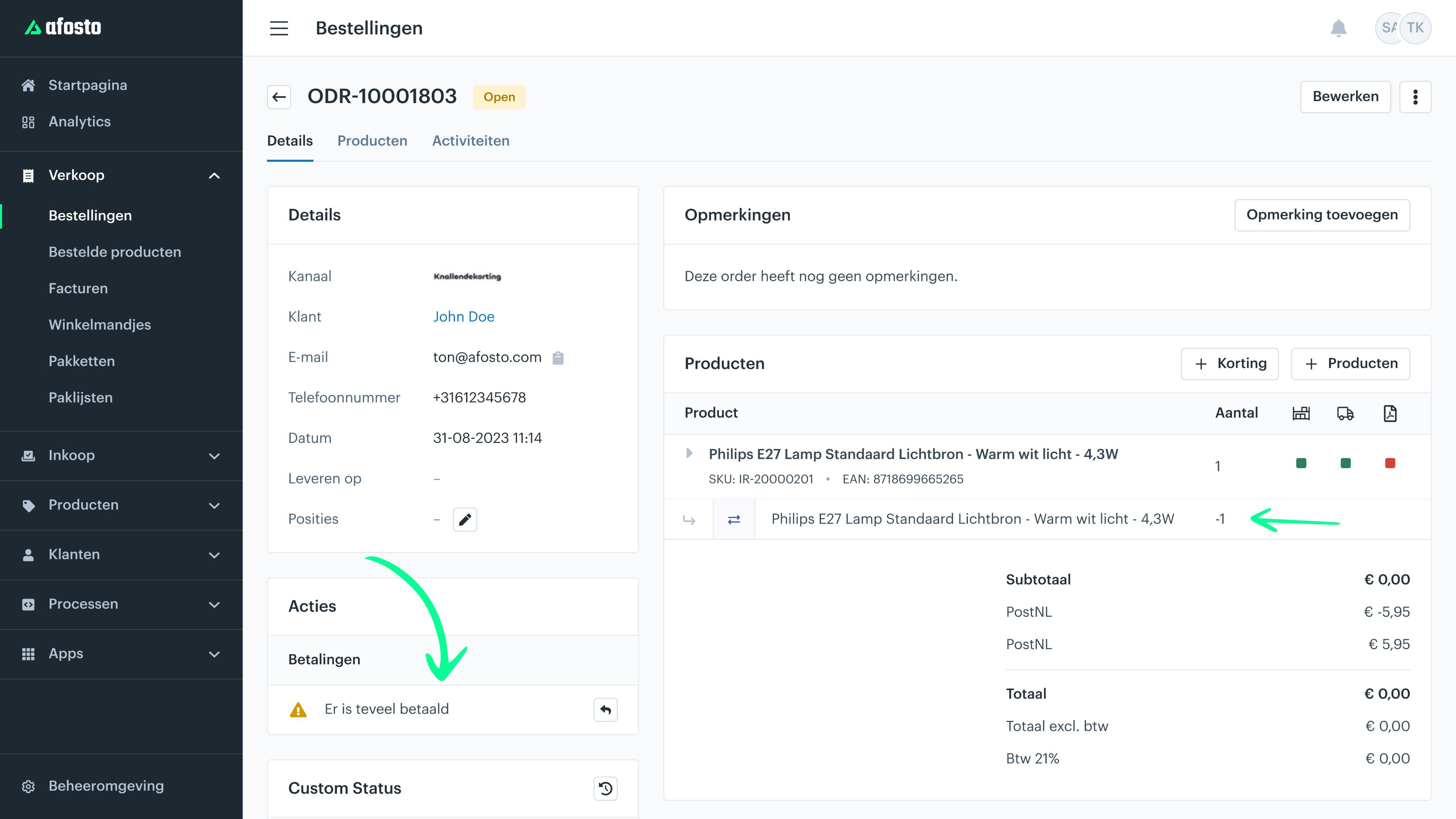

Returning an Order
In this how-to guide, we explain how to easily process a return in Afosto. To process a product as a return, it must meet one condition:
- The product must have been shipped.
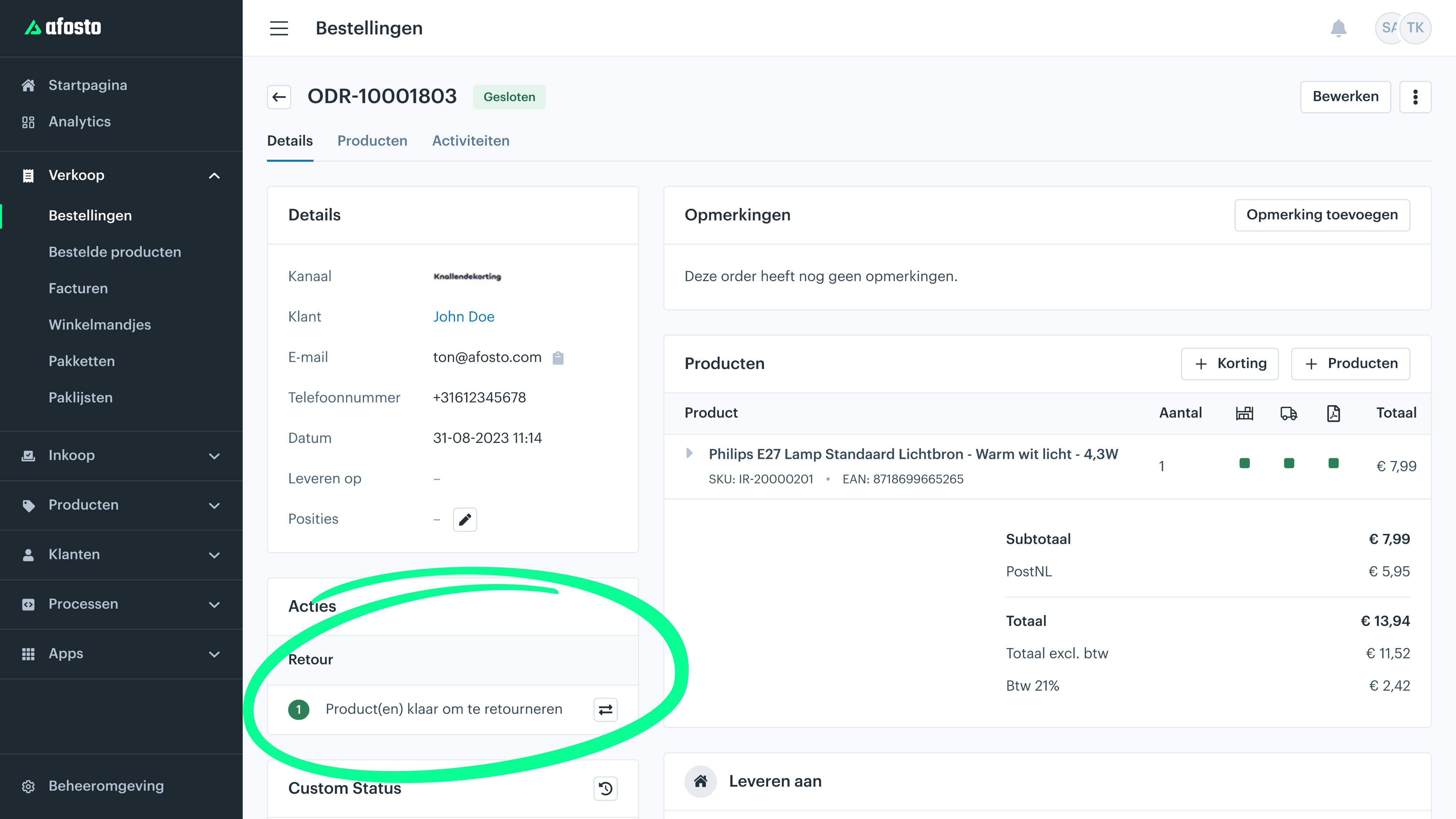
Once the product has been shipped, the option to return it will appear in your order overview under “Actions.” Click the button to start the return process.
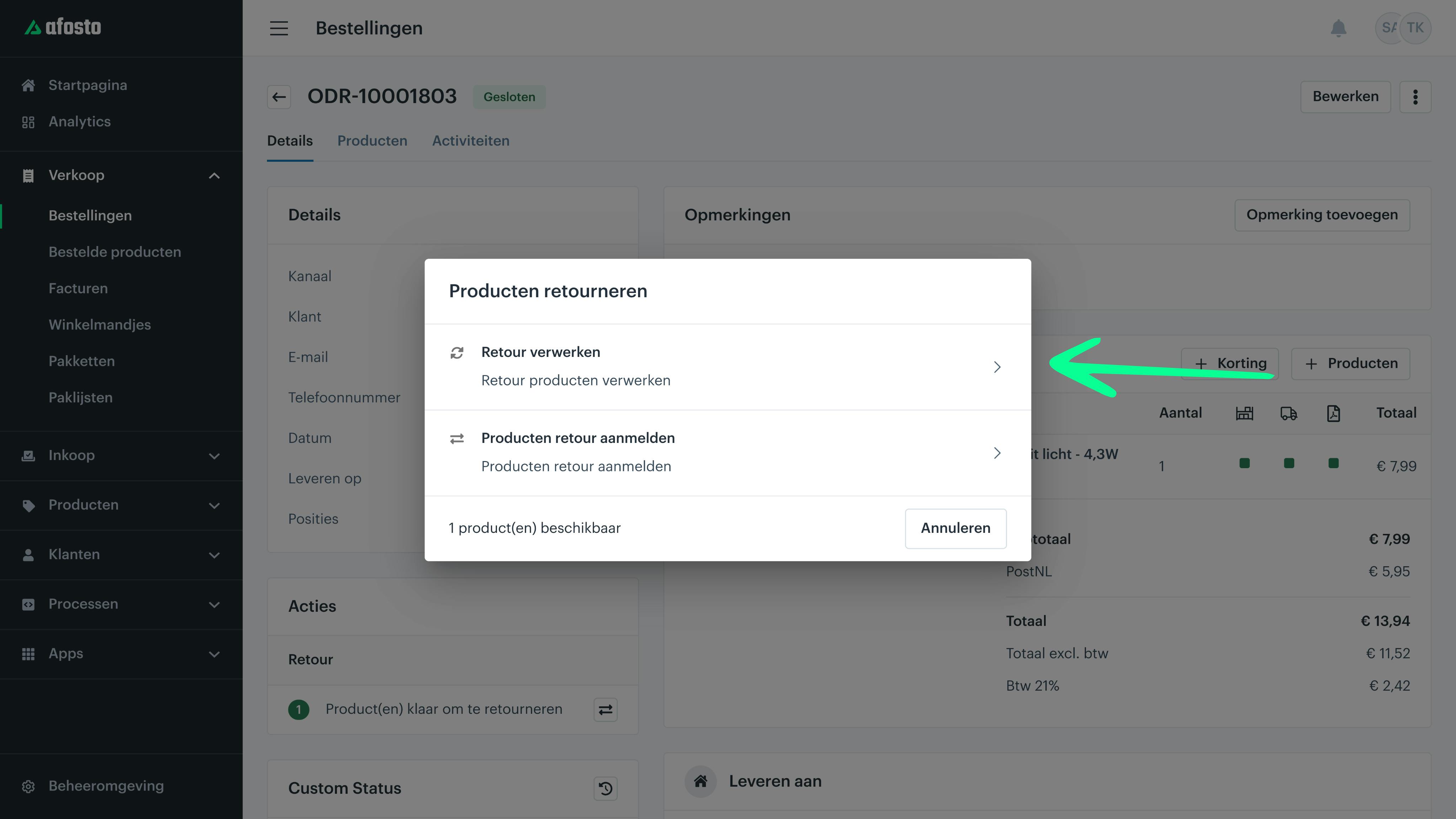
A screen will appear with two options: Process Return and Register Return.
Select Process Return.
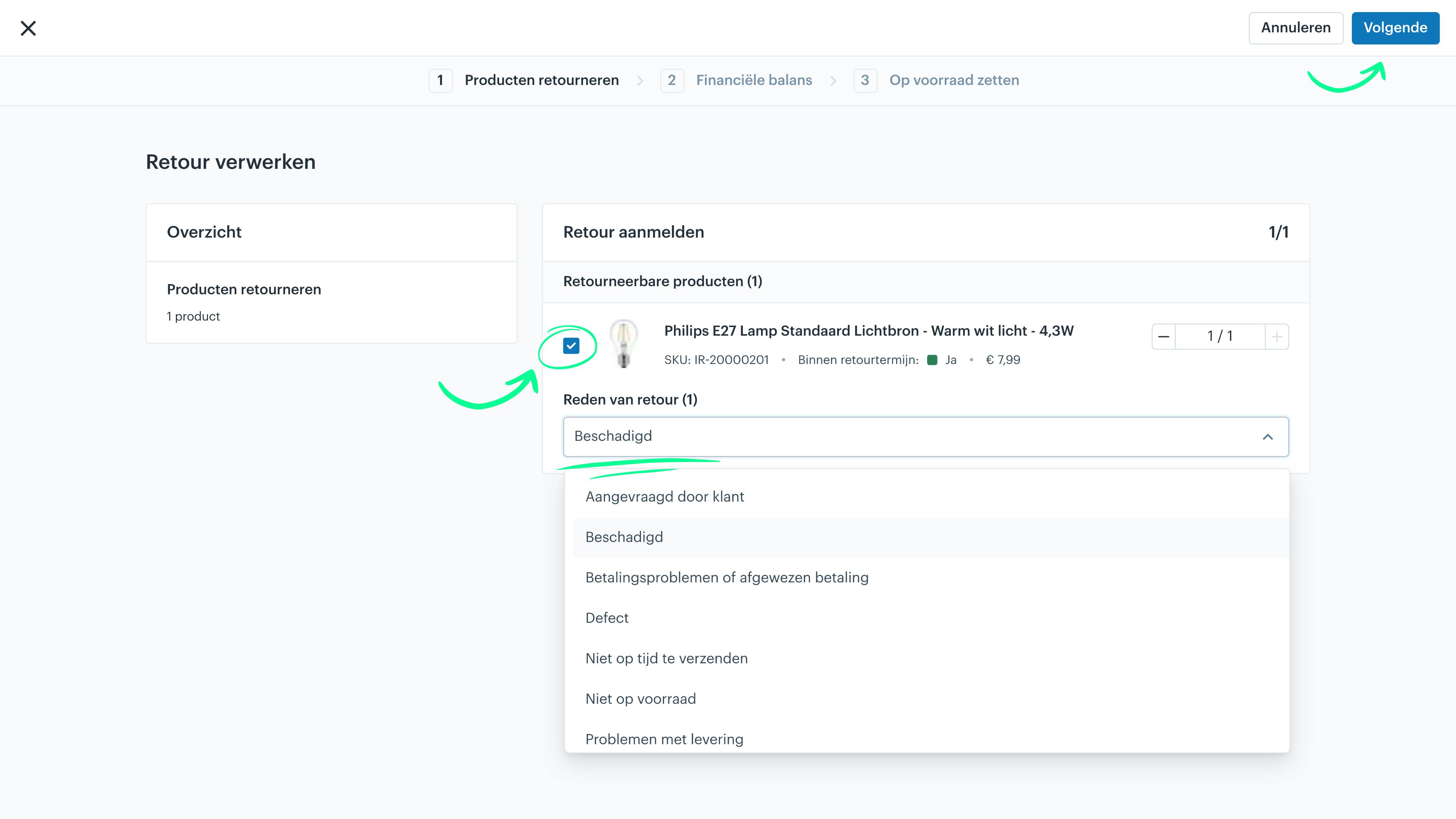
A screen will open where you can select which products have been returned. Do this by checking the checkbox in front of the product.
Don’t forget to increase the quantity using the plus button if more than one of the product has been returned. You can also select a return reason. Once you have done this, click Next.
The next step concerns the payments for the order. When a product is returned, you often want to refund it. You indicate this here by selecting the checkmark (refund) or the cross (do not refund).
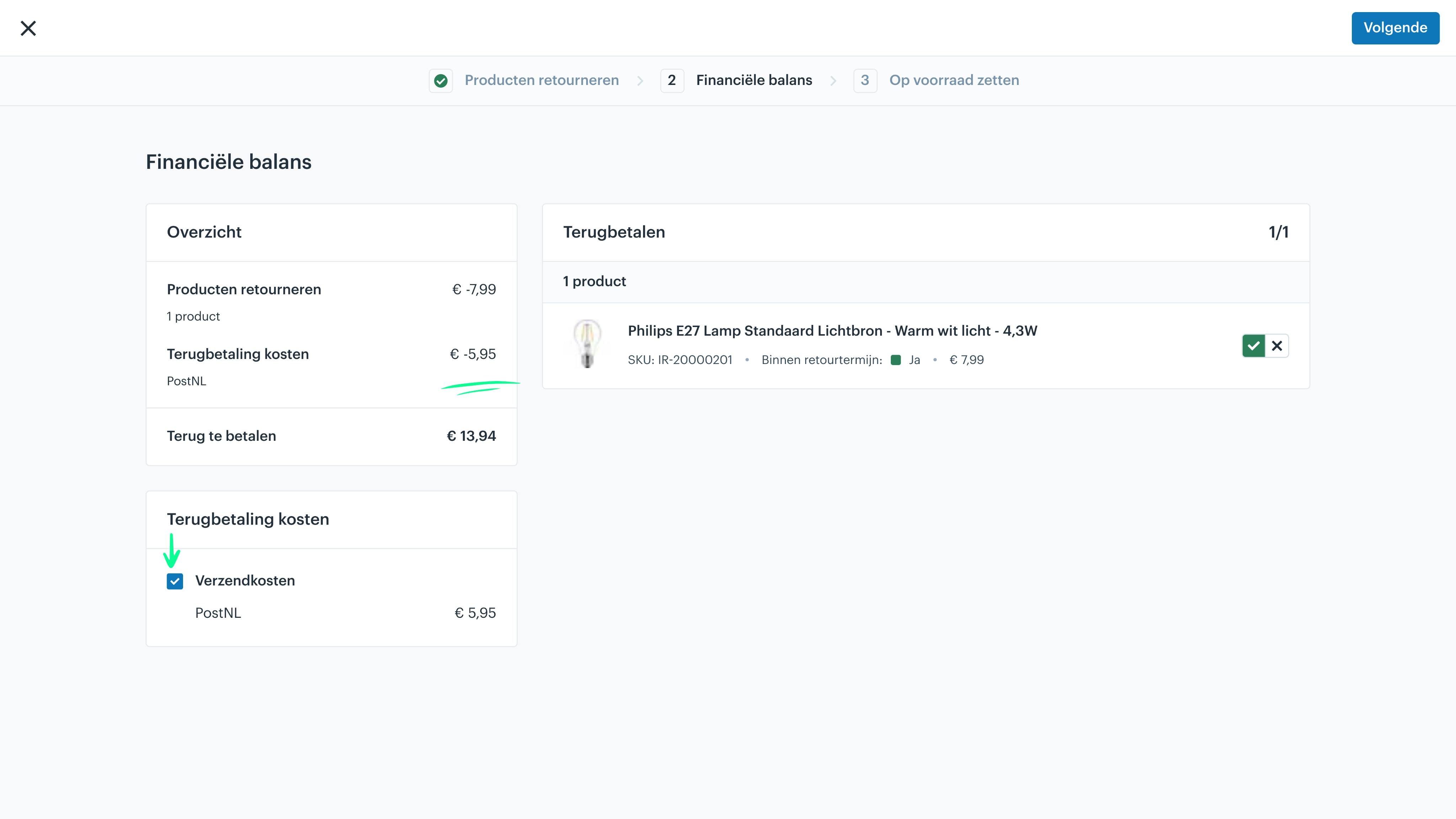
On the left side, you can also choose to include shipping costs (or other costs) in the credit.
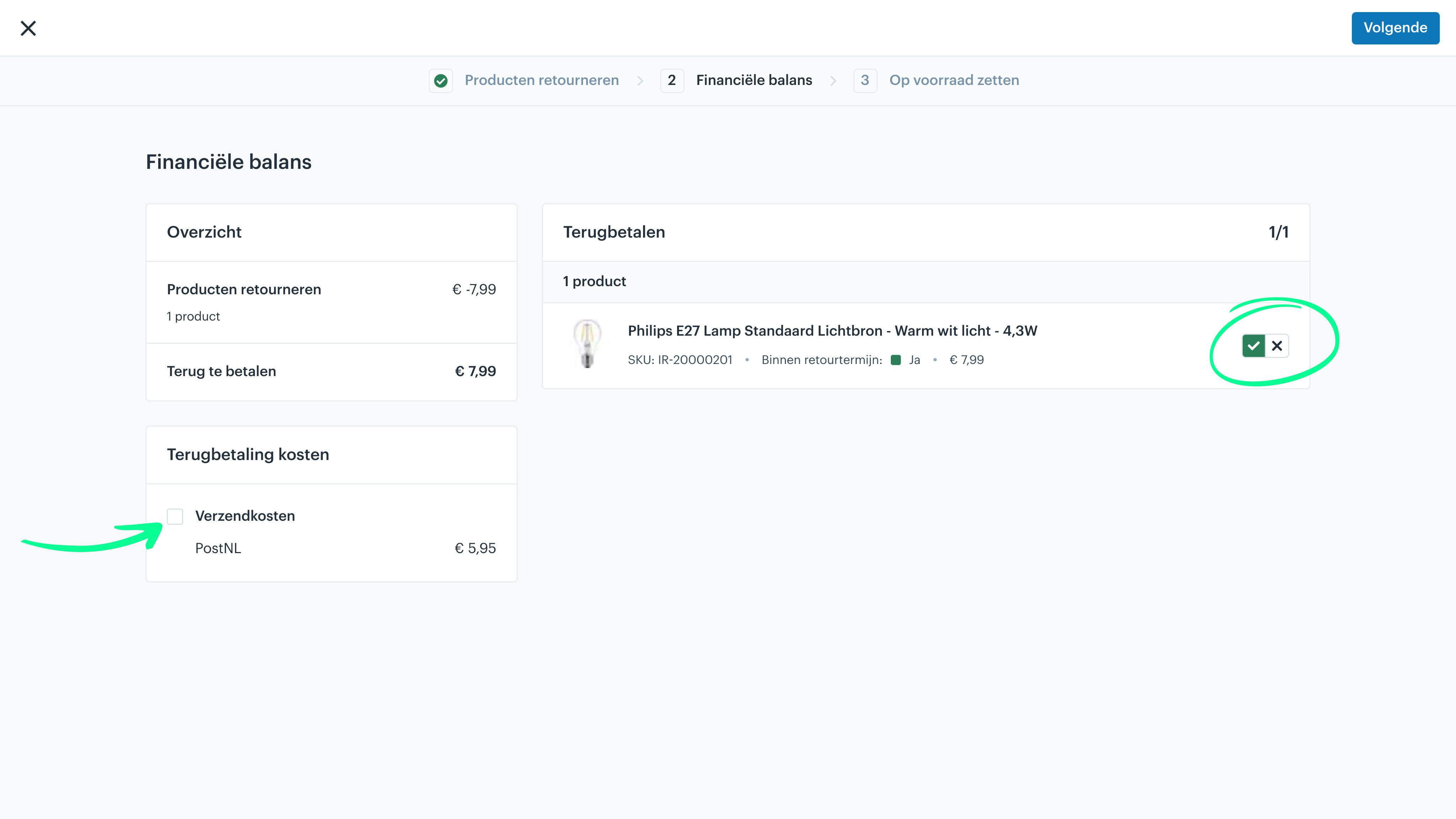
Once you have checked the box for shipping costs, you will see the overview above update accordingly. Click Next.
The final screen is about inventory. When an item is returned, you often want to restock it.
Here, you need to select a warehouse where it will be stored, and you can assign a location to make the product easy to find. Then, click Process Return.
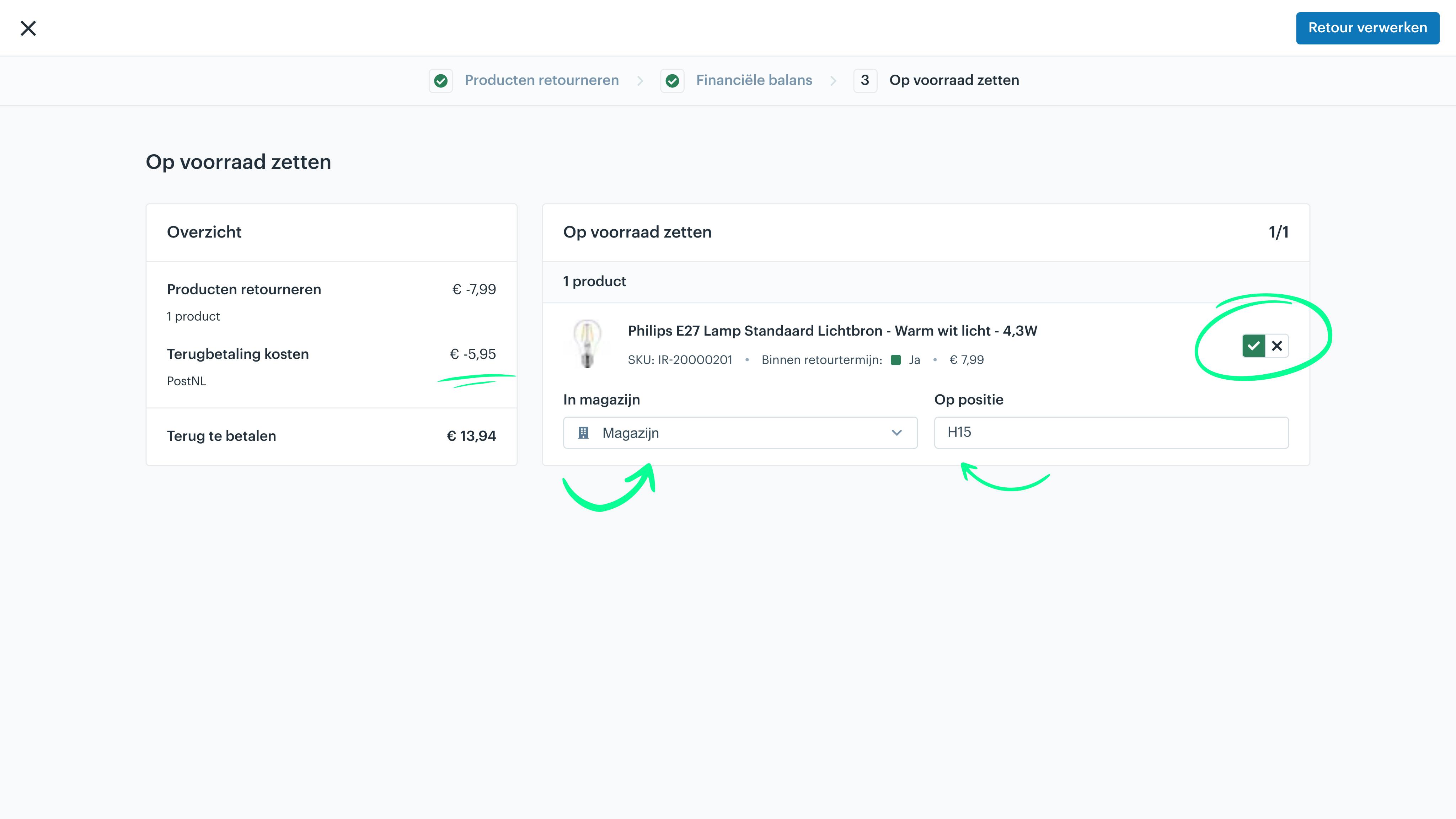
The return has now been processed, and any refund has been prepared. The only thing left to do is approve the refund or have it approved.