

Switch order views on the ship screen
Flag order views in the admin for the ship process, so packers switch between lists such as web shop and pick-up orders right on the ship screen of the WMS app.
The ship screen of the WMS app shows the orders of one view of the orders overview. Until now a packer could only change that view in the settings of the device. Now you mark views in the admin for the ship process, and the packer switches between them right on the ship screen. For example between web shop orders, pick-up orders for the store and marketplace orders.
The WMS app is in Dutch, so its screen names are given in Dutch with a translation. The screenshots of the admin are taken in Dutch as well; the field names in the text are the English ones.
How it works
Every view of the orders overview in the admin has the field Show in the WMS app under (Weergeven in de WMS app onder). In it you choose the processes of the WMS app in which the view can be chosen:
- Ship
- Pick & pack
- Returns
- Services
At the moment the WMS app only uses Ship. You can already set the other three, but they don't change anything in the app yet.
The flags are the switch. There is no separate setting to turn this on:
| Views with Ship | Ship screen | View list in the ship settings |
|---|---|---|
| None | As before: no view switch | Every orders view |
| One | No view switch, there is nothing to switch to | Only the flagged view |
| Two or more | A view switch at the search field | Only the flagged views |
If you never set a flag, the WMS app keeps working exactly as it did.
Before you start
- Decide which lists your packers need. One view per list, for example "Webshop", "Afhalen" (pick-up) and "Marketplace". Each view gets the filters for that list, such as the sales channel and the shipping method.
- Keep the names short. The name of the view is the text on the view switch. On a phone a long name is cut off.
- Check the filters of each view. An order can be in more than one view. If a pick-up order should not be in the web shop list, the web shop view must exclude the pick-up shipping methods.
Flag a view in the admin
You do this in the orders overview (Orders). The field is on every orders overview in the admin, also on the orders tab of a contact, organisation or project.
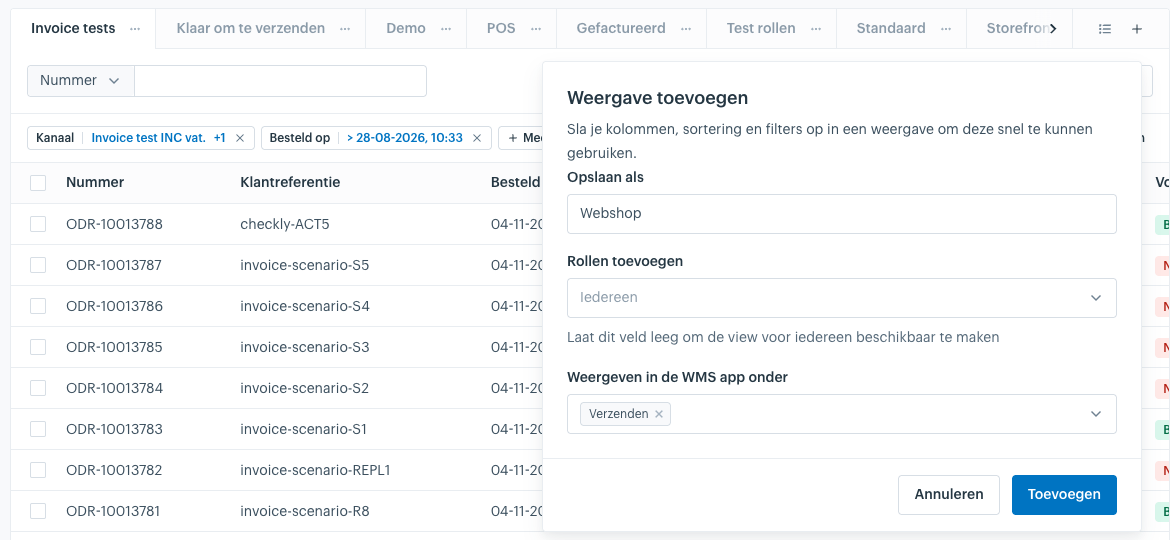
A new view
- Open Orders and set the filters, columns and sorting the list needs.
- Click the plus to the right of the view tabs. The Add view window opens.
- Enter a name under Save as.
- Add roles if you like. Leave Add roles on Everyone to make the view visible to every role.
- Choose Ship under Show in the WMS app under. A chosen process shows as a label in the field.
- Click Add.
An existing view
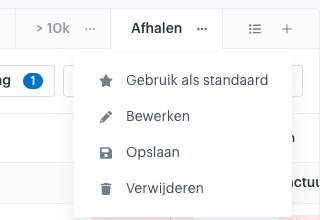
- Open Orders and click the tab of the view.
- Click the three dots on the active tab and choose Edit.
- Choose Ship under Show in the WMS app under in the Edit view window.
- Click Save.
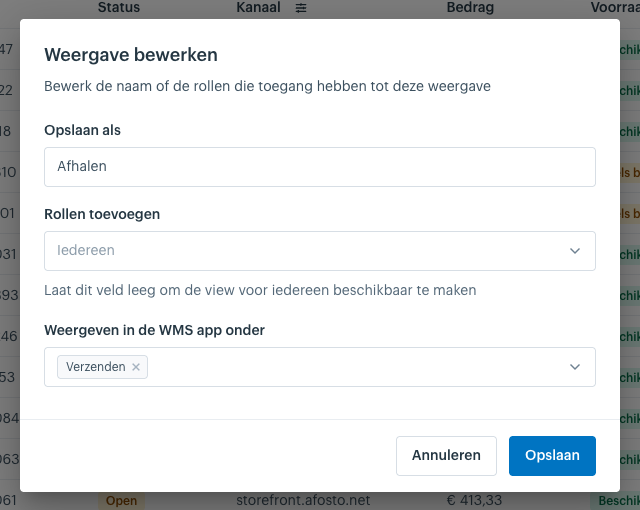
To remove the flag, click the cross on the Ship label in the same window and click Save.
Flag at least two views, otherwise the view switch does not appear on the ship screen.
Switch views on the ship screen
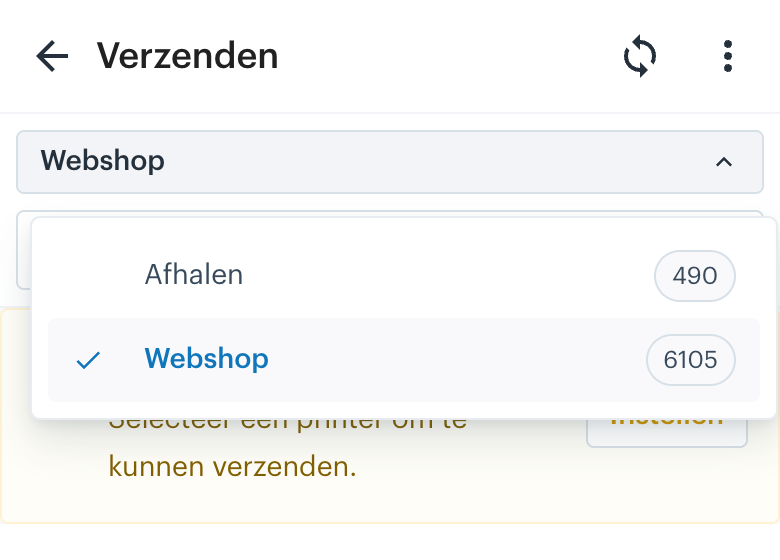
- Open Verzenden (Ship) in the WMS app.
- Find the view switch. On a phone it sits above the search field, across the full width. On a larger screen it sits to the left of the search field. It shows the name of the current view. If the device has no view yet, it says "Kies een lijst" (choose a list).
- Tap the view switch. A menu opens with every view flagged for Ship. The current view has a check mark, and every view shows how many orders it holds.
- Tap a view. The ship screen loads the orders of that view.
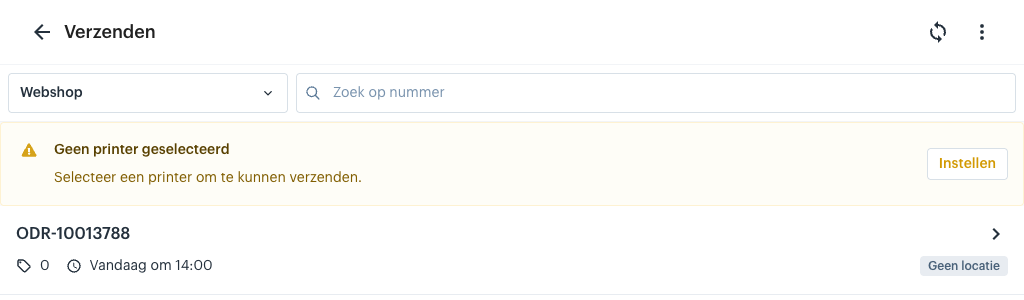
The choice is saved on the device. It stays after you close the app, and it does not change the view on other devices.
The view list in the ship settings
You can still choose the view in Instellingen (Settings) > Verzenden (Ship) > View. Once at least one view is flagged for Ship, that list only shows the flagged views.
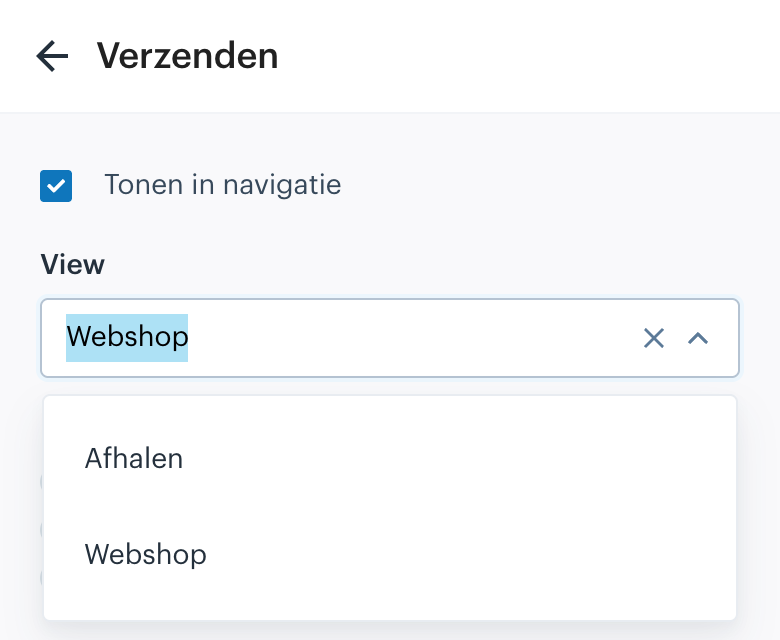
A device that is set to a view without the flag, for example an older device on "All orders", keeps that view. It stays first in the list, so the packer sees which list they are in. As soon as they choose a flagged view, the old one disappears from the choice.
What stays the same
The ship settings themselves, such as the flow type, printing a shipping label or packing slip and the printers, stay one set per device. They do not change when the packer switches views. An order can be in more than one view, and it should be handled the same way in each one.
Troubleshooting
- There is no view switch on the ship screen. Fewer than two views are flagged for Ship. Check the field Show in the WMS app under of the views, then open the ship screen again.
- A view is missing from the switch. It is not flagged for Ship, or it was deleted. A deleted view disappears from the choice. A device that was set to it shows "View niet gevonden" (view not found); choose another view.
- The name is cut off. Give the view a shorter name in the admin.
- The count looks wrong. The count is the number of orders that match the filters of that view. Check the filters in the admin; an order can be counted in more than one view.
For developers
The flag is the field processes on a view of the data grid, with the values SHIP, PICK_AND_PACK, RETURNS and SERVICES. In GraphQL you read it per table:
query {
  table(id: "ORDERS") {
    views {
      id
      label
      processes
    }
  }
}
About the WMS
Receive with the scanner, pick by location and ship from every warehouse.