

Creating Products Bundle
Combine multiple items into one product bundle in Afosto, then set its parts, price type, prices and stock type.
The Afosto platform simplifies creating product bundles, allowing businesses to combine multiple items into a single package. This feature offers flexibility and convenience, enabling customized offerings for diverse market needs.
In this guide, we will explore how to create product bundles.
Let’s get started 🚀
How to Create Products Bundle
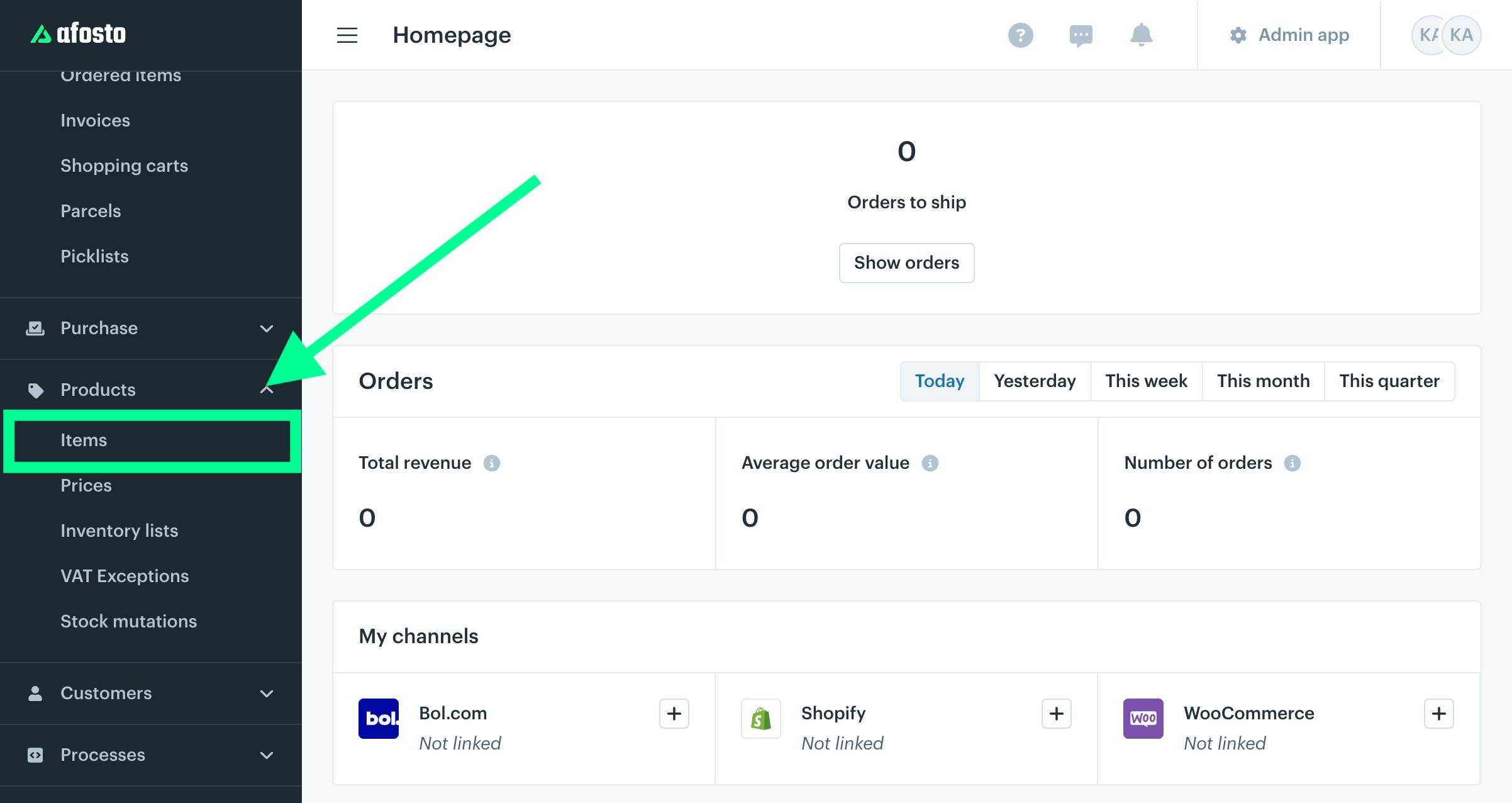
Click the “Products” option in the left sidebar of the screen and select “Items” from the dropdown.
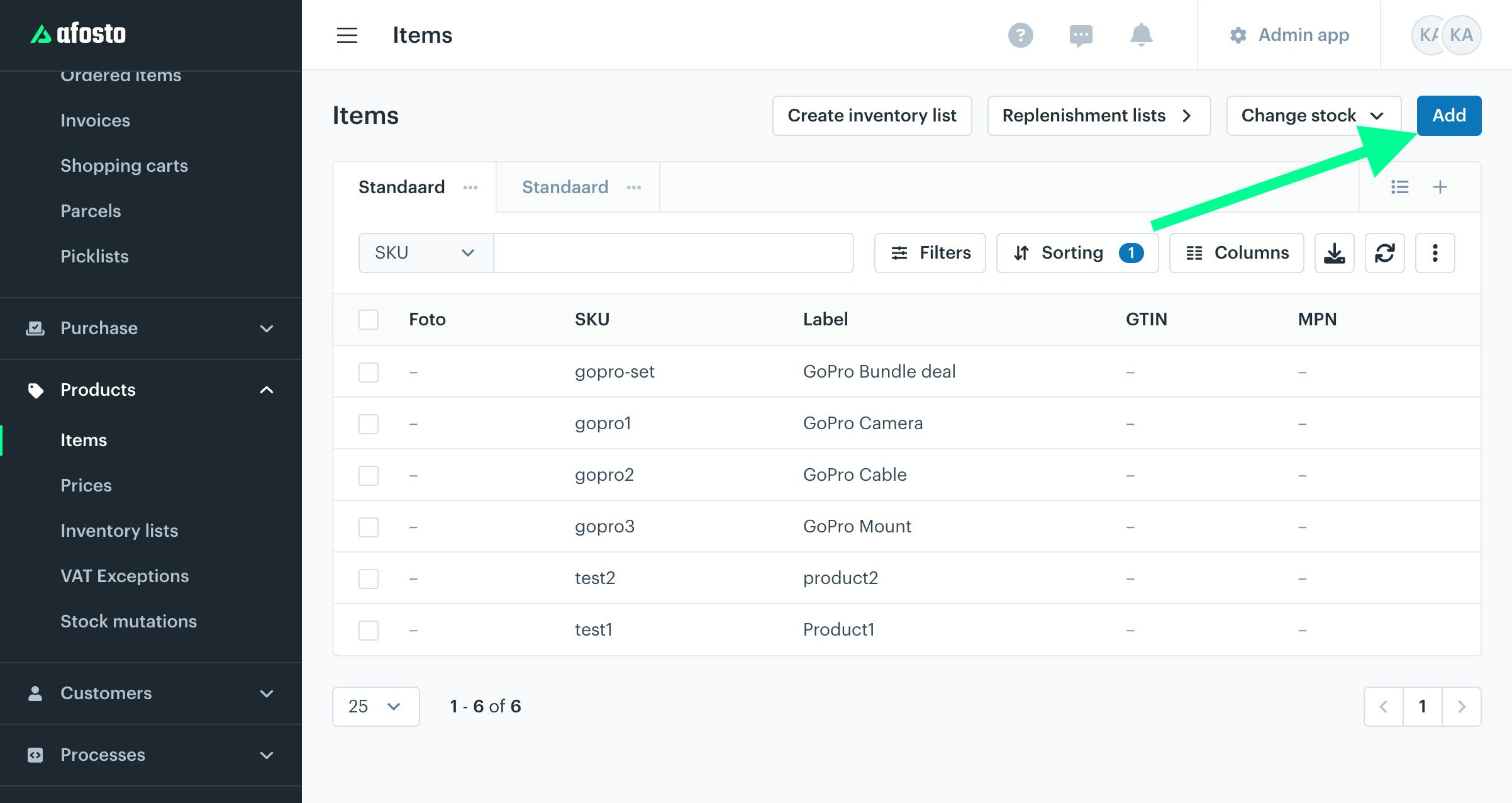
An items list screen will appear. Click the “Add” button at the top-right corner of the window to create a bundle of multiple products/items.
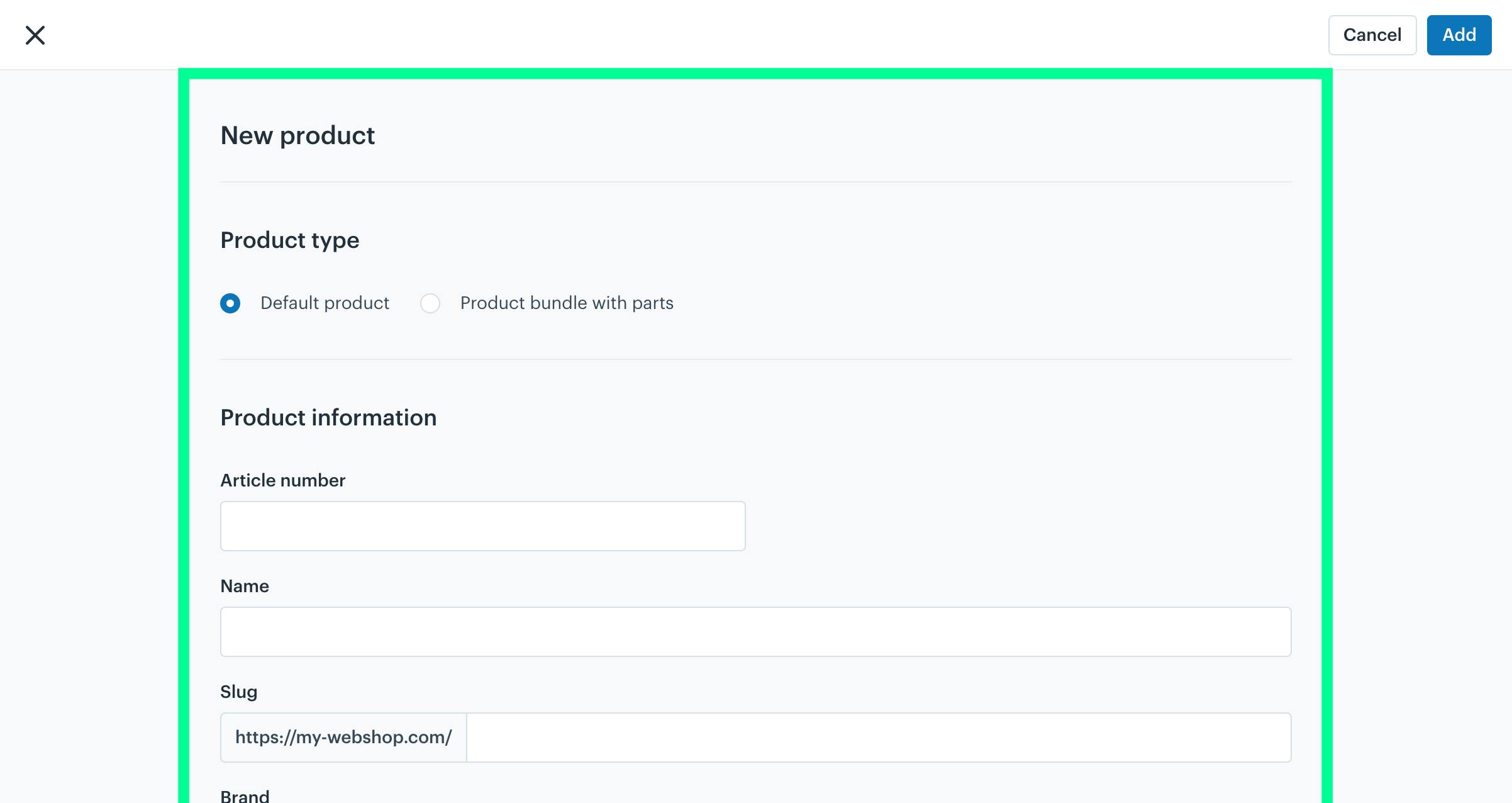
A “New Product” window will appear, requiring all the details of the new bundle.
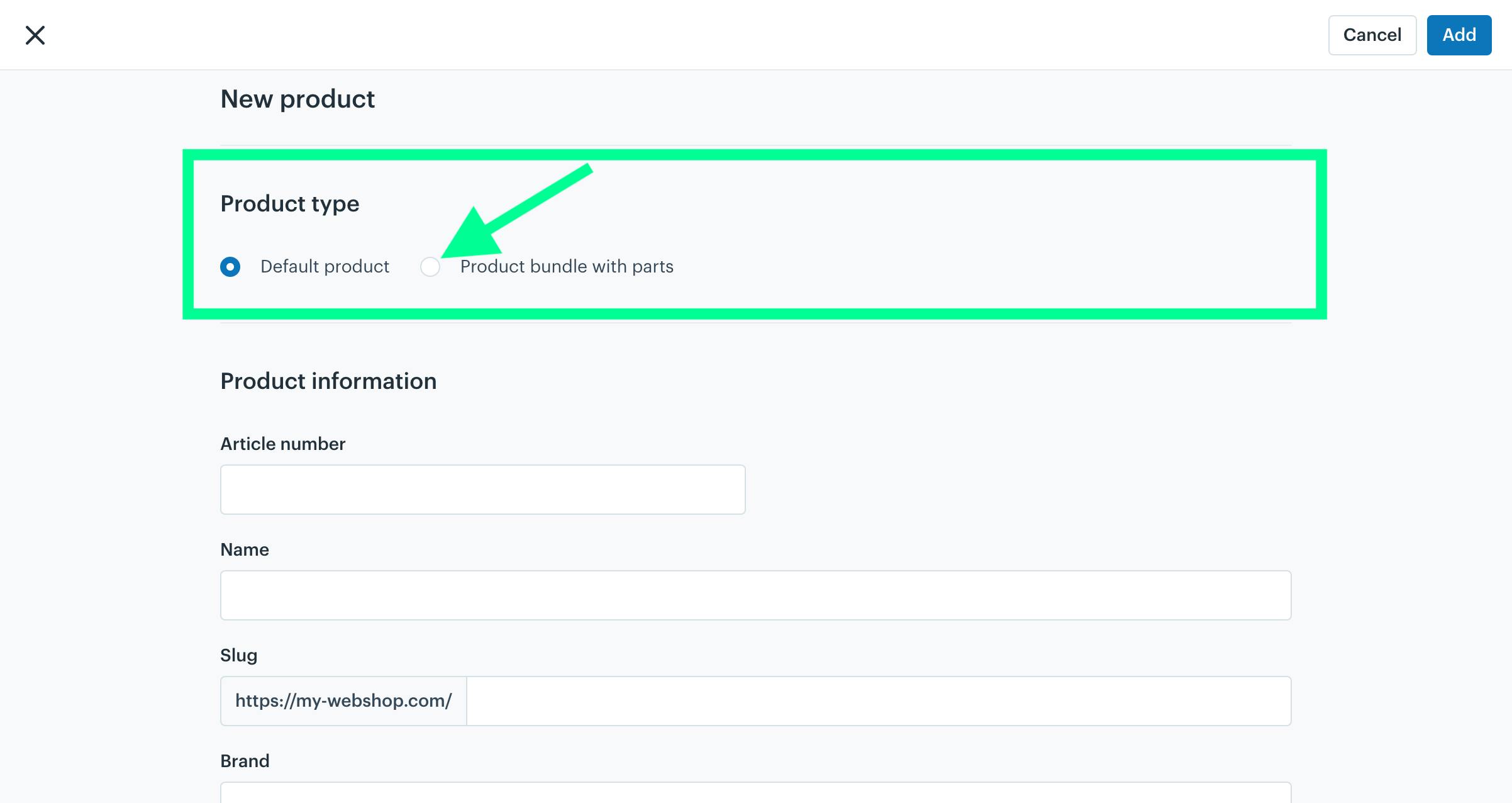
Product Type
The Product Type section lets you choose between:
-
Default Product: A standalone item sold individually.
-
Product Bundle with Parts: A group of items managed as a single bundle.
Click to select the “Product bundle with parts” option.
Note: By default the product type is set to “Default product”
Enter all the details required to create a bundle. The fields and their corresponding description are specified in each section below.
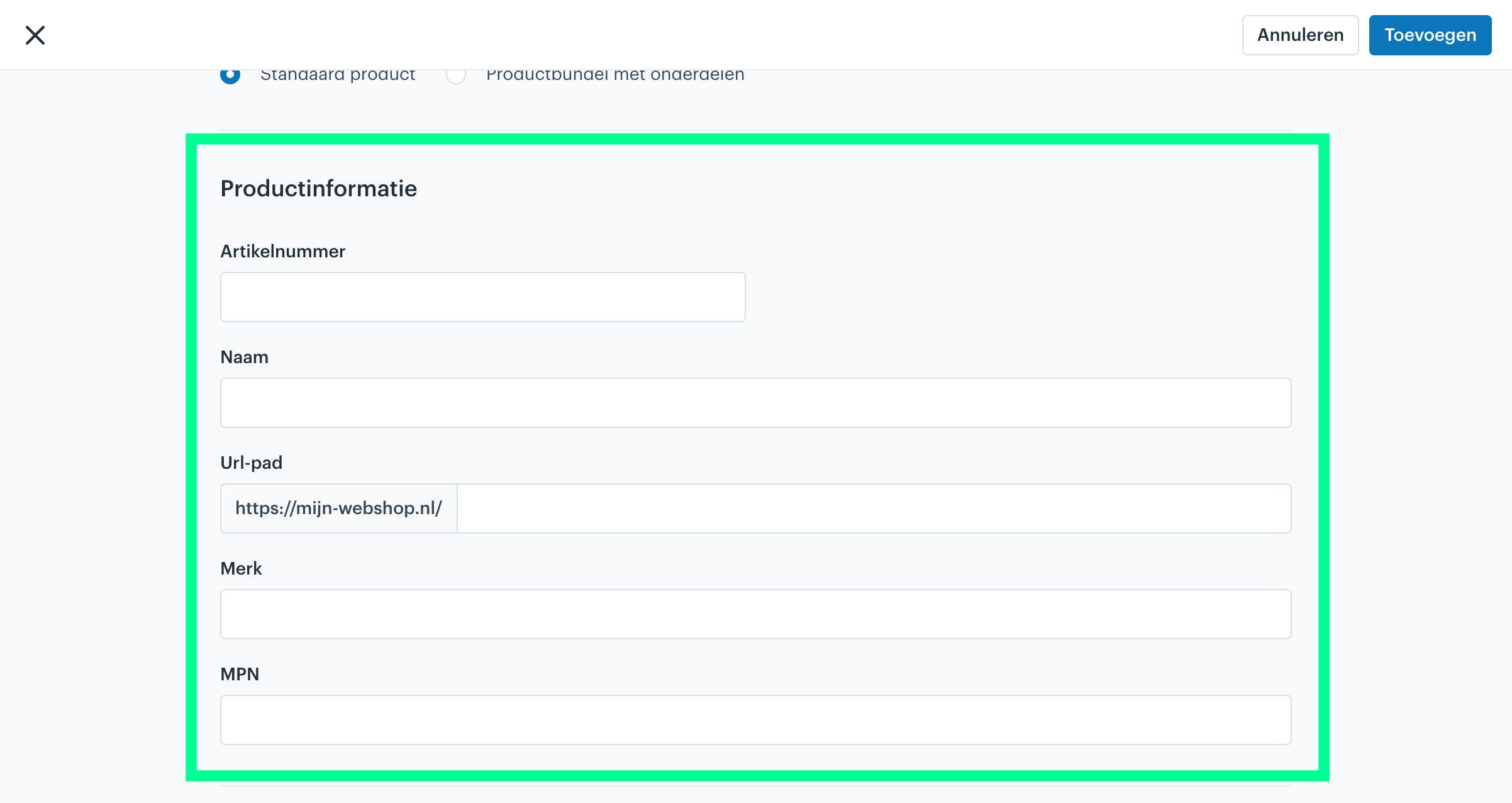
Product Information
Article Number: A unique identifier or SKU (Stock Keeping Unit) is assigned to the bundle/product. This is used for tracking and inventory purposes.
Name: The title of the bundle will be displayed to customers. It should be clear and descriptive to convey the contents of the bundle.
Slug: A URL-friendly version of the bundle name, typically in lowercase and with hyphens instead of spaces (e.g., summer-gift-bundle). It is used for SEO and creating links.
Brand: The name of the manufacturer or brand associated with the bundle. This helps categorize and identify the bundle under a specific brand.
MPN: A (Manufacturer Part Number) unique code is assigned by the manufacturer to identify the bundle. This is especially useful for businesses that rely on vendor-specific identification.
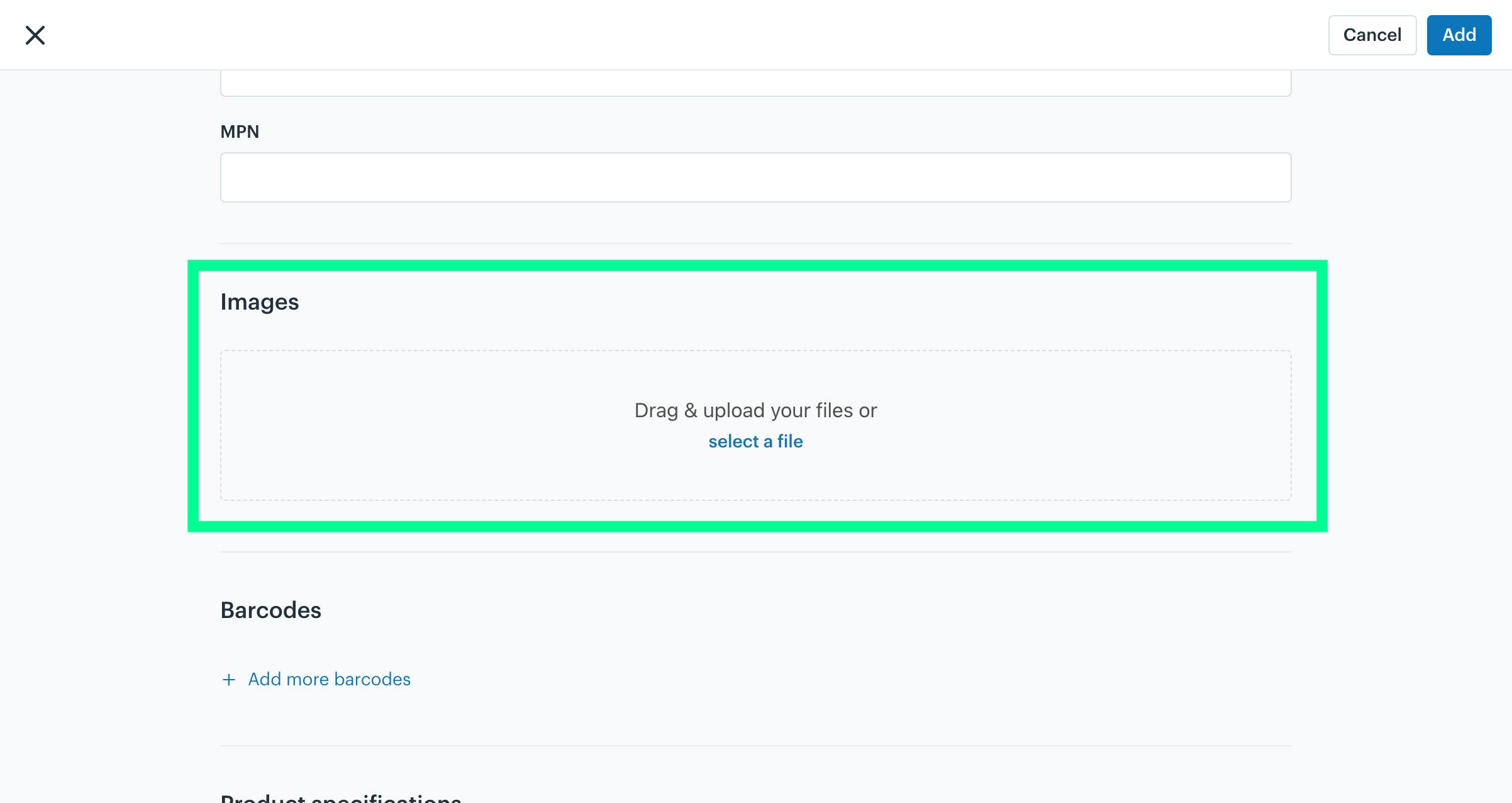
Images
Visual representations of the product bundle. Upload high-quality images that showcase the items included in the bundle to attract customers and provide a clear understanding of the contents.
Drag and upload your files or select a file.
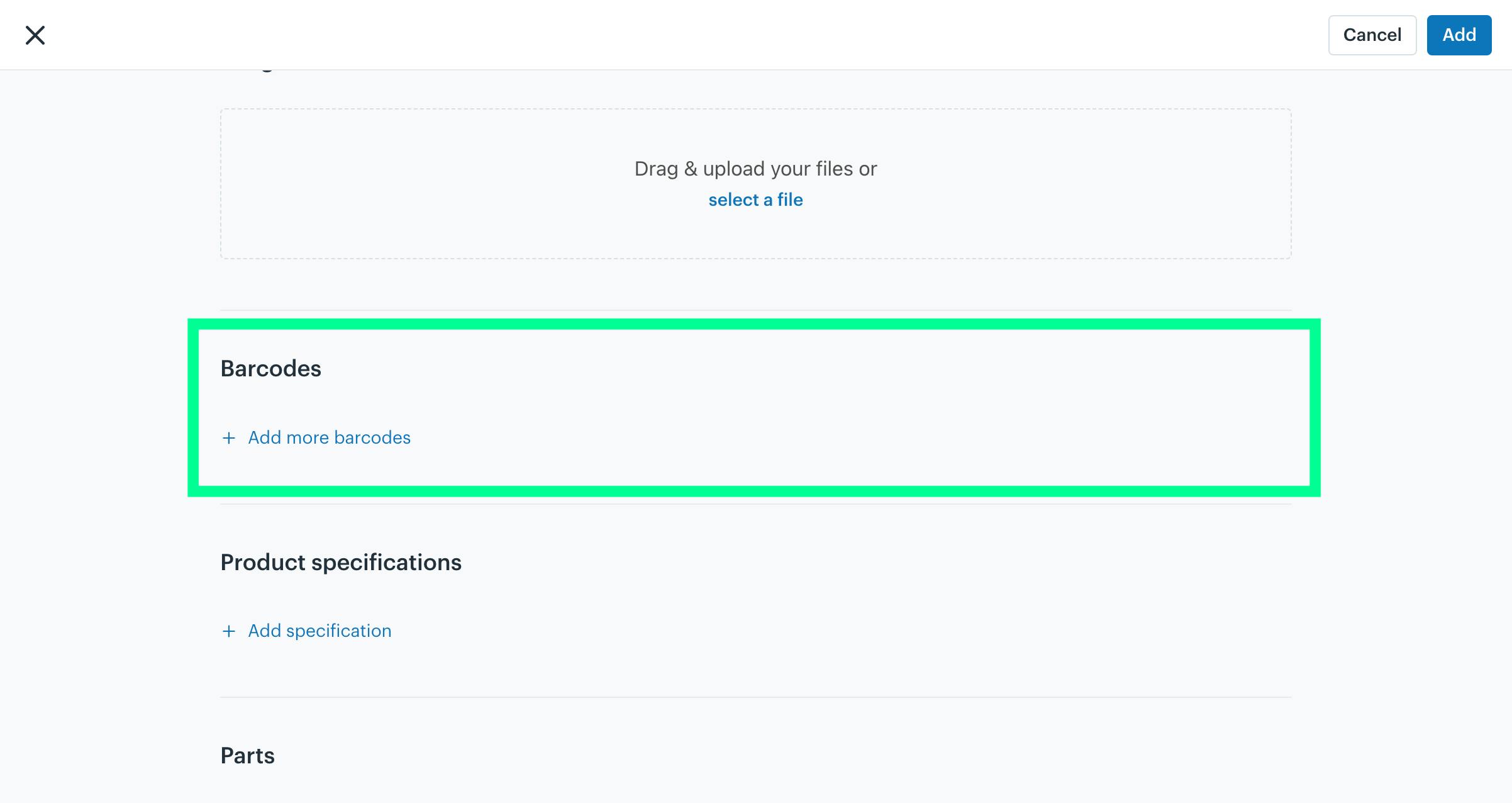
Barcodes
Unique codes, such as UPC or EAN, are assigned to the bundle for identification and tracking purposes. Barcodes help streamline inventory management and sales processing.
Click “+Add more barcodes”
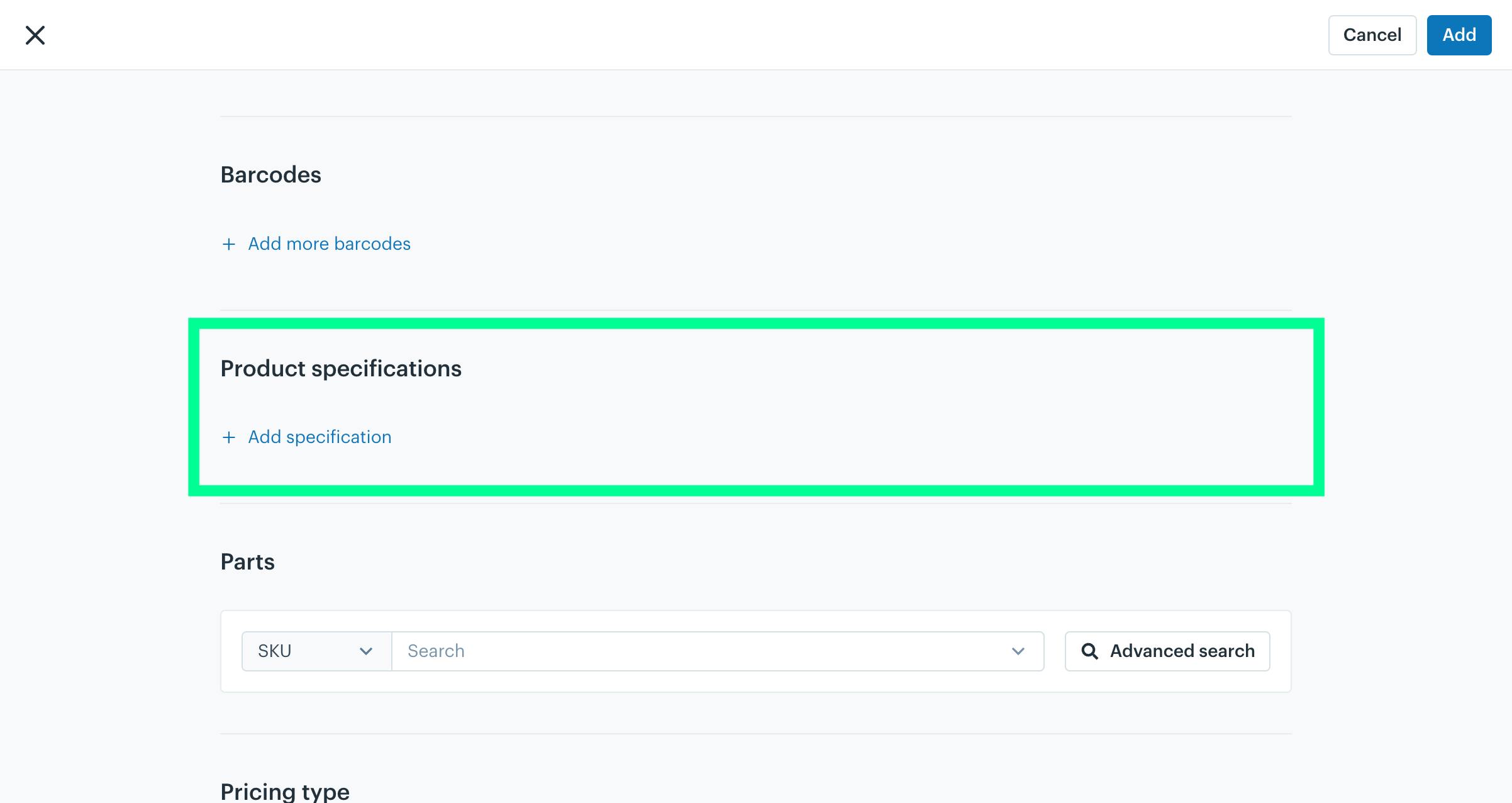
Product specifications
Details that define the bundle, such as dimensions, weight, material, or other relevant attributes. These specifications provide customers with additional information about the bundle.
Click “+ Add Specification”
Parts
The Parts section in the bundle creation process allows you to assign multiple products/items to a bundle.
-
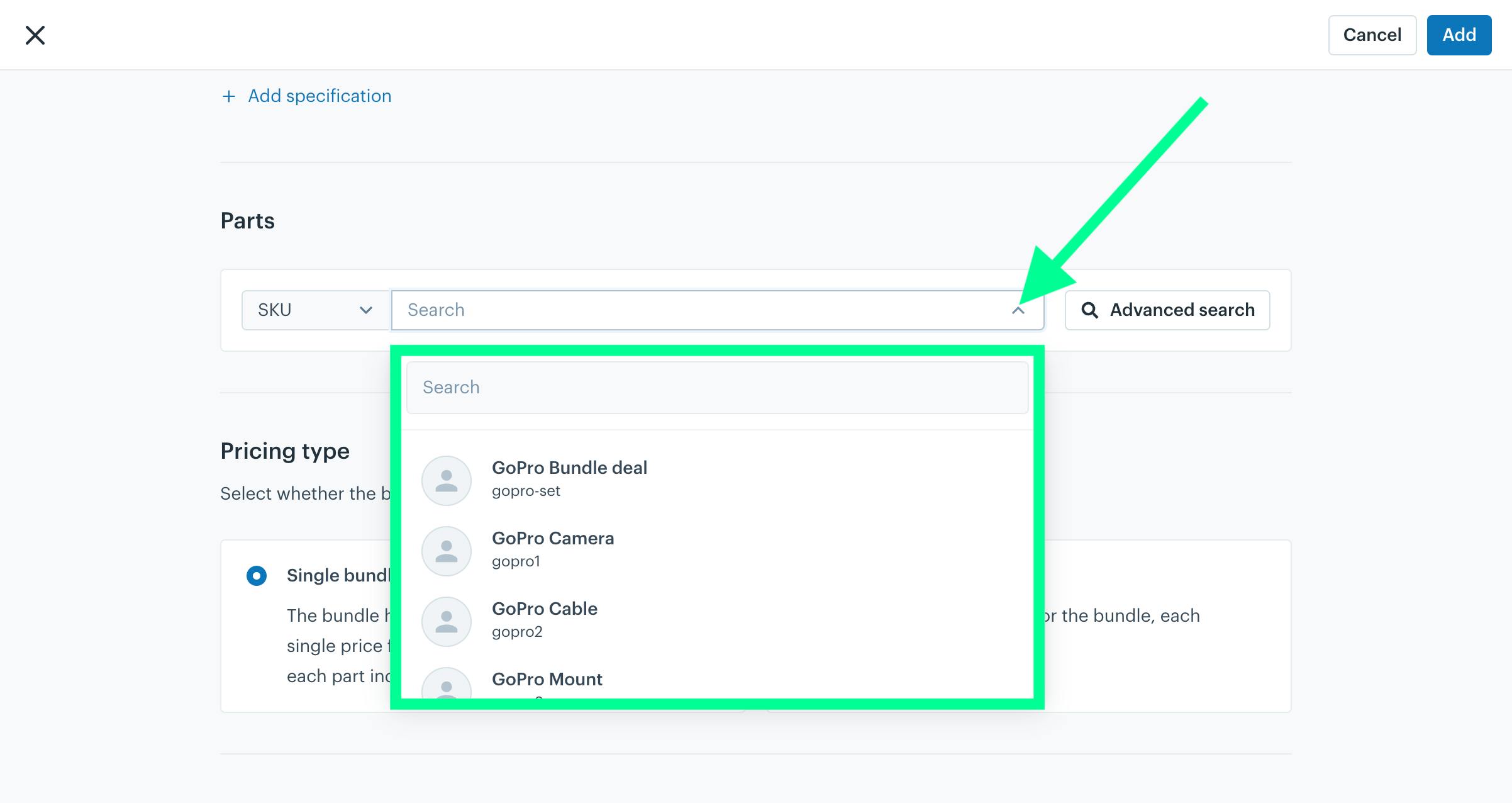
Search Bar: Using the search bar in the Parts section, you can search for and select specific products or items (such as "GoPro Camera" or "GoPro Cable") to include in the bundle. Products can be identified by their SKU or name for easy selection.
-
Advanced Search: The search field provides an intuitive way to filter and locate products, ensuring accurate assignments. You can also utilize the "Advanced Search" feature for a more detailed search if needed.
Click on any desired products/items you want to assign to the bundle. The selected item will be added to the bundle.
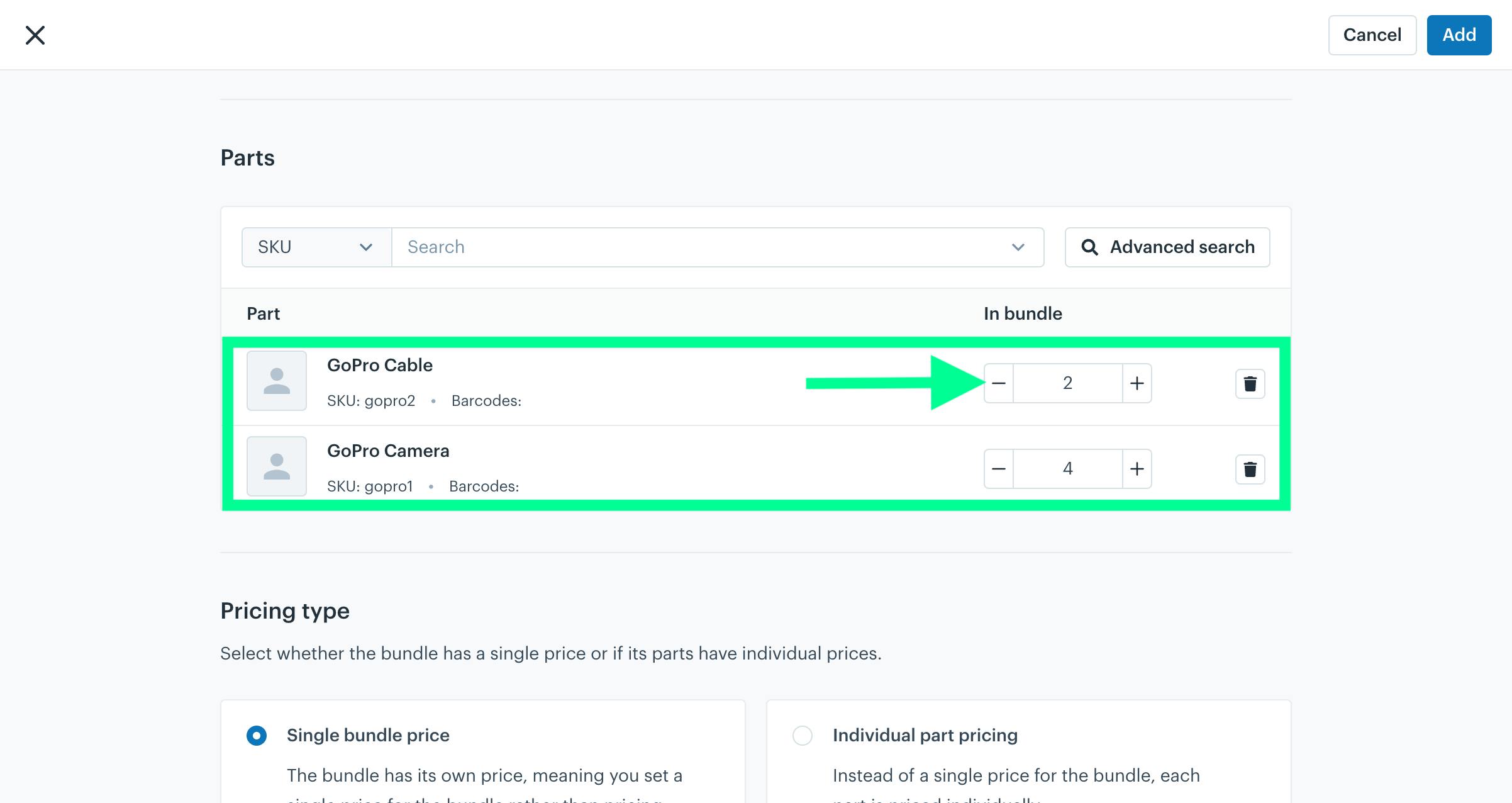
For your understanding, The two products have been added to the bundle: GoPro Cable and GoPro Camera. Each product is listed with its name, SKU, and other details.
Quantity Adjustment: The quantity for each product in the bundle can be increased or decreased using the + and - buttons next to the respective product. For example:
-
The GoPro Cable has a quantity of 2 in the bundle.
-
The GoPro Camera has a quantity of 4 in the bundle.
This feature allows precise customization of how many units of each product will be included in the final bundle. If needed, any product can also be removed from the bundle using the trash icon located next to each product entry.
Pricing type
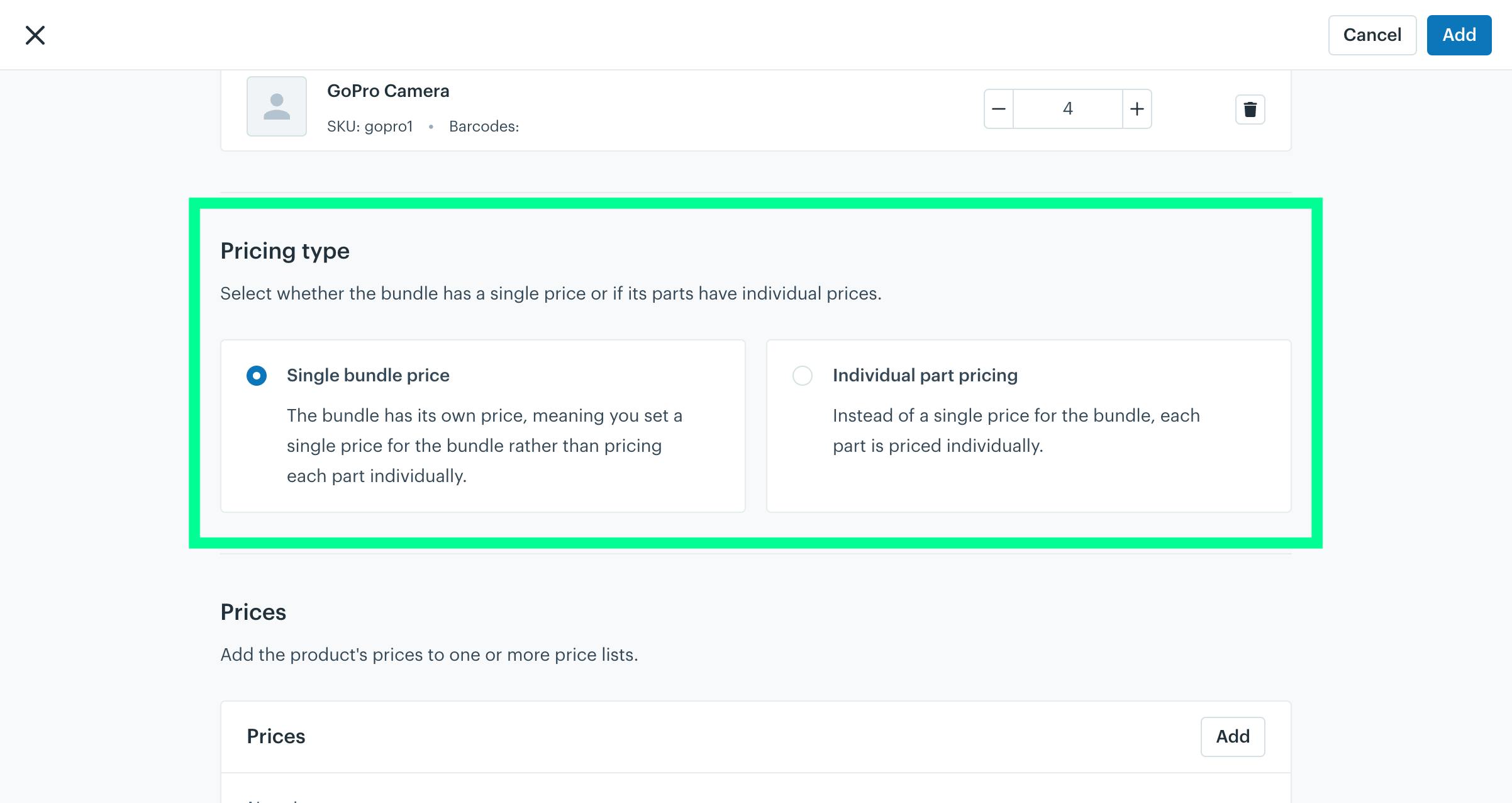
The Pricing type section allows you to define how the bundle’s price will be set. You can choose between two options for pricing the bundle:
-
Single Bundle Price: Set a single, unified price for the entire bundle. This means the bundle is sold as a whole, without considering individual part prices.
-
Individual Part Pricing: Each part in the bundle is priced separately. The total price of the bundle is the sum of the individual prices of all included parts.
Prices
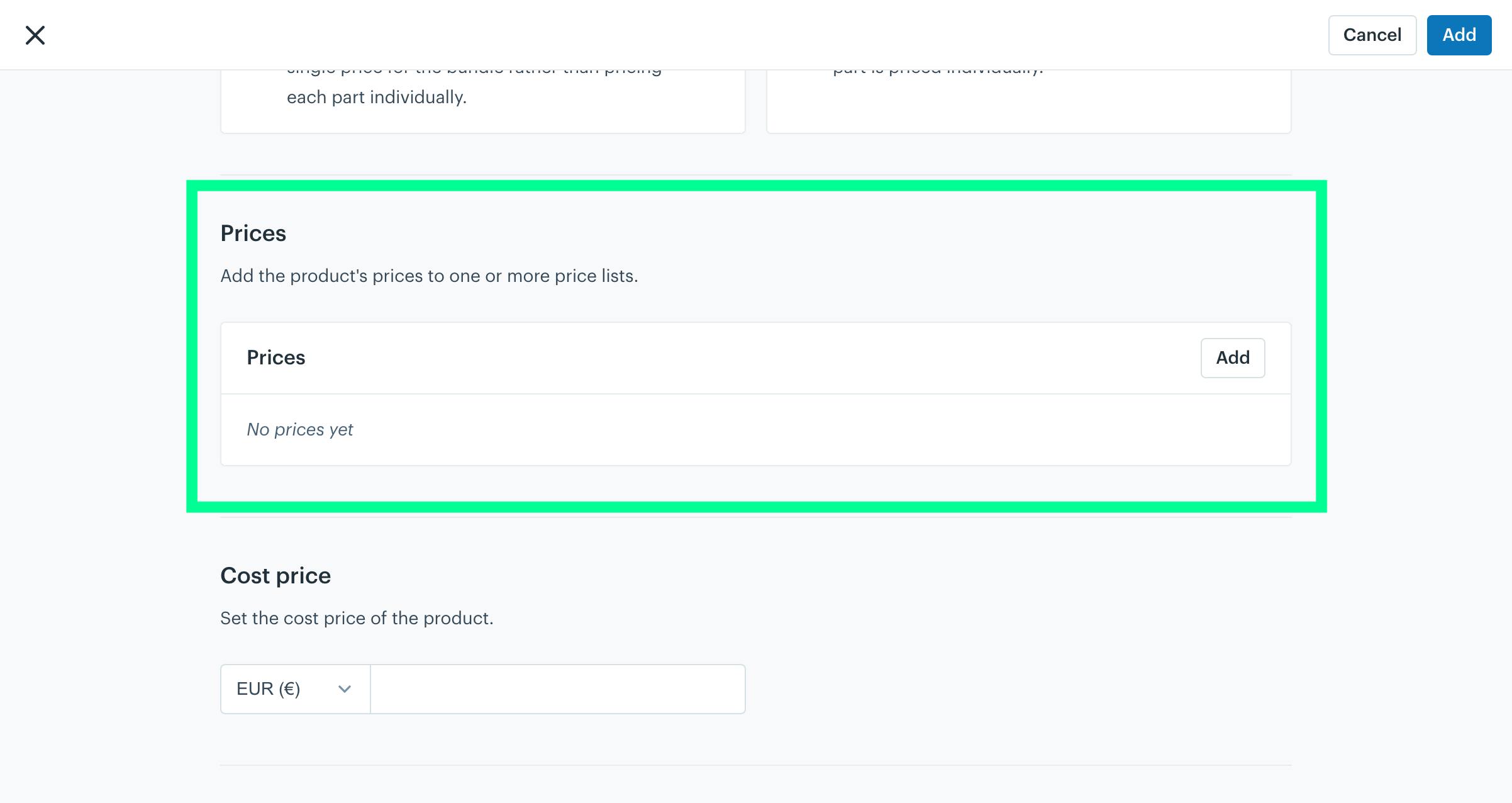
The Prices section lets you assign prices for the bundle. Click “Add” to define prices for different lists or markets.
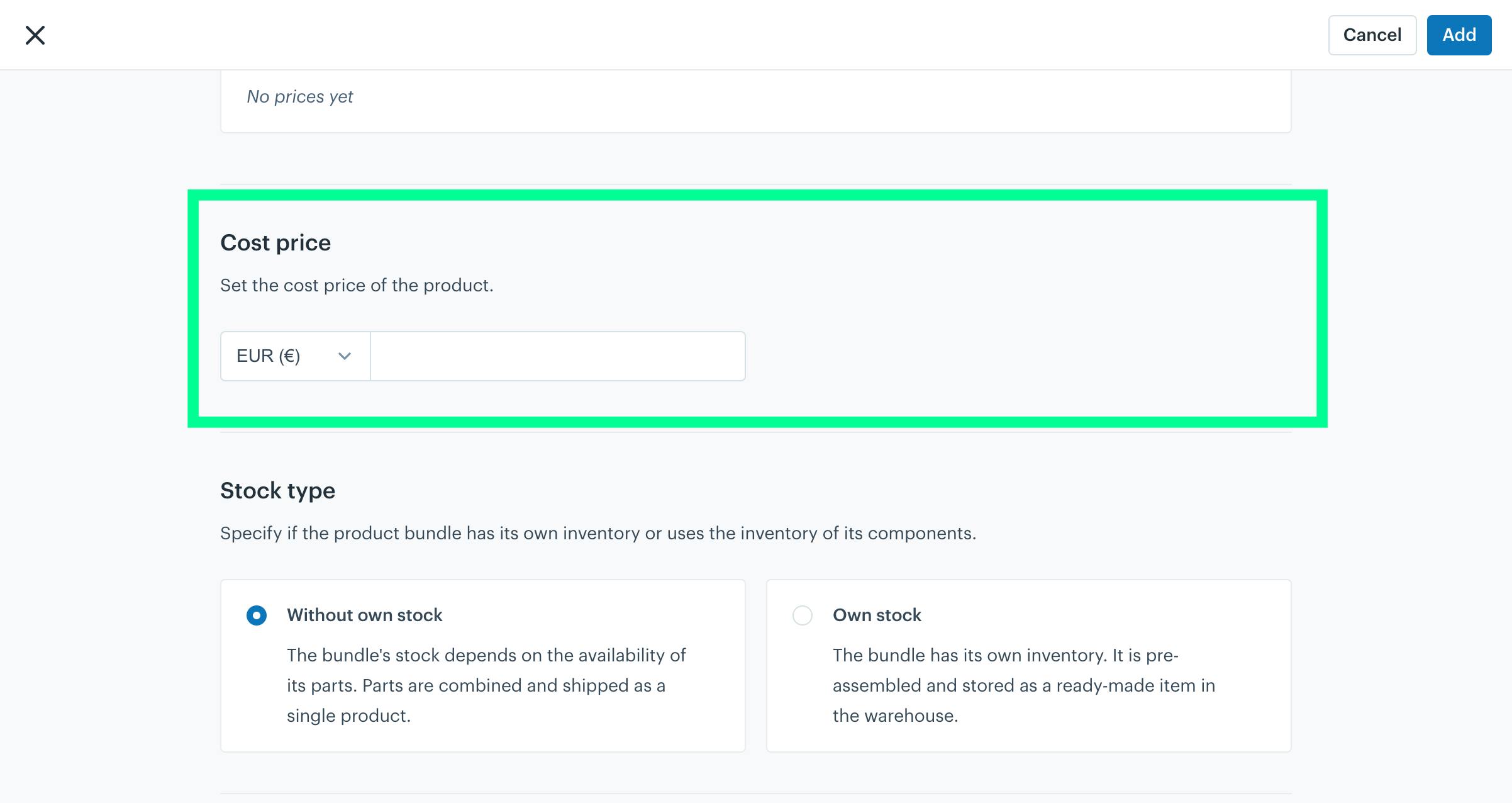
Cost price
The Cost Price section allows you to set the production or acquisition cost of the product. Simply input the cost value in the provided field, ensuring accurate financial tracking and pricing strategies.
Stock Type
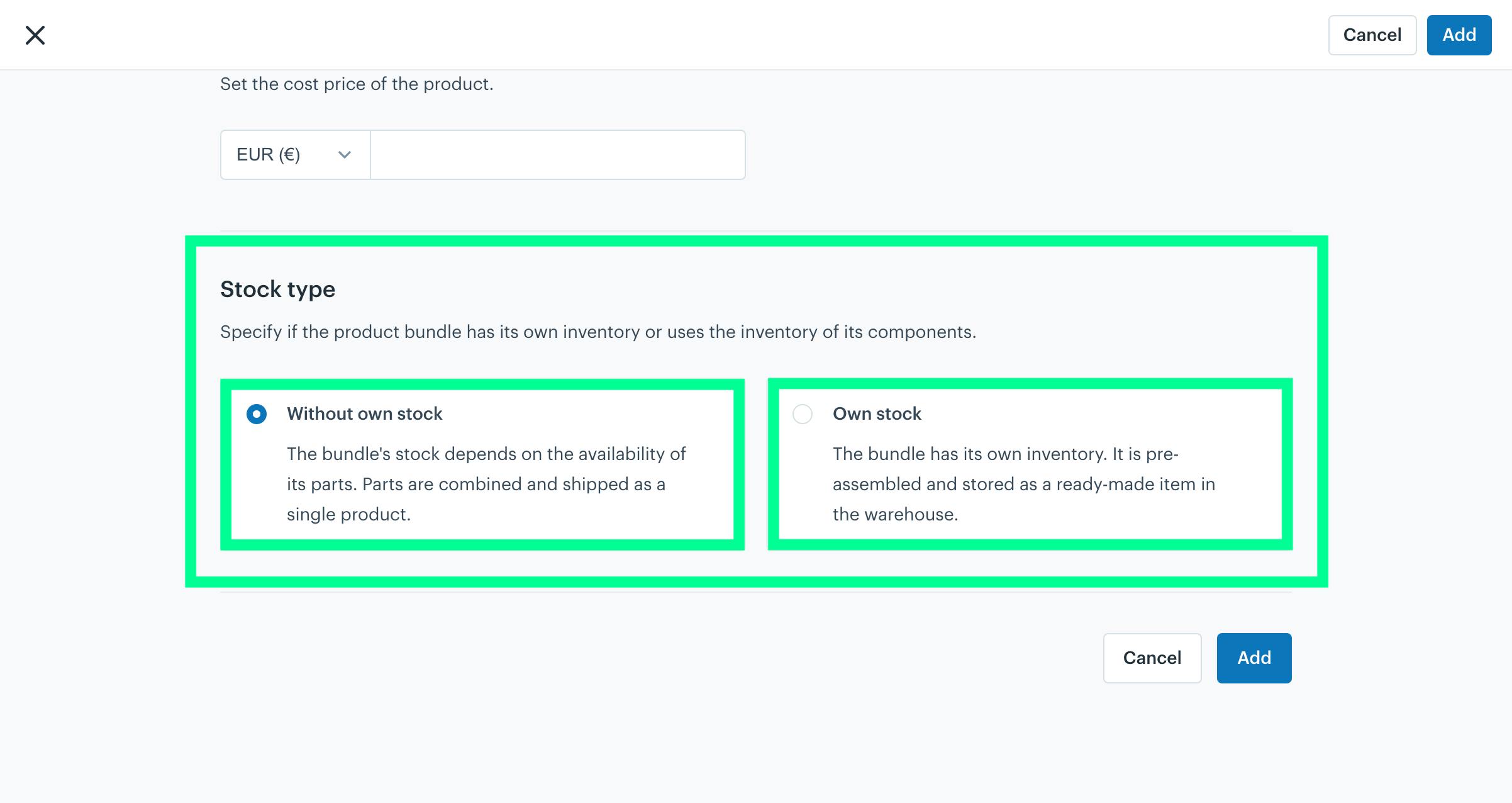
The Stock type section allows you to define how inventory is managed for the product bundle. Here's an explanation with examples for each option:
-
Without Own Stock: The bundle is assembled from the stock of its individual parts when ordered. For example, a "GoPro Starter Kit" bundle includes a GoPro camera, a GoPro cable, and a GoPro mount. When a customer orders this bundle, the system checks the availability of each part (camera, cable, and mount) and combines them for shipment. If any part is out of stock, the bundle cannot be fulfilled.
-
Own Stock: The bundle has its own dedicated inventory, pre-assembled and stored as a single unit. For example, a "Pre-packaged GoPro Starter Kit" is stored in the warehouse as a complete set, ready for shipment. In this case, the system only checks the stock of the pre-assembled bundle, not the individual parts, ensuring faster processing and delivery.
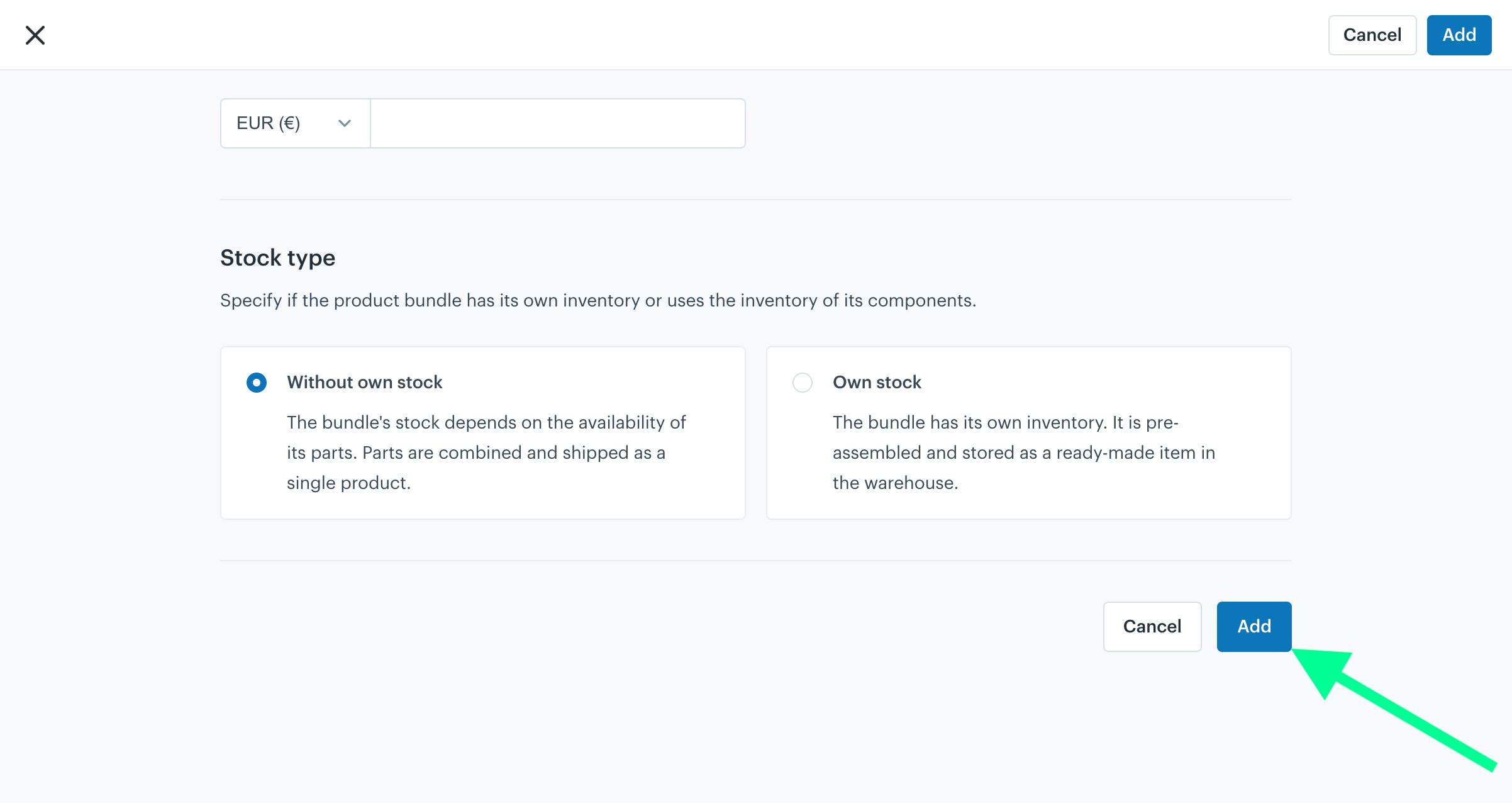
Click the "Add" button to save the bundle configurations. Once all details are entered, this finalizes the creation or update of the product bundle in the Afosto system.
About Afosto
Till, webshop, bol and Kaufland on one stock.
Related documentation
Managing Inventory & Warehouse Settings
Learn how to add stock and manage warehouse settings in Afosto. Follow our guide for efficient product management!
How to Edit a Product in Afosto
Where to find a product in Afosto and how to edit it, delete it or add details after you have created it.
Printing Product Labels in Afosto
Leer hoe je eenvoudig productlabels print via Afosto. Gebruik de Spooler app om automatisch labels aan te maken voor je voorraad of magazijn.