

Stock count settings
What each setting under Settings → Stock count in scan.afosto.app does: navigation, default filters for stock count lists and counting the first product scan.
On Instellingen → Inventariseren (Settings → Stock count) you choose whether Inventariseren shows in the menu, what is already filled in on a new stock count list, and how the first scan counts when you count per product. These settings belong to the scan app at scan.afosto.app and apply per device. Below you find what each setting does in practice. How the counting itself works is explained in Stock count.
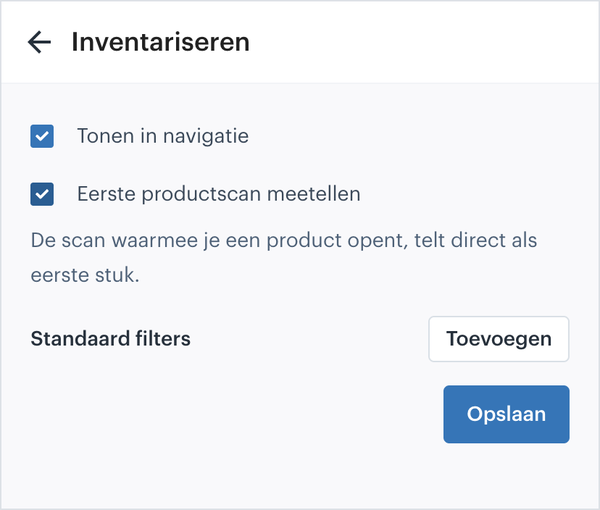
Show in navigation
Tonen in navigatie (show in navigation). When this is on, you see "Inventariseren" in the menu. Turn it off and the page disappears from the navigation.
Count the first product scan
Eerste productscan meetellen (count the first product scan). This setting applies to stock count per product. When it is off, the scan you open a product with only looks up the product. The count screen then starts at 0 and you scan the first item again.
When you turn it on, that first scan counts as 1 right away. You then scan every item exactly once, including the first one. That avoids mistakes when you walk along a rack and scan item by item.
- If the product sits in more than one position, the scan counts toward the first position you open after it.
- A product you open via Zoeken (search) always starts at 0. In that case you haven't scanned anything.
The setting applies per device. Turn it on on every scanner you use for stock counts.
Default filters
Standaard filters (default filters). The filters you set here are already filled in as soon as you create a new stock count list. That way you don't have to click the same selection together every time, for example one warehouse or one product group.
When you create a list, you can still change the filters. They are suggestions, not a fixed setting.
About the WMS
Receive with the scanner, pick by location and ship from every warehouse.