

Stock count per product
Count one product in the WMS app on every position where it sits, and save the new stock per position.
With Inventariseren → Product (stock count → product) in the WMS app on scan.afosto.app you count one product on every position where it sits. Per position you see how many the system thinks are there, and you fill in how many you count. The stock only changes when you save the stock count.
The WMS app is in Dutch. Buttons and labels are named as they appear in the app, with an English translation the first time.
The app counts on the location you chose under Instellingen → Locatie (Settings → Location). If you haven't chosen a location yet, the app asks for one first.
Open a product
- Go to Inventariseren and choose Product.
- Scan the barcode (EAN) of the product. You can also use the camera, type the EAN via Handmatig invoeren (enter manually) in the three-dot menu, or look up the product with Zoeken (search).
- If the EAN belongs to more than one product, first choose which product you want to continue with.
If the product sits on one position, the count screen opens right away. If it sits on more positions, you first see the overview of positions.
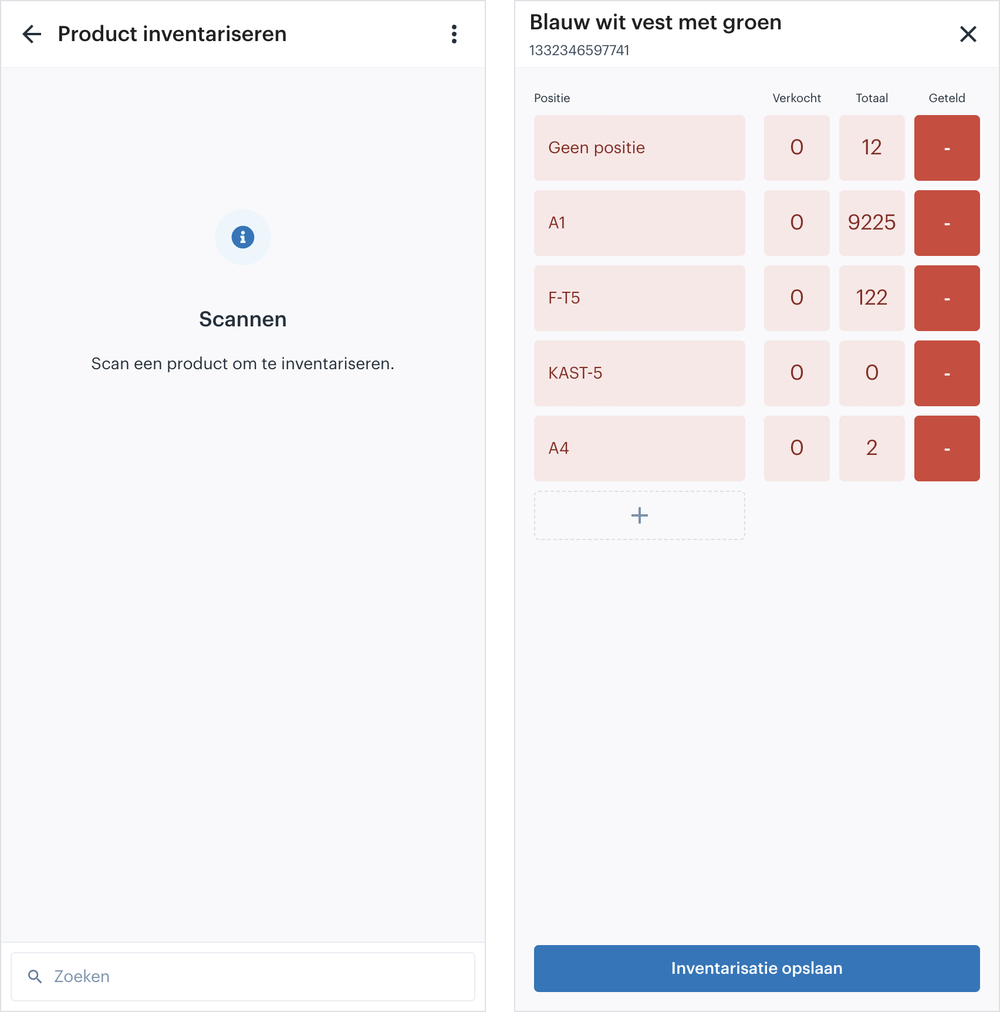
The overview of positions
Per position you see three numbers:
- Verkocht (sold) is the quantity already reserved for orders.
- Totaal (total) is the stock the system thinks sits on the position.
- Geteld (counted) is what you counted. A dash means you haven't counted the position yet.
The color of a line shows how your count compares to the total. Red is not counted yet, orange is less than the total, blue is more and green matches exactly.
Open a position by tapping it or by scanning the barcode of the position. If the product sits on a position that isn't in the list, scan that position and choose Toevoegen (add). You can also type a new position with the + button below the list.
Count on a position
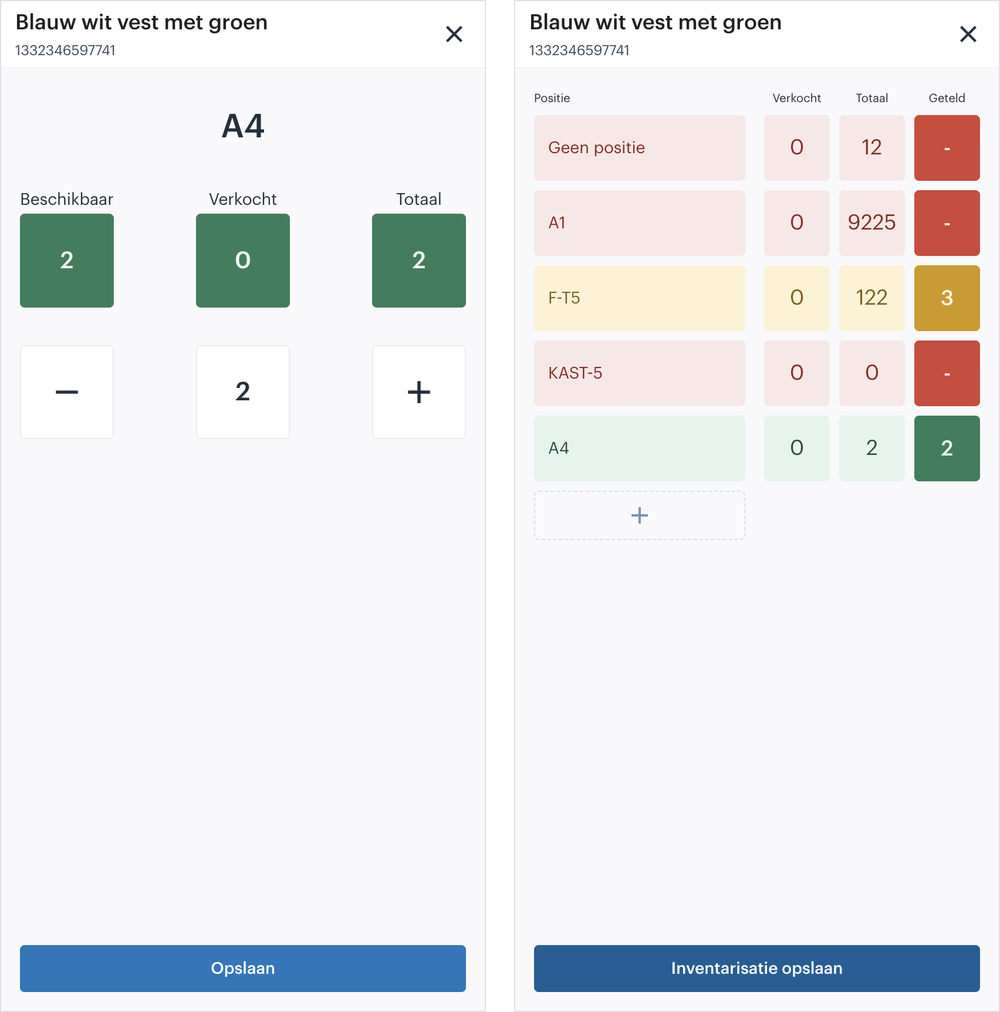
At the top you see the position, with Beschikbaar (available), Verkocht and Totaal below it. The number in the middle is your count.
- Scan the EAN of the product. Each scan adds one.
- Use the + and - buttons to add or remove one.
- Tap the number to fill in a quantity in one go.
Choose Opslaan (save) to go back to the overview. The count then shows at the position, but the stock hasn't changed yet. If you close the count screen with the cross without saving, the app warns you that your count will be lost.
Does the first scan count?
Not by default. The scan you open the product with only looks up the product. The count screen starts at 0, so you scan the first item again to count it.
If you want the first scan to count as 1 right away, turn on Eerste productscan meetellen (count the first product scan) under Instellingen → Inventariseren (Settings → Stock count). That avoids mistakes when you walk along a rack and scan every item once. A product you open via Zoeken always starts at 0.
Take care if you don't use the setting. If you scan a different product on the count screen while your count is still 0, the app opens that other product without asking. You then haven't counted the first item.
Save the stock count
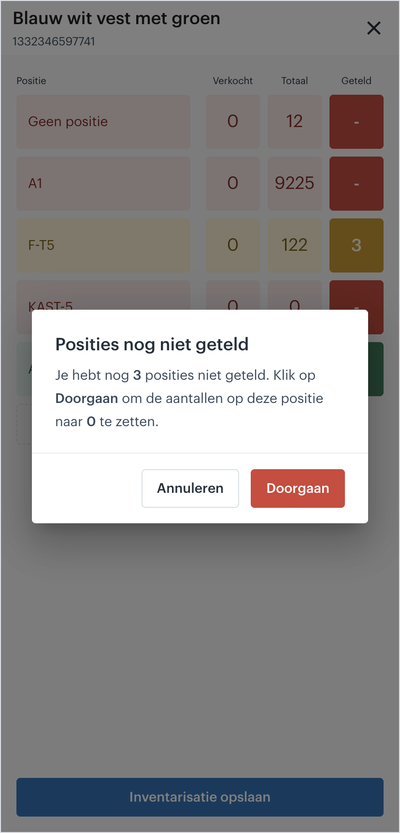
In the overview of positions, choose Inventarisatie opslaan (save stock count). The app sets the stock on each position to what you counted.
- If you didn't count a position, the app asks whether you want to continue. If you choose Doorgaan (continue), the stock on those positions goes to 0. Choose Annuleren (cancel) if you still want to count them.
- If part of the stock is already sold, you can't set the stock lower than that quantity. The app tells you which position comes out too low and saves nothing.
After saving you see a message and you can scan the next product straight away.
Read more
- Stock count: the three ways to count stock side by side.
- Stock count per position (in Dutch): counting everything that sits on one position.
About the WMS
Receive with the scanner, pick by location and ship from every warehouse.