

Stock count
The three ways to count stock in the WMS app: with a stock count list, per product or per position. Plus the settings.
Under Inventariseren (stock count) in the WMS app on scan.afosto.app you count your stock and correct it. You choose from three ways. Which one you use depends on what you want to count.
The WMS app is in Dutch. Buttons and menu items are named as they appear in the app, with an English translation the first time.
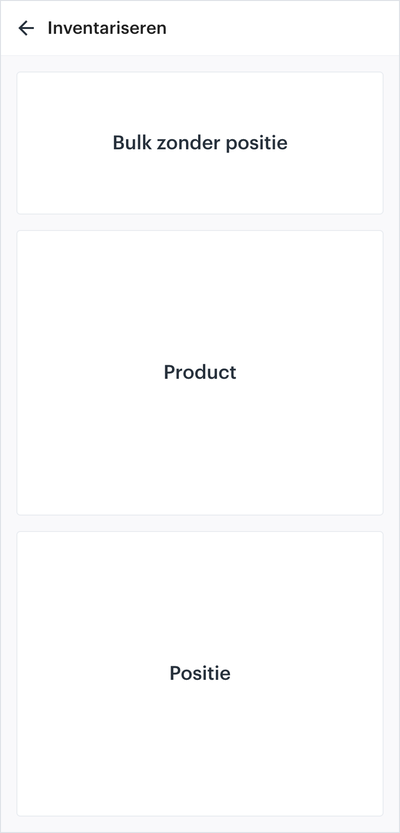
Three ways to count
Bulk without position
Bulk zonder positie. You count a group of products you chose in advance, for example one brand, one season or everything. You put that group on a stock count list. Products on the list that you don't scan can be set to 0 when you process the list. Use this for a large count, such as the yearly stock count.
Read more in Stock count lists.
Product
Product. You scan one product and count it on every position where it sits. This works well to check a single item quickly or to walk along a rack of clothing.
Read more in Stock count per product.
Position
Positie (position). You scan a position and count everything that sits there. The app then shows which products differ from the stock, and you correct them in one go. This suits a warehouse with fixed positions that you check bin by bin.
Read more in Stock count per position (in Dutch).
Before you start
All three ways count on the location you chose under Instellingen → Locatie (Settings → Location). Check it before you start. With the wrong location you change the stock of a different warehouse.
Settings
Under Instellingen → Inventariseren (Settings → Stock count) you show Inventariseren in the menu, choose default filters for new stock count lists and decide whether the first product scan counts when you count per product.
About the WMS
Receive with the scanner, pick by location and ship from every warehouse.