

Adding Organizations
Add organizations in Afosto: the companies that place business orders. Learn the difference between organizations with and without shared account access.
On your webshop, it’s not just about your products, but especially about the people who buy them: your customers. In Afosto, we distinguish between two types of customers: contacts and organizations. This guide focuses on organizations – the companies that place business orders.
Business orders always include a contact in addition to an organization. This is the person who places the order on behalf of the organization. Read more about this in ‘Adding Contacts’.
Within organizations, we also distinguish between two types:
-
With Account Access (shared): This type of organization has account access. One or more contacts can log in to this organization on your webshop and in the account area. Beyond this, it has the same functionalities as a ‘standard’ organization.
-
Without Account Access: This type of organization does not have account access, so it cannot be logged into. However, B2B orders can still be processed for this organization within the Afosto platform, for example, if you regularly want to manually add B2B orders for certain customers.
Change Organization Type The organization type can later be changed from 'Without Account Access' to 'With Account Access (shared)' to grant contacts account access.
Adding Organizations
Organizations can be added manually or in bulk within the Afosto platform. Below, we explain step by step how to add organizations.
Manually Adding
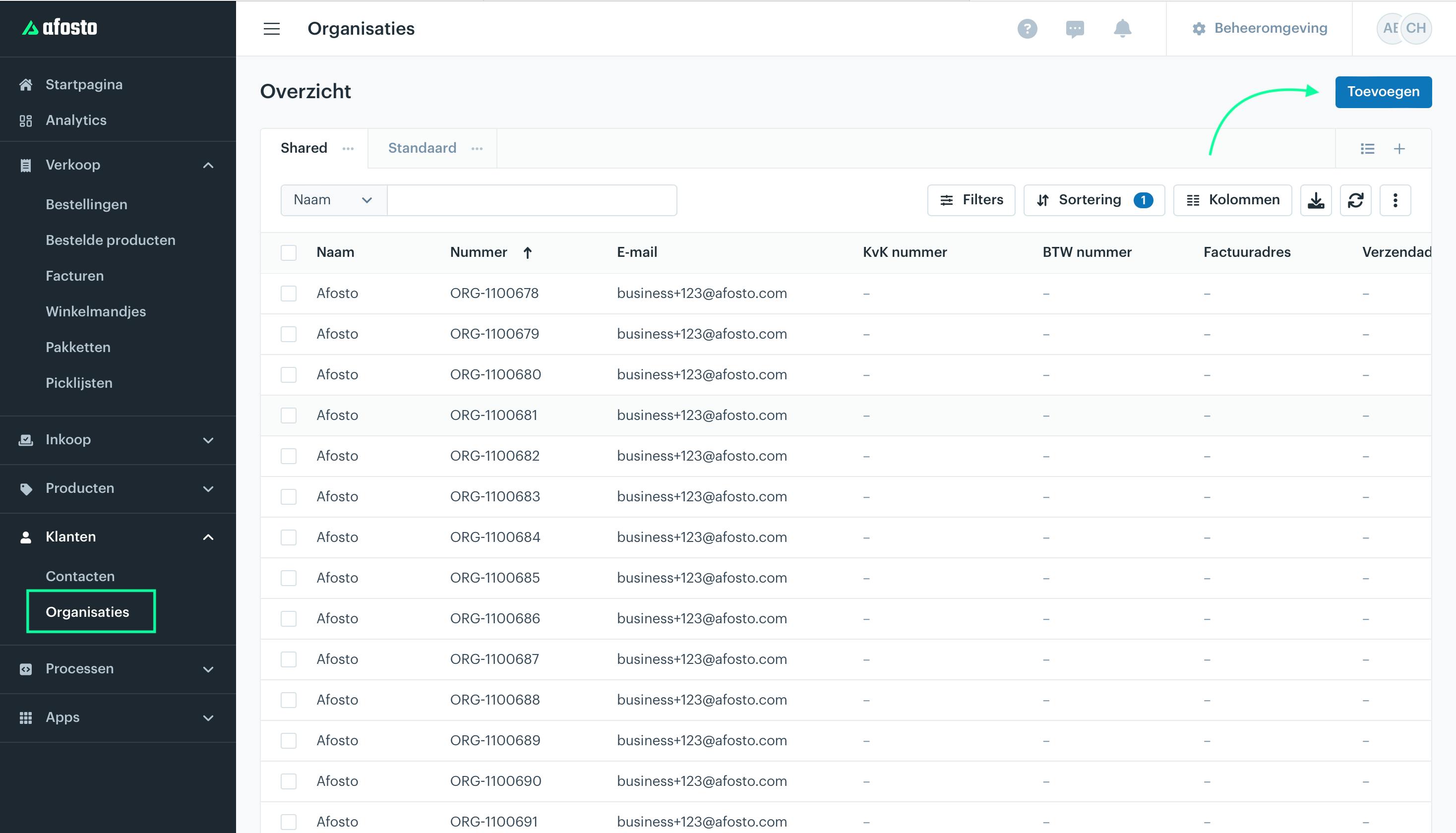
Go to ‘Customers’ in the Afosto platform and select ‘Organizations’ from the dropdown menu. On this page, you will find an overview of all organizations from all your sales channels, both organizations with account access and organizations without account access. Click 'Add' in the top right corner to manually add an organization.
First, enter the required information, such as the name of the organization, the Chamber of Commerce (KvK) number, and an administrative email address. Next, you need to select a group. Groups help categorize, distinguish, and recognize organizations. In addition, organizations with a group can only access the account area on a storefront sales channel with the same group. For example, contacts in the group 'Shop A' can only log in to the account area of the storefront sales channel where 'Shop A' is set as the group.
Contact Group and Sales Channel To log in to the account area of your storefront sales channel, the contact must belong to the same group as the one set on that sales channel.
In addition to the general information and the group, you can also provide other details, such as
a spending limit, billing addresses, shipping addresses, phone numbers, VAT numbers, and IBAN numbers.
Spending Limit The spending limit is the maximum amount of orders that can be outstanding for this organization.
Contacts with Account Access
As mentioned earlier, we distinguish between two types of organizations: Without Account Access and With Account Access. The option to add contacts with account access is only available for the type: With Account Access (shared).
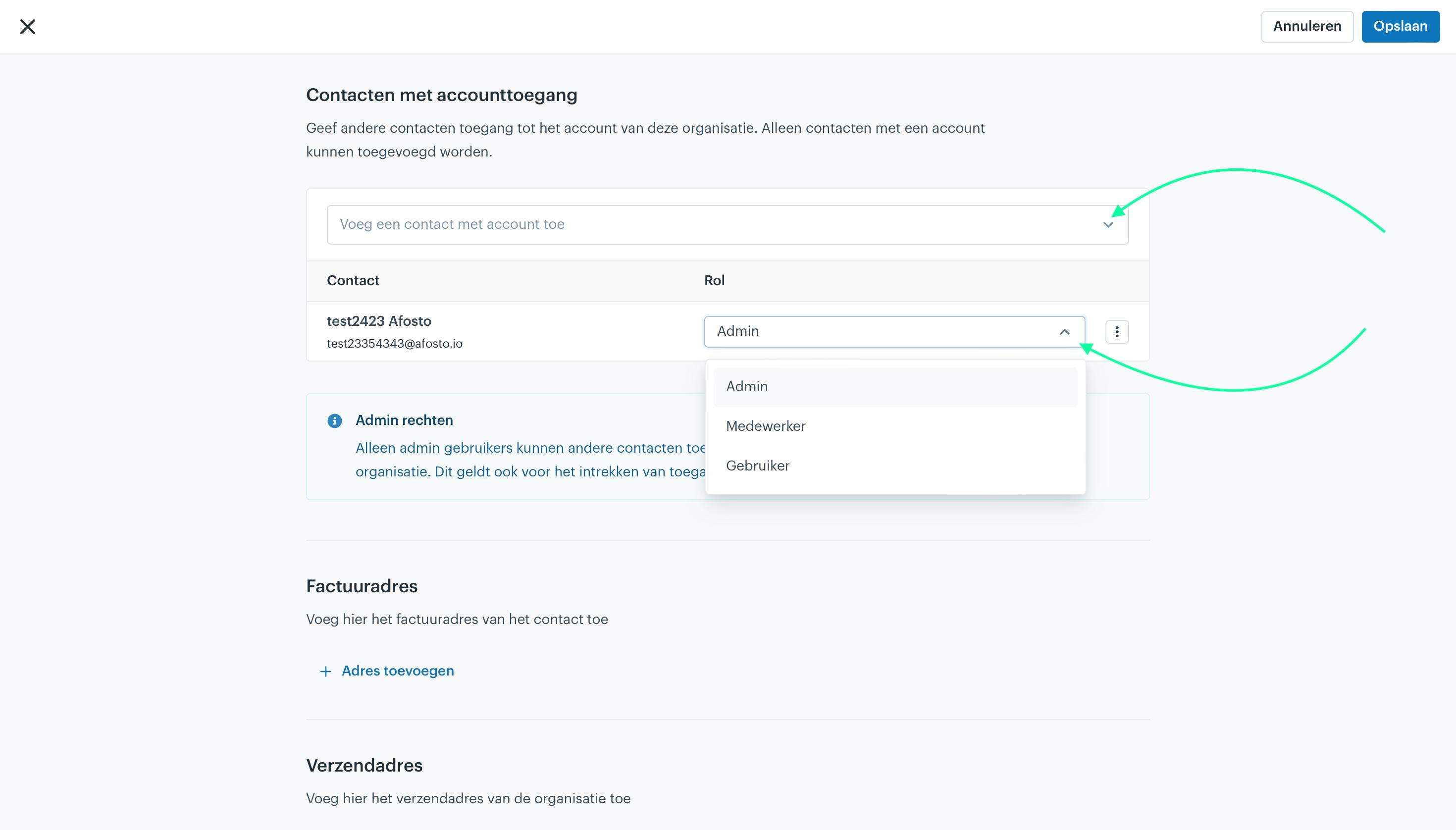
Select the contacts you want to grant access to the organization. Each contact is assigned the role ‘Admin’ by default, but you can change this to any desired role after selection. The available options are:
-
Admin:
-
Employee:
-
User:
At least one contact with the role ‘Admin’ is required. There must always be at least one contact with the role ‘Admin’. This ensures that at least one contact can manage the organization’s information and settings.
Personal Price Lists
A personal price list can also be linked to an organization with account access. With a personal price list, you can display prices that apply only to this specific organization and are visible on your Afosto webshop. These prices are only visible after the contact with access to the organization has logged in to your webshop. This is useful, for example, when you have made specific agreements with this organization. Read more about ‘Personal Price Lists’.
Adding in Bulk
If you want to add multiple organizations at once, you can use the bulk action: Import Organization. Read more about the bulk action and about ‘Organisaties importeren’.
About Afosto
Till, webshop, bol and Kaufland on one stock.
Related documentation
Working with Groups / Customer Segment
Leer hoe je klanten groepeert in Afosto voor toegang tot B2C- of B2B-webshops. Koppel eenvoudig groepen aan verkoopkanalen, contacten en organisaties.
Projects
Wat zijn projecten in Afosto en hoe gebruik je ze optimaal? Deze handleiding helpt je op weg met praktische tips en duidelijke stappen.
Add contacts
Add contacts in Afosto: the private and business customers who place orders. Learn the difference between guests and contacts with an account.