

PayPal Express Integration
Activate PayPal Express in the Afosto Hosted Checkout
PayPal Business Account Note: You need a PayPal Business account for this integration
Creating an API Signature
Follow the steps below to activate a connection between PayPal Express and Afosto. After completing this guide, you can use PayPal as a payment provider.
-
Log in to your PayPal account and go to: https://www.paypal.com/businessmanage/credentials/apiaccess
-
Click on Manage API credentials under NVP/SOAP API integration (Classic) - at the bottom of the page
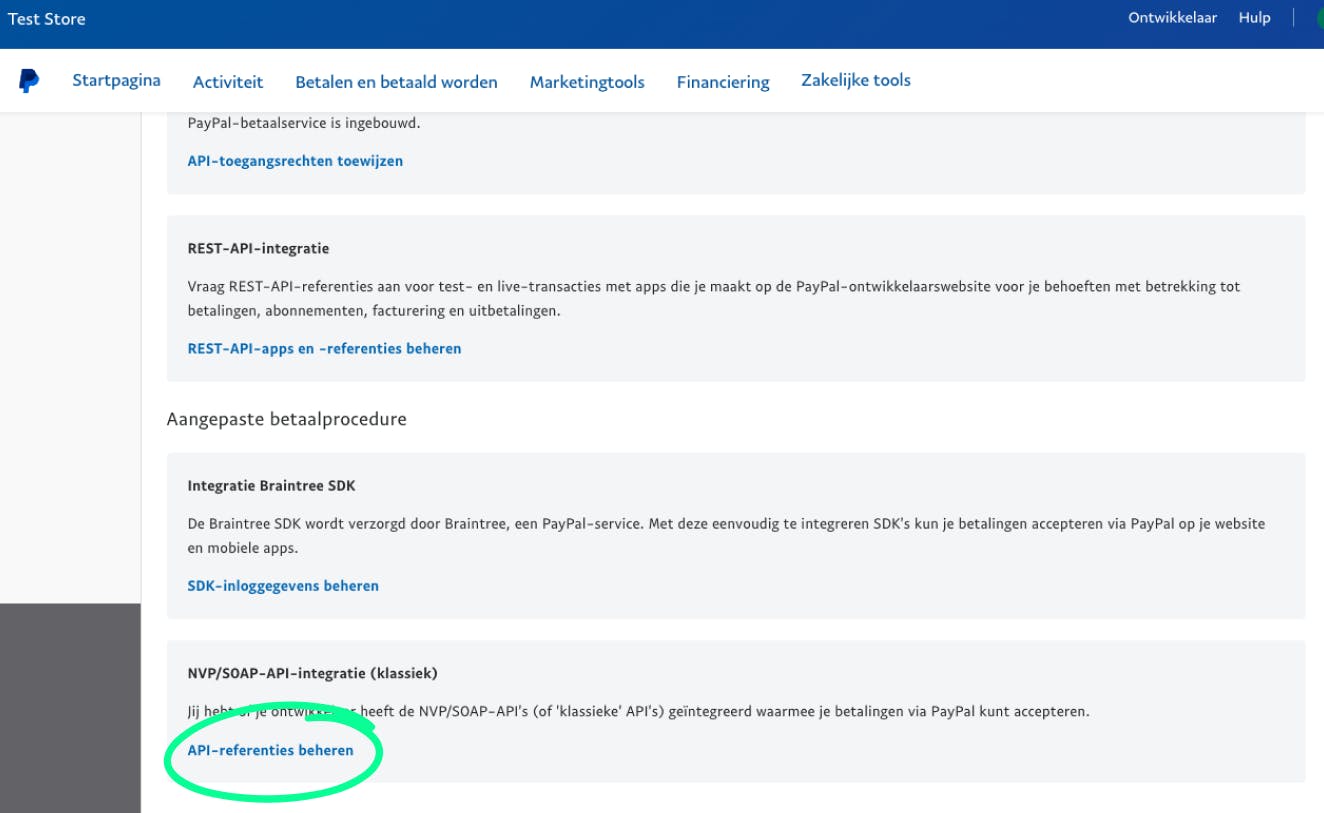
- If you have created API credentials before, they will be shown here. In that case, continue to the next step. Otherwise, you will see the following:
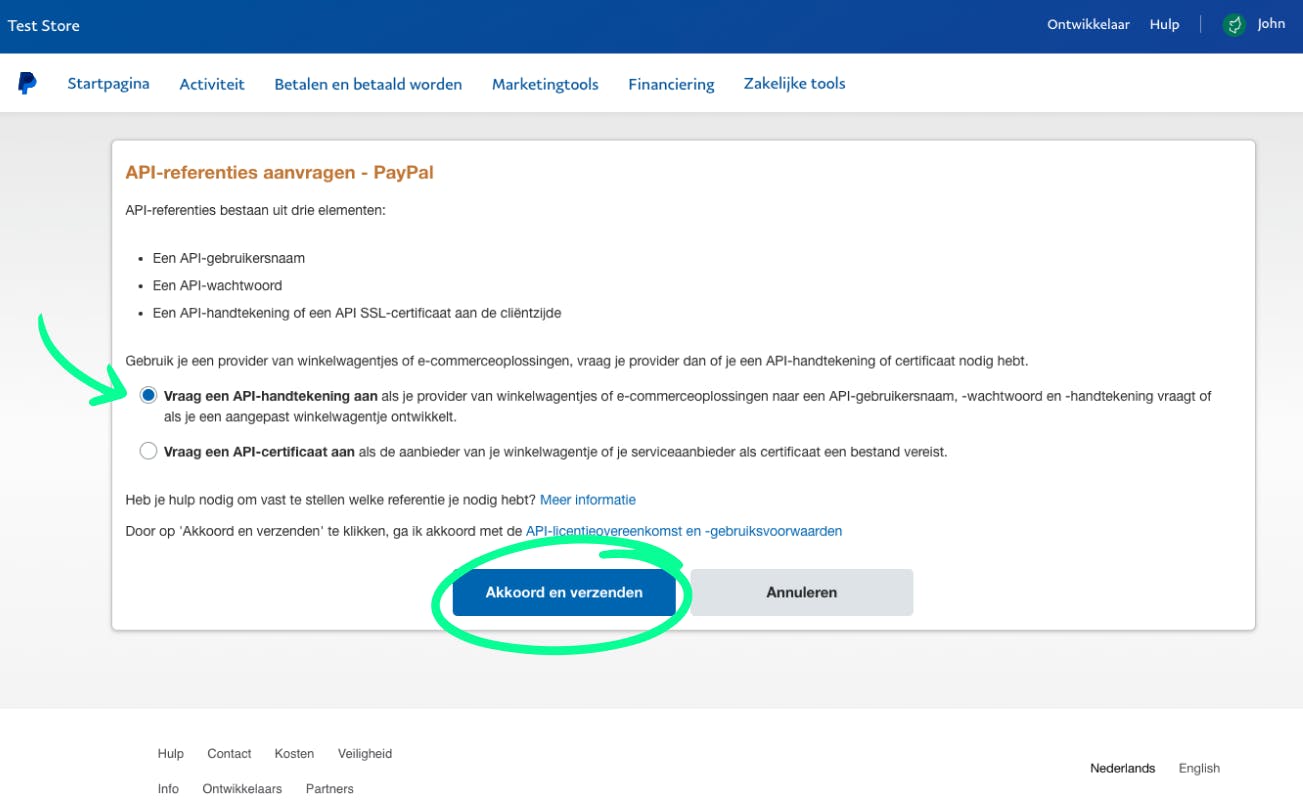
-
From the list, select Request an API signature (by clicking on it) and then click Agree and Submit.
-
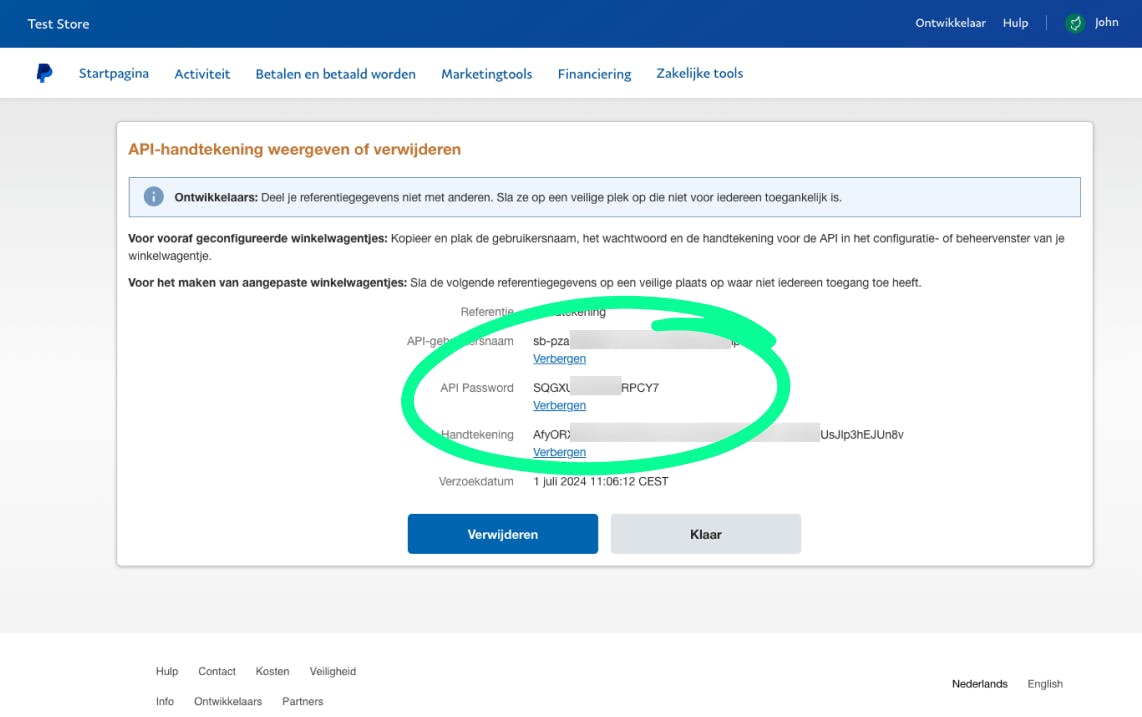
You will now see: API Username (this looks like an email address) API Password (a string of approximately 15 characters) Signature (a string of approximately 50 characters)
Entering Credentials in Afosto
- Enter these credentials in your PayPal Express integration in Afosto and click Connect. Afosto will store these credentials in encrypted form, accessible only to services within Afosto.
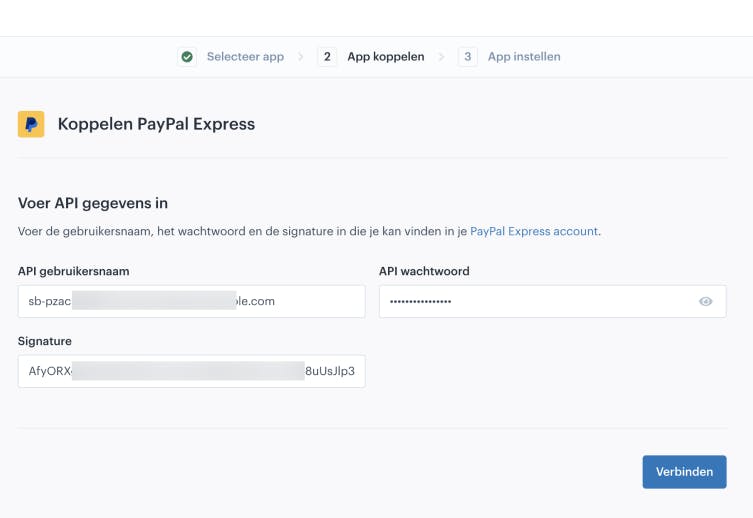
PayPal is now available as a Payment Provider to link to your PayPal Express payment method.
Enable Instant Payment Notifications (IPN) In some cases, IPN is disabled in your PayPal account. Follow the steps below.
Enabling IPN
Follow the steps below to enable IPN. This ensures that payments in Afosto can be updated to the correct status (pending / failed / successful).
-
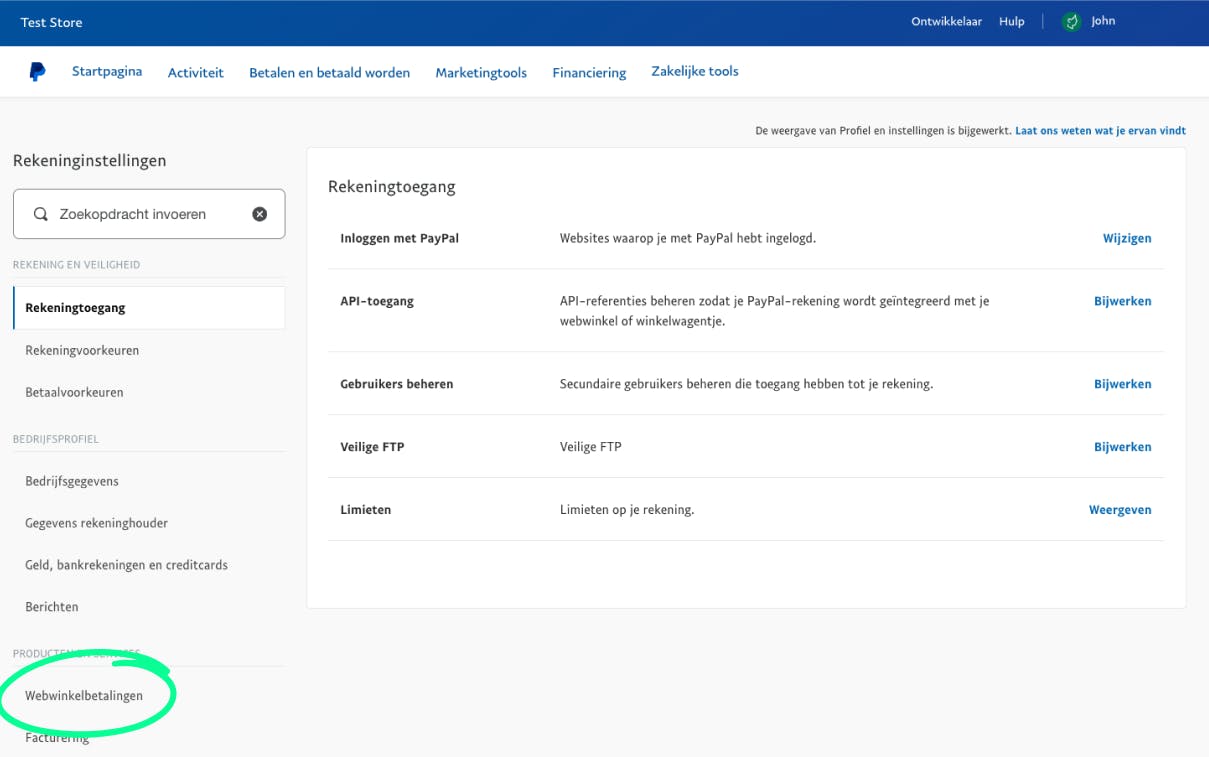
Make sure you are still logged in and navigate to the following page (account settings): https://www.paypal.com/businessmanage/account/accountAccess
-
In the left menu under Products and Services, click on Website Payments
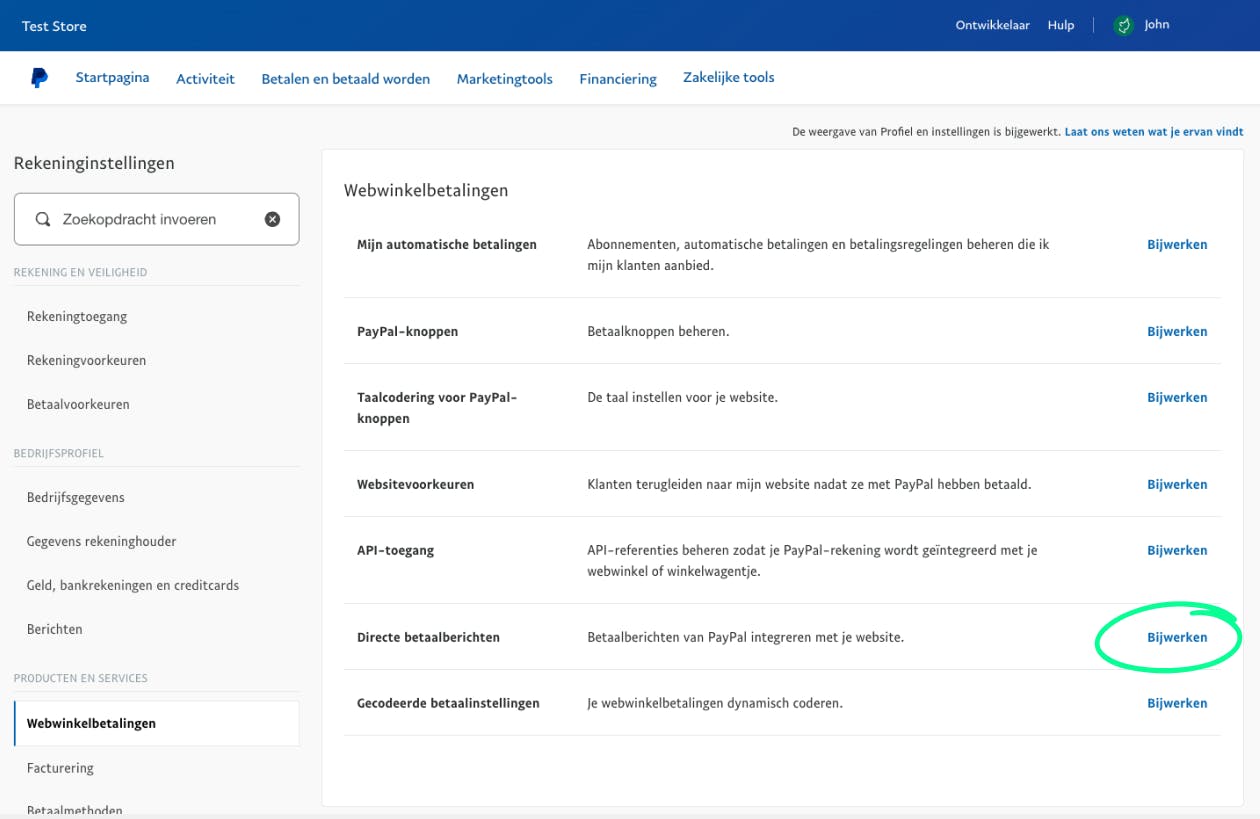
- Click Update next to Instant Payment Notifications
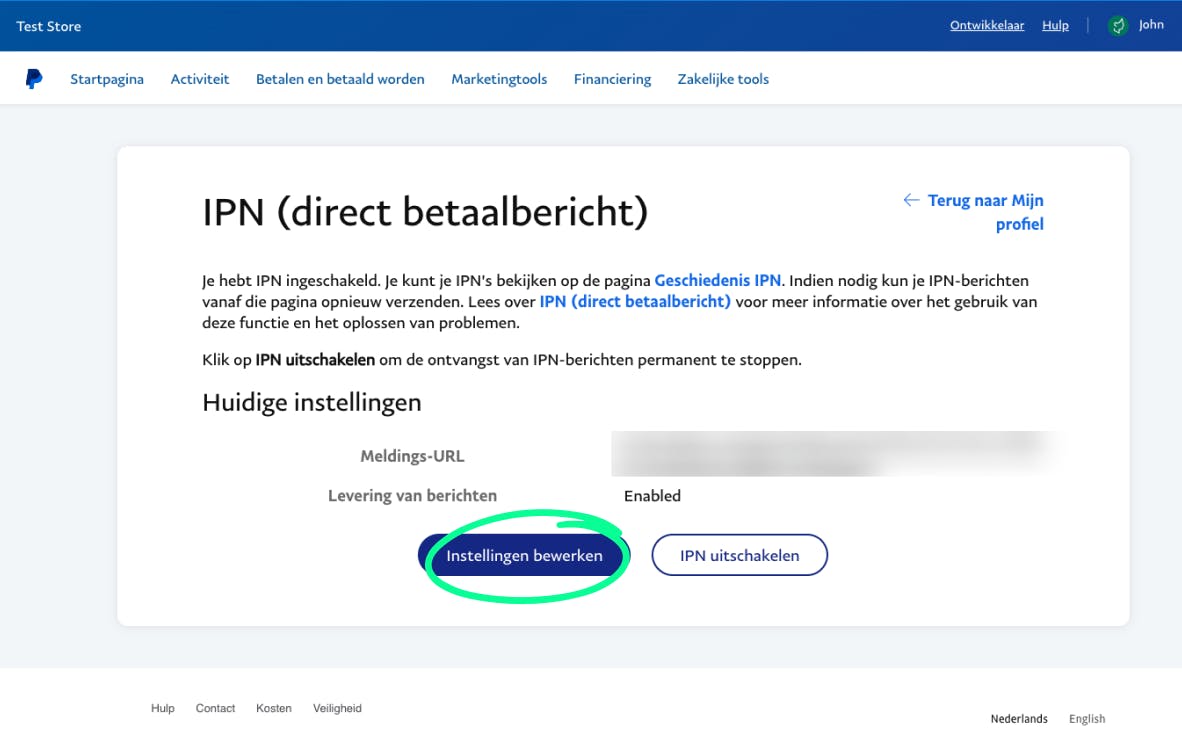
- You may see the screen below. If Message delivery is set to Enabled, you can stop here.
- Otherwise, you will see the screen below. Click Choose IPN Settings
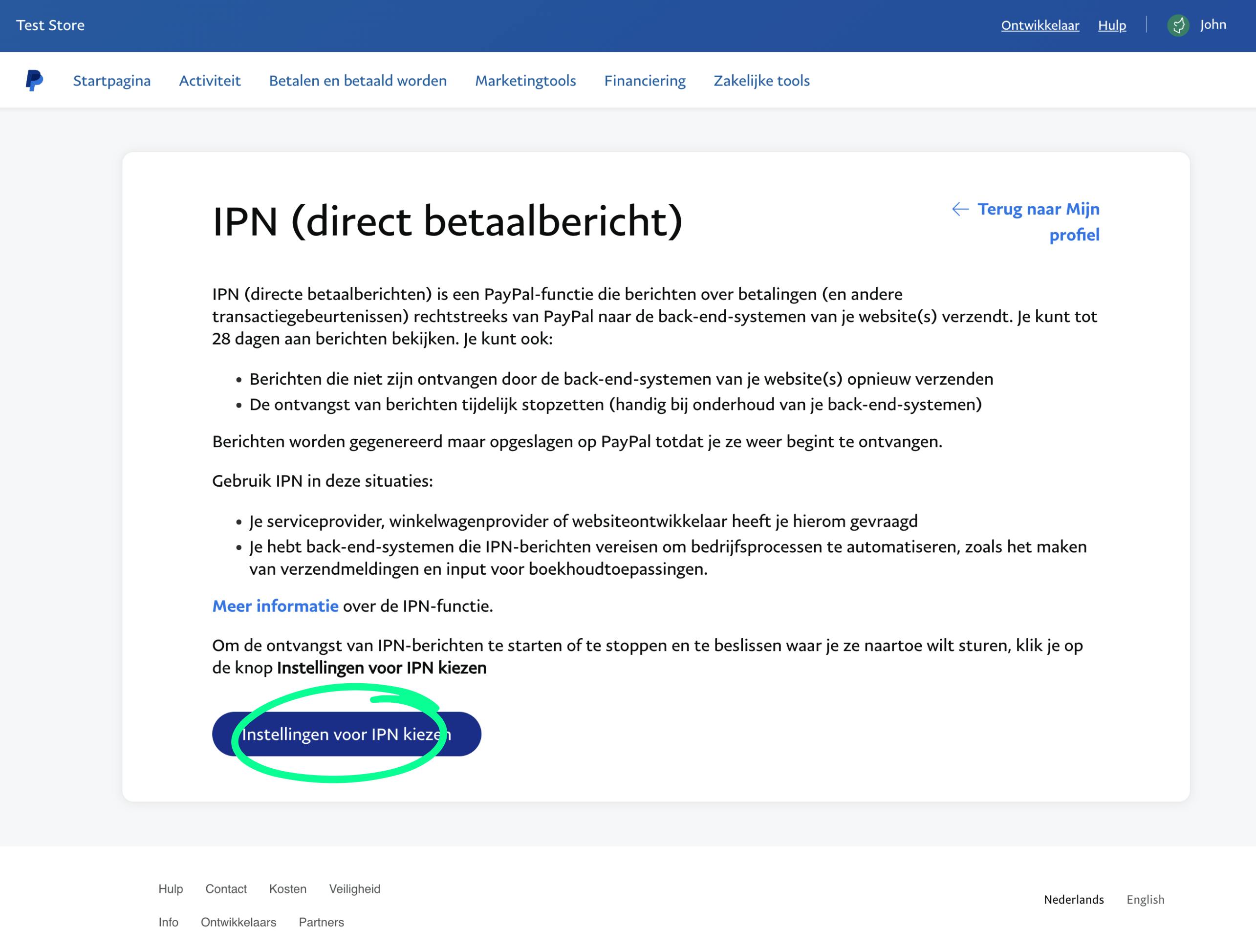
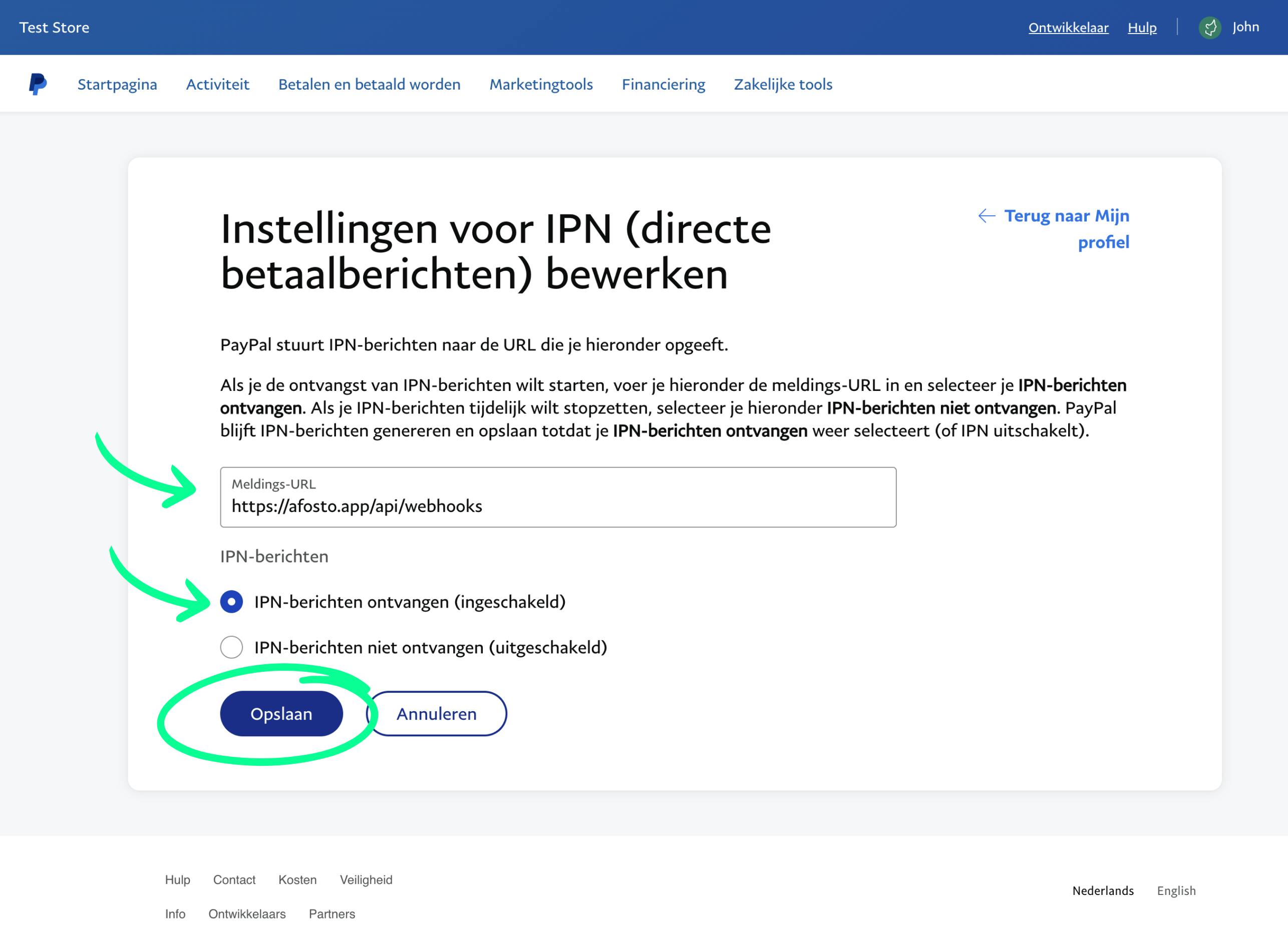
- Enter https://afosto.app/api/webhooks as the Notification URL, select Receive IPN messages (Enabled), and click Save
That is it. PayPal Express is now ready to be linked to a payment method in the Afosto Hosted Checkout.
About Afosto
Till, webshop, marketplaces and warehouse on one stock.