

Give Discount
Giving a discount on orders can be important for keeping your customers satisfied. You can apply a discount either before or after the order is placed. Below, we explain step by step how to apply a discount to an order.
Once you have opened an order, select “Discount” in the overview above the products that have been ordered.
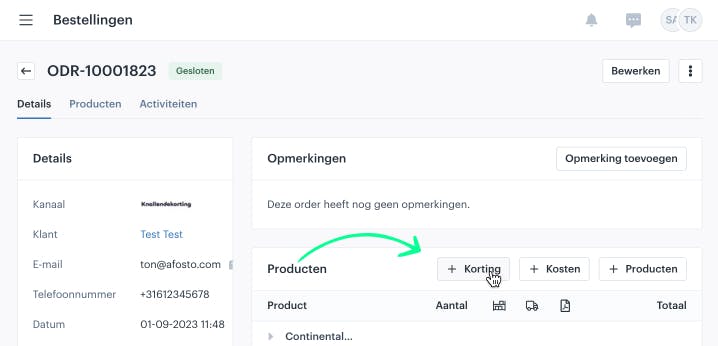
Once you click this, a screen will open where you can choose between three options:
-
Add a discount to the order
-
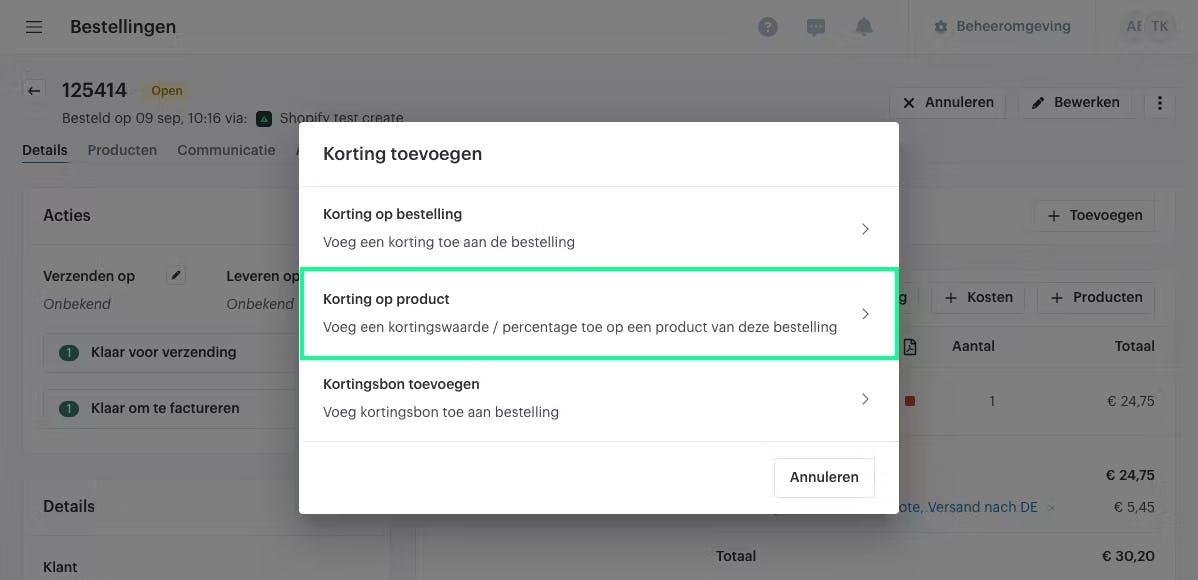
Add a discount to a product
-
Add a discount voucher
Discount on Order
In this part of the guide, we explain how to add a manual discount. Click “Discount on Order.”
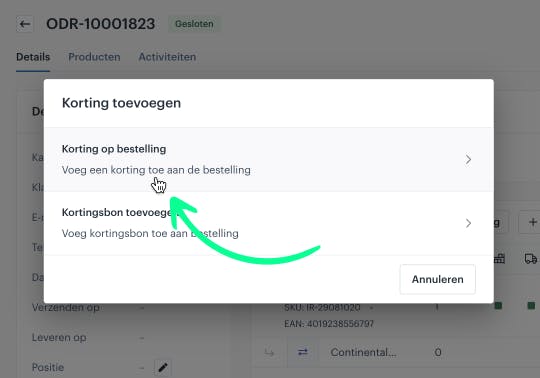
A screen will open with two options. You can choose to enter a fixed amount as a discount, for example €1, or you can give a percentage discount, for example 30%.
Giving a Discount by Amount
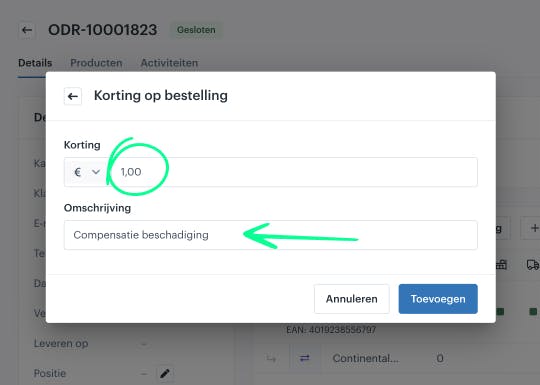
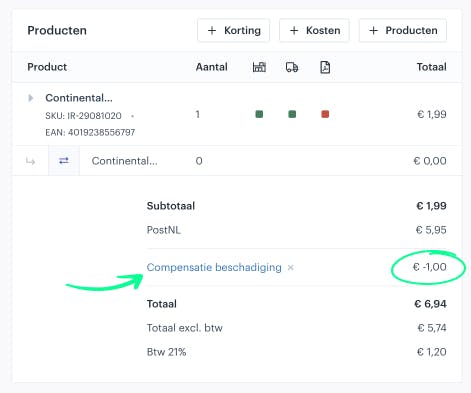
In the example below, we give a discount of €1. The description you enter is useful, as it provides clarity for both yourself and the customer.
In this case, the discount is given because the item arrived damaged.
Giving a Percentage Discount
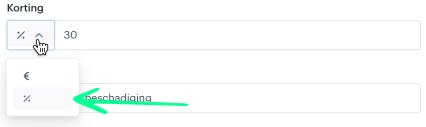
To switch between these two options, click the arrow indicated below. Then select the percent sign (%), after which you can enter a percentage.
The corresponding amount for this percentage will be automatically calculated.
Once you click “Add”, you will see that the discount is applied to the order. The discount will appear as a separate line in the overview below the products, as shown below.
Discount on Product
Select “Discount on Product” to apply a discount to individual products.
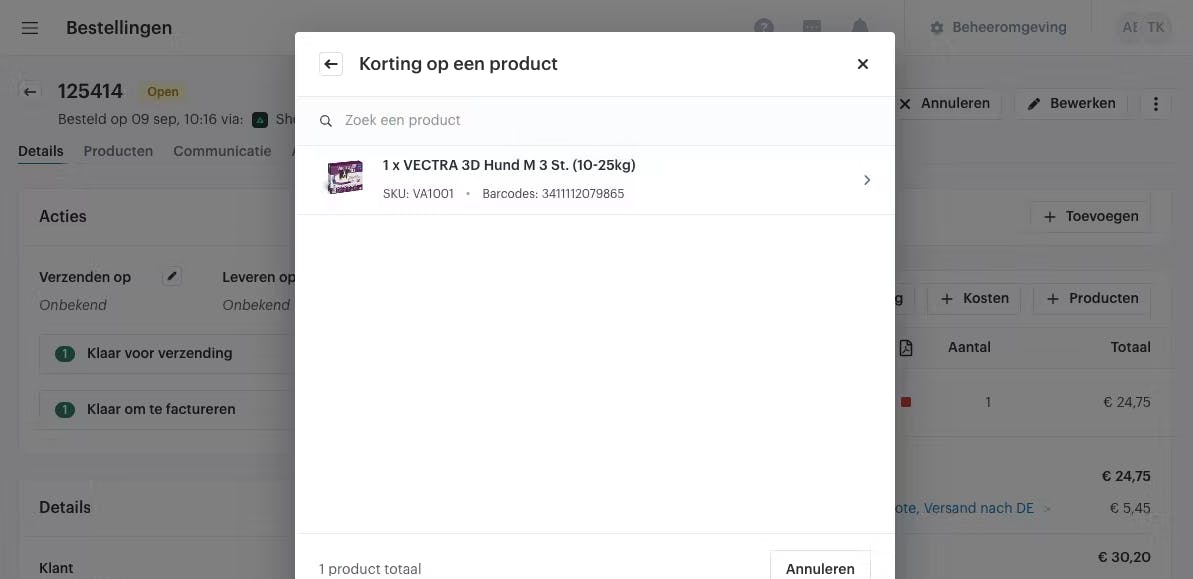
In the next screen, select the product you want to apply the discount to.
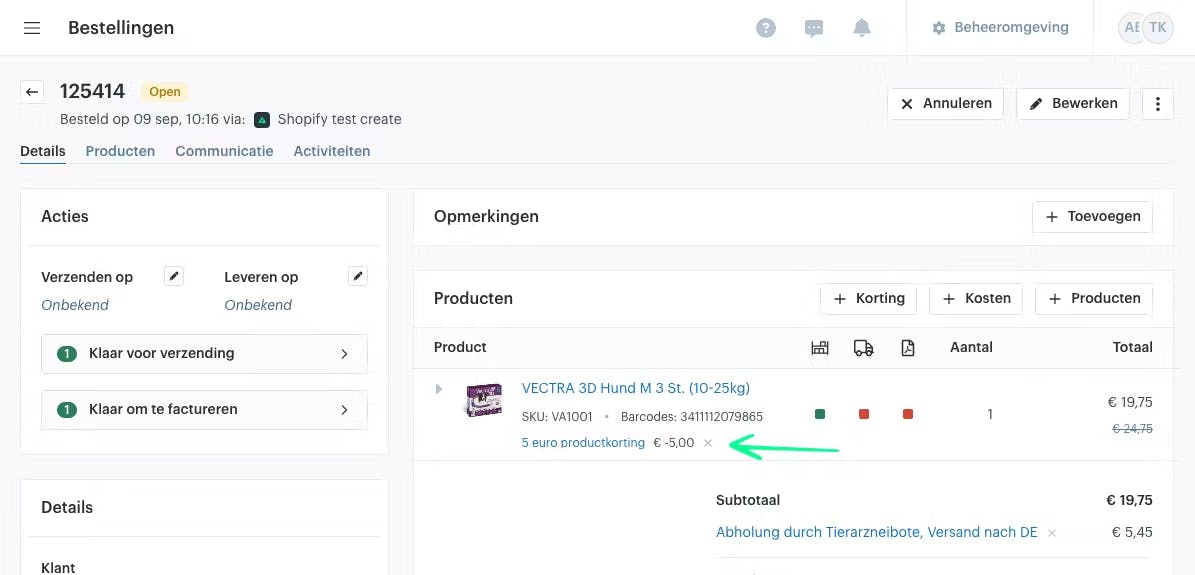
Next, choose whether you want to give a fixed amount or a percentage discount. By default, the discount is applied to the entire quantity of that product. If you want to apply the discount to a selected quantity only, check the box at the bottom.Als de korting succesvol is toegevoegd zie je onder het product de regel staan met de omschrijving die je zelf aan de korting hebt gegeven.
Refunding After Discount
Once the discount has been applied, the balance of the total order changes. This is because the customer has effectively overpaid (you gave a discount but have not yet issued a refund). You will need to refund the difference to correct the balance.
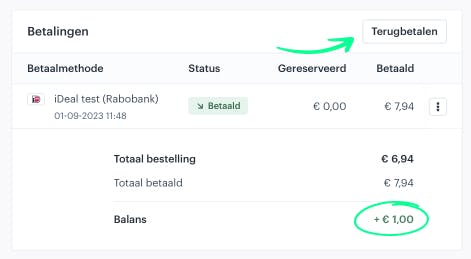
Warning: Refunding an order is only possible after you have first adjusted the order itself.
This means you must either apply a discount or return/cancel an item. This ensures that the entire financial picture remains accurate.
Removing a Discount
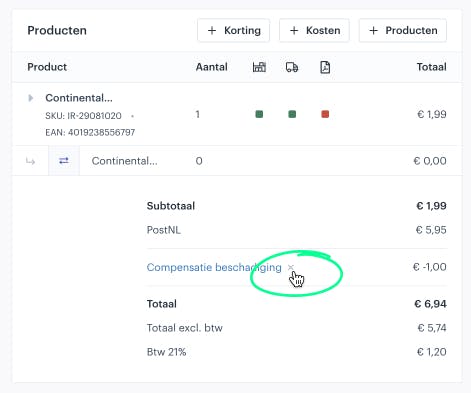
To remove a discount, click the cross (×) next to the discount you want to delete.
In the example below, the location of the click is indicated.
About Afosto
Till, webshop, bol and Kaufland on one stock.
Related documentation
Add manual payment
Lees deze handleiding om te leren hoe in Afosto handmatige betalingen kunnen worden toegeveogd en deze vervolgens op betaald kunnen worden gezet.
Discounts and Price Rules
Discount vouchers and promo codes
Creating discount vouchers and promo codes is a process that depends on your specific situation.