

Payments
In this article, we explain how to receive payments for an order and how to process refunds.
The three most important points to note are:
-
The order must be balanced. The payment for the order must equal the value of the products. For example, if you sell something for €50, there must be a payment of €50. The order balance will then be 0.
-
Refunds must be processed for returned items. If a product is returned, the corresponding amount must be refunded. Otherwise, the order will show excess funds and be out of balance.
-
Refunds are processed in two steps:
-
Prepare the refund
-
Execute the refund
Receiving Payments
You can receive payments for an order through Payment Service Providers (PSPs) connected to your account (for example, Mollie, Pay, or Adyen).
Using these connected PSPs, you can configure payment methods that customers can use at checkout on your webshop or via a payment link.
After a payment is successfully completed through one of these methods, it is automatically added to the order. Once you open an order in the platform, you can view all payments made by the customer.
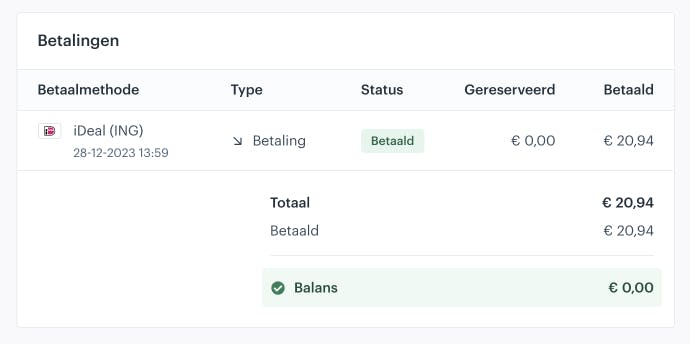
If a payment attempt fails, this is also recorded and displayed. In such cases, the order status remains “draft”, and the payment status is marked as “failed” or “canceled.”
For orders that are manually created or edited, where the customer has not completed the checkout process, a payment link can be used to make an (additional) payment. When the customer opens this payment link, the outstanding amount of the order is shown along with the available payment methods.
It is important to note that if you make changes to the order after sending the payment link, the outstanding amount in the link is automatically updated to reflect the new order value.
Refunds
Refunding a (part of a) order is done in two steps: first preparing the refund, then executing it.
Using a two-step process allows different user permissions within the platform. For example, one person may have the authority to prepare a refund, while another person has the authority to execute the payment.
Preparing a Refund
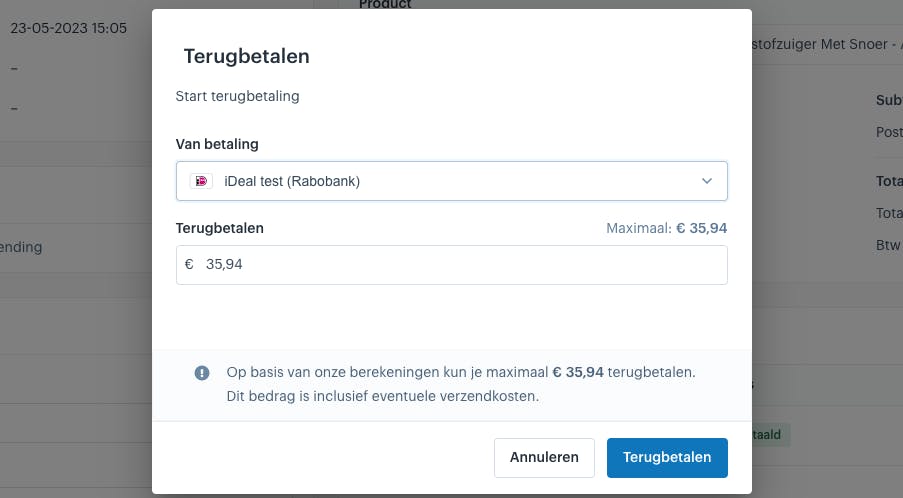
A refund can be prepared by selecting the “Refund” button in the payment widget on the order detail page. After entering the amount to be refunded (by default, the positive balance is filled in), click “Prepare Payment.”
Note: A refund can only be prepared if the order balance is positive. This means that:
-
A product must have been returned or canceled
-
Or a discount must have been applied
This ensures that the financial records remain accurate, for example in invoices or when synced with your accounting software.
Executing a Refund
A refund is executed by clicking the “Execute” button next to the prepared payment. The order balance will be updated, and the payment is actually refunded once this step is completed.
This refund is processed directly through the platform of the connected PSP. Keep the following points in mind:
-
A refund must be executed using the same payment method originally used by the customer.
-
If multiple payments were made using different methods, the refunded amount per payment method cannot exceed the amount originally paid with that method.
-
It may take a few days for the PSP to process the refund and send it to the customer.
About Afosto
Till, webshop, bol and Kaufland on one stock.
Related documentation
Add manual payment
Lees deze handleiding om te leren hoe in Afosto handmatige betalingen kunnen worden toegeveogd en deze vervolgens op betaald kunnen worden gezet.
Discounts and Price Rules
Discount vouchers and promo codes
Creating discount vouchers and promo codes is a process that depends on your specific situation.