

Add manual payment
In this guide, we explain how to add a manual payment and mark an order as paid in Afosto.
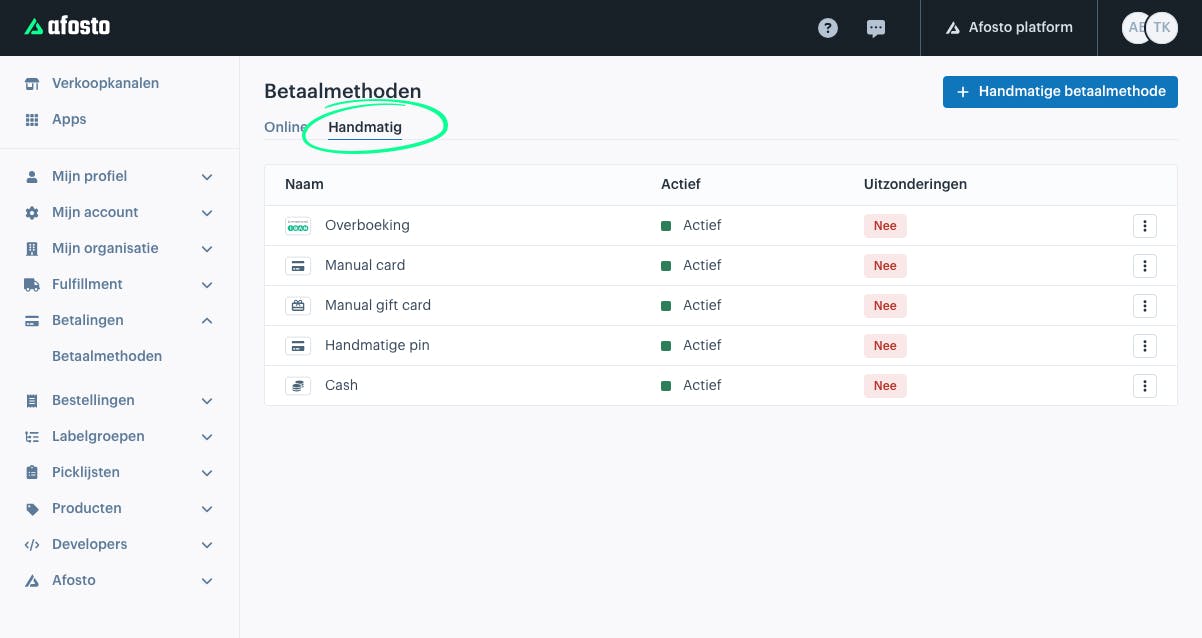
Add Payment Method in the Admin Environment
In Afosto, there is a distinction between manual and online payment methods.
Online payment methods are automatically marked as “paid” once the payment has been received. For manual payment methods, the status must be manually changed to “paid.”
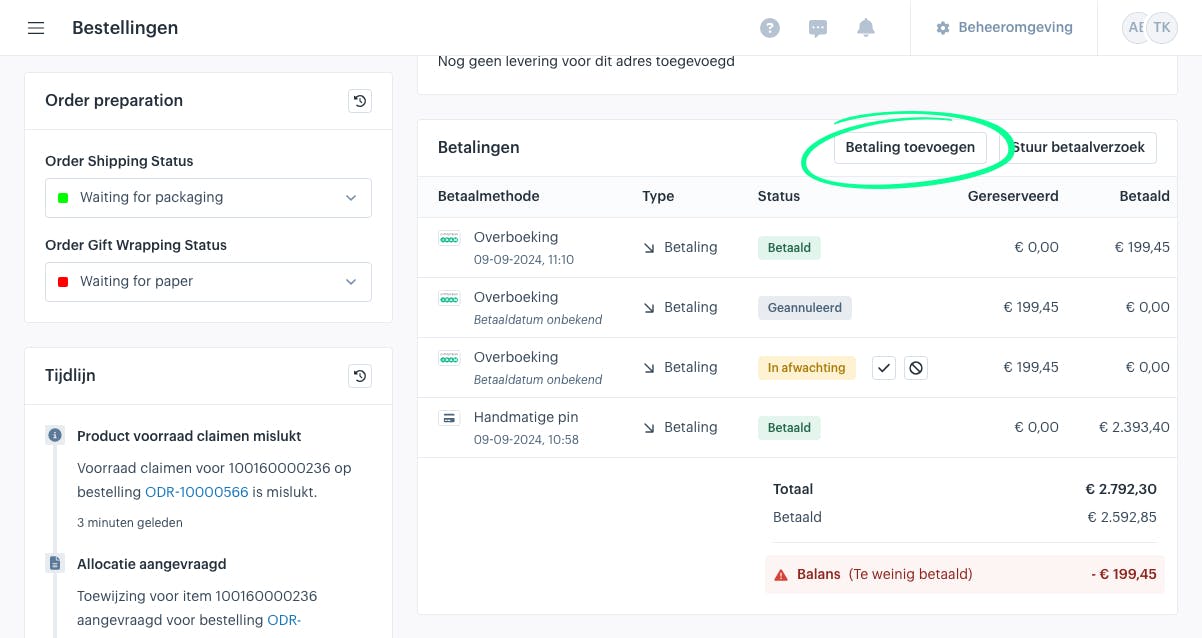
Add Payment
Once the order has been created, or after you have added products to an existing order, you can add a payment method in the payment widget by clicking the “Add Payment” button.
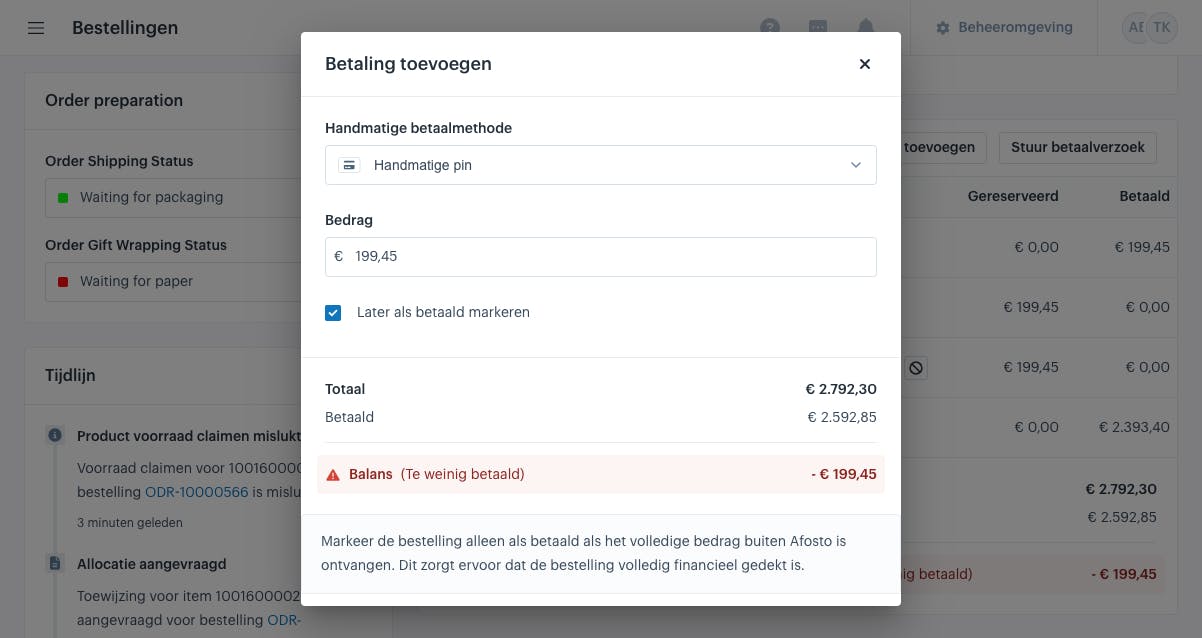
Once you click this, a screen will open where you can enter the amount to be paid using that payment method. By default, the outstanding amount will already be filled in.
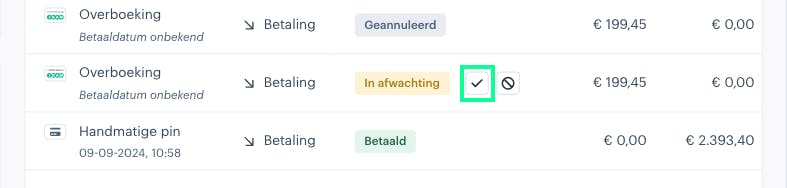
Once you have added the payment, you can click the checkmark next to the payment method to mark the payment as paid. This ensures that the order is financially covered, allowing it, for example, to be released for shipment.
About Afosto
Till, webshop, bol and Kaufland on one stock.