

Install as PWA
Progressive Web Apps (PWAs) are web applications that behave much like traditional apps, including the ability to install them on your device (such as a handheld scanner). Below are the steps to install a PWA on an Android device:
-
Open Google Chrome PWAs work best in Google Chrome, although they may also work in other browsers such as Firefox or Opera.
-
Navigate to the URL Enter the following URL in the browser address bar: https://scan.afosto.app/
-
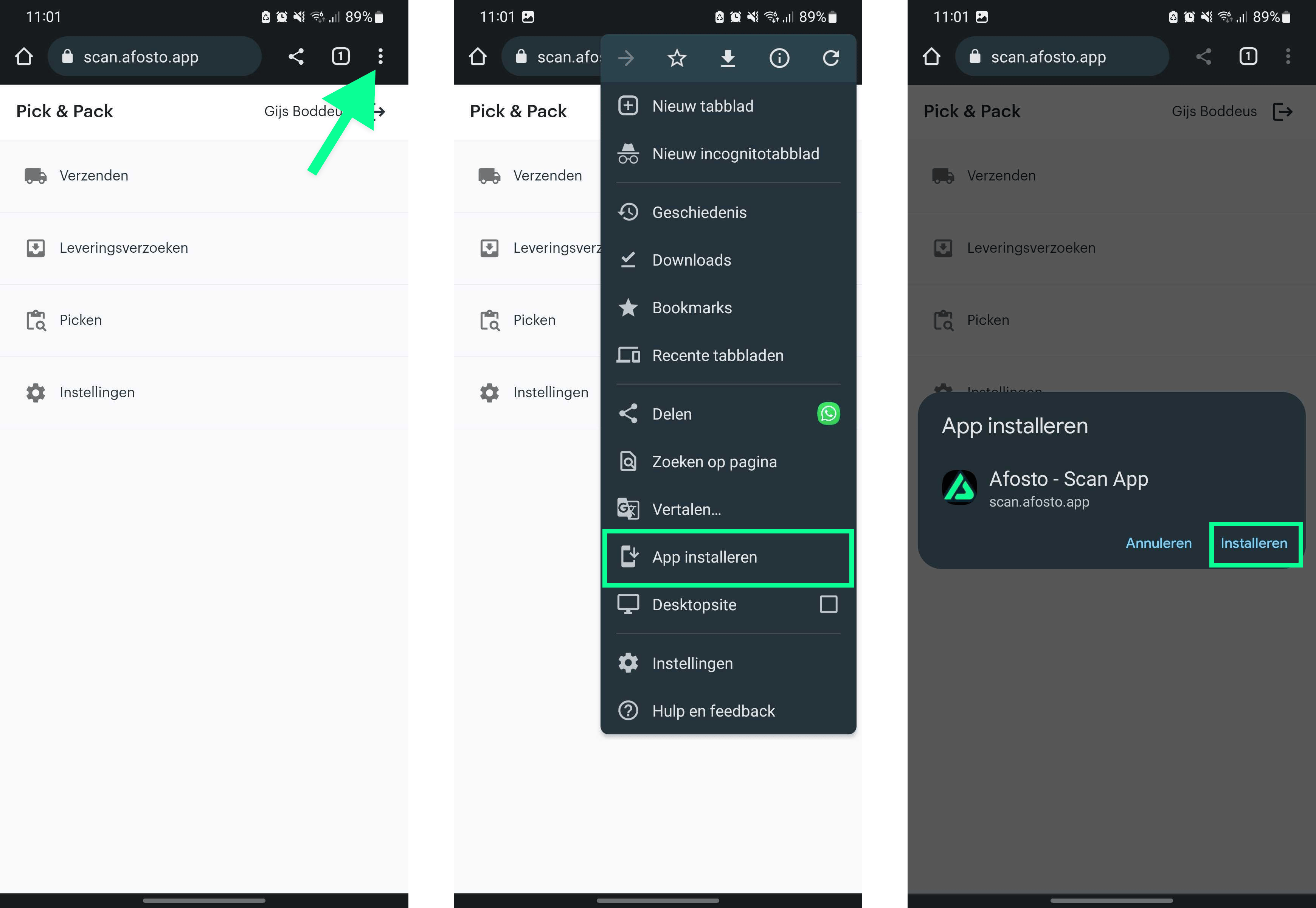
Open the browser menu Tap the three dots in the top-right corner of the screen.
-
Add to the home screen Scroll down in the menu and tap “Add to Home screen” or “Install.”
-
Confirm the installation A prompt will appear with the app name and icon. If everything looks correct, tap “Add” or “Install.”
After completing these steps, the PWA will appear on your device’s home screen, just like a traditional app. You can tap it to open and use it like any other app on your device.
About the WMS
Receive with the scanner, pick by location and ship from every warehouse.