

Reservations
Reservations
A reservation in Afosto holds stock items for a specific period. This is useful, for example, when you have an arrangement with a customer to pick up items without creating an immediate order.
Explanation
A reservation has the following variables:
-
Products
-
Customer
-
Note
-
Expiration Date
-
Order Number (to reconcile the reservation with an order)
Products You can add products if they are registered in the Afosto OMS. This can be done by searching or scanning.
Customer A reservation must include a customer (for example, the person picking up the items).
Note If there are specific comments about the reservation, you can add them here.
Expiration Date This is the date when the reserved items should return to stock.
Order Number Once an order number is added, the system searches for the order. When the order is found or created, the items on the order are reconciled with the reservation. This ensures that products are never deducted twice.
Procedure
Reservations must be activated for the WMS app. Once activated, the option appears in the app.
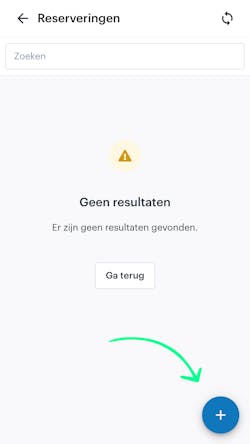
After selecting Reservations, you will see an overview of all existing reservations. You can create a new reservation by clicking the plus (+) icon.
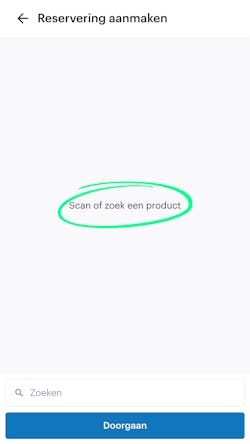
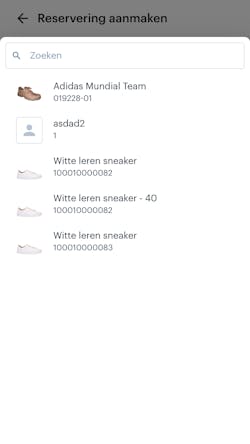
In the screen that opens, you can search for or scan products.
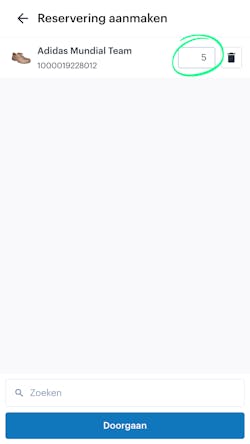
Once you have searched for or scanned the products you want to reserve, they will appear on your screen. Here, you can easily adjust the quantity or remove items. When you’re ready, click Next.
Here you can add a customer, an expiration date, or a note. A customer and an expiration date are required.
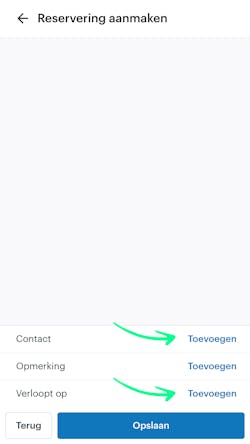
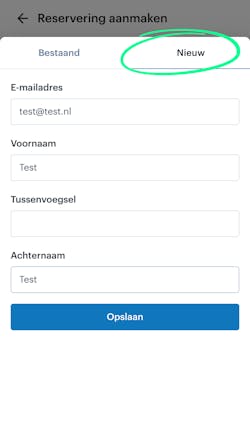
A customer can be either new or existing.
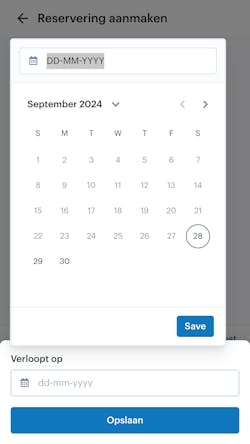
An expiration date is required because, after this date, the reservation releases its products back to stock and is removed from the overview.
Optionally, you can add a note.
Once you’re done, click Save, and the products will be reserved in your stock.
Reconciling with a Shopify Order
To reconcile the stock for an order once the reservation has been picked up, the reservation must be linked to the Shopify receipt number. You do this by reopening the reservation and then clicking the ‘Scan Receipt’ option.
About the WMS
Receive with the scanner, pick by location and ship from every warehouse.