

Single line picking
What Are Single Line Orders?
Single line orders are orders that contain only one order line, meaning a single unique SKU. A single line order can include multiple units of the same product, but no different products.
These are the easiest orders to fulfill in your warehouse, which is why a separate process has been developed for them. Single line orders can be sent directly to the packing table for packing and printing shipping labels.
The basis of the single line process is creating a pick list with the correct products. In the platform, you can set which group of orders should be added to the pick list each time (in this case, orders with only one unique SKU or order line).
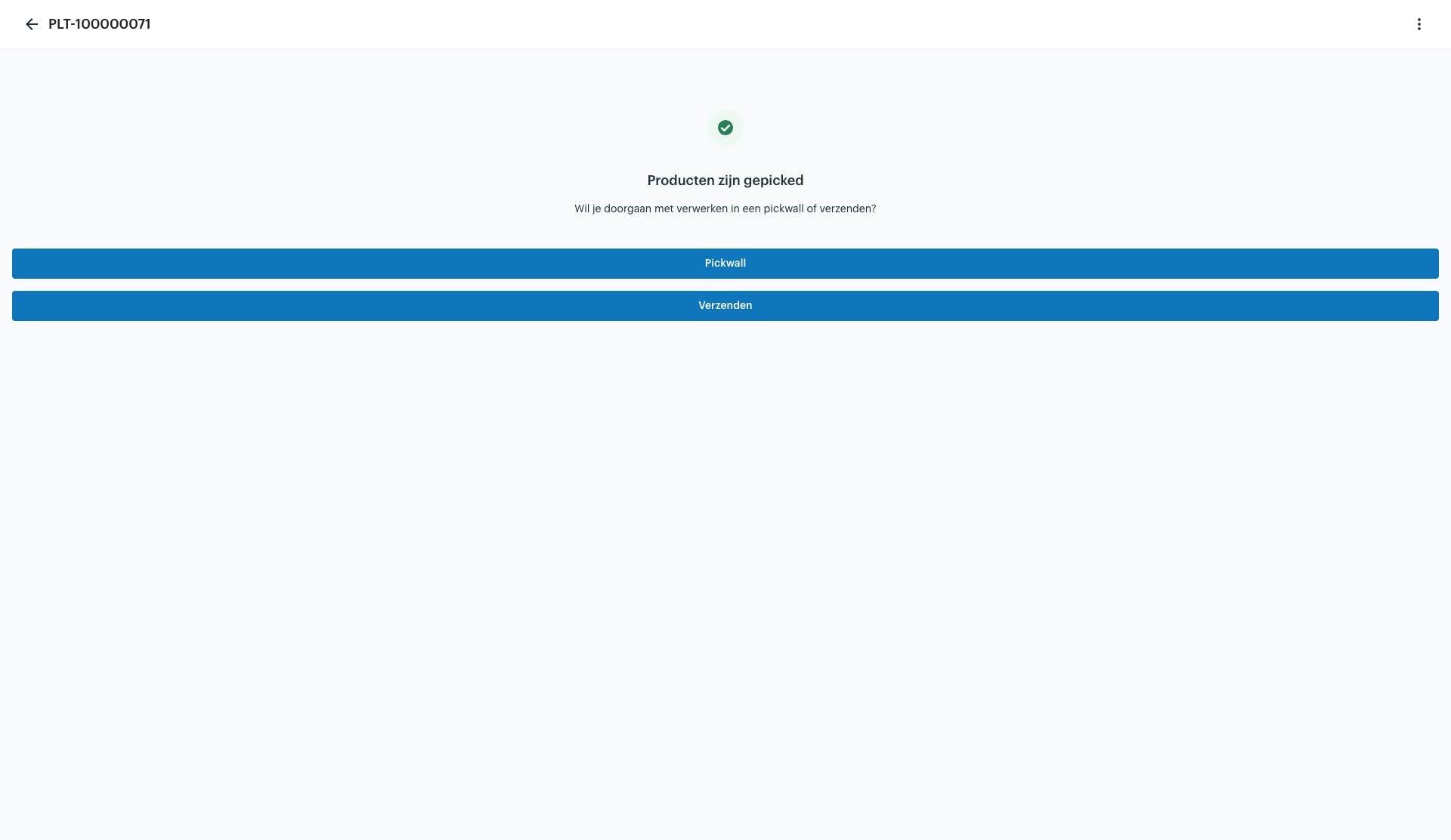
Once this pick list of single line orders is created, you can start picking the products. After completing the pick list, you will be asked whether you want to sort the products in the pick wall or ship them directly.
Select ship directly.
Next, you can scan the products you just picked one by one. The order associated with the product opens automatically when you scan it. The only remaining option is if you need more of the same product (same order line / same SKU).
Once the order is open, you can ship it as usual. Then scan the next product and repeat the process.
Advantages of Single Line Picking
-
Fast processing: no sorting required via the pick wall
-
Less error-prone: 1 SKU per order = fewer mistakes
-
Direct to packing table: no intermediate steps
-
Efficient picking: shorter walking routes in the warehouse
The Picking Process
1. Start the Pick List
-
Open the WMS app
-
Select the correct pick list ("Single Line Orders")
-
Start the list and begin picking
2. Picking the Products
-
Pick the products according to the pick list
-
Check the quantity per SKU (some orders may have multiple units of the same SKU)
-
Once everything is picked, close the list
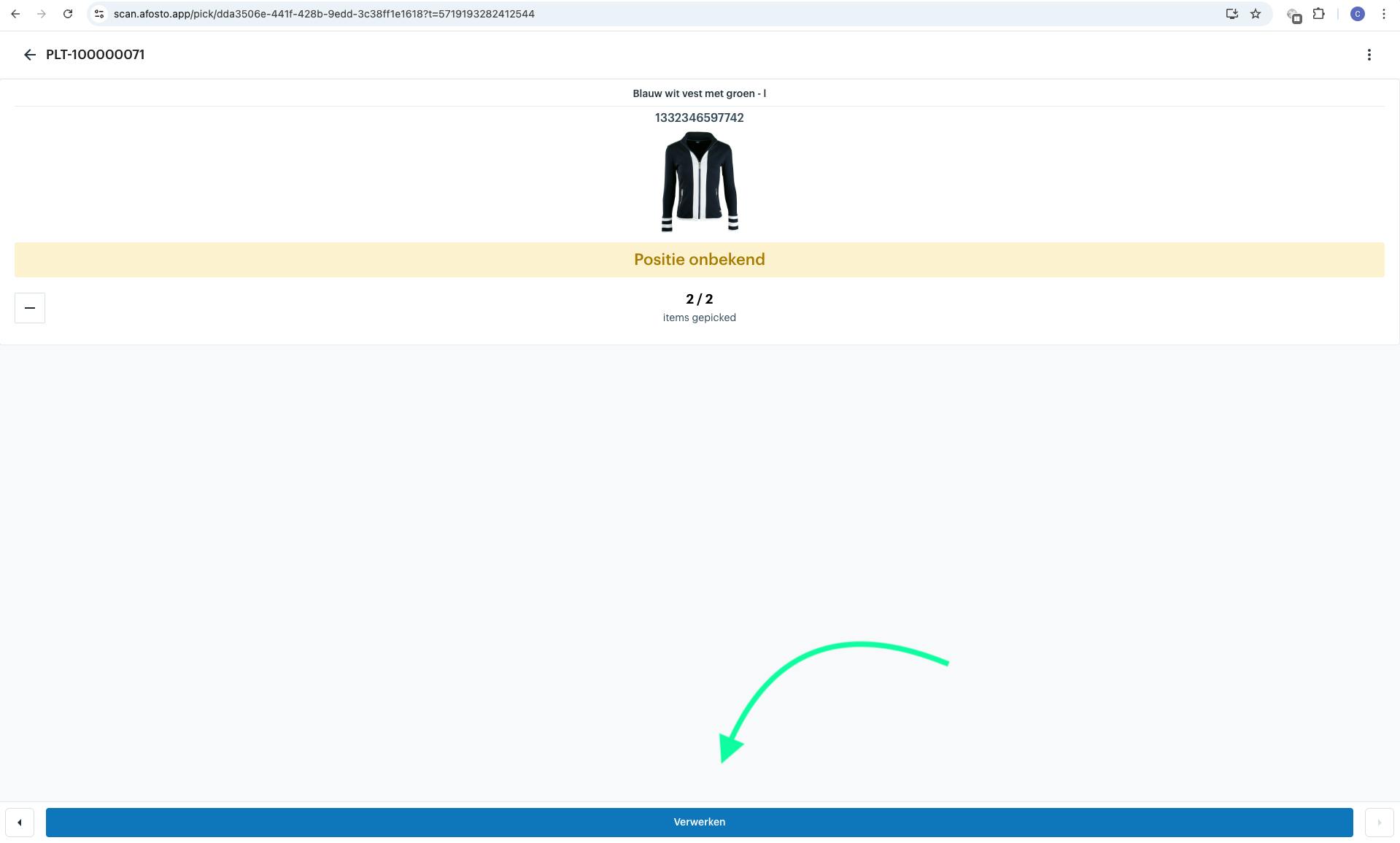
Shipping Process
After completing the pick list, you are presented with a choice:
-
Sort the products in the pick wall
-
Ship directly
Choose Ship Directly.
Scan and Ship per Order
-
Go to the packing table.
-
Scan one of the picked products.
-
Process and ship the order as you normally would.
-
Scan the next product and repeat the process.
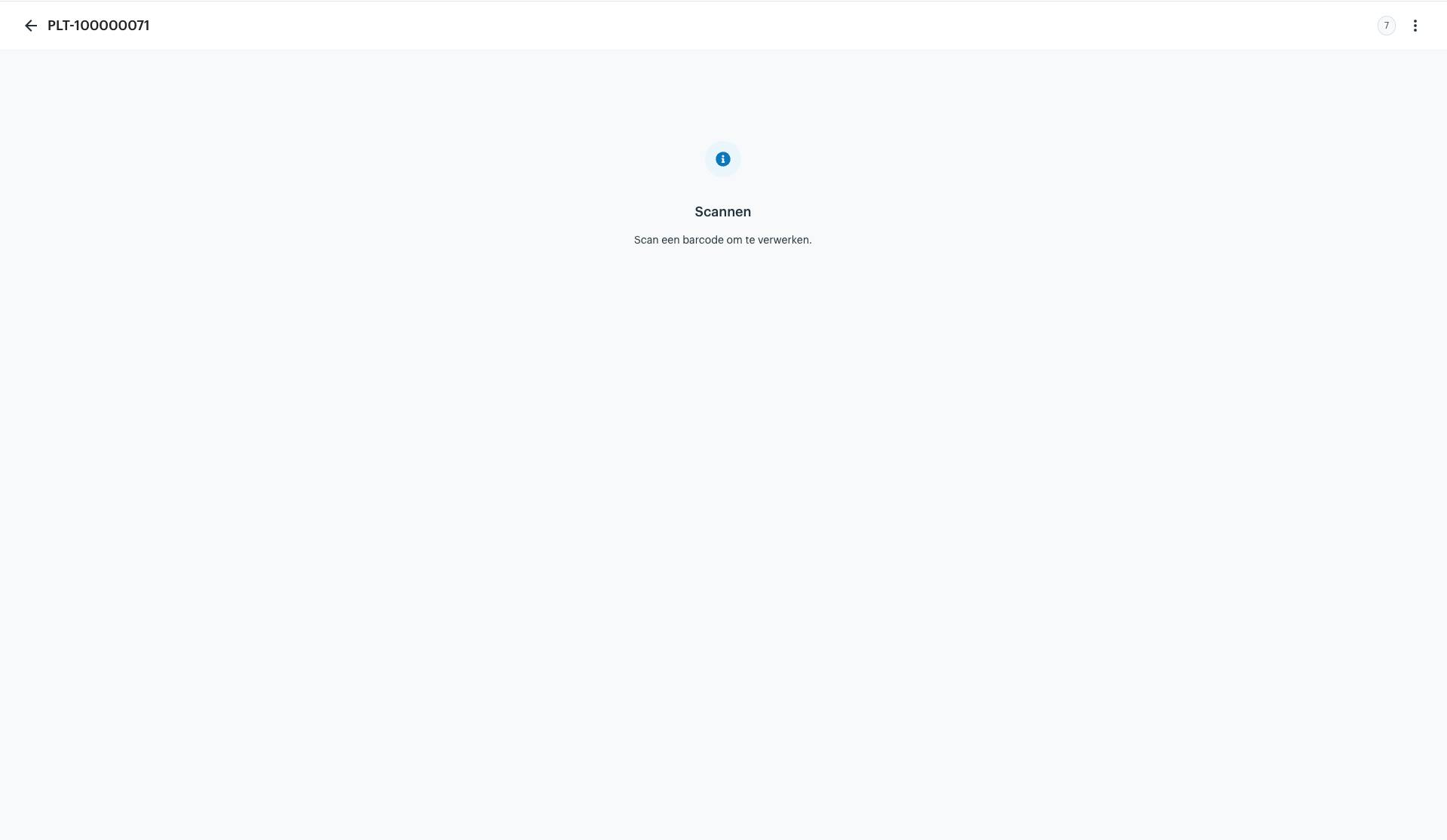
The system automatically links each product to the correct order, so you don’t need to look up order numbers.
Checklist
-
Make sure you have created a datagrid view in the platform containing single line orders. Pay attention to the number of orders included in this view.
-
Make sure you have a picklijst preset created using the above view in the WMS app, so you can generate these pick lists directly from the app.
About the WMS
Receive with the scanner, pick by location and ship from every warehouse.