

How do I link Lightspeed eCom to Afosto?
Suitable for Lightspeed eCom C-Series. To link Lightspeed to Afosto, you need a Lightspeed eCom C-Series account.
To link Lightspeed with Afosto, follow the steps below:
-
Log into your Lightspeed account.
-
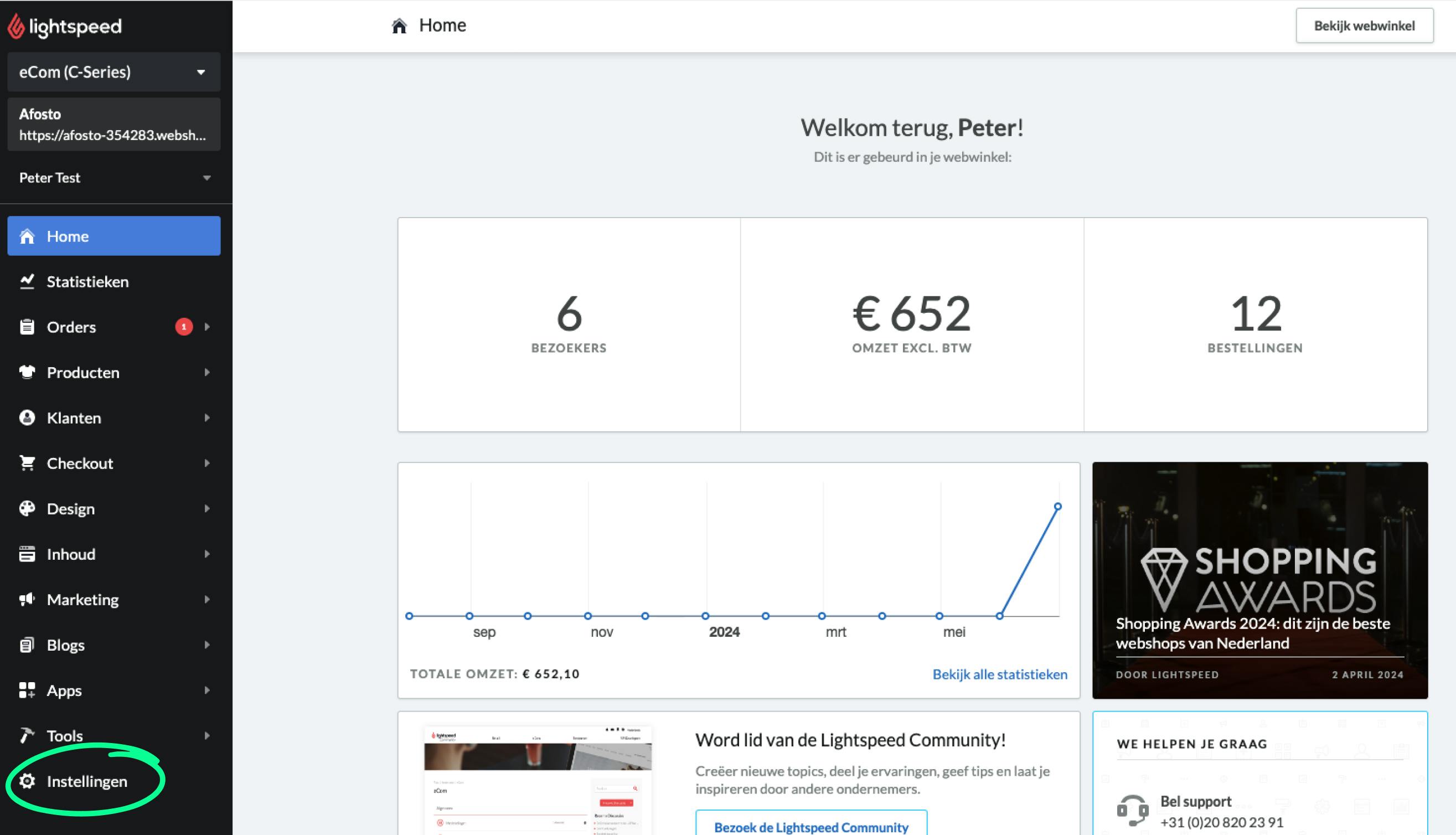
Go to Settings.
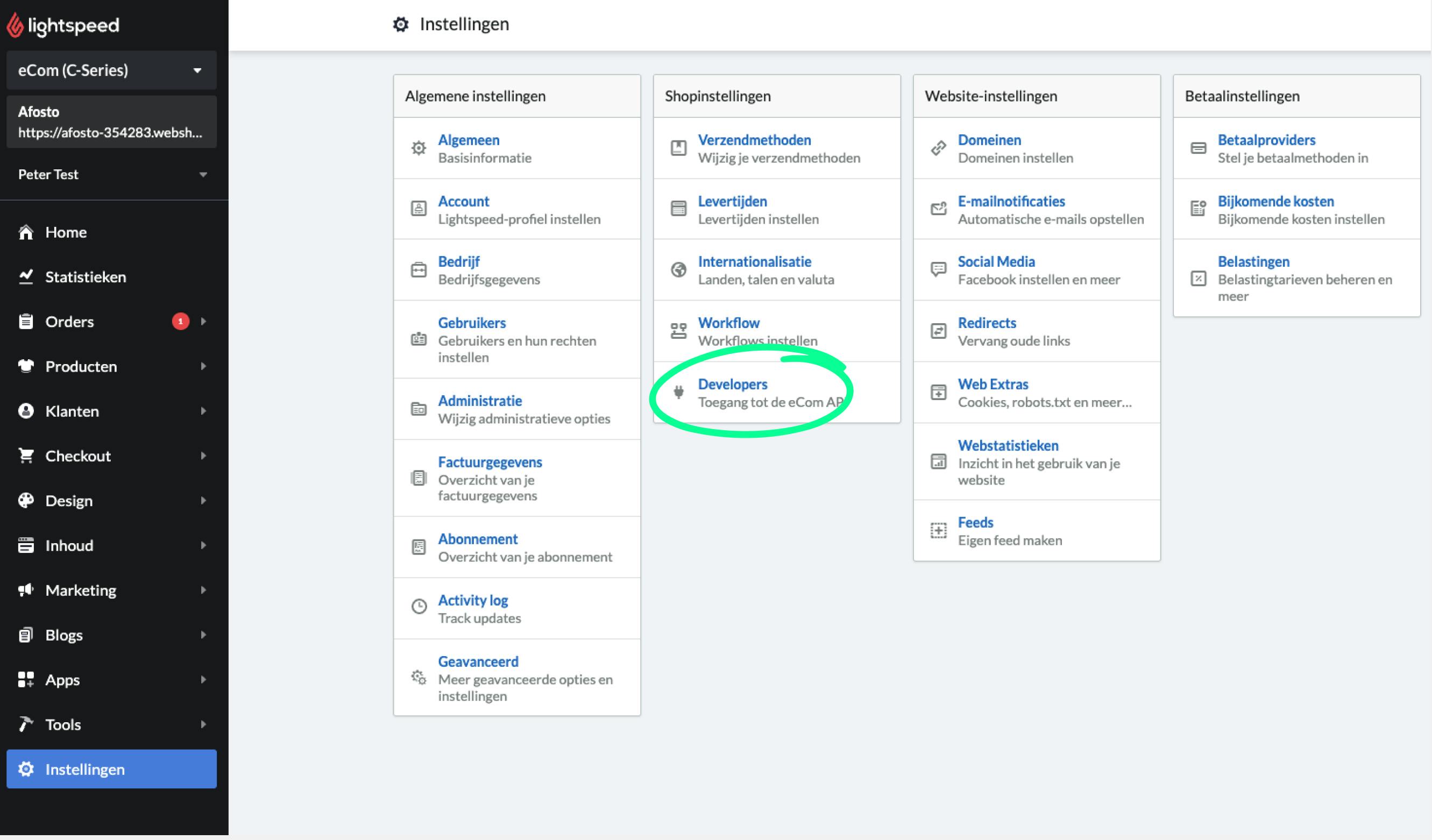
- Then click on Developers (Access to the eCom API).
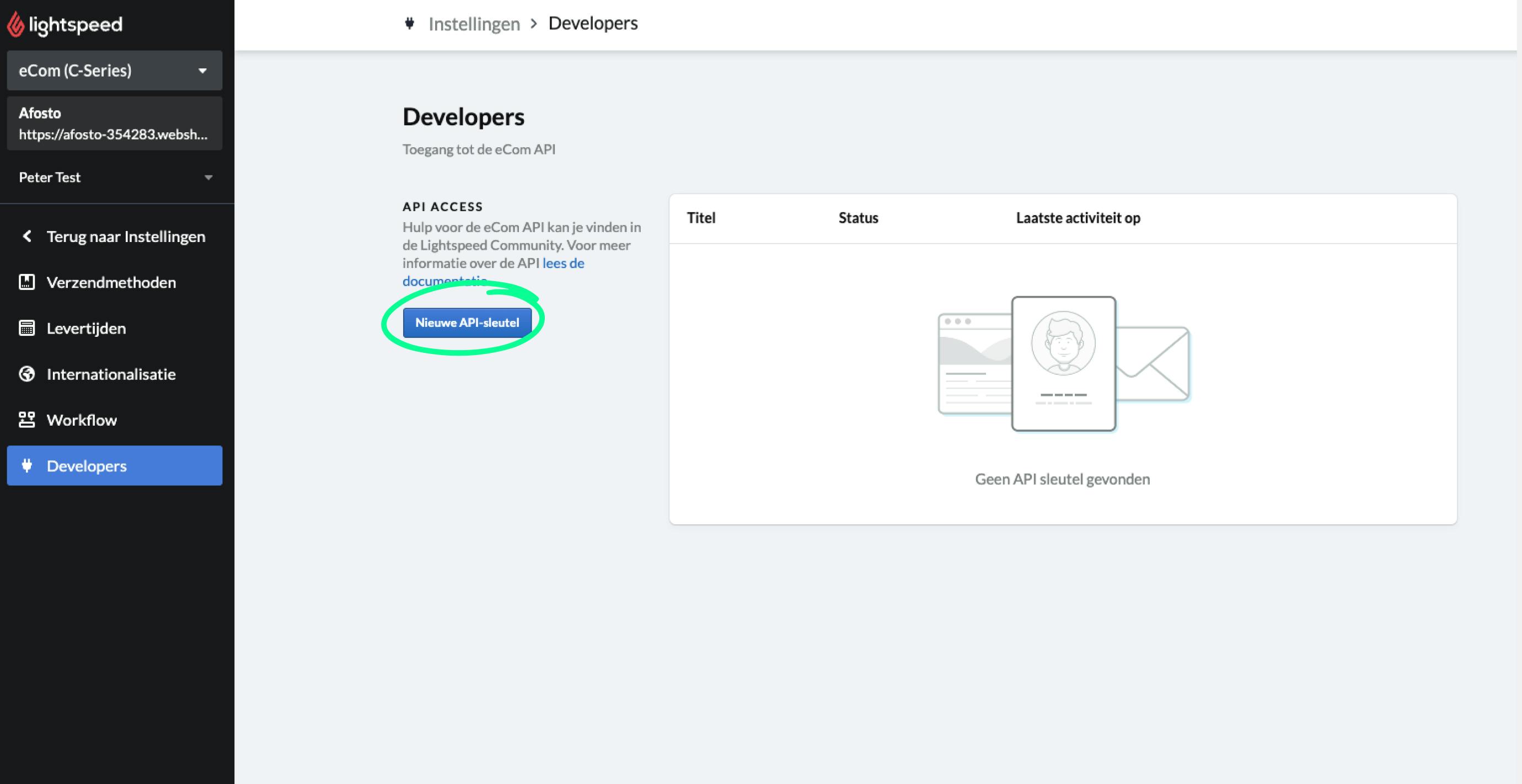
- Click on New API Key.
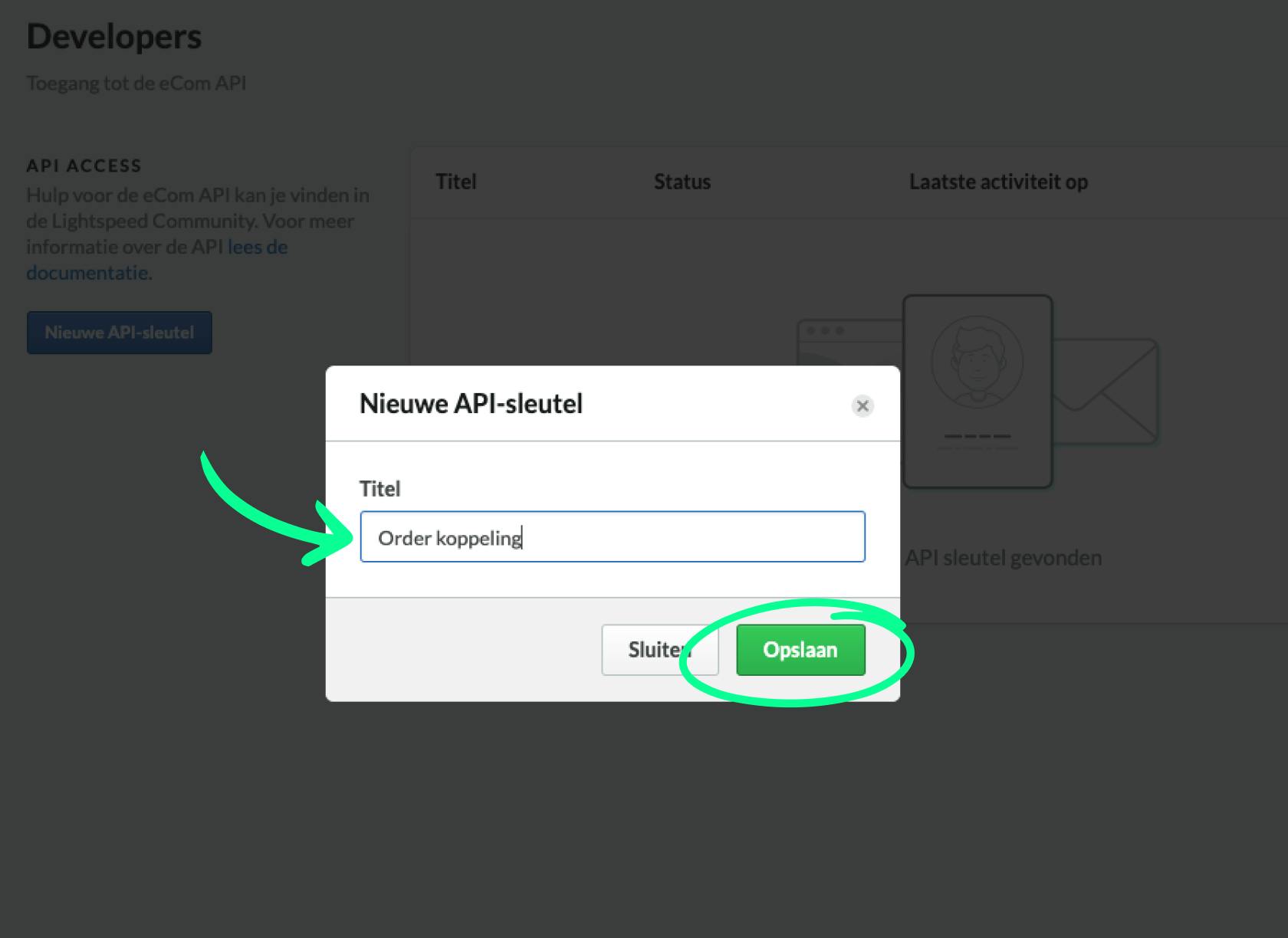
- Name the API key and click Save.
-
Now, a few settings need to be adjusted.
-
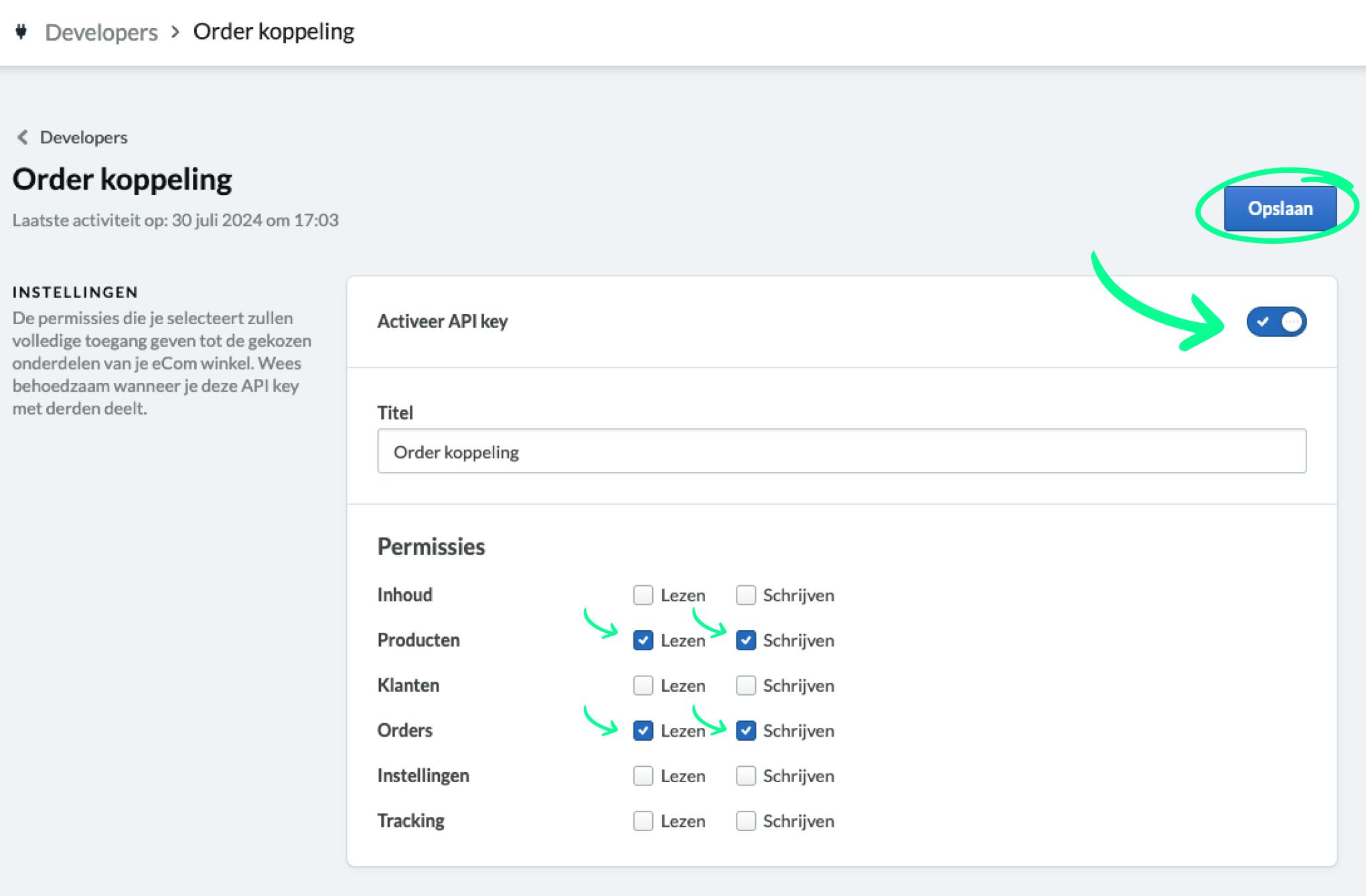
Click the toggle on the top right behind 'Activate link'.
-
Set the permissions as in (read and write for both products and orders).
-
Now click Save.
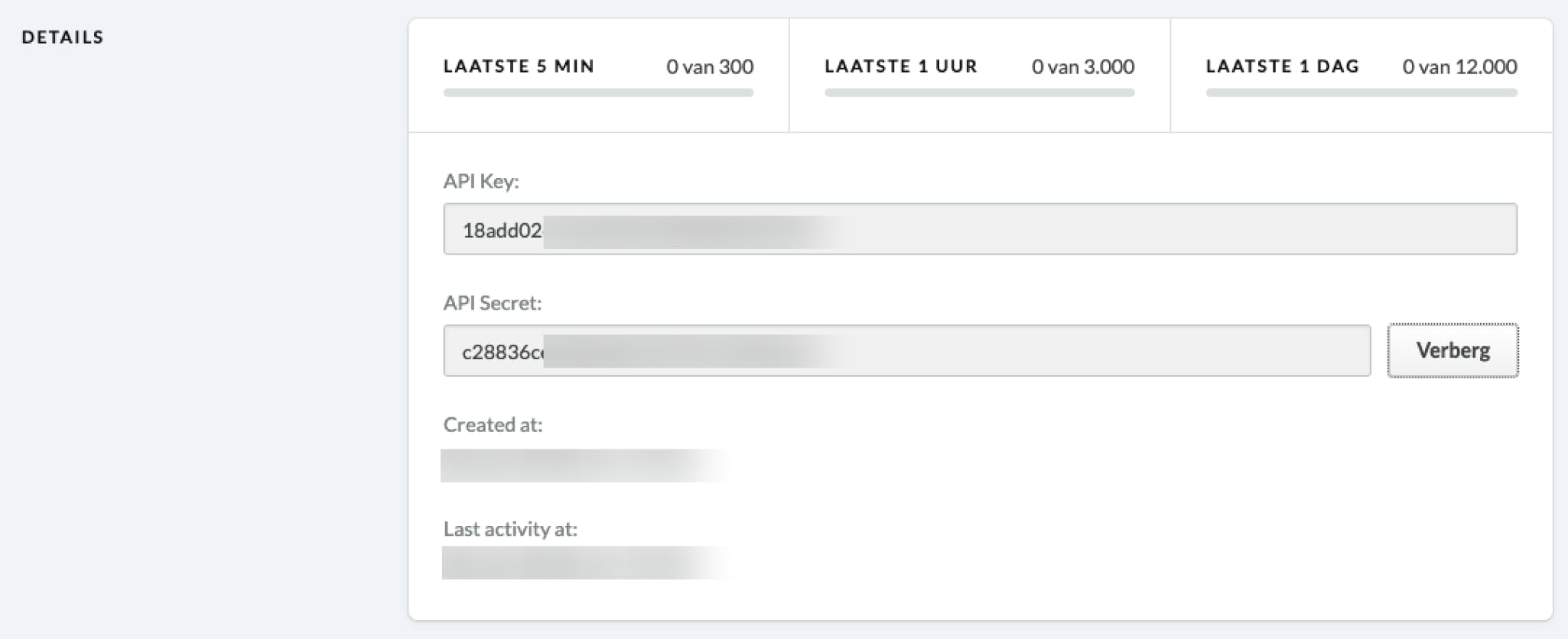
- Scroll down a bit, there you will find an API Key and API Secret; these will need to be entered into Afosto later:
-
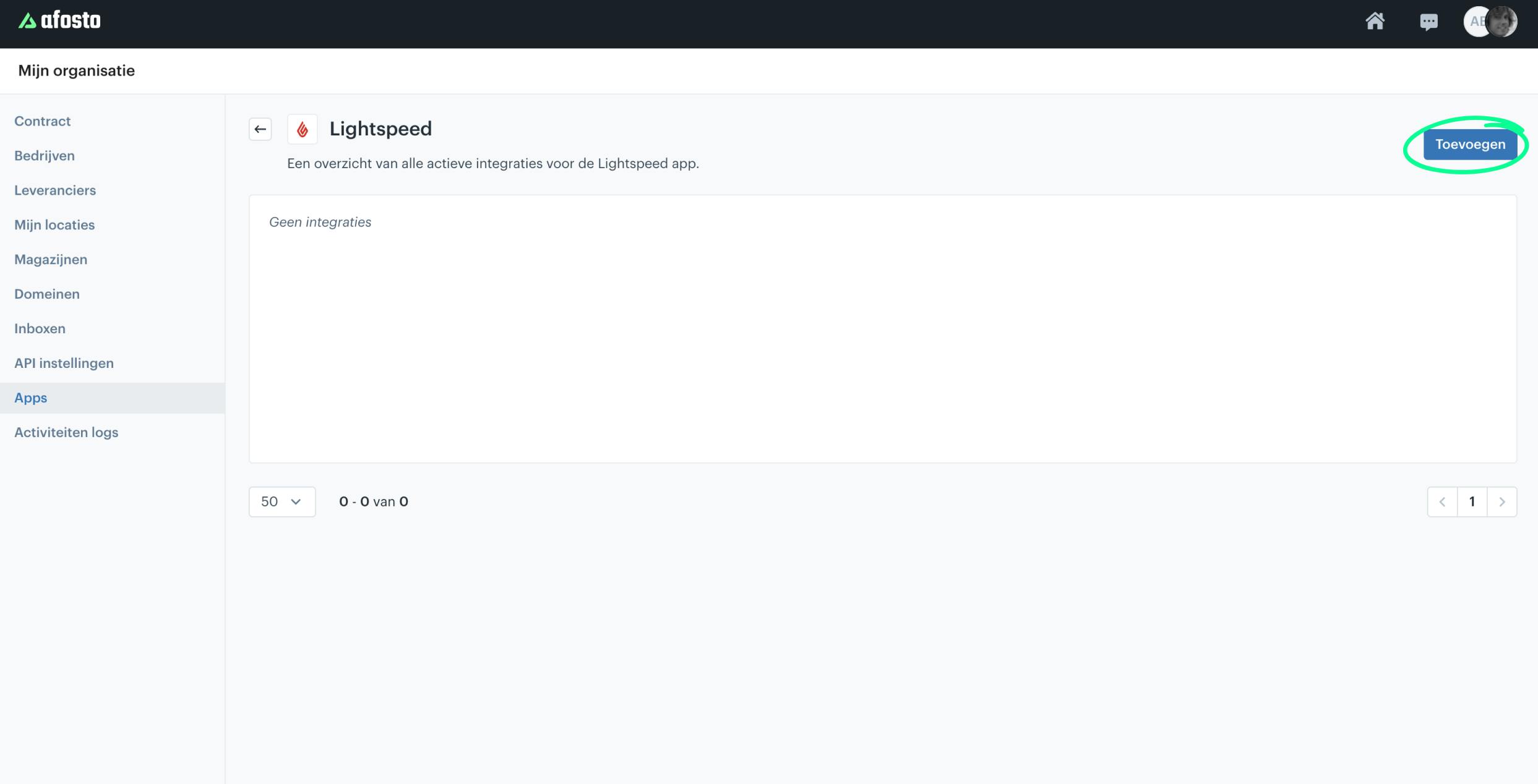
Now (in a different screen) go to the admin environment of Afosto to activate the Lightspeed connection.
-
Click on Add.
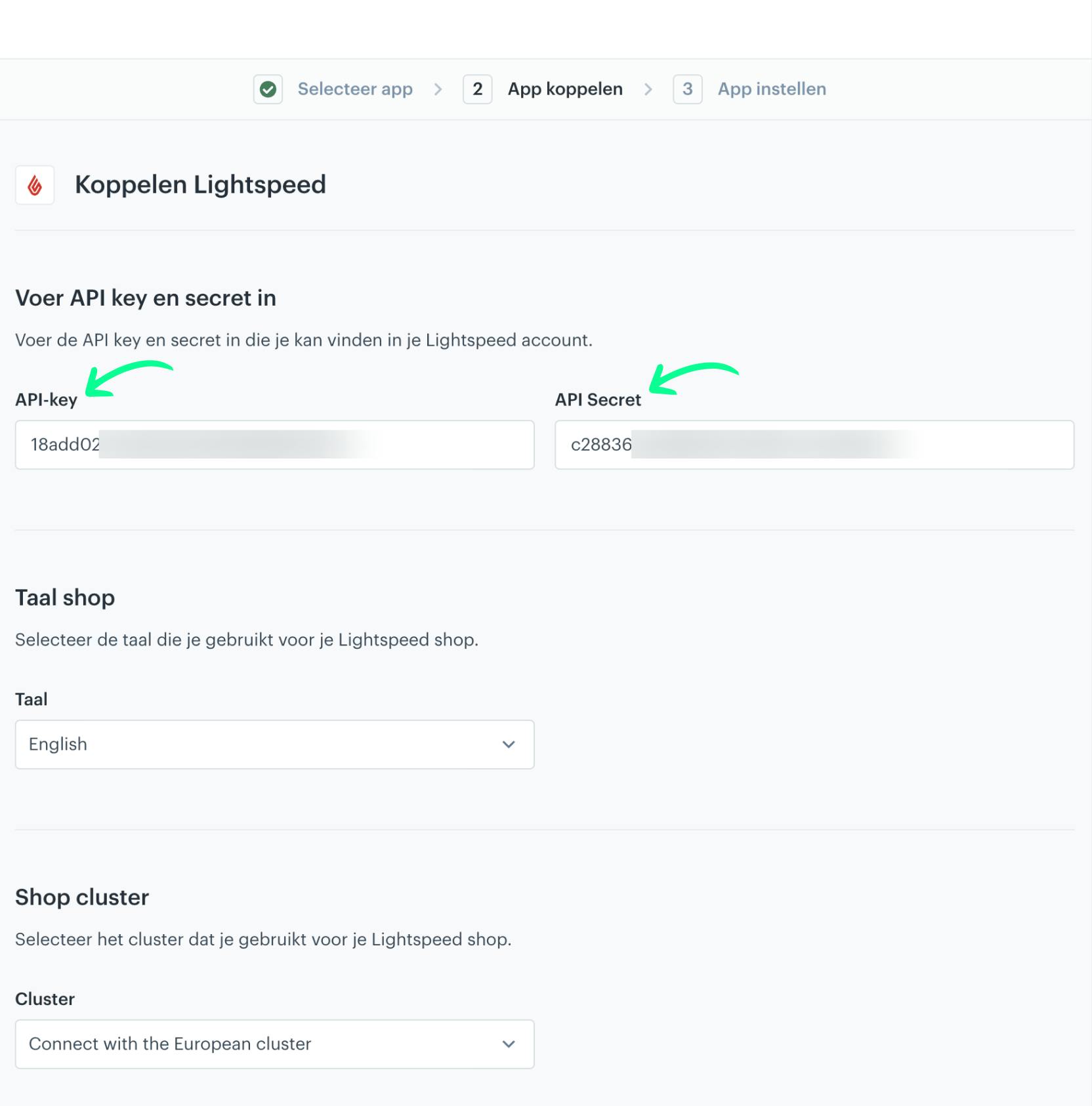
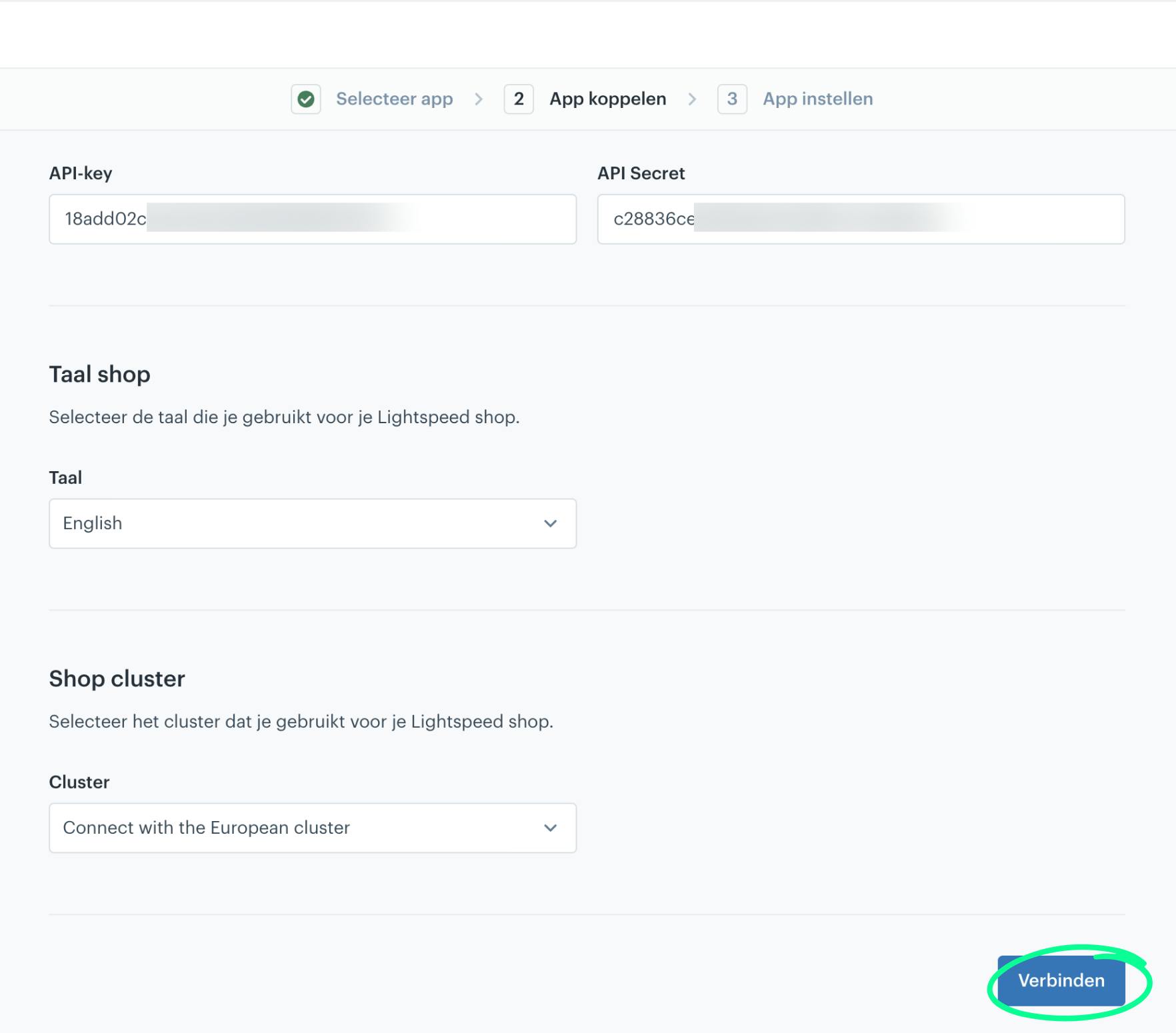
- Now copy the API Key and API Secret from Lightspeed to Afosto.
-
Set language to English and cluster to Connect with European cluster.
-
Scroll down and now click Connect.
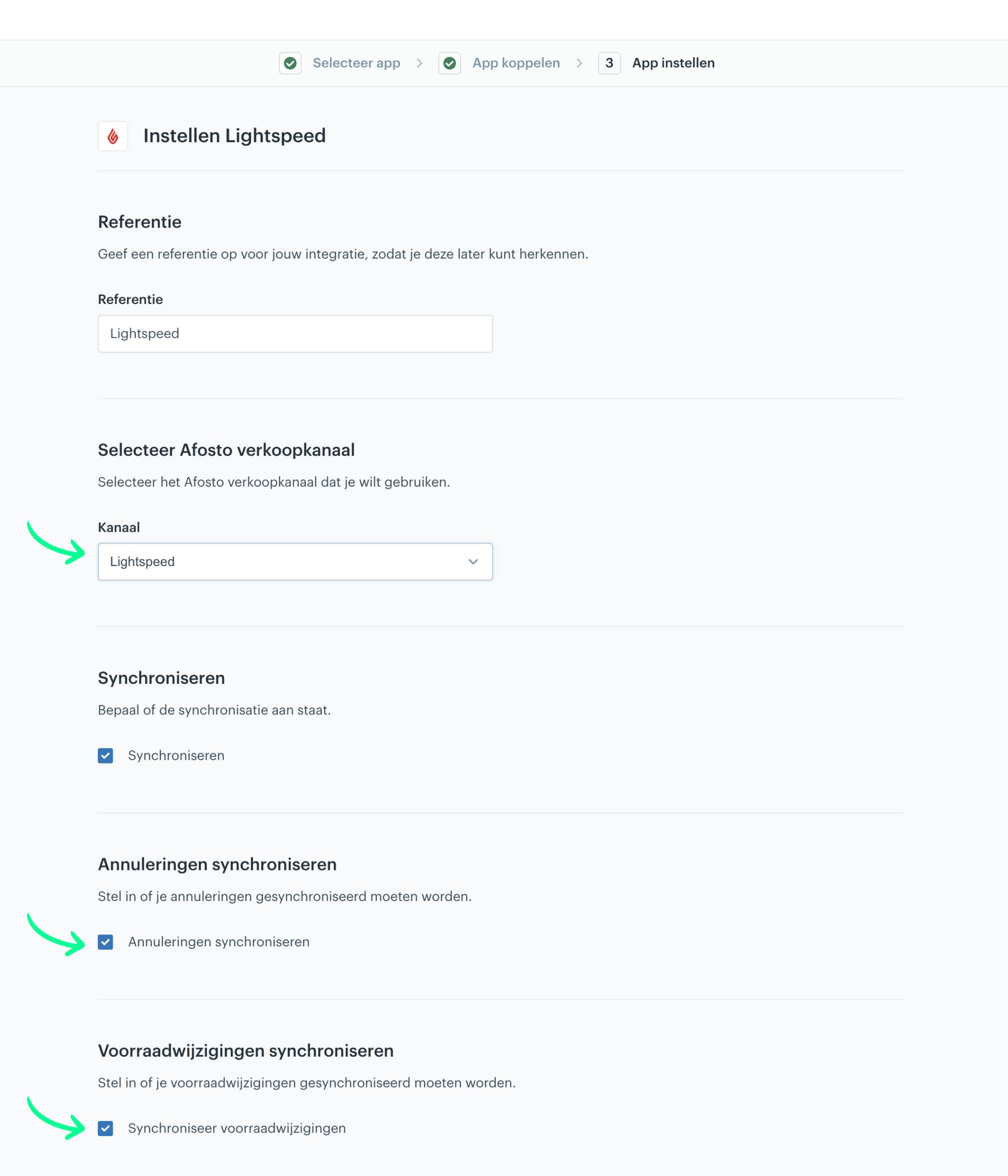
- Now choose an Afosto sales channel, this is the channel where the orders from Lightspeed should 'come in' and optionally check which components should be synchronized.
- Then click Save.
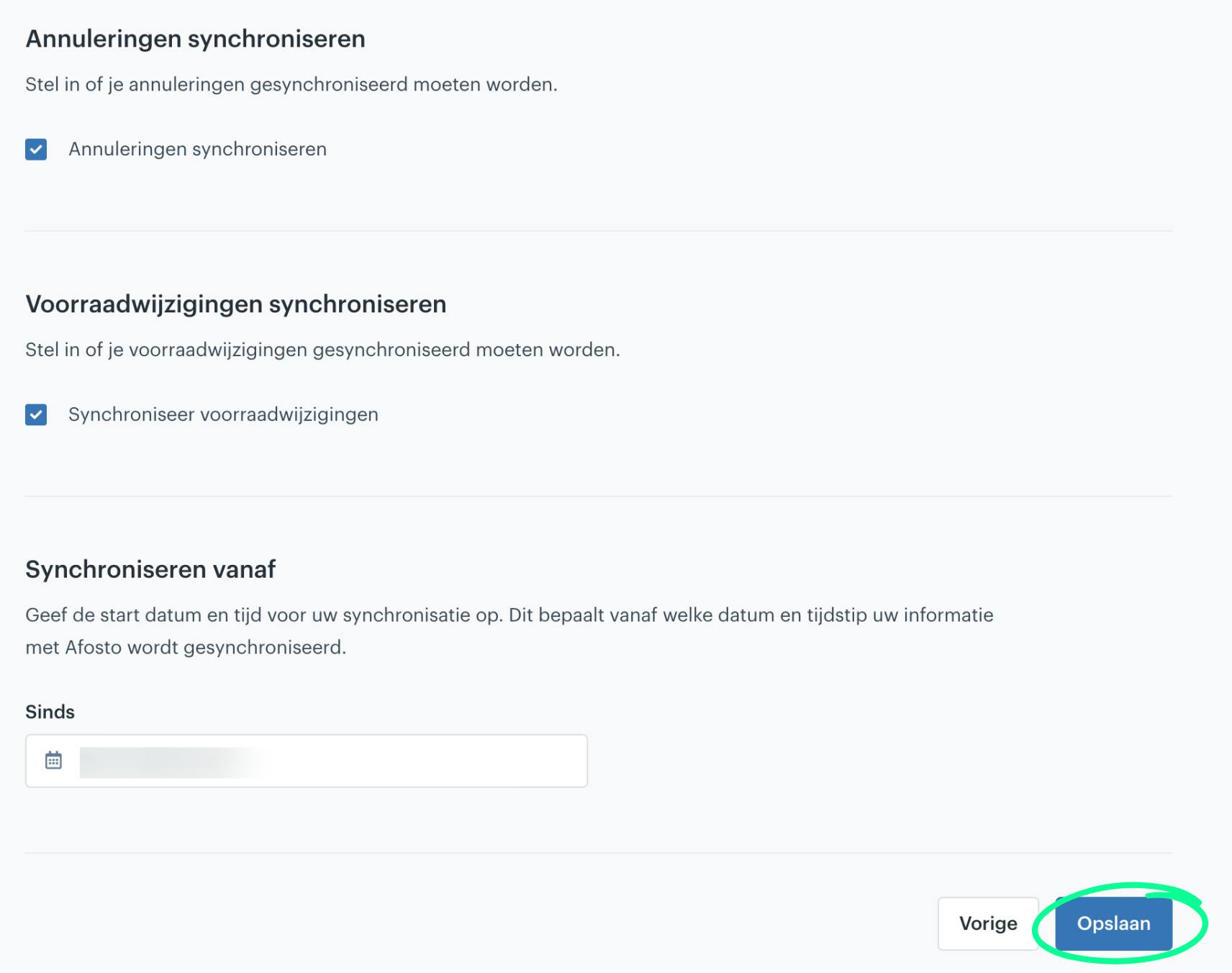
Congratulations, the synchronization is now activated.
Related documentation
Pay App connection with Afosto OMS
Step-by-step guide on how to connect Pay.nl to your Afosto environment and easily activate payment methods like iDEAL, PayPal, and Klarna for your webshop.
Afosto POS
Afosto shipping label provider
Use the Afosto shipping label provider app to automate the check-in and check-out process of packages to be picked up. Easily link the app via 'Shipping methods' or 'My organization' and follow our step-by-step instructions to get started. Improve efficiency and customer satisfaction with Afosto.
Mollie
Learn how to connect Mollie to your Afosto environment and easily activate payment methods like iDEAL, Credit Card, and Klarna for your webshop.