

Connect Quicq to Afosto shop
In this document it is explained how Quicq can be activated on an Afosto webshop.
Webshop platform
-
Go to the portal of the relevant shop via app.afosto.com
-
Go to "Plugins"
-
Install the plugin "Image optimization"
-
Go to the settings of the plugin undefinedundefined
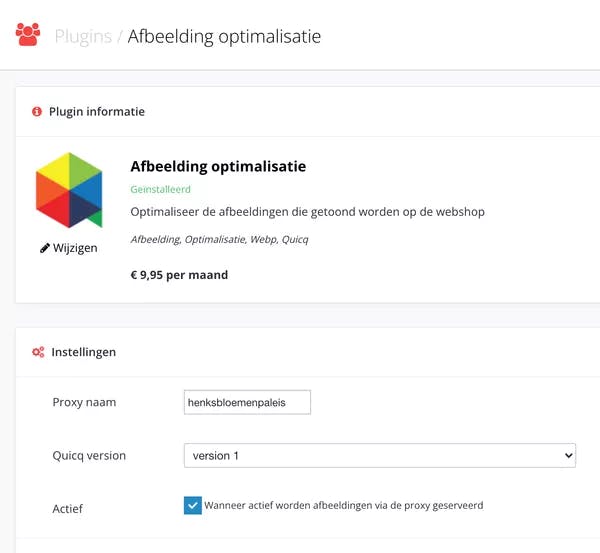
Implementation in the template (Twig knowledge required)
When it concerns an older Afosto shop, it may be that adjustments need to be made in the code of the template. Consult the website administrator for this. Now that Quicq is active, all images with an image filter are transformed into a compressed format.
-
Go to the editor via "Design/branding"
-
Search for an image in a file. (for example in macros/displays/products.twig in which the code for a product card is located)
-
Check if the "src" or "data-src" tag has the image filter. undefinedundefined
An image without an image filter will be ignored by Quicq. In the second example Quicq compresses the relevant image to 400x400.
There are three variables that can be filled in in the image filter:
-
"w"(width): The width of the image in numbers without suffix in pixels
-
"h"(height): The height of the image in numbers without suffix in pixels
-
"c"(crop): When the image has a different resolution than the values specified above, setting this to "1" will crop the image to the specified size. The default value is "0", where the excess space is filled with white.
Since Quicq does not function without the image filter, it is important that all images in the template are provided with the filter.
An image that is ready for Quicq could for example look like this:
<img src="{{product.image_default.filename|image({"w": 1920, "h": 1080, "c": 1})}}" alt="{{"Foto of"|t}} {{product.name}}" title="{{product.name}}" class="lazyload"/>