

Connect Bol account to Afosto
Video: Connect your Bol account to Afosto
In this manual, we explain how to connect Bol to Afosto and which settings are possible.
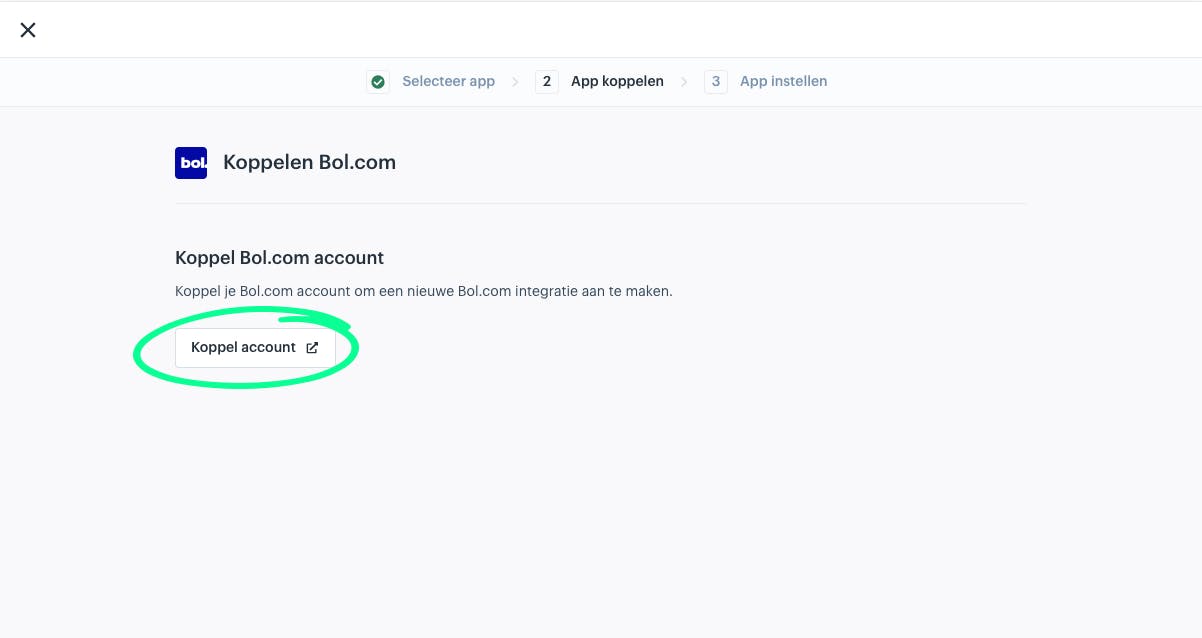
Go to the admin section of Afosto to 'apps' and then to Bol.com. Here you click on 'Add'. The screen below opens. Click on 'Connect account'.
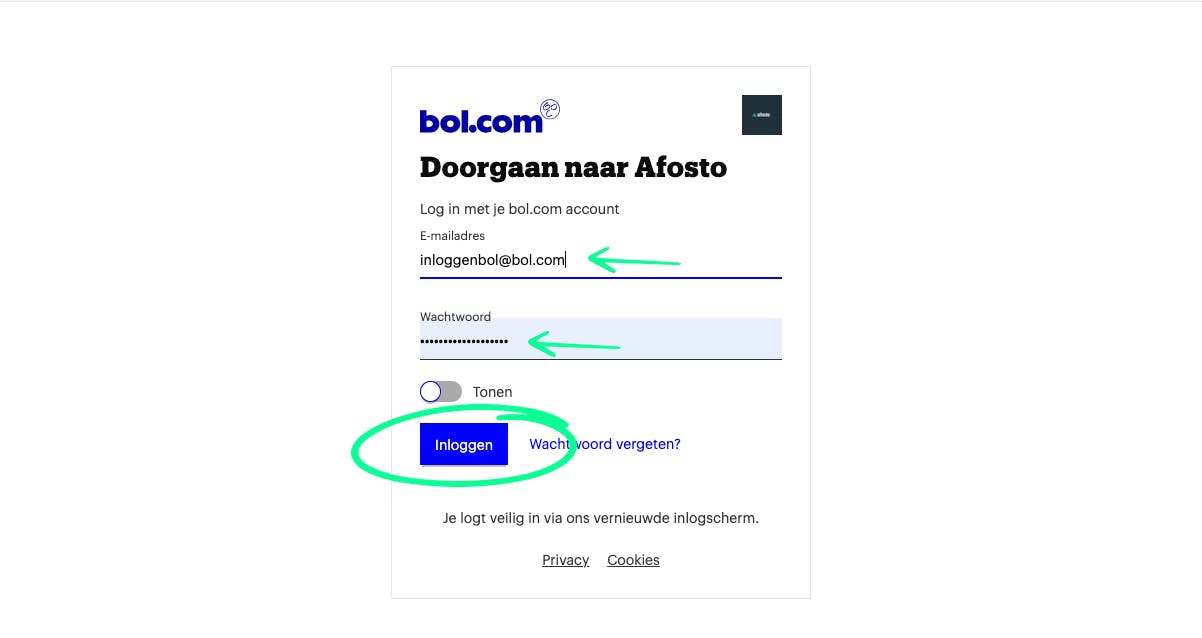
You will be redirected to the screen below where you need to log in to the Bol account that you want to connect to Afosto. Enter your login details and click on log in.
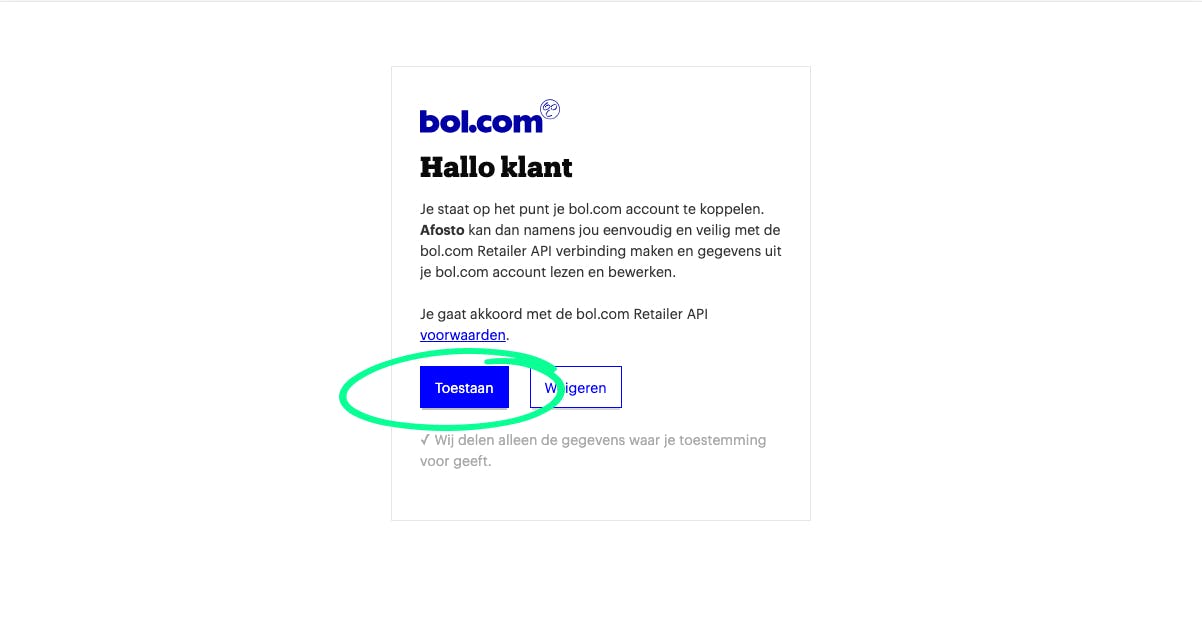
Next, you need to give permission to Afosto to connect. Click on 'Allow'.
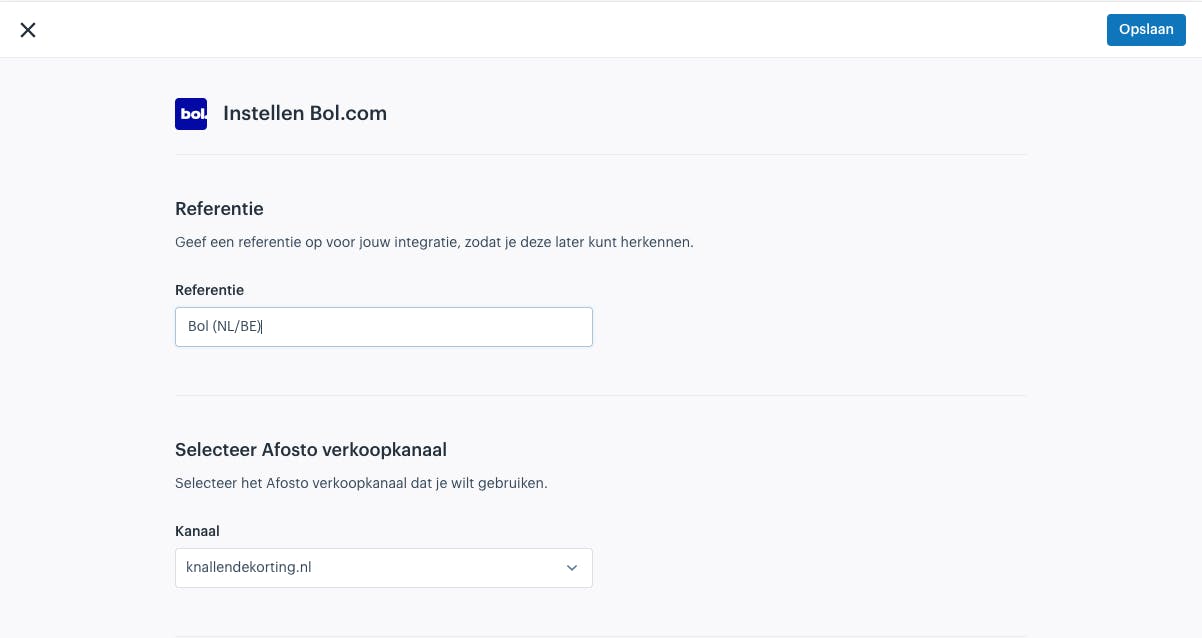
After you have clicked allow, you will be redirected to the screen below. Enter an easily recognizable reference in 'reference'. For example Bol BE for a Belgian account.
Under channel, select a sales channel that you want to use to receive Bol orders. You can do the following:
-
Select an existing one
-
Create a new one
If you scroll down, in the next section you need to indicate which shipping method you want to use for this channel. These are:
-
VVB -> this is when you use shipping labels via Bol.
-
I want to connect and use a new shipping provider -> here you can connect and use a new provider for your shipments
-
I want to use an existing shipping provider -> here you can select existing providers
Synchronization Next, you indicate whether synchronization should be enabled. If you check this, all open orders from your Bol account will be imported into Afosto.
Cancellation synchronization
If you enable the checkbox for cancellation synchronization, cancellation requests from Bol will be automatically accepted if the product has not yet entered the shipping process.
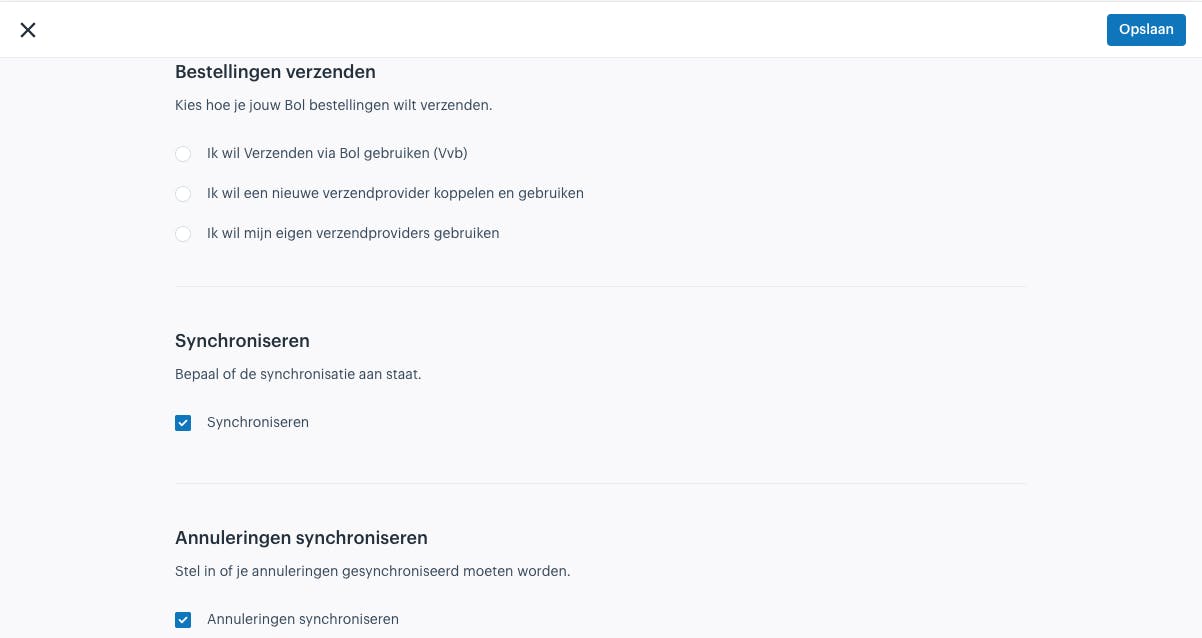
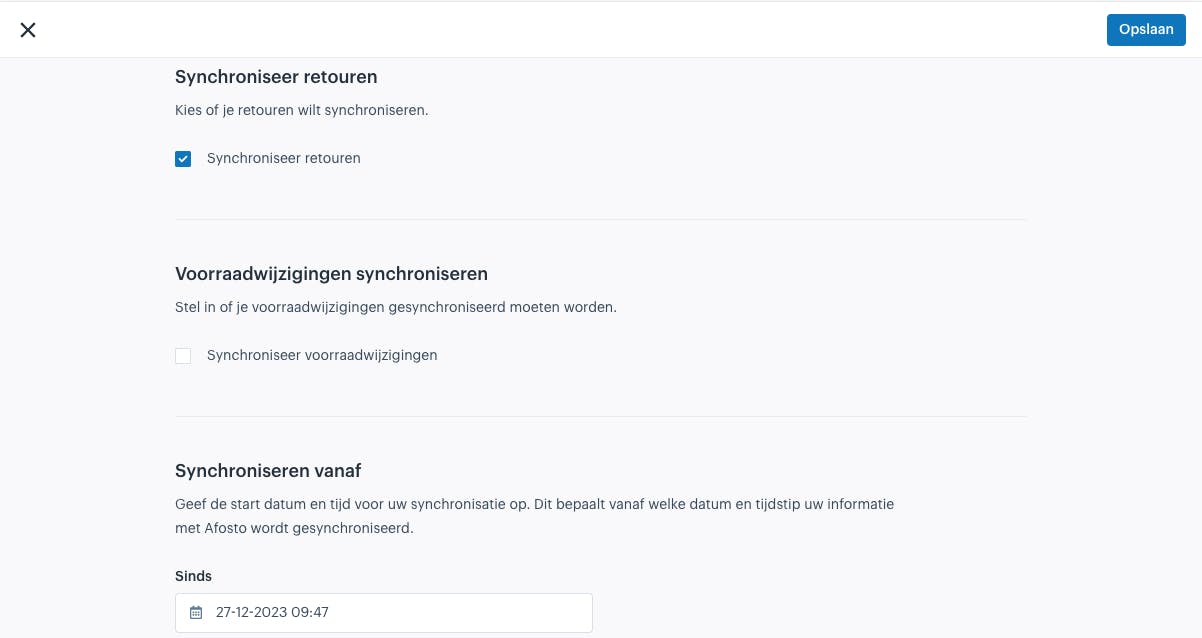
Synchronize stock changes When this is checked, stock changes are automatically synchronized to Bol.com. This means that if something is sold on one of your sales channels, the new stock level will be sent to Bol.com.
Synchronize from Here you can enter a date and time from which open orders should be imported. For example, all orders from 15:00.
About Afosto
Till, webshop, bol and Kaufland on one stock.