

Give Discount to Contacts with a Label
Apply a discount to specific contacts with a certain label using the template: Discount for Contacts with Label. This is useful for B2B applications, for example when you have special agreements with certain customers. It is also an ideal way to reward loyal customers.
Adding Contact Labels
To apply the price rule correctly, you first need to add the required labels.
Go to “Label Groups” in the Afosto admin environment and select “Contacts” from the dropdown menu.
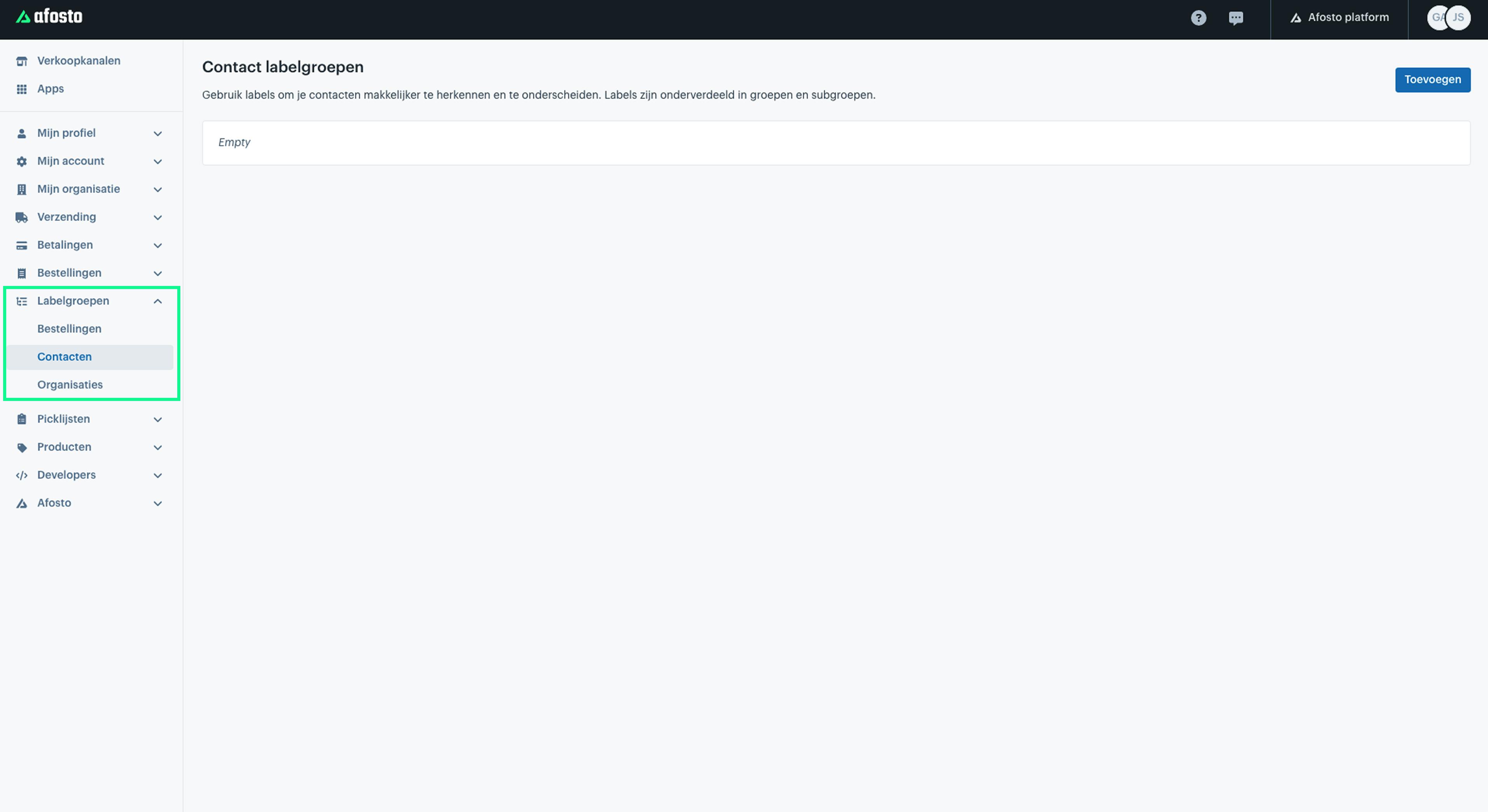
Labels not only allow you to give discounts to specific customers, but they also help differentiate and easily recognize contacts.
After saving, each label group and subgroup can be added under “Columns” in your contacts datagrid. This way, you can see at a glance which label belongs to which contact. You can filter by specific labels, create new views, and customize the display of your contacts as needed.
For now, we focus on adding labels to give discounts to specific customers. Click “Add” in the top-right corner to create a new label group
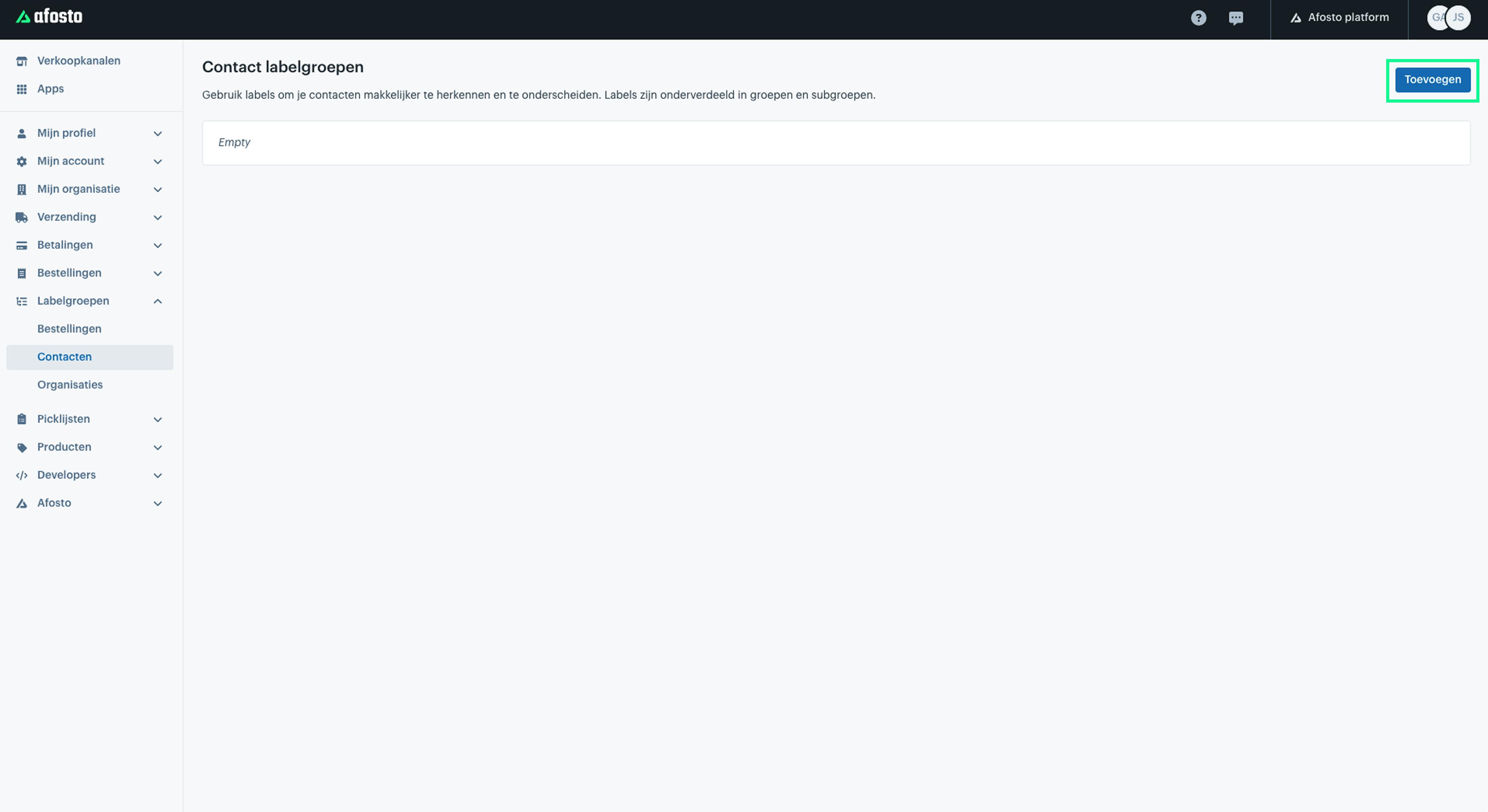
Label group name
First, give the label group a name. Choose a descriptive name, as it will be visible on the detail pages of your contacts. A label group is simply an extra block on this page, consisting of one or more subgroups. Each subgroup in turn contains one or more labels.
See the image of the contact detail page for an example, based on the scenario that will be explained in more detail later.
Adding Subgroups
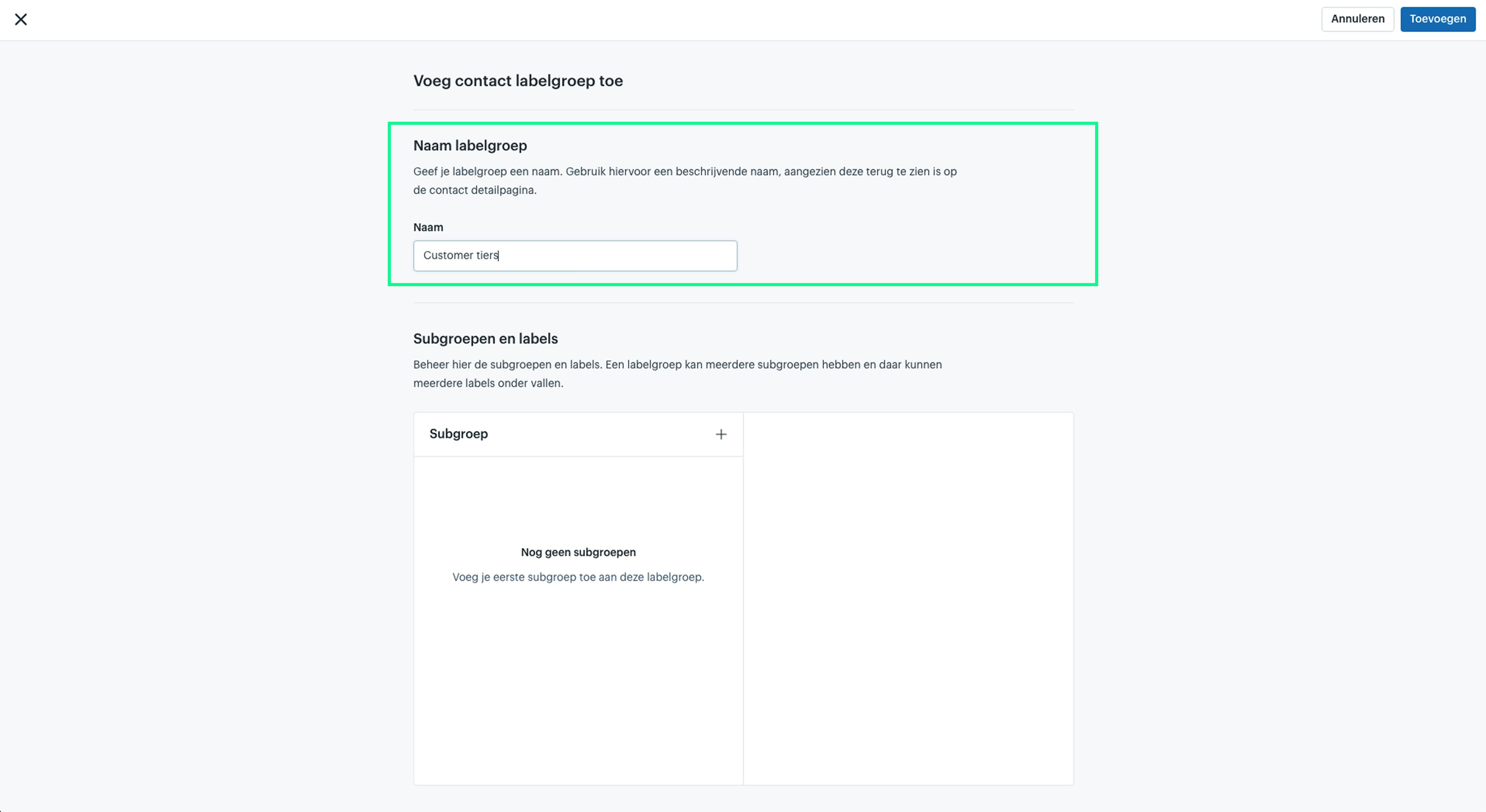
Next, add subgroups. You can create as many subgroups as you want for each label group. In this example, we will create one subgroup.
Give the subgroup a name. In this case, we choose “Tiers”, because in this scenario we want to reward loyal customers based on a specific tier. Later, we will link each tier to a specific discount percentage in the price rule.
Each subgroup can start with an empty value. If you do not start with an empty value, every contact will automatically receive the first label as the default.
In this example, since every customer automatically belongs to a tier, we do not start the subgroup with an empty value but with the first label of the subgroup.
Adding Labels
After adding a subgroup, you need to add labels to the subgroup.
Add the desired labels by entering a name and optionally a color code. You can add as many labels as you want.
In this example, we add the following labels: Pearl, Diamond, Emerald, Sapphire, and Ruby.
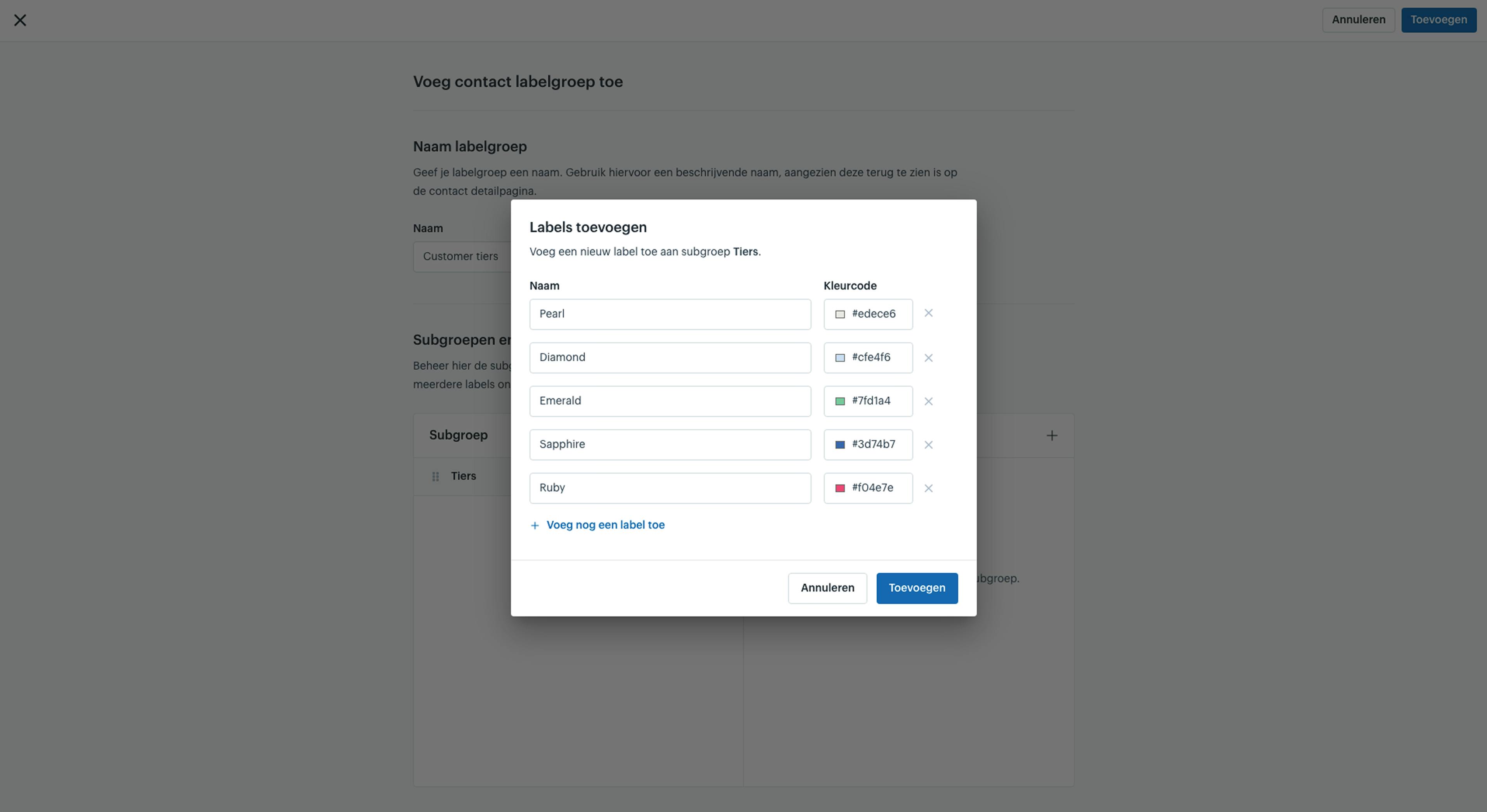
After saving, each new contact automatically receives the Pearl label. This label can be manually adjusted per contact on the contact’s detail page.
For each label group, a new block appears on the detail page. Additionally, you can update the labels for multiple contacts at once using the bulk action: Update Contact Labels.
Read more about the bulk action “Update Contact Labels” for step-by-step instructions.
Steps
-
In the Afosto admin environment, go to: Label Groups > Contacts.
-
Click Add on the page.
-
Give the label group a name.
-
Add a subgroup by clicking the Plus (+) button.
-
Give the subgroup a name.
-
Decide whether the subgroup should start with an empty value or always start with the first label.
-
Add one or more labels.
-
For each label, provide a name and optionally a color code.
-
Save the label group along with its subgroups and labels.
Adding a Price Rule
After adding the labels, you can continue with creating the price rule.
-
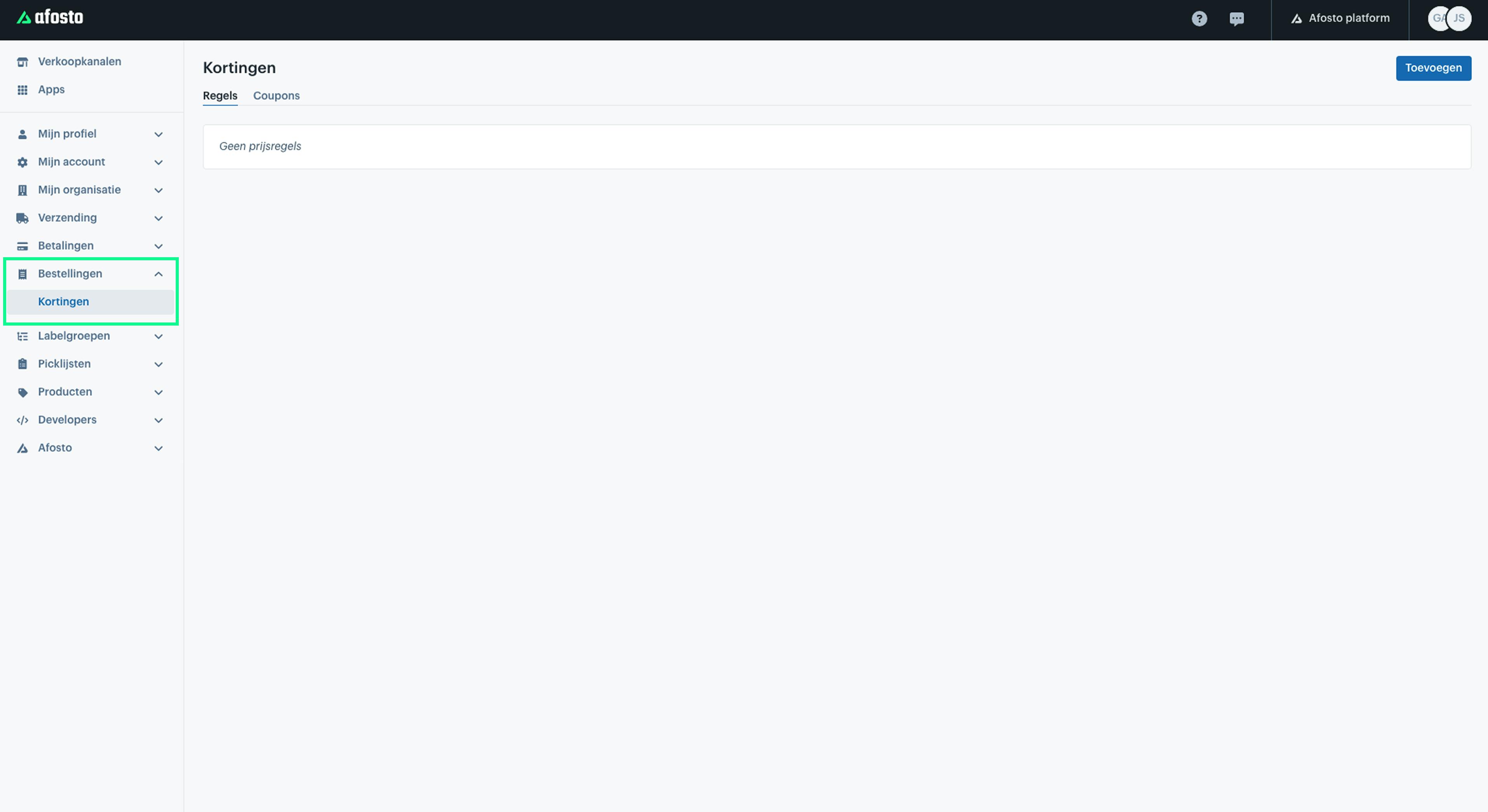
Go to Orders in the Afosto admin environment.
-
Select Discounts from the dropdown menu.
-
On this page, under the Rules tab, you will find an overview of all configured price rules.
Additionally, under the Coupons tab, you can add new coupons and promo codes. Here, you can also link price rules, such as the template “Marketing Discount Code”, which allows you to give customers a discount after applying a coupon or promo code.
Start with a Template or Custom Setup
For now, we continue with the price rule: Discount for Contacts with Label.
-
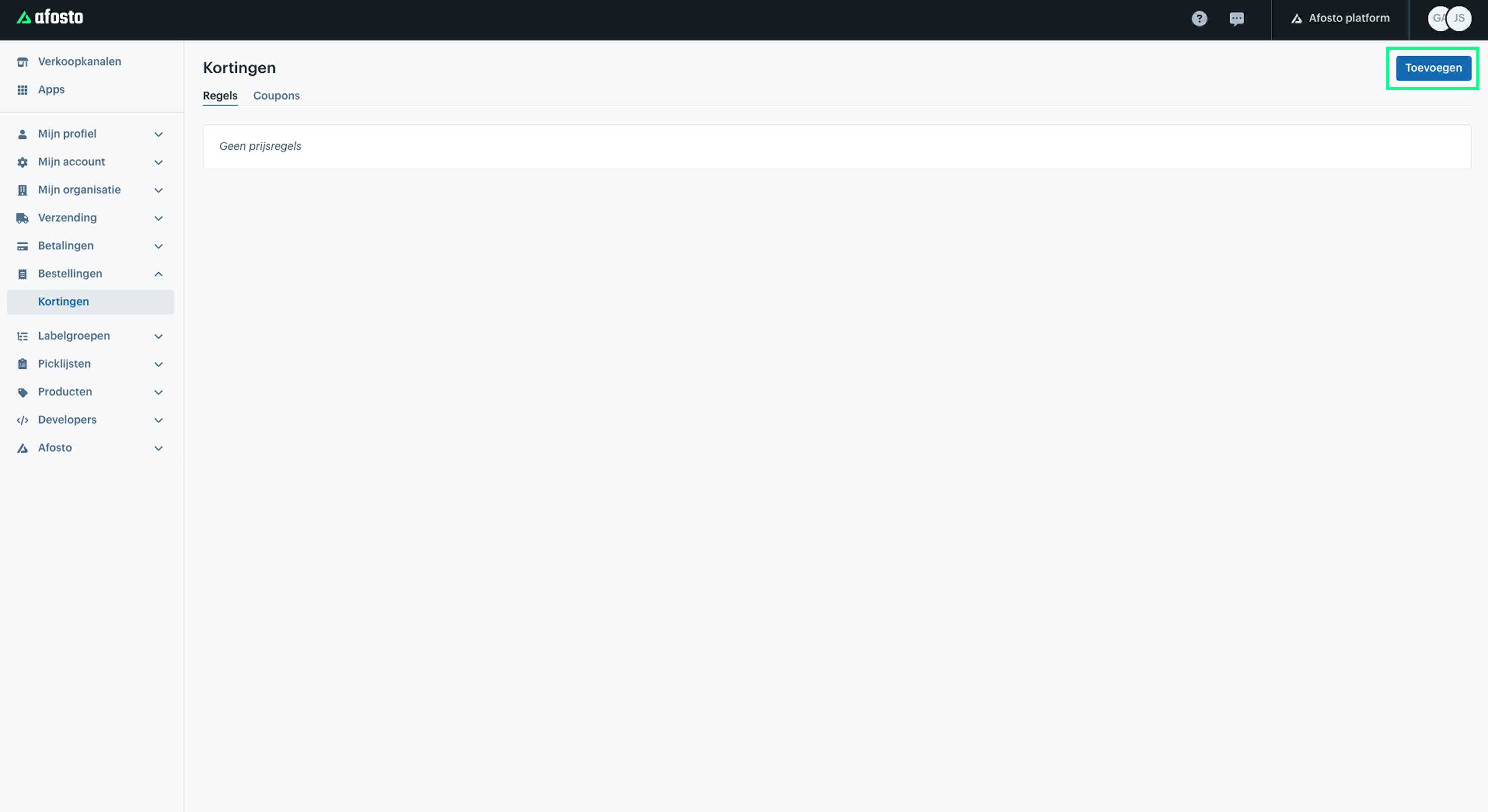
Click Add in the top-right corner to create a new price rule.
-
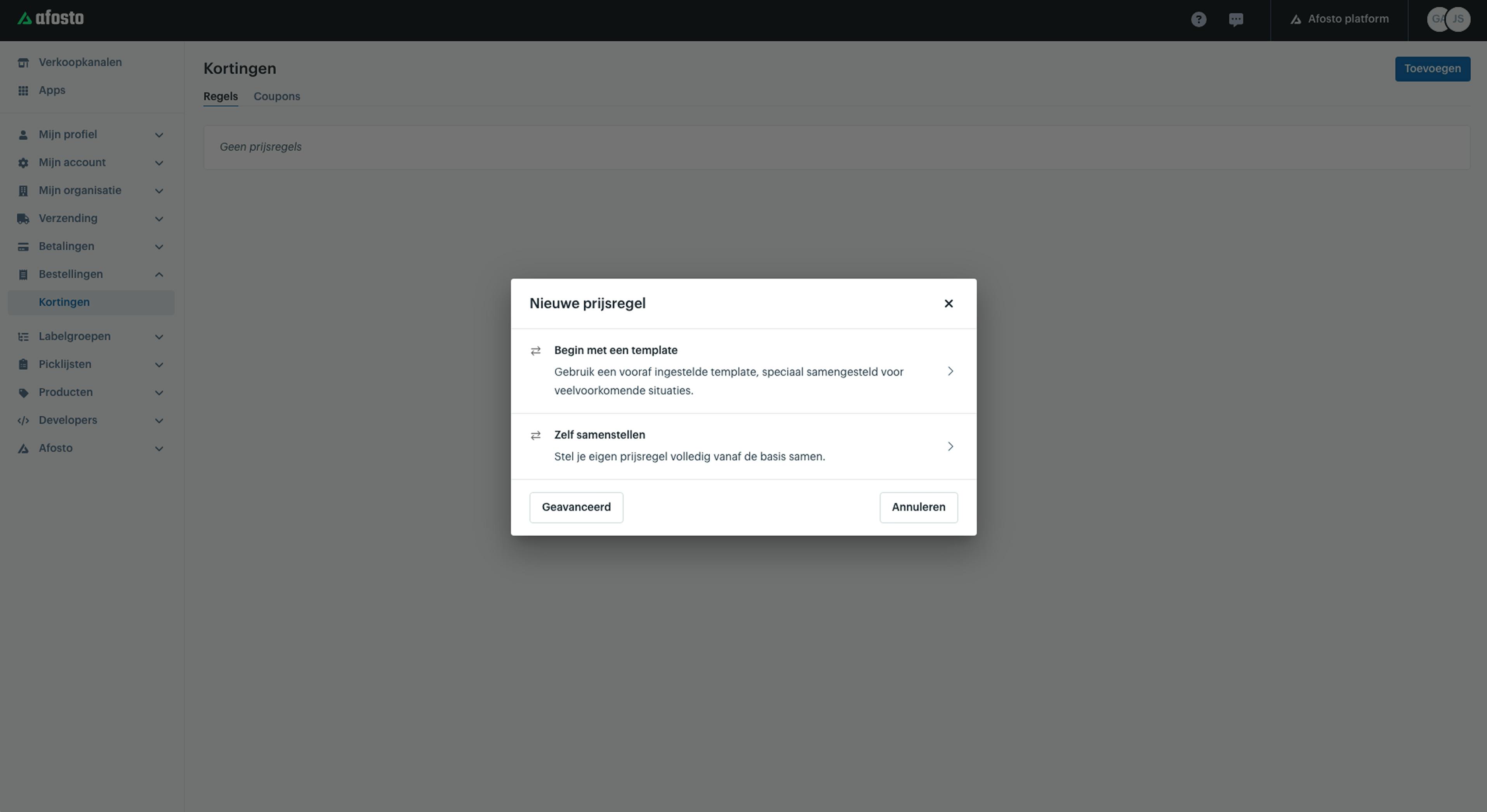
Choose whether to start with a template or custom setup.
For this example, we select the template: Discount for Contacts with Label.
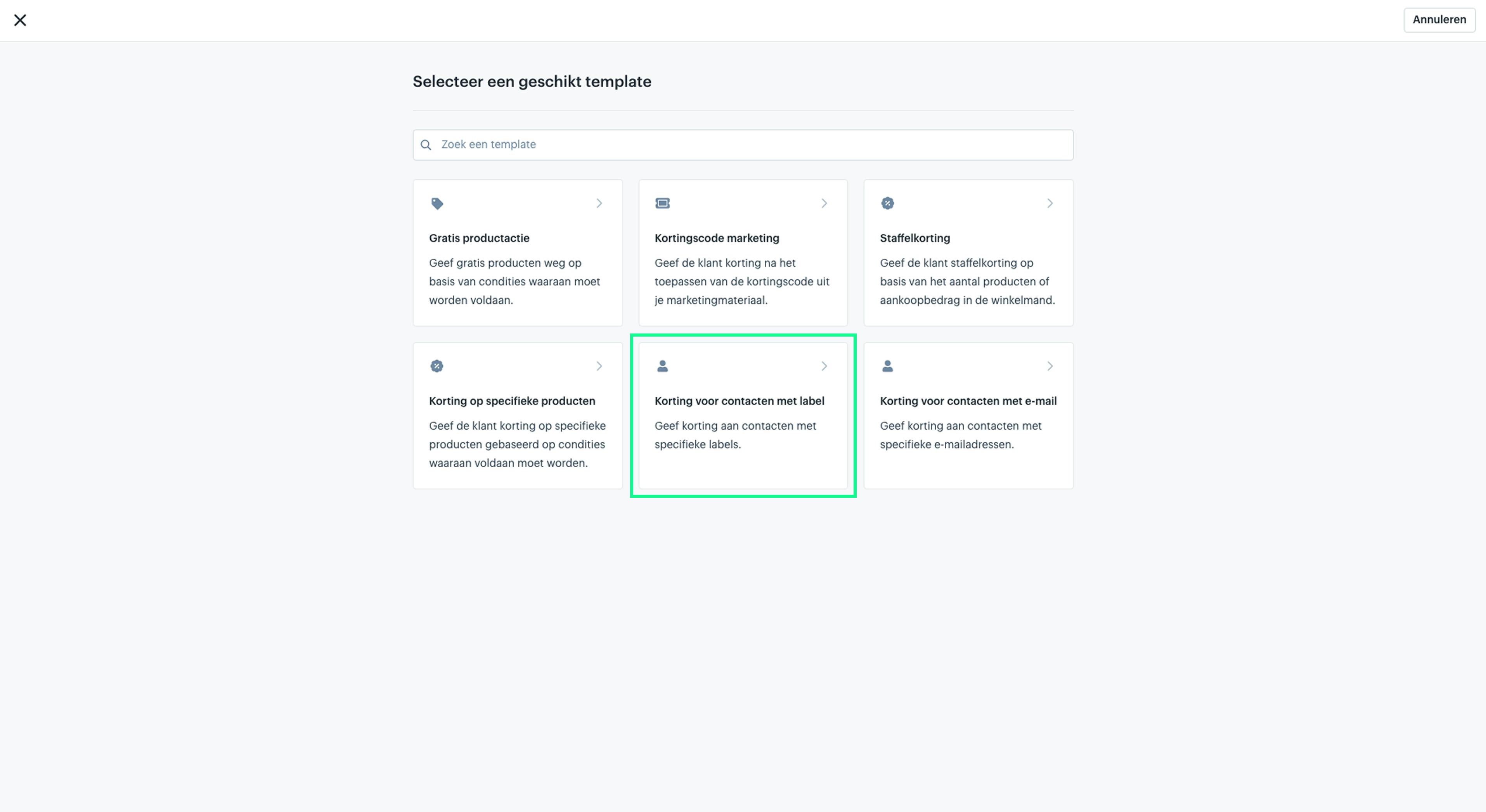
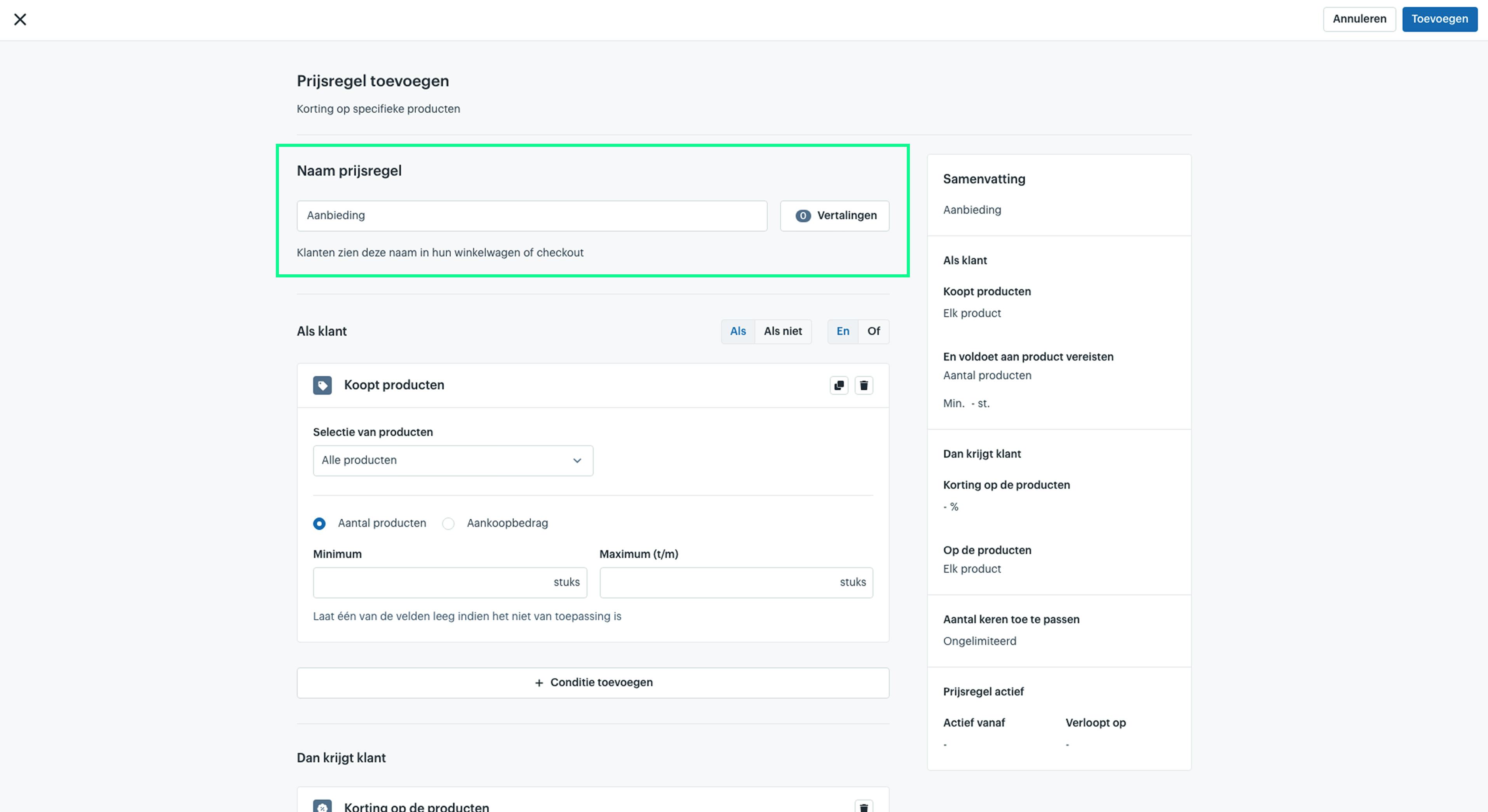
Price Rule: “Discount for Contacts with Label”
First, give the price rule a name. This name will later be visible to customers, for example in their shopping cart or during checkout, so choose a clear and descriptive name.
In addition to the default name, you can also add translations, for example if you want to apply the same price rule across multiple sales channels, such as webshops in different languages (e.g., a .de or .be webshop).
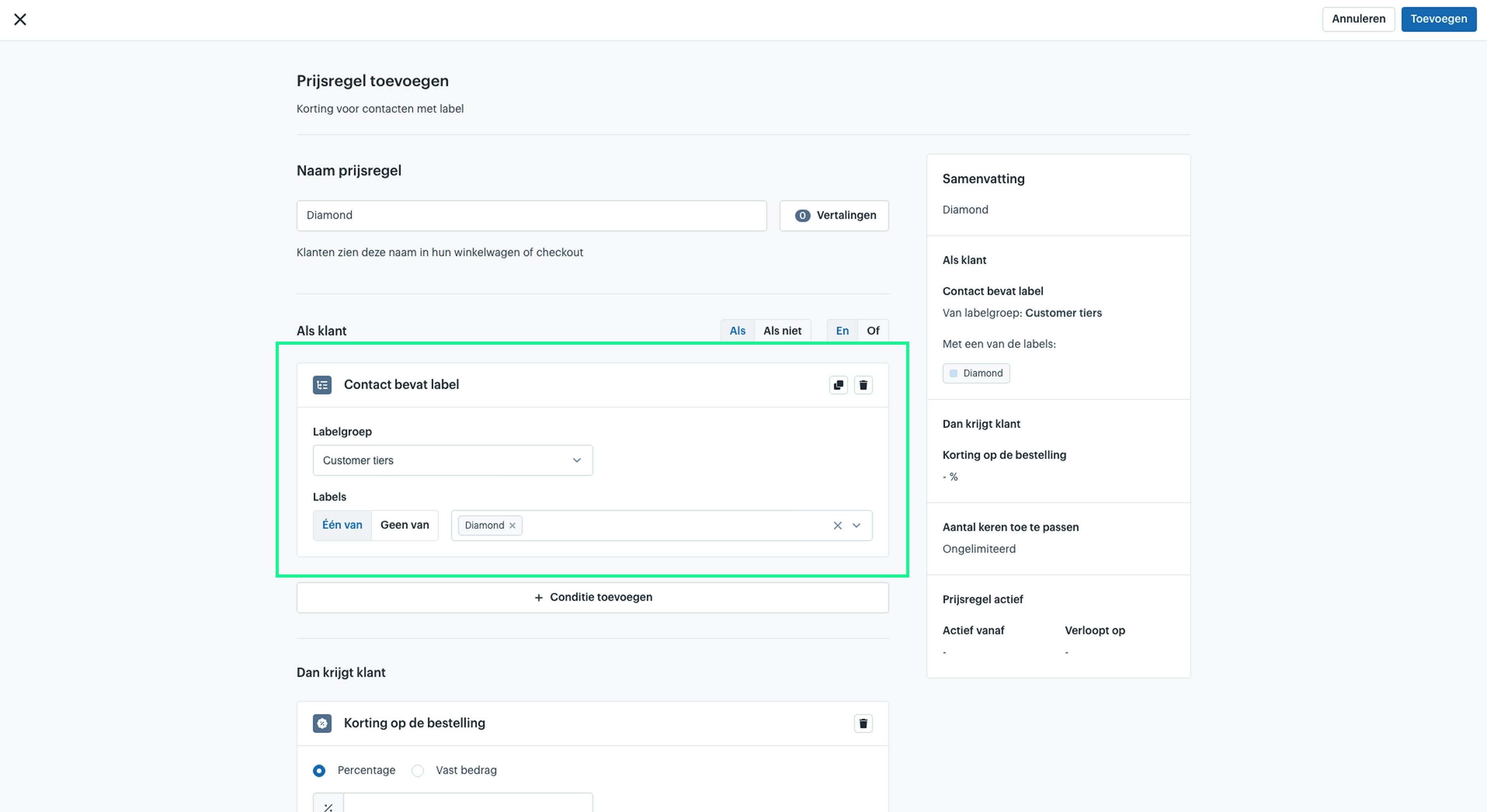
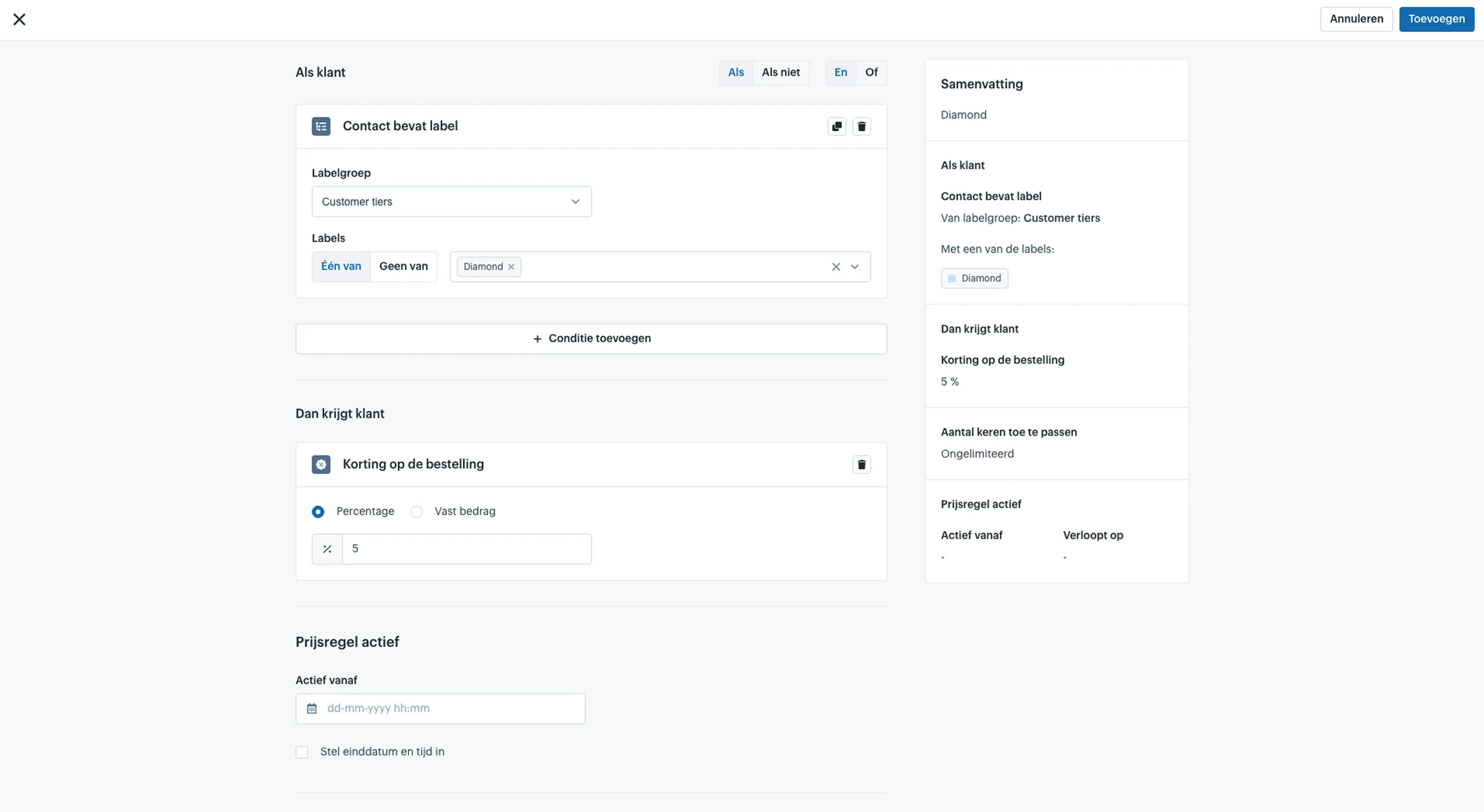
If Customer: Contact Contains Label
After giving the price rule a name, it’s time to set the conditions the rule must meet.
Since you chose the template “Discount for Contacts with Label”, the required condition is already set. In this case, the condition is: Contact contains label.
For this condition, you need to specify:
-
Which label group the contact must belong to
-
Which labels the contact must have (“One of”) to qualify for the discount you will define later under “Then the Customer Gets”
You can also specify which labels the contact must not have (“None of”).
In this example, we use the label group we created earlier: Customer Tiers. We then select only the label “Diamond”, because we want to set a different discount percentage for each label.
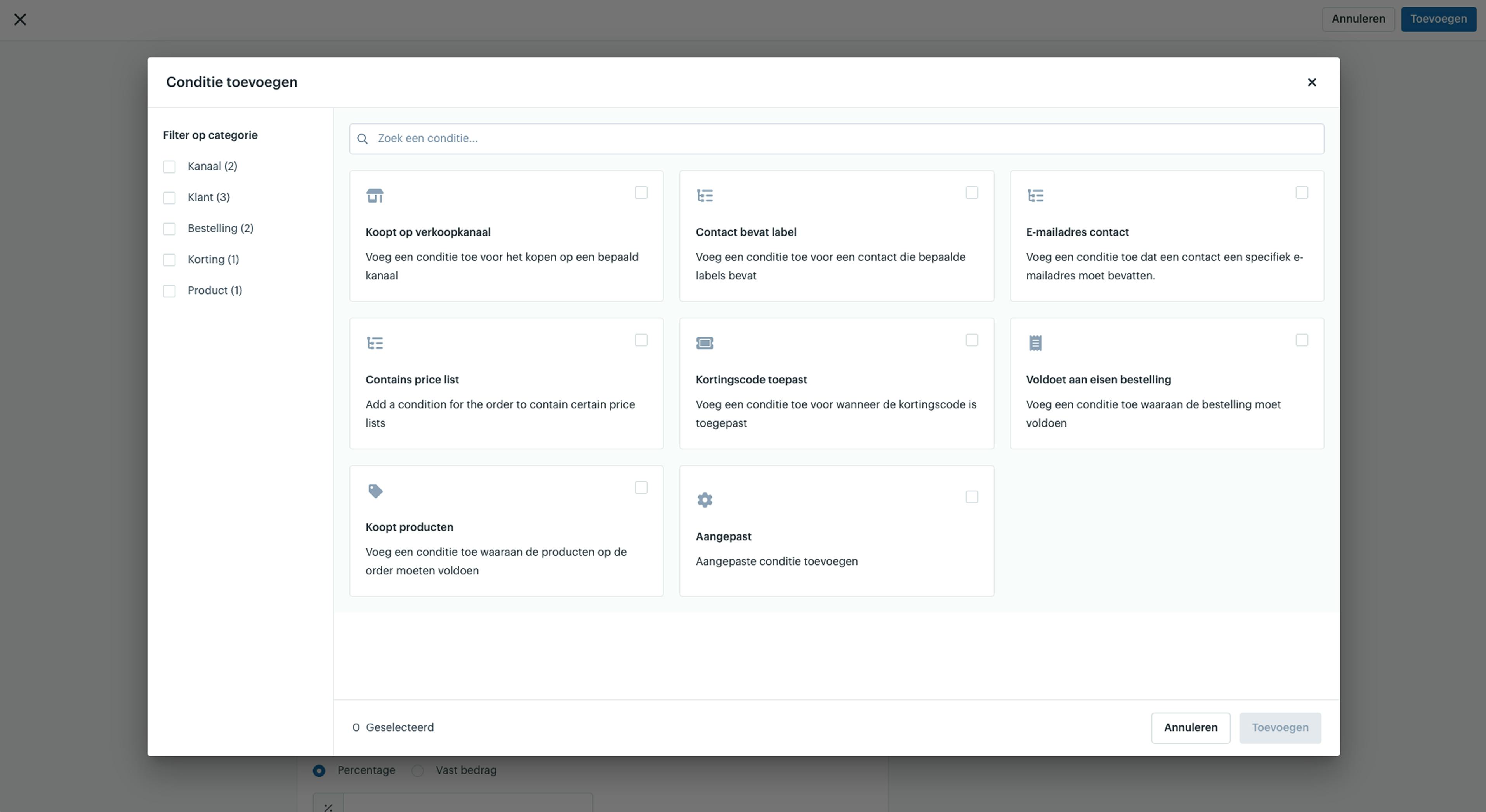
If Customer: Additional Conditions
In some cases, you may want to add extra conditions that an order must meet to qualify for the discount.
For example:
-
Apply the price rule only to a specific sales channel instead of all channels
-
Require the customer to enter a coupon or promo code before the discount is activated
In addition to the condition “Contact contains label,” you can add the following extra conditions:
-
Buys on Sales Channel
-
Contact Contains Email Address
-
Belongs to Price List
-
Applies Discount Code
-
Meets Order Requirements
-
Buys Products
-
Custom
Then the Customer Gets: Discount on the Order
After setting the conditions the customer must meet, it’s time to define the discount.
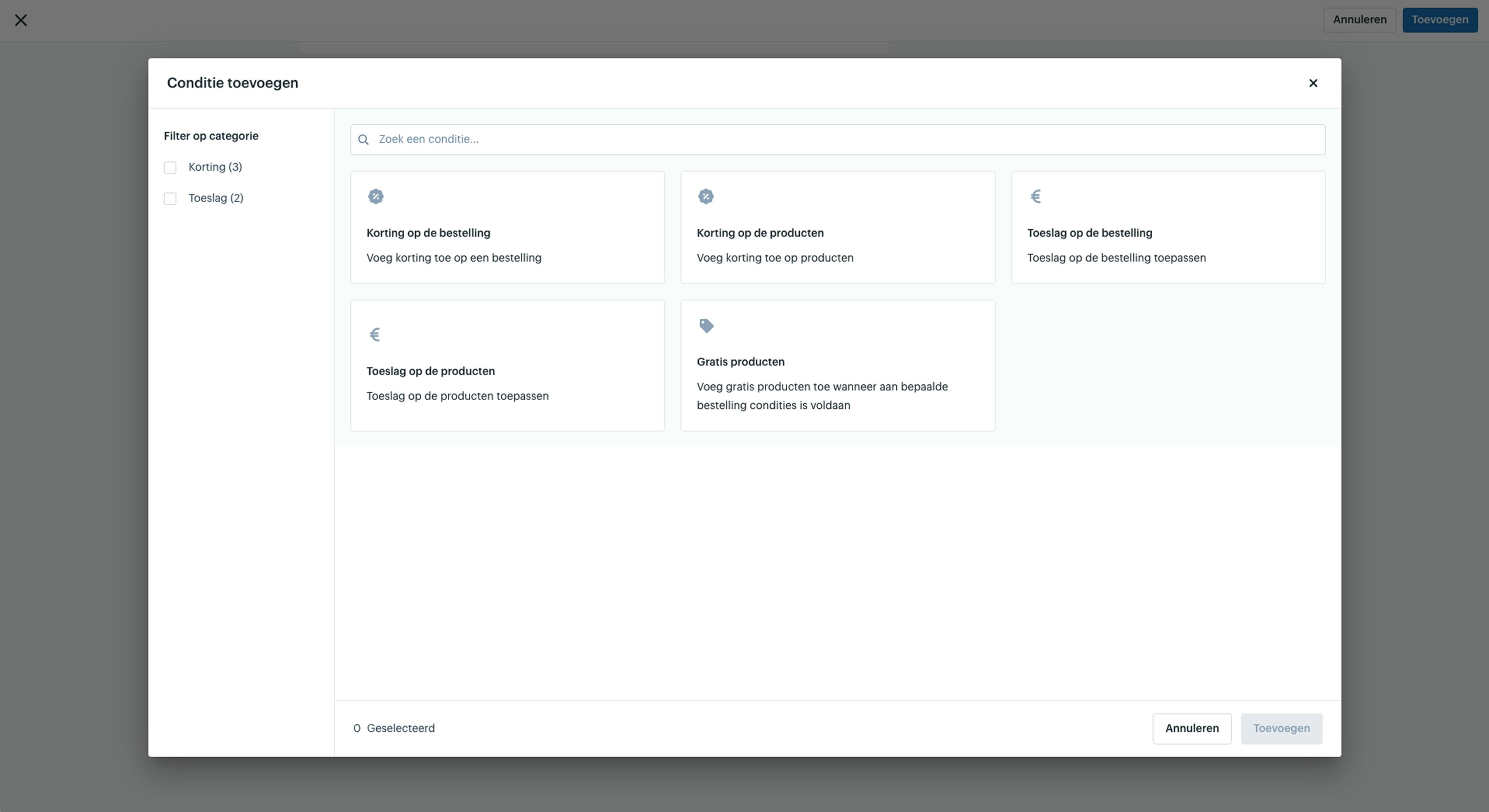
The template by default uses the condition “Discount on the Order”, but this can be removed if you want to apply a different type of condition. Click the trash icon to delete the condition, and then click “Add Condition” to select a new one.
Next, specify how much discount the customer receives when they have the specified label and complete the order at checkout. You can choose between:
-
Percentage Discount
-
Fixed Amount Discount
Then the Customer Gets: Discount on Products
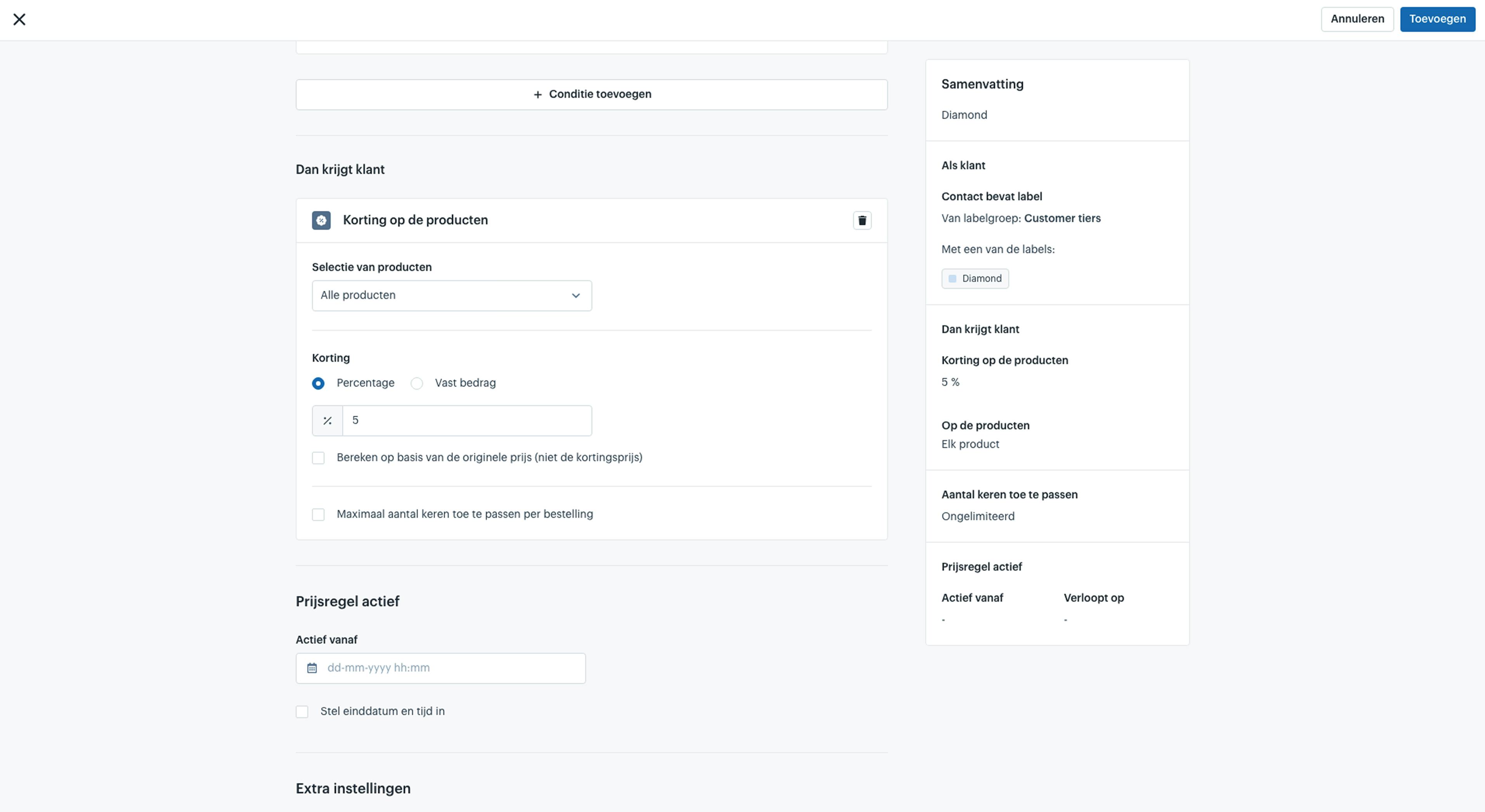
If you do not want to apply a discount to the entire order, but only to a selection of products, you can use the condition: Discount on Products.
First, determine which set of products the discount should apply to. The available options are:
-
All Products
-
Products by Brand
-
Products by Specification
-
Specific Products
Specifications are case-sensitive The specification title and specifications are case-sensitive. Make sure you enter the specifications exactly the same way as you originally formatted them
After defining the product selection, determine how much discount should be calculated on the products. Finally, you can optionally use the additional settings:
-
Calculate based on the original price: By default, the discount is calculated based on the sale price, if available. Choose this option if the discount should always be calculated based on the original price.
-
Maximum number of times applied per order: By default, the discount is applied repeatedly to all products within your selection. Choose this option if the discount may only be applied a maximum number of times per order.
Then the Customer Gets: Additional Conditions
In addition to “Discount on Products” and “Discount on the Order,” you can also add other conditions, for example when you want to apply a surcharge instead of a discount, or when you want to give free products. The following conditions can be applied:
-
Discount on the Order
-
Discount on Products
-
Surcharge on the Order
-
Surcharge on Products
-
Free Products
Steps
-
In the Afosto admin environment, go to: Orders > Discounts.
-
On the page, click Add.
-
Choose how you want to create the price rule: Start with a template or Custom setup.
-
In this case, choose: Start with a template.
-
Select a suitable template.
-
In this case, choose the template: Discount for Contacts with Label.
-
Give the price rule a name.
-
Add any translations for this name, if needed.
-
Set the conditions the customer must meet under: If Customer.
-
In this case, set the following condition: Contact contains label.
-
Choose the applicable label group.
-
Select the labels that the contact must contain or must not contain.
-
Optionally, add additional conditions.
-
Then set the discount condition under: Then the Customer Gets.
-
Keep the condition “Discount on the Order” or remove it and choose another condition.
-
Determine how much discount you want to give: a percentage or a fixed amount.
-
Specify when the price rule should become active and, if applicable, when it should expire. Leave empty if the price rule should be active immediately.
-
Configure any additional settings, if applicable.
-
Save the price rule.
About Afosto
Till, webshop, bol and Kaufland on one stock.