

Configure via barcode
Set up a scanner in one go. Turn the settings of a device in the WMS app into a barcode and scan it on another device.
The WMS app stores most of its settings per device. That includes the modules you turned on, the scan flow, the printers, whether you print a shipping label or packing slip, and the location. When you set up a new scanner, or want one device to match another, you don't have to go through every settings screen. You make a barcode on a device that is set up correctly and scan it on the other one.
The app itself is in Dutch, so the screen names below are given in Dutch with a translation.
What the barcode contains
The barcode holds the settings of the device you make it on. Among other things:
- the modules that are turned on and their scan flow type
- the selected printers and the printer per shipping method
- whether you print a shipping label, return label or packing slip
- the location and the camera setting
Settings that already apply to your whole organization, such as the print service and barcode validation, are not included. Every device already has those. The barcode contains no passwords or login details.
A barcode only works within the organization you made it in. It is also a snapshot. If you change something afterwards, make a new barcode.
Make a barcode
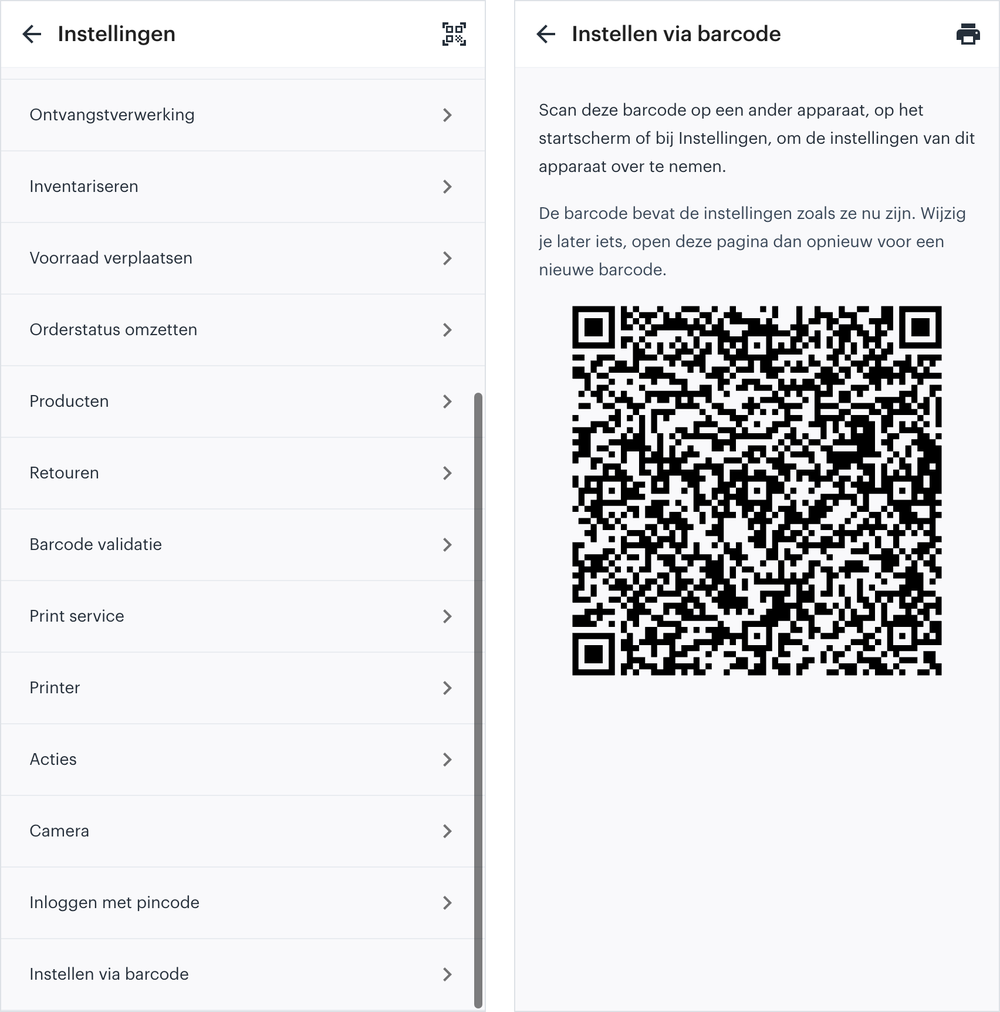
- Open Instellingen (Settings). Do this on the device with the right settings.
- Choose Instellen via barcode (Configure via barcode). It is at the bottom of the list.
- Look at the barcode. The page shows a barcode with the current settings right away. If they don't fit in one barcode, you see several below each other, marked "Barcode 1 van 3" (barcode 1 of 3).
Print the barcodes
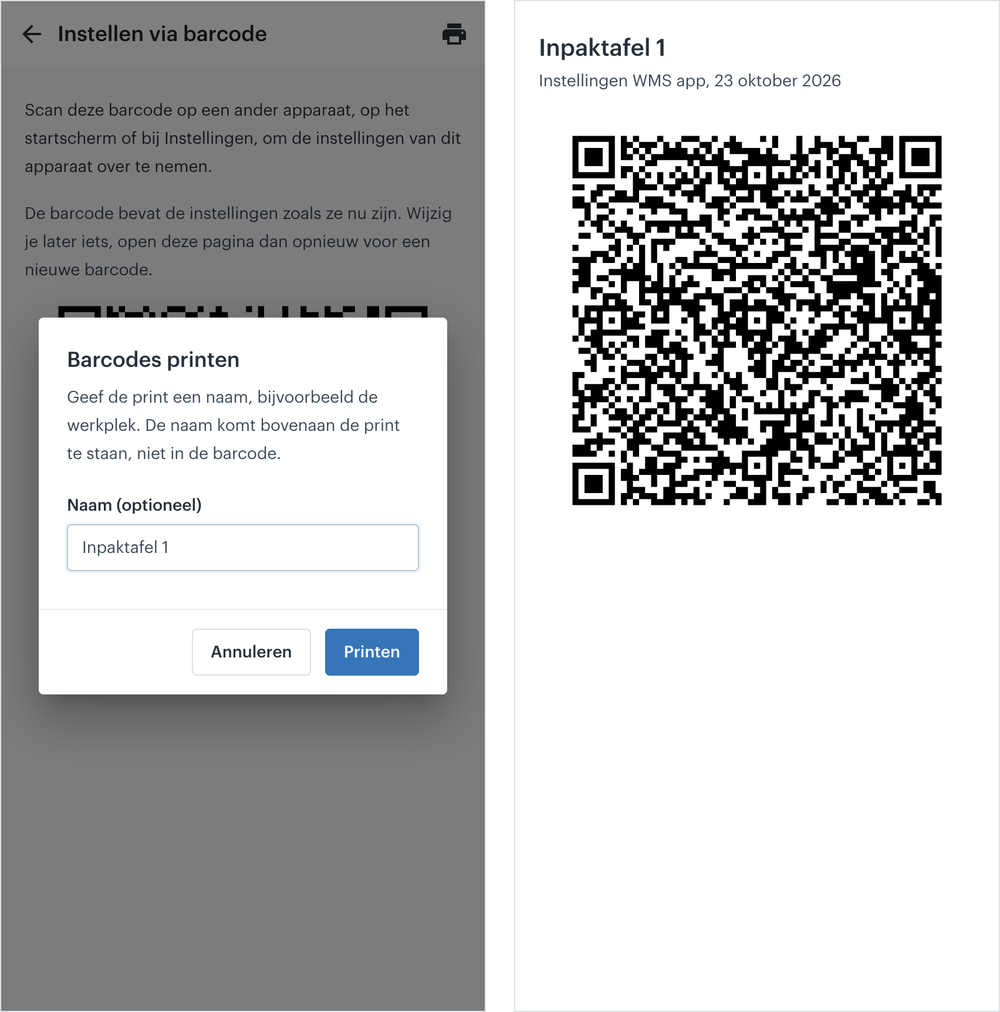
- Tap the printer icon. It is at the top right of the Instellen via barcode page.
- Enter a name if you like. For example the workstation, such as "Packing table 1". The name goes at the top of the print, with the date. It is not part of the barcode.
- Tap Printen (Print). Your browser opens its print window.
Keep the print at the workstation. If a scanner breaks, a few scans set up its replacement.
Scan the barcode on another device
First log in on the other device, to the same organization.
With a hand scanner
Scan the barcode on the home screen or in Instellingen. The home screen has no button for it, the app recognizes the barcode by itself.
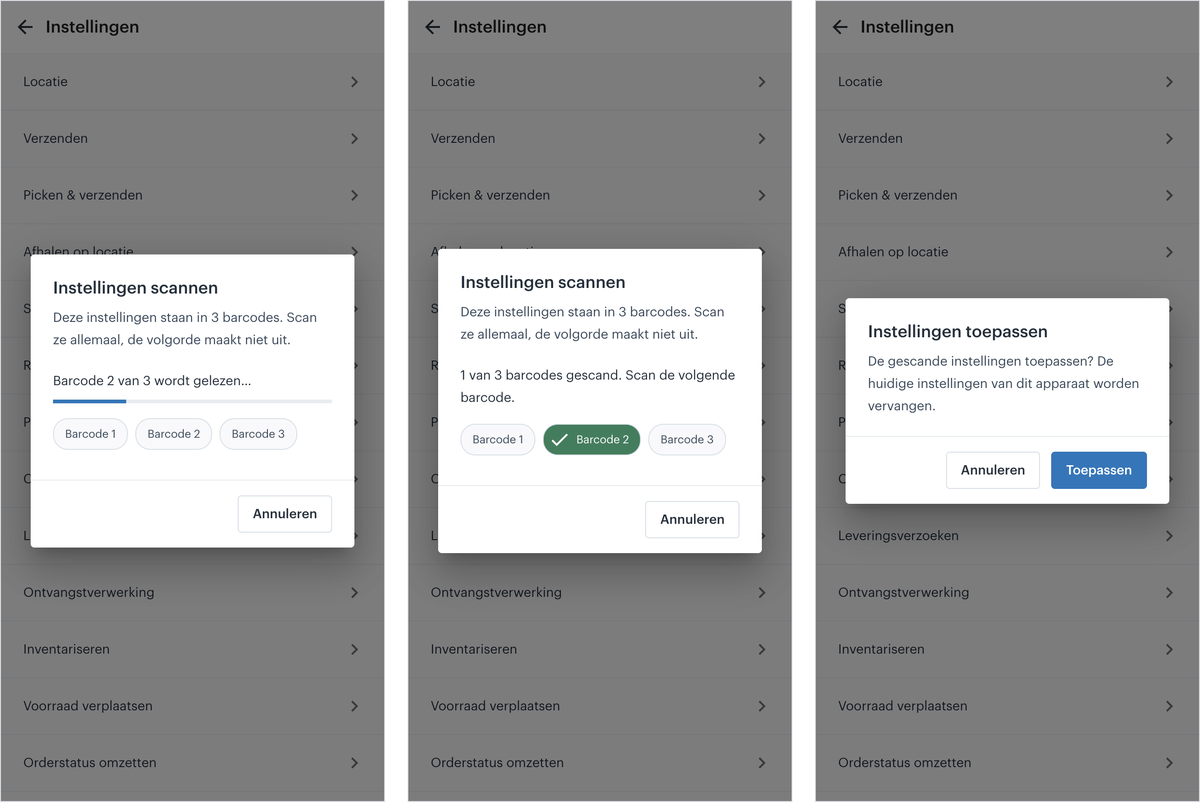
A hand scanner sends the barcode character by character. That takes a few seconds, and in the meantime you see how far it is. If the set has several barcodes, scan all of them. The order doesn't matter. Each barcode that is in turns green.
With the camera
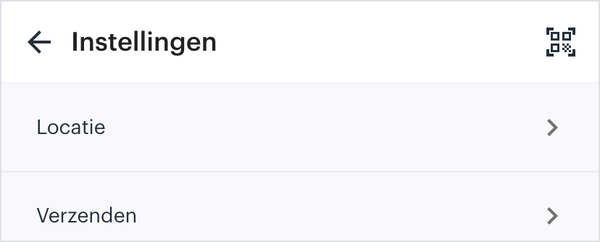
On an Android phone or scanner with a camera, Instellingen has a QR icon at the top right. Tap it and point the camera at the barcode. The camera stays on until you have scanned every barcode in the set. This doesn't work on an iPhone, because Safari can't read barcodes with the camera.
Apply
After the last barcode, the app asks whether you want to apply the settings. Tap Toepassen (Apply). The app then replaces the current settings of the device.
If it doesn't work
- "Barcode niet volledig gelezen, scan opnieuw" means the scanner did not pass on every character. Scan the same barcode again.
- "Deze barcode hoort bij een andere organisatie" means the barcode belongs to another organization than the one you are logged in to. Log in to the right organization and scan again.
- "Barcode niet leesbaar" or "Deze barcode is gemaakt met een oudere versie van de app" means you need a new barcode. Make one on the device with the right settings.
If nothing comes in when you scan the barcode with a Zebra scanner, check in DataWedge that Keystroke output is turned on. Zebra TC52 settings explains how.
About the WMS
Receive with the scanner, pick by location and ship from every warehouse.