

Google Sheets Publish to web as CSV: steps and link format
Publish one tab of a Google Sheet as CSV via File > Share > Publish to web, see what the link looks like and use it as a source in Afosto Instant Search.
To publish a Google Sheet as CSV, open the spreadsheet and click File > Share > Publish to web. Choose the tab with your data, change Web page to Comma-separated values (.csv) and click Publish. Google gives you a link that returns that tab as a CSV file and keeps it up to date when you edit the sheet.
These steps follow Google's official help article Make Google Docs, Sheets, Slides & Forms public, checked in October 2026. Below the steps you'll find what the CSV link looks like, what happens when you change the sheet, and how to use the link as a source in Afosto Instant Search.
How to publish Google Sheet as CSV, step by step
1. Put the data you want to publish in one tab
Anyone with the link can read the published tab, and Google warns you to be careful with private or sensitive information. So keep only the rows and columns you want to share in that tab. Put the column names in the first row.
Want to keep your working sheet as it is? Add a separate tab with only the columns you need and publish that tab. Formulas are fine there: a published sheet shows the values of the cells, not the formulas.
2. Open File > Share > Publish to web
Open the spreadsheet in Google Sheets on your computer and click File > Share > Publish to web. A window opens with two tabs, Link and Embed. Stay on Link.
3. Choose the tab and the CSV format
In the first dropdown, choose the tab with your data instead of Entire Document. In the second dropdown, change Web page to Comma-separated values (.csv).
4. Check the publishing settings
Click Published content & settings to open the settings. Keep Automatically republish when changes are made checked if the link should follow your edits.
With a work or school account, Google may also let you limit the published file to people in your organization. A service such as Instant Search opens the link without signing in, so publish the file to everyone on the web.
5. Click Publish and copy the link
Click Publish and confirm your choice if Google asks. Google then shows the link in a text box. Copy it and open it in a new browser tab to test it: you should get a CSV file with your column names on the first line.
Can't publish the file? With a work or school account, your administrator may have turned off publishing, so contact your administrator. Is the spreadsheet in a shared drive? Then the shared drive settings must first allow access for people who aren't members of that drive.
What the Google Sheets CSV link looks like
A published CSV link has this format:
https://docs.google.com/spreadsheets/d/e/2PACX-1vT…/pub?gid=0&single=true&output=csv/d/e/2PACX-…points to the published version of your spreadsheet. It differs from the ID in your normal edit link, and people who open it see a version they can't edit.gid=is the ID of the tab you published.output=csvsets the format. Withoutput=tsv, the same link returns tab-separated values.
What happens when you change the sheet
- The link stays the same. With automatic republishing on, Google updates the published CSV when you edit the sheet. According to Google, that update can take a few minutes.
- Freeze the published version by unchecking Automatically republish when changes are made under Published content & settings.
- Take the data offline with File > Share > Publish to web > Published content & settings > Stop publishing. After that, the link no longer returns your data.
Only need a one-time copy? Then you don't have to publish anything. Click File > Download and choose the CSV file type. That file lands on your computer and doesn't change when you edit the sheet later.
Use the CSV link as a source in Instant Search
In Instant Search, every search engine searches one or more sources, and a source gets its data from a CSV file or a CSV feed. A published Google Sheet works as that feed. You maintain your pages or products in a spreadsheet, and Instant Search updates the feed every 24 hours.
What your sheet needs
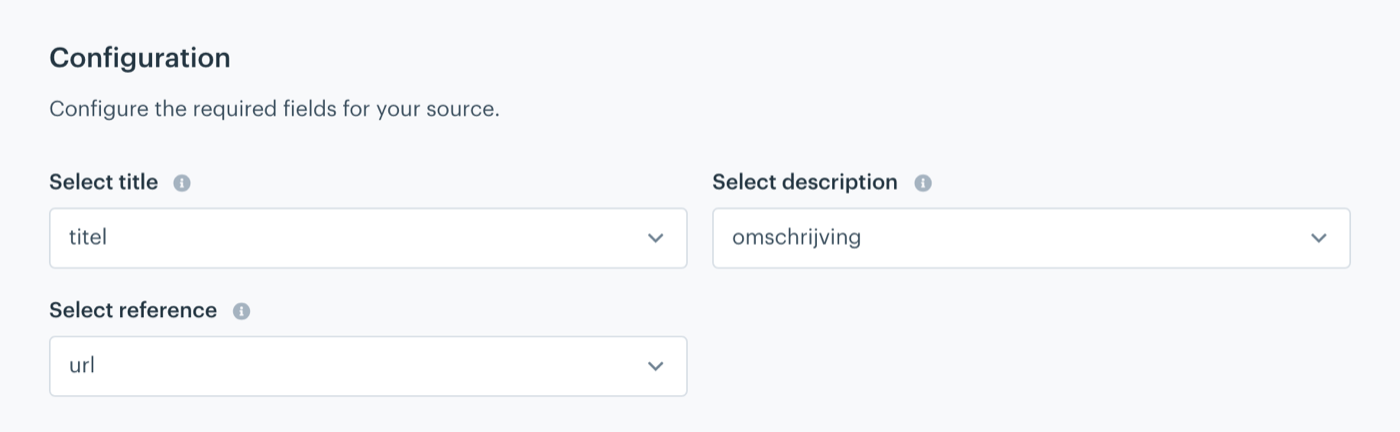
When you set up the source, Instant Search asks for three required fields:
| Field | What the column holds |
|---|---|
| Title | The name of the page or product |
| Description | A short description of the page or product |
| Reference | A value that is unique for every row, such as the page URL or a product code |
Each column in your sheet becomes an attribute of your search documents. You give every column a label and a type, and Instant Search uses those labels as the titles of your filters. With attribute management you then decide which attributes people can search on.
Add the source in Afosto
-
In the Afosto admin at admin.afosto.app, open Instant search and go to Sources. Click Add.
-
Under Provide name, give the source a unique name.
-
Under Source input, click Select CSV integration and then New CSV integration.
-
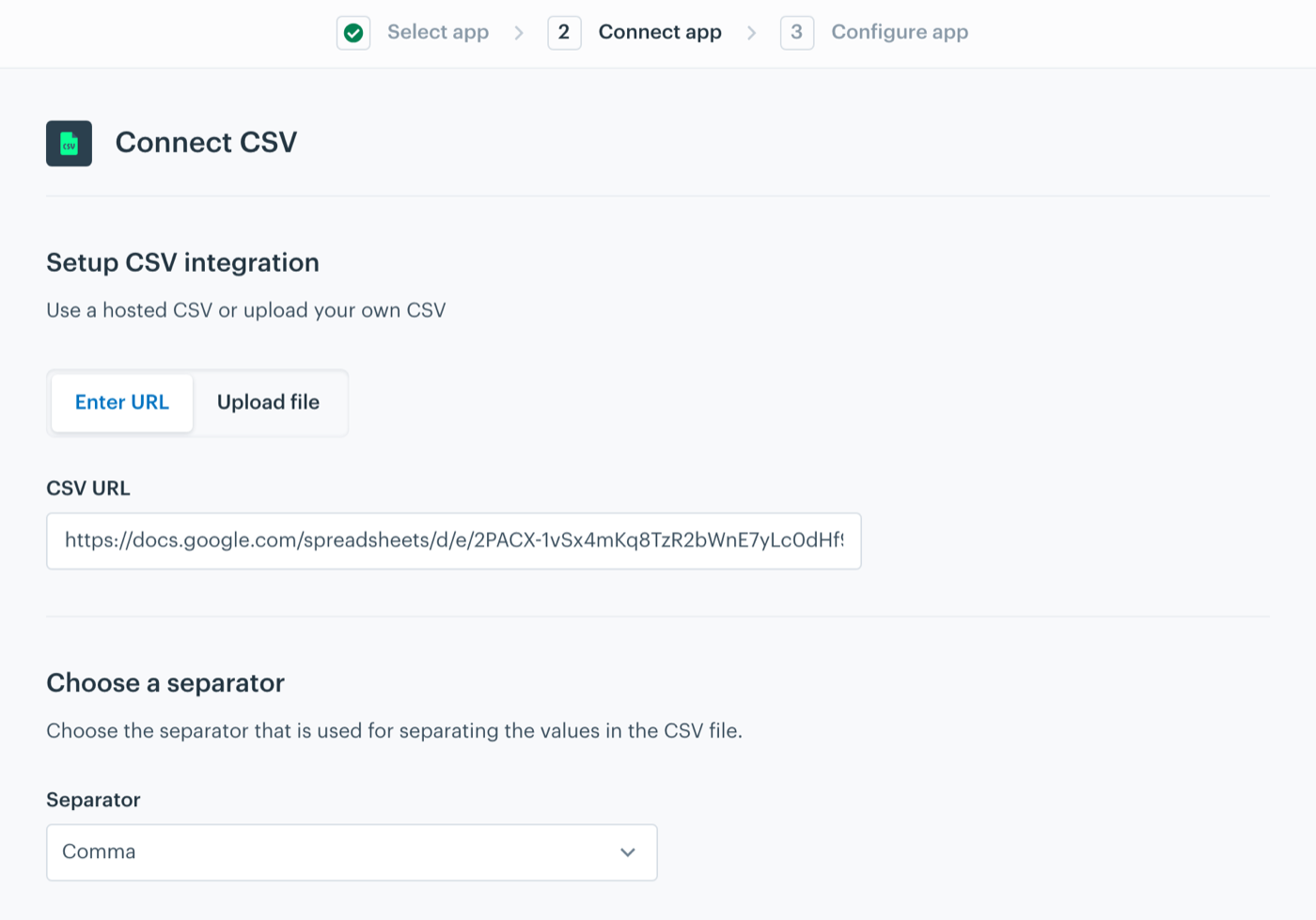
In Connect CSV, choose Enter URL and paste your Google Sheets link into CSV URL. Keep Separator on Comma and click Connect. Afosto reads the column names from the first row of your CSV. Check that list and add the integration.
-
Under Configuration, select the columns for title, description and reference. Under Column settings, check the label and type of each column.
-
Click Add.
The source then appears in the Sources overview, and the Last processed at column shows when Instant Search last processed it. Next, create a search engine and connect your source to it. For the full form, including the one-time file upload, see adding and managing data sources.
How changes reach your search results
After you edit the sheet, two updates follow each other. First Google refreshes the published CSV, which can take a few minutes. Then Instant Search picks up the new data at its next 24-hour update of the feed.
Don't see your changes after a day, or do you have a question about your source? Email support@afosto.com.
About Afosto
Till, webshop, bol and Kaufland on one stock.
Related documentation
Explained: Creating a search engine in Instant Search
Explained: Stop words setting
Explained: Instant Search Ranking Rules
Explained: Attribute management
Attributes are the individual values that appear in a document of a resource. For example, if the resource is products, then the product is the 'Adidas shoe green' and then the attribute is the 'Product name'.