

Connect-pin-terminal
Connect a PIN terminal for payments in the Afosto POS: add the payment method in the admin environment and configure it, step by step.
To connect your PIN terminal for payments in the Afosto POS, go to the admin environment in the Afosto platform. Here you can manage all payment settings and configure them according to your organization’s needs.
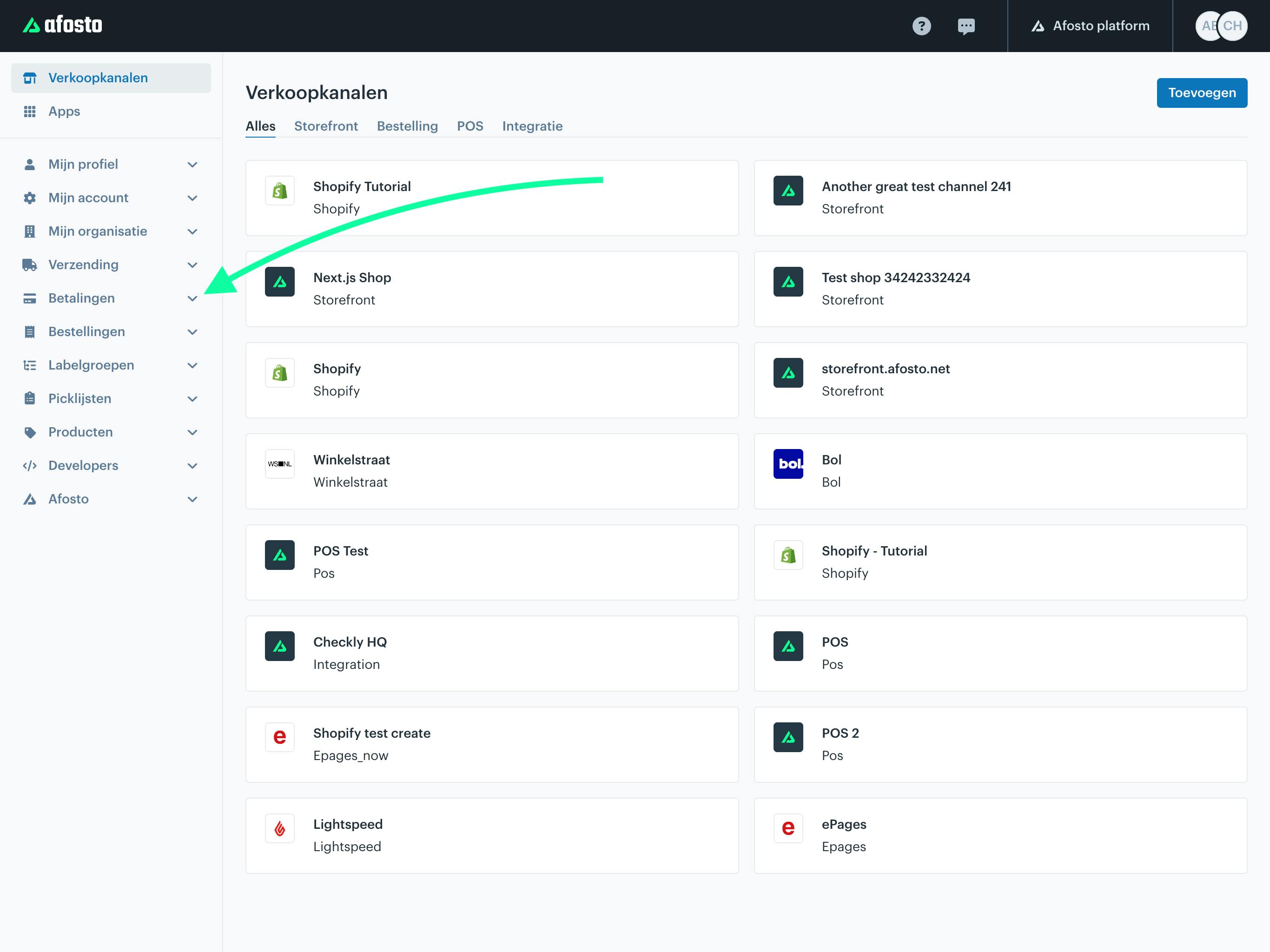
Add a Payment Method
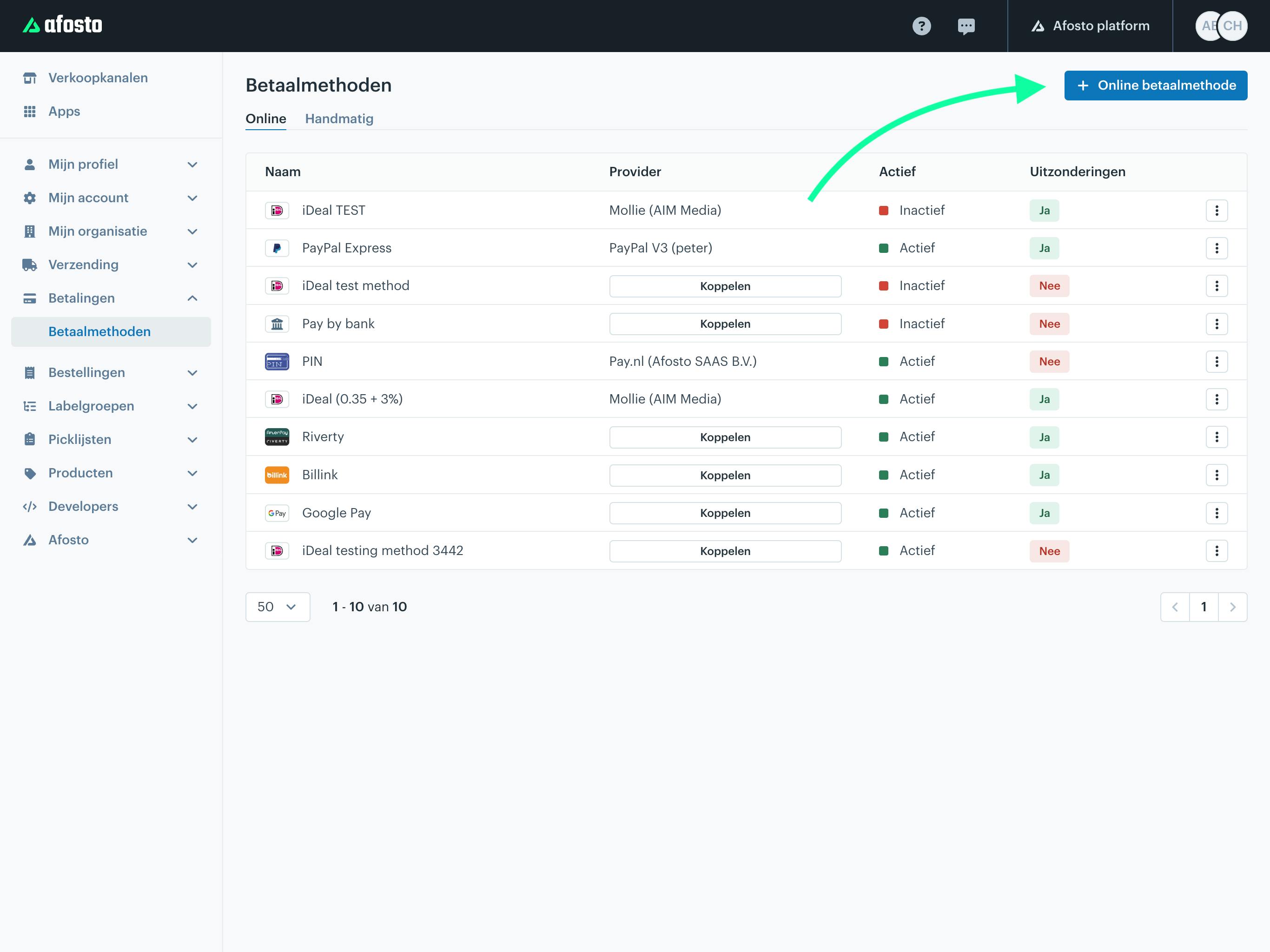
The next step is to add a payment method. You can do this by clicking “Add Online Payment Method” in the top-right corner.
Make sure to carefully check which payment methods are already active to avoid creating duplicate configurations.
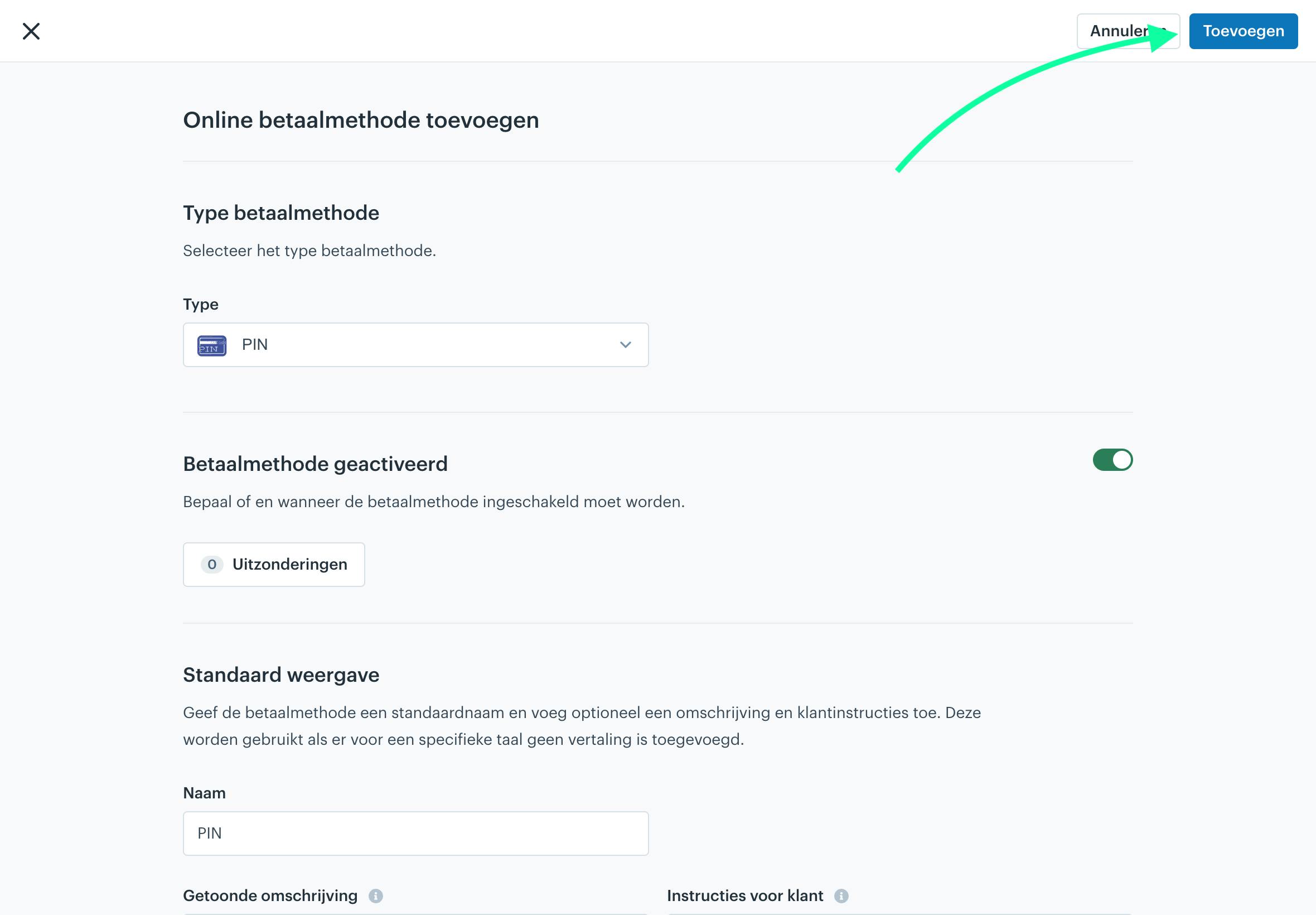
Select the Payment Type
Next, select the payment type you want to add — in this case, PIN.
Afosto supports various payment types, so make sure you choose the correct option that matches your PIN terminal and payment provider.
Connect the Payment Provider
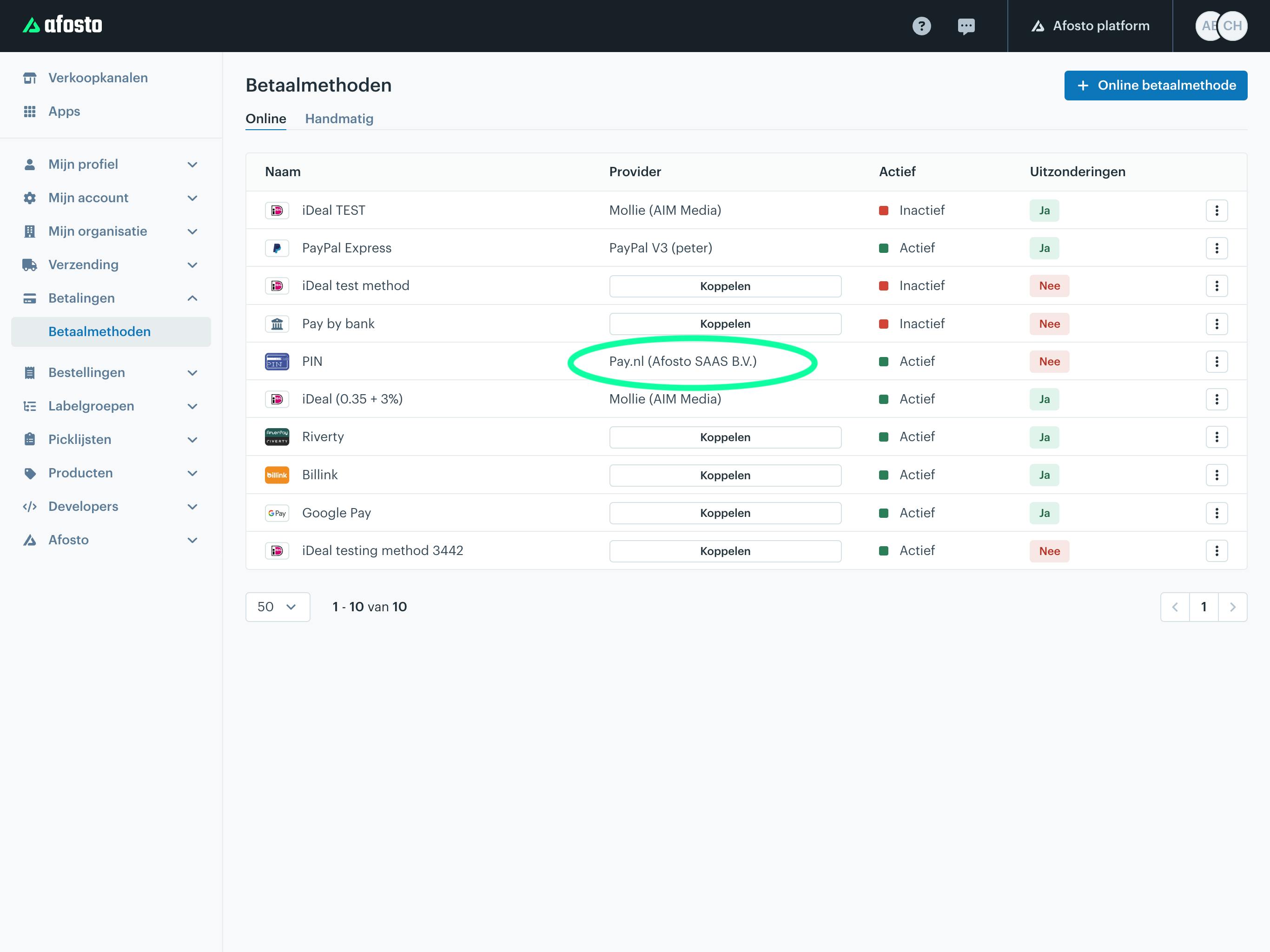
As the final step — and an important one not to forget — you must link the payment method to a payment provider.
For Afosto, this can be a provider such as Pay.nl. Enter the required details, such as your API key and any other settings required by the provider.
Test Your Settings
Once everything is configured and connected, it is recommended to perform a test payment. This allows you to verify that the connection between Afosto and your PIN provider is working correctly.
Finalizing and Ready for Use
Have you completed all the steps? Then you can return to the POS, and your PIN terminal will be ready to use. From now on, customers can easily and securely pay using their card within your Afosto system.
That’s all there is to it! If you still have questions, consult the documentation or contact Afosto customer support.
About the POS
Cloud POS for retail: every sale is an order on the same stock and prices as your webshop.
Related documentation
Daily overview
Change printer
Connect or change the receipt printer of the Afosto POS. You need a spooler print service account, and the printer setting applies per device.
Install POS as an App on iPad
Open Cash Drawer
Open the cash drawer from the menu in the Afosto POS and manage shortcuts to the functions you use most, step by step.