

Change POS Sales Channel
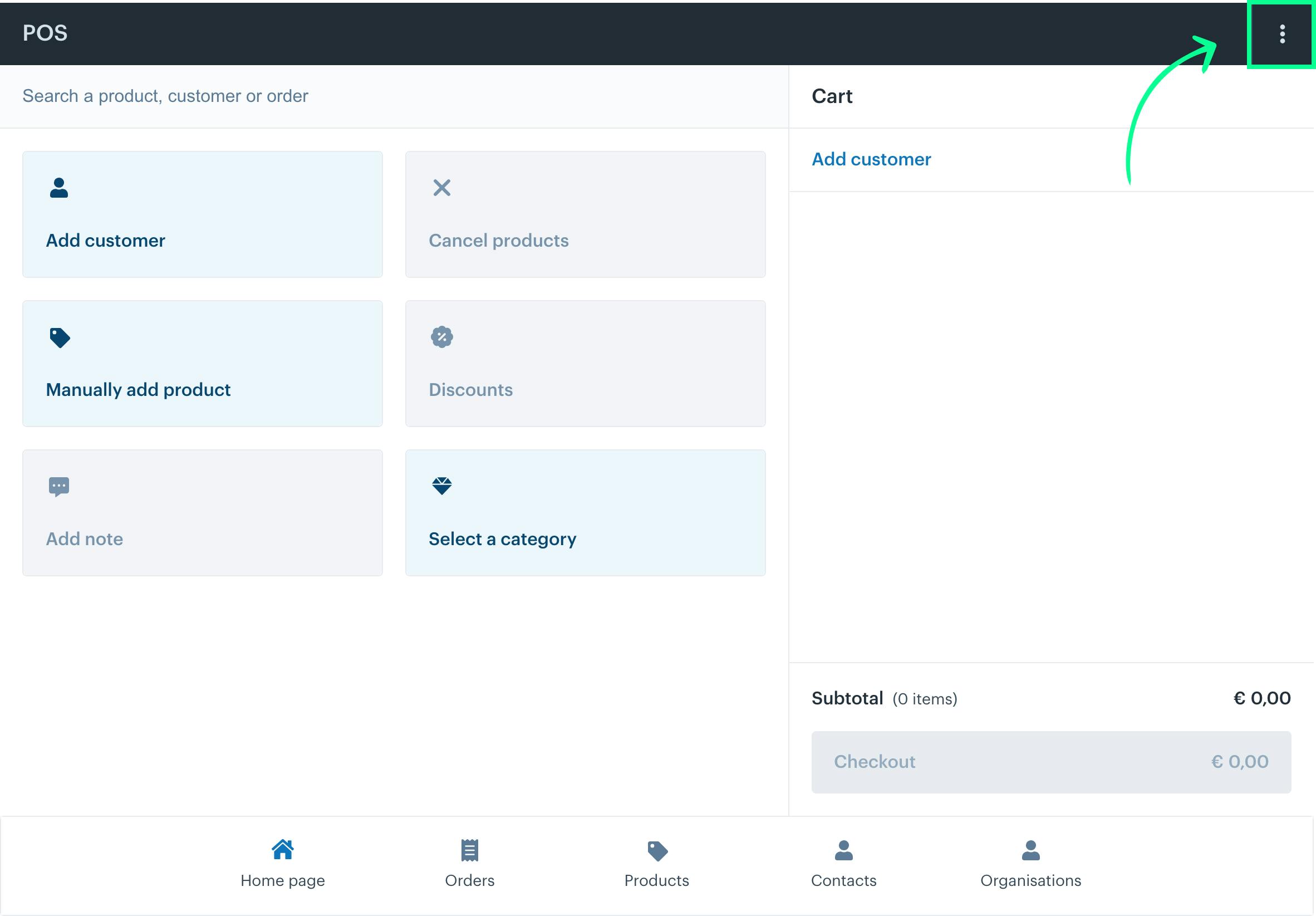
Switch the sales channel of the Afosto POS via the menu in the top-right corner. The new channel applies immediately after you select it.
To switch the channel of your POS, follow these steps:
Click the menu icon in the top-right corner of the POS screen.
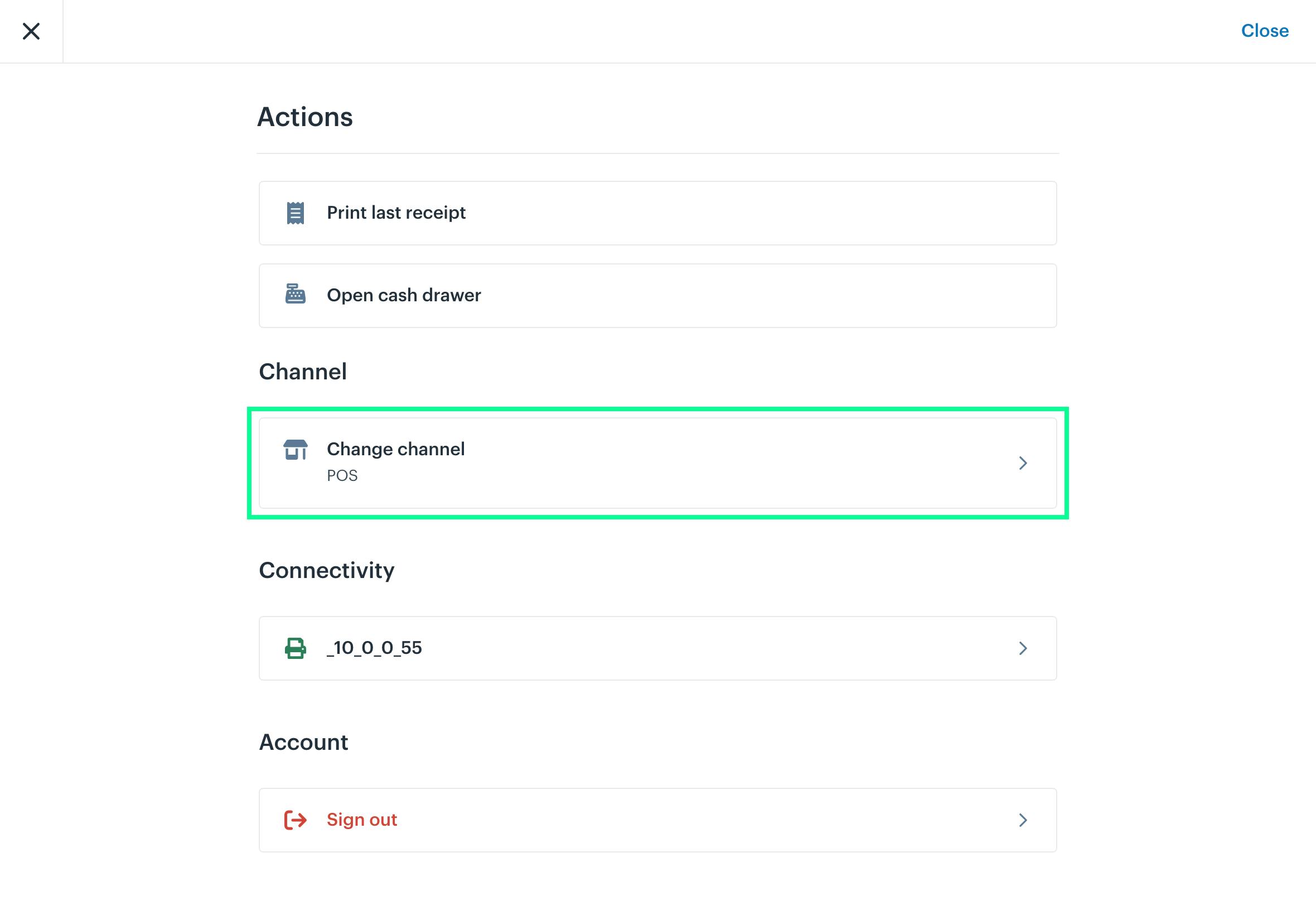
Select 'Change Channel' from the menu.
Choose the desired POS channel from the list.
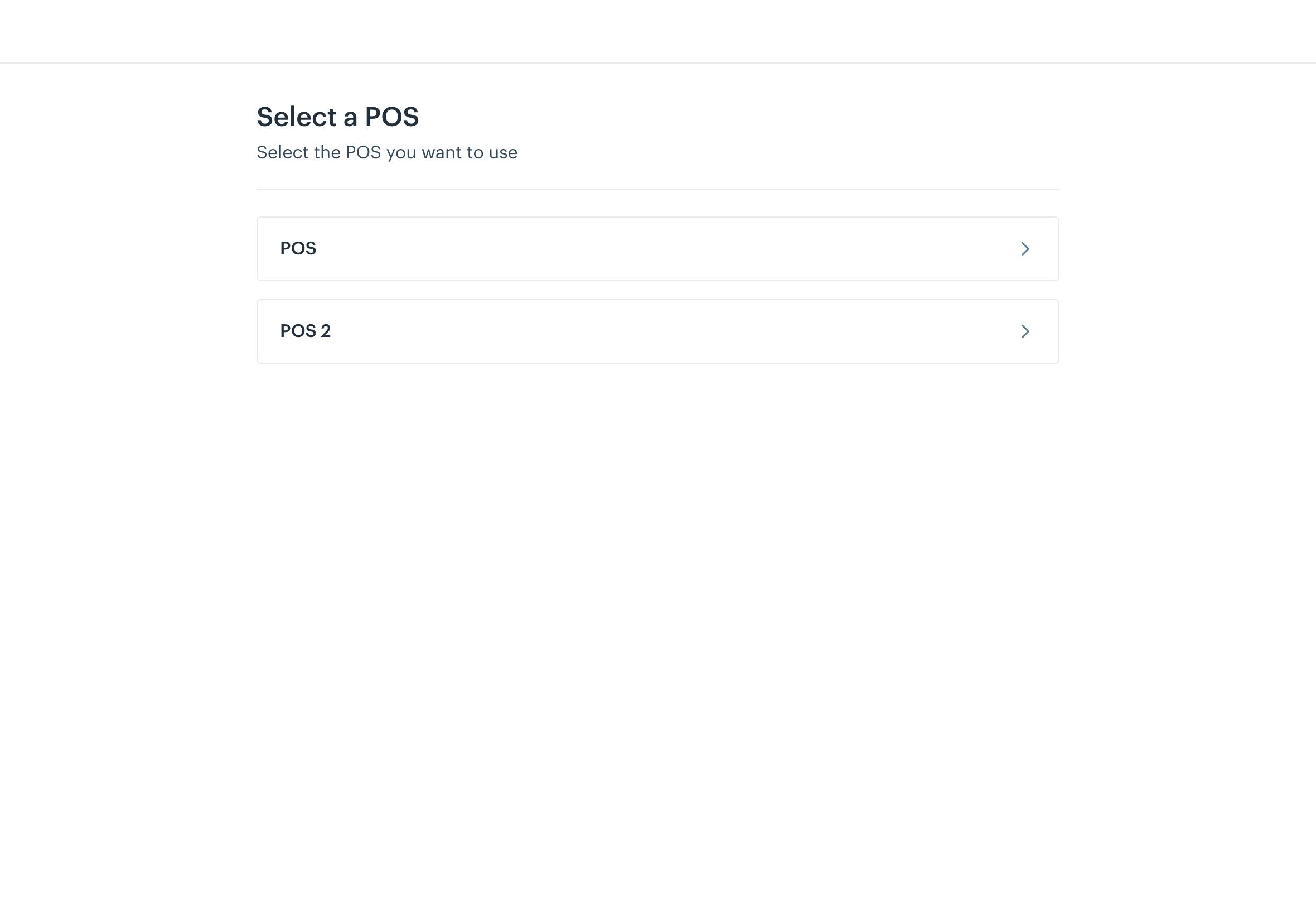
Your channel will update immediately after selection.
About the POS
Cloud POS for retail: every sale is an order on the same stock and prices as your webshop.
Related documentation
Open Cash Drawer
Open the cash drawer from the menu in the Afosto POS and manage shortcuts to the functions you use most, step by step.
Change printer
Connect or change the receipt printer of the Afosto POS. You need a spooler print service account, and the printer setting applies per device.