

Generating and Printing Invoices in Bulk
Introduction
This guide explains how to generate and print multiple invoices at once in Afosto, using the order overview and the Spooler app.
Requirements
-
You have access to Order Management in Afosto.
-
The Spooler app is correctly configured and connected to your printer.
Step 1: Go to the Order Overview
-
Log in to the Afosto admin environment.
-
Navigate to Orders via the main menu.
Step 2: Select the Desired Orders
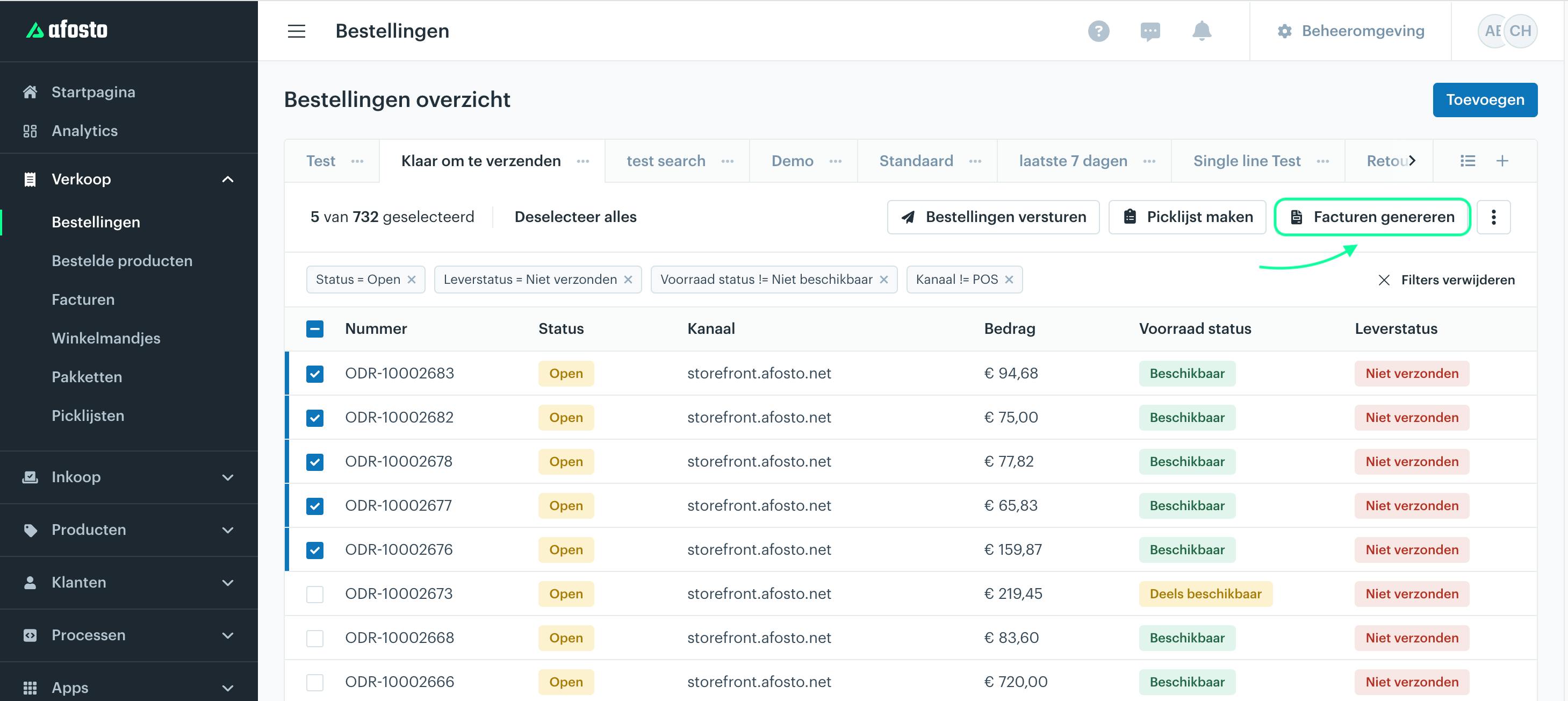
- Use the search filters or checkboxes to select multiple orders.
Step 3: Start the Bulk Action
-
Click the Generate invoices button (above the grid).
-
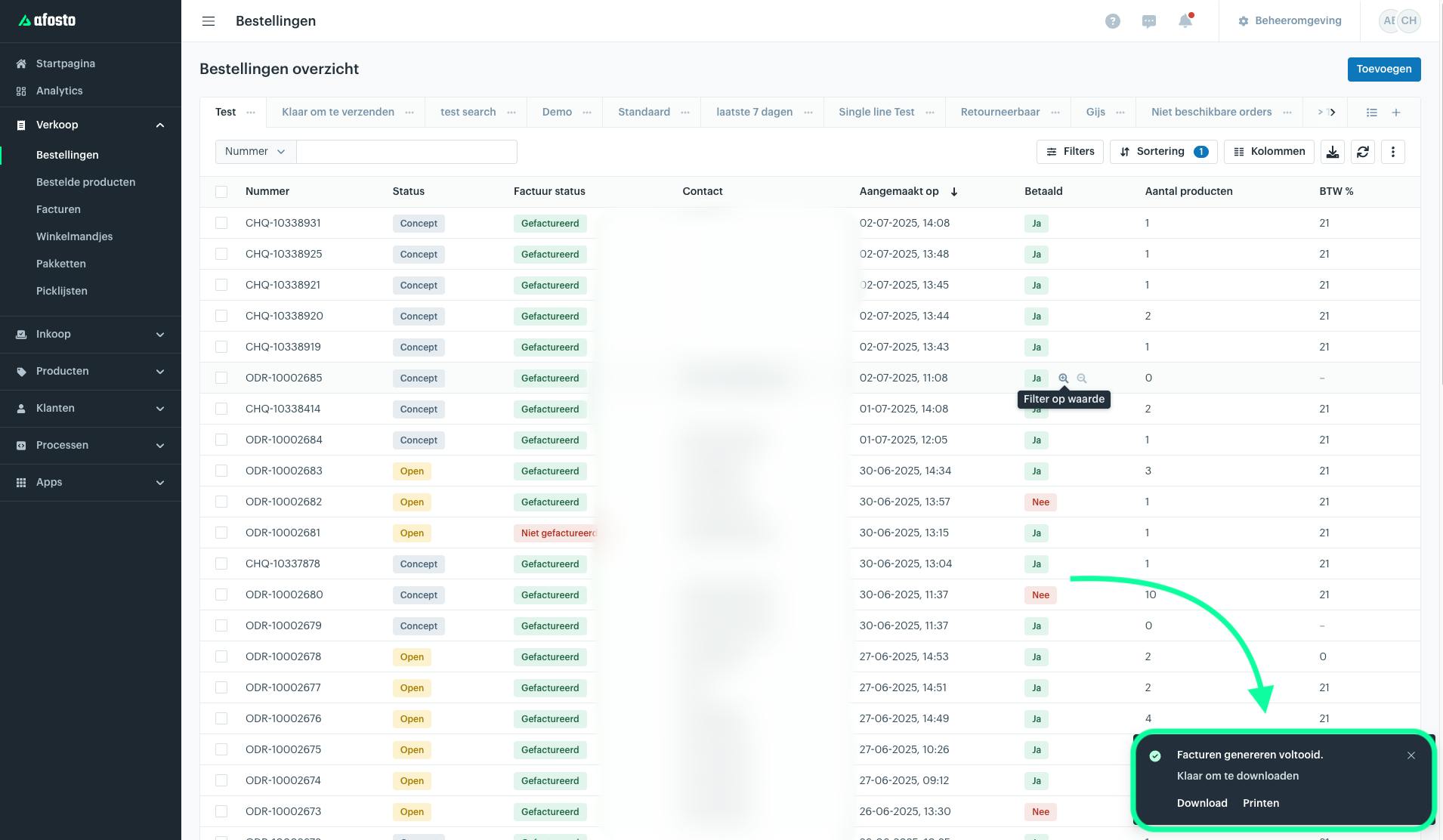
Wait until the invoices have been created.
Step 4: Download or Print the Invoices (optional)
-
Choose Download or Print.
-
The invoices will be sent to the correct printer via the Spooler app, or you can select your regular A4 printer in the print window.
About Afosto
Till, webshop, bol and Kaufland on one stock.
Related documentation
Replenishment Lists
Replenishment lists show which products to restock, based on safety stock, reorder points and optimal and maximum stock per warehouse.
Packing Slips – Downloading and Printing
Ontdek hoe je pakbonnen handmatig of automatisch kunt downloaden en printen in Afosto. Inclusief stappenplan, printerkoppeling en veelgestelde vragen.
Managing Inventory & Warehouse Settings
Learn how to add stock and manage warehouse settings in Afosto. Follow our guide for efficient product management!
Add or Adjust Warehouse Stock per Product in Afosto
Leer stap voor stap hoe je handmatig magazijnvoorraad toevoegt of aanpast in Afosto. Inclusief tips voor bulkacties bij voorraadbeheer via spreadsheet of CSV.