

Add or Adjust Warehouse Stock per Product in Afosto
In Afosto, you can easily manage stock per product and per warehouse location. In this guide, we explain how to manually add or adjust stock for a specific item.
Step 1: Navigate to the Correct Product
-
Log in to the Afosto platform.
-
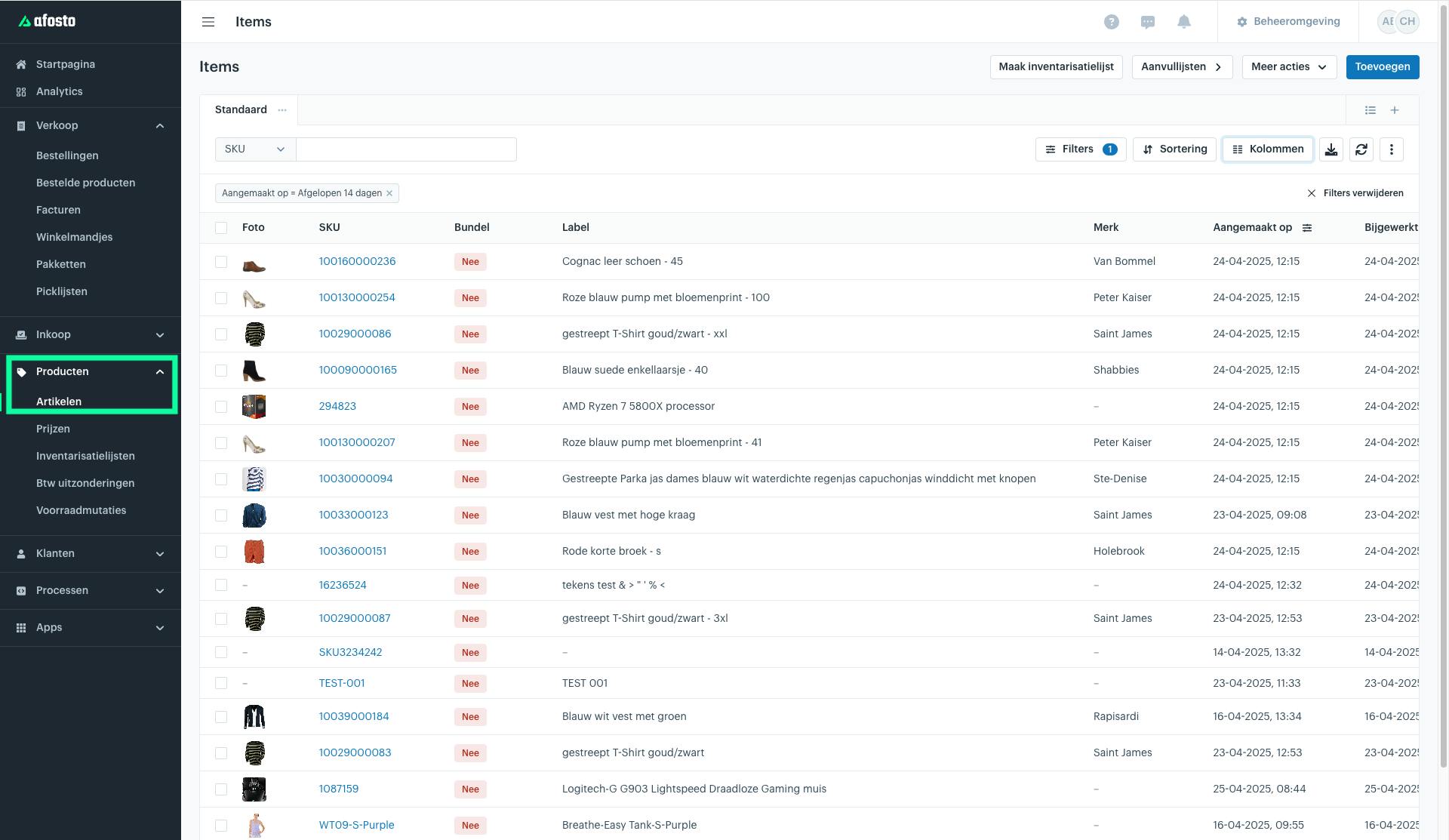
In the main menu, go to Products > Items.
-
You will see an overview of all available products. Find the item for which you want to adjust the stock.
-
Click the product to open the product detail page.
Step 2: Open the Stock Distribution
On the product page, you will find several sections, including product details, units, activity, and stock.
-
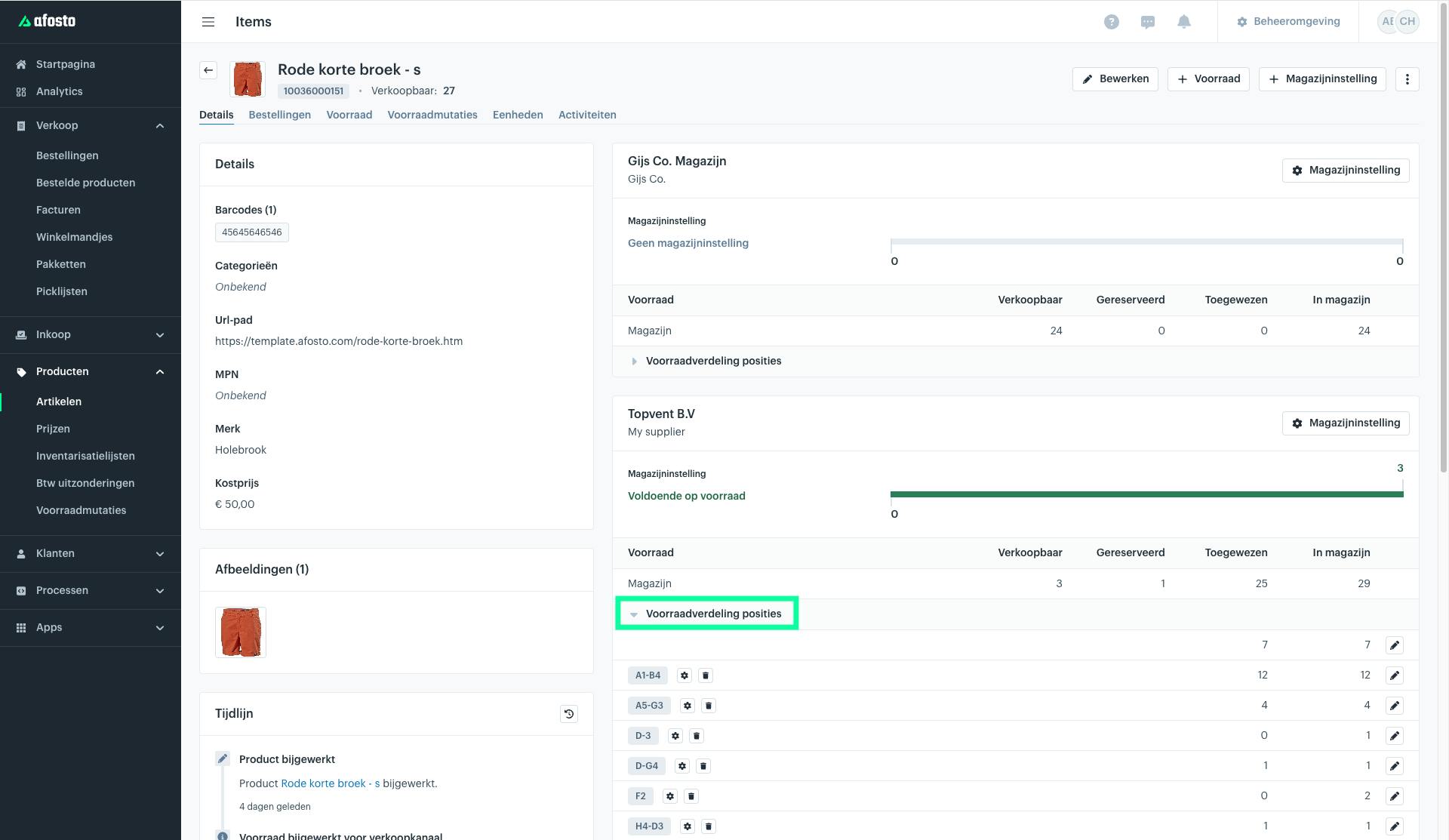
Scroll to the Stock Distribution Positions section.
-
Click the Stock Distribution Positions dropdown menu to view the current distribution of stock within the selected warehouse.
Step 3: Edit the Stock
-
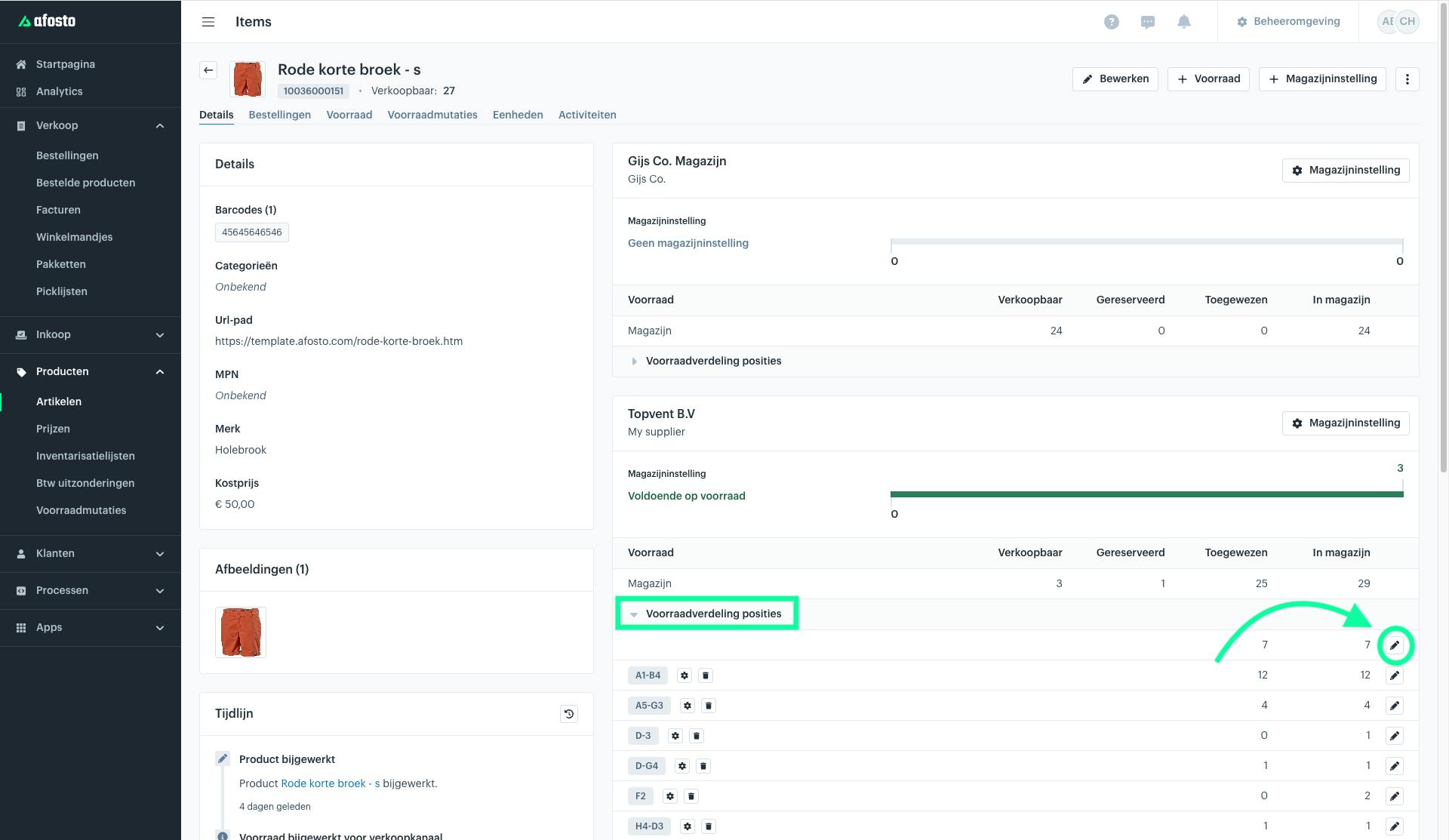
On the right side of the stock row, you will see a pencil icon (see the image below).
-
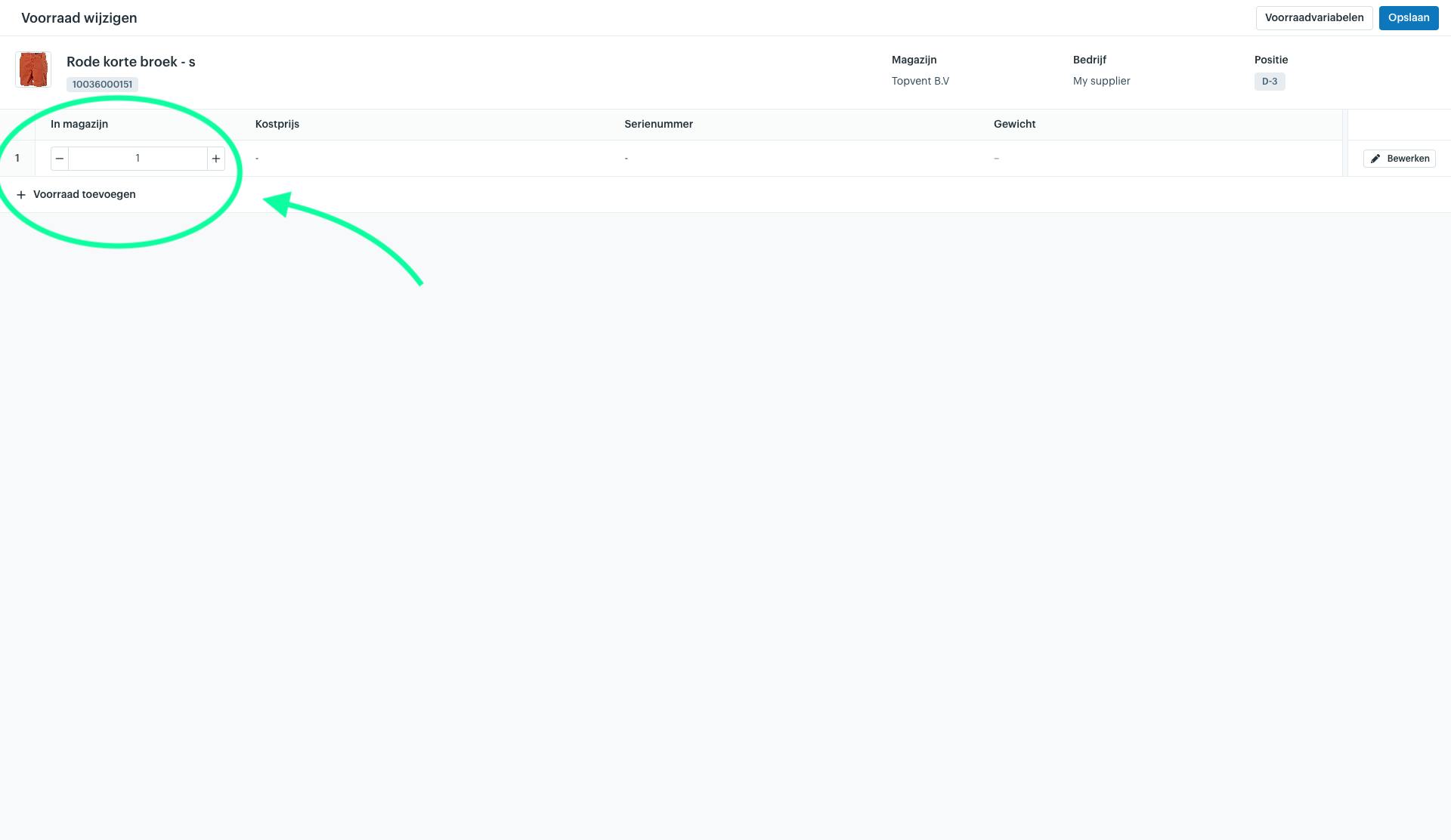
Click this icon to make the fields editable.
-
Enter the desired quantity for the correct warehouse location.
-
Save the changes to update the stock.
Result
After saving your changes, the stock is immediately updated in the Afosto system. This update is automatically synchronized with connected channels such as your webshop or POS, ensuring that the correct stock levels are visible everywhere.
Alternative: Update Stock via Bulk Action
For larger stock updates, such as updating multiple products at once, you can use the bulk action:
-
Add Warehouse Stock
-
Reset Warehouse Stock
This allows you to update stock for multiple products at once using a spreadsheet, existing dataset, or CSV integration. This method is especially efficient during inventory counts or reorganizing a warehouse.
For more information about bulk actions, contact support@afosto.com or call 050-7119519.
About Afosto
Till, webshop, bol and Kaufland on one stock.
Related documentation
Managing Inventory & Warehouse Settings
Learn how to add stock and manage warehouse settings in Afosto. Follow our guide for efficient product management!
Replenishment Lists
Replenishment lists show which products to restock, based on safety stock, reorder points and optimal and maximum stock per warehouse.
Generating and Printing Invoices in Bulk
Leer stap voor stap hoe je in Afosto eenvoudig facturen tegelijk genereert en print via het orderoverzicht en de Spooler-app. Efficiënt en foutloos factureren.
Packing Slips – Downloading and Printing
Ontdek hoe je pakbonnen handmatig of automatisch kunt downloaden en printen in Afosto. Inclusief stappenplan, printerkoppeling en veelgestelde vragen.