

Apply depreciation to a returned product
Scenario
For a return with damage or signs of use, depreciation may apply. To process this correctly in the administration, you need to apply depreciation to the refund as well as to the product price itself.
Goal
Ensure that both the refund and the product price are correctly processed so that the system shows the correct balance and the invoice is accurate.
Step-by-Step Guide
1. Open the Order
-
Go to the orders overview in the Afosto platform.
-
Open the specific order containing the returned product.
2. Click “Edit Price” for the Returned Product
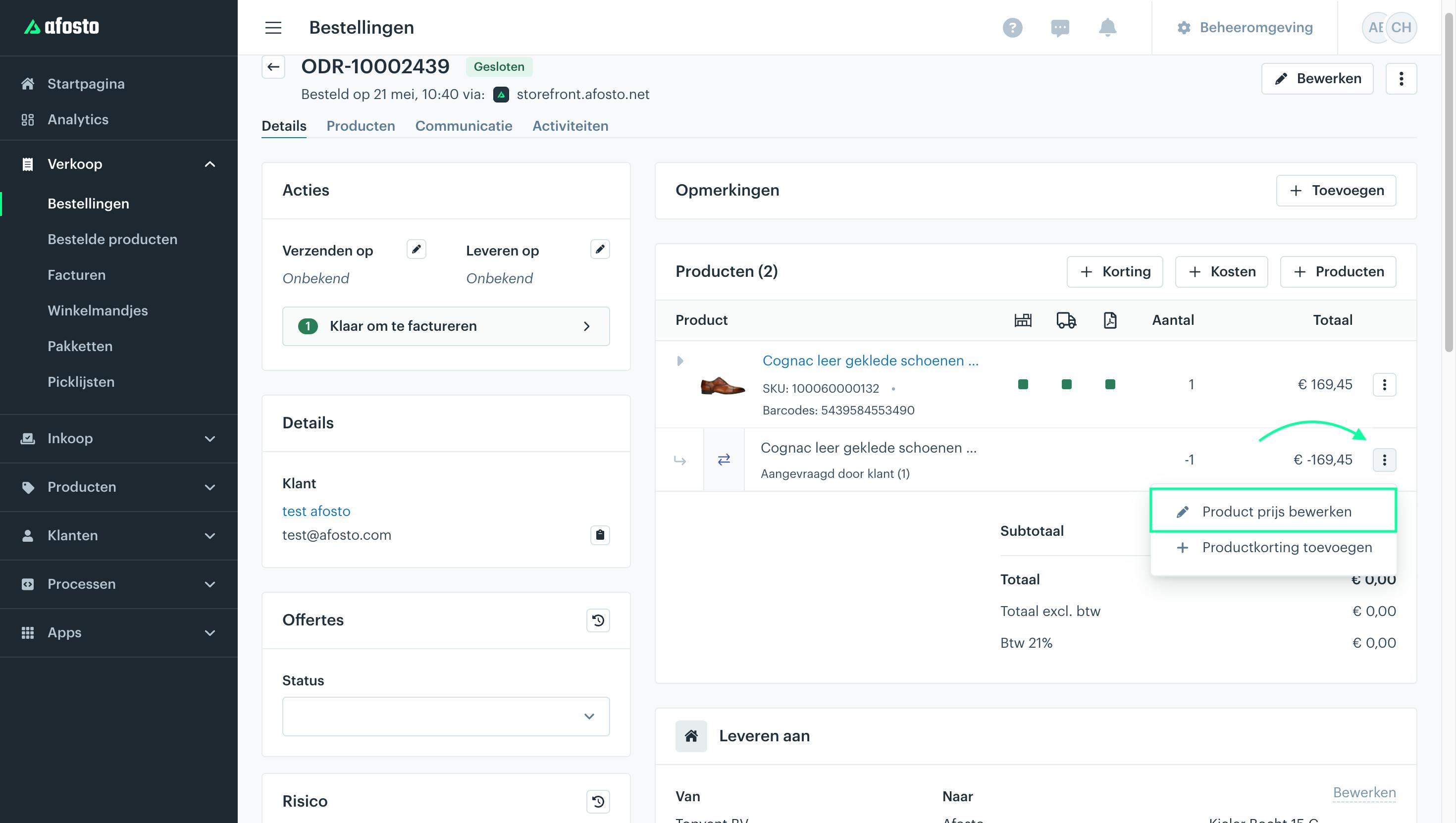
- Locate the product and click the Edit Price option (see example image).
- Adjust the Price
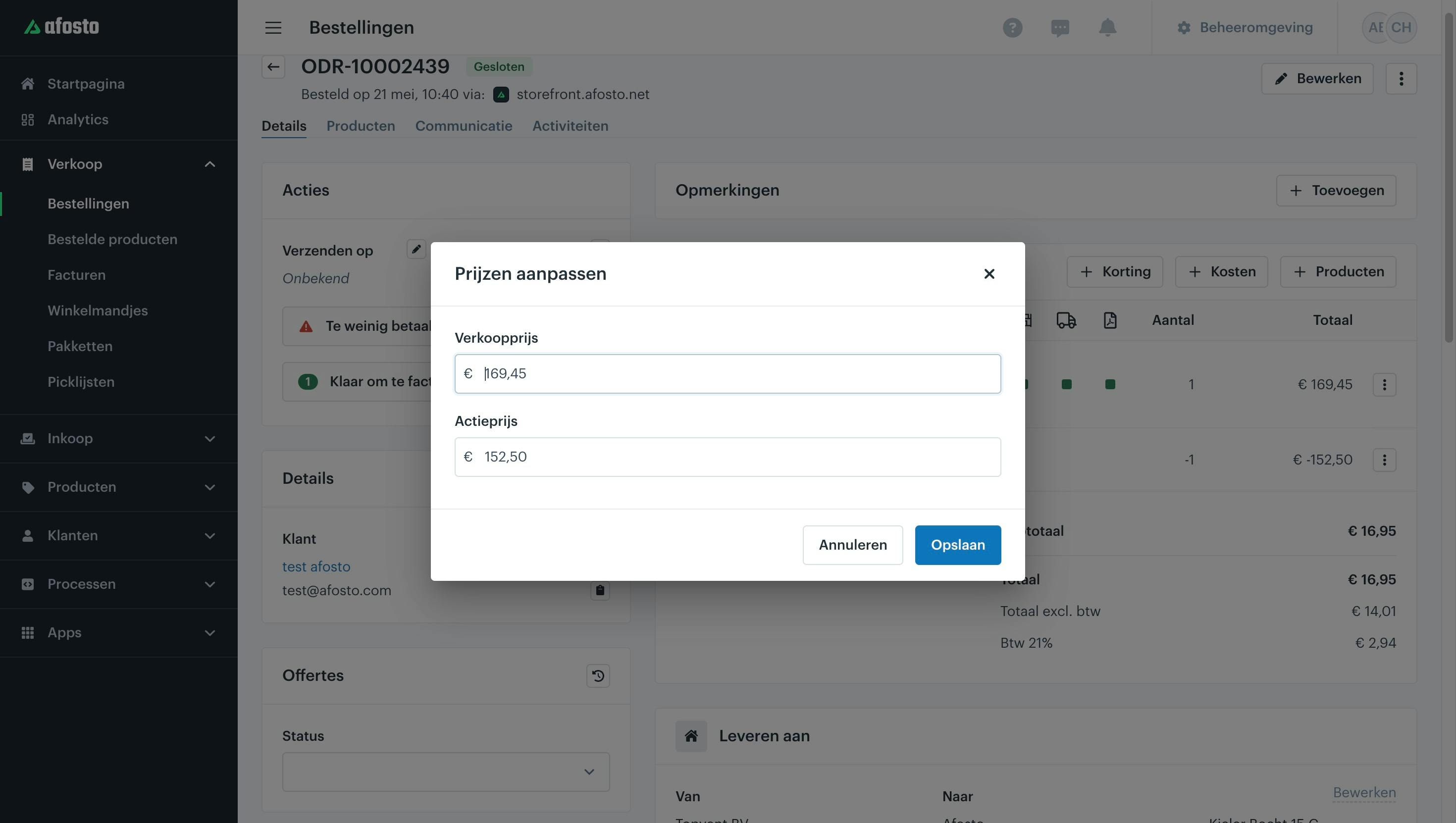
- Reduce the price by the desired percentage or amount.
For example: if the original selling price is €169.45 and you want to apply 10% depreciation, change the price to €152.50.
-
- Save the Change
The system will automatically calculate the correct balance based on the adjusted price.
Generate the Invoice
The invoice will now display the product with the adjusted (reduced) price.
About Afosto
Till, webshop, bol and Kaufland on one stock.
Related documentation
Register products for return
Learn how to easily register products for return in Afosto. Follow our detailed guide to create return labels and manage returns. Optimize your return process with Afosto and ensure a smooth customer experience.
Process returns
Learn how to easily process returns in Afosto. Follow our comprehensive guide for managing returns, including product selection, return reasons, financial balance, and inventory management. Optimize your return process with Afosto and improve your customer service.