

Packing Slips – Downloading and Printing
Introduction
Packing slips contain the details of an order and are used for processing and shipping orders. In this guide, you will learn how to download and print packing slips within Afosto.
Requirements
-
You have an Afosto account with access to Order Management.
-
The order must be in a status where packing slips are available.
-
For automatic printing: a printer connected via Afosto.
Downloading a Packing Slip
-
Log in to your Afosto dashboard.
-
Go to Orders > Overview.
-
Search for and select the order(s) for which you want to download a packing slip.
-
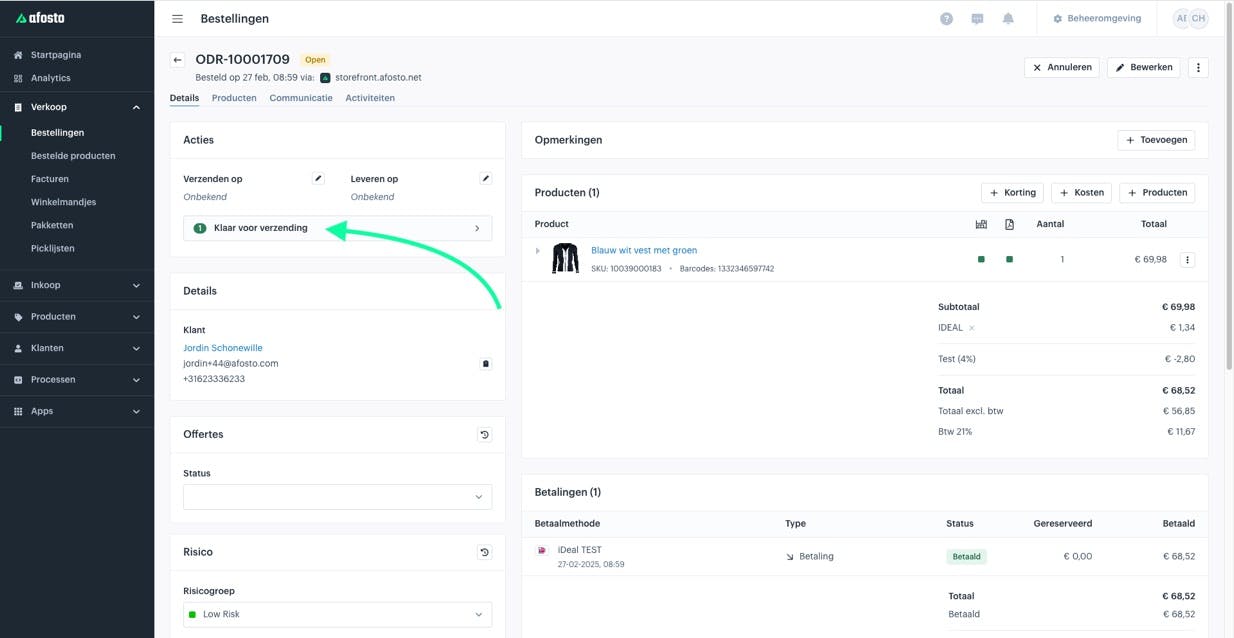
You can only download a packing slip once you create a shipment. You can do this by clicking “Ready for shipment” in the order overview.
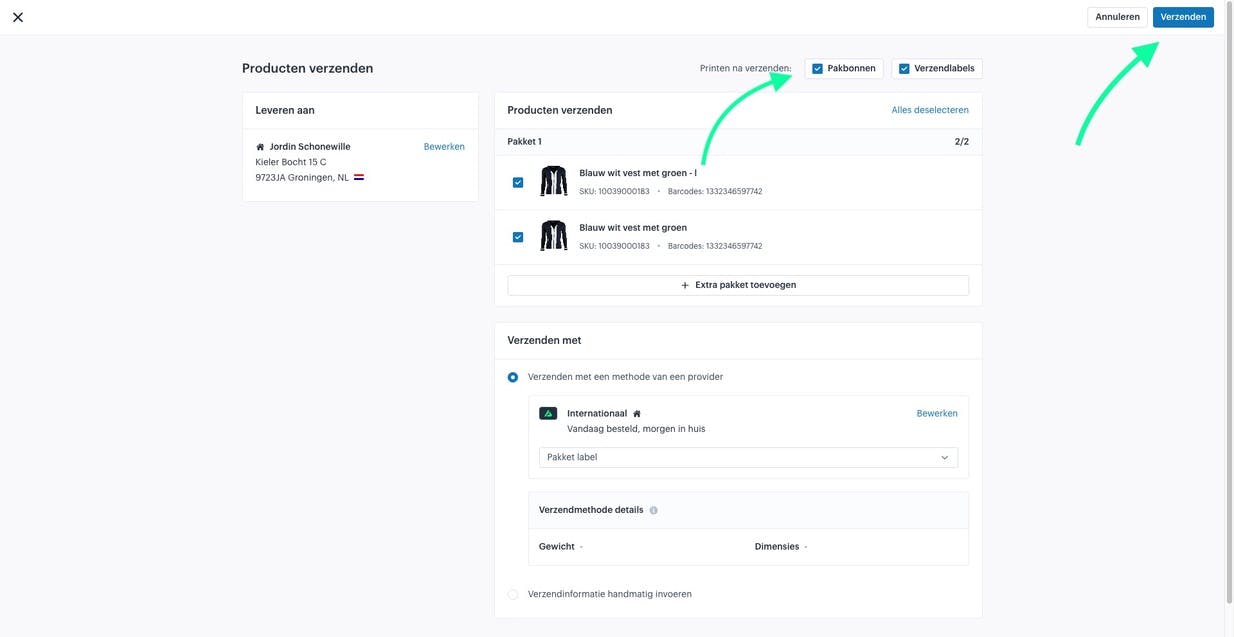
- After shipping, a packing slip and shipping label will then be generated.
Printing a Packing Slip
Manual printing:
-
Open the packing slip window.
-
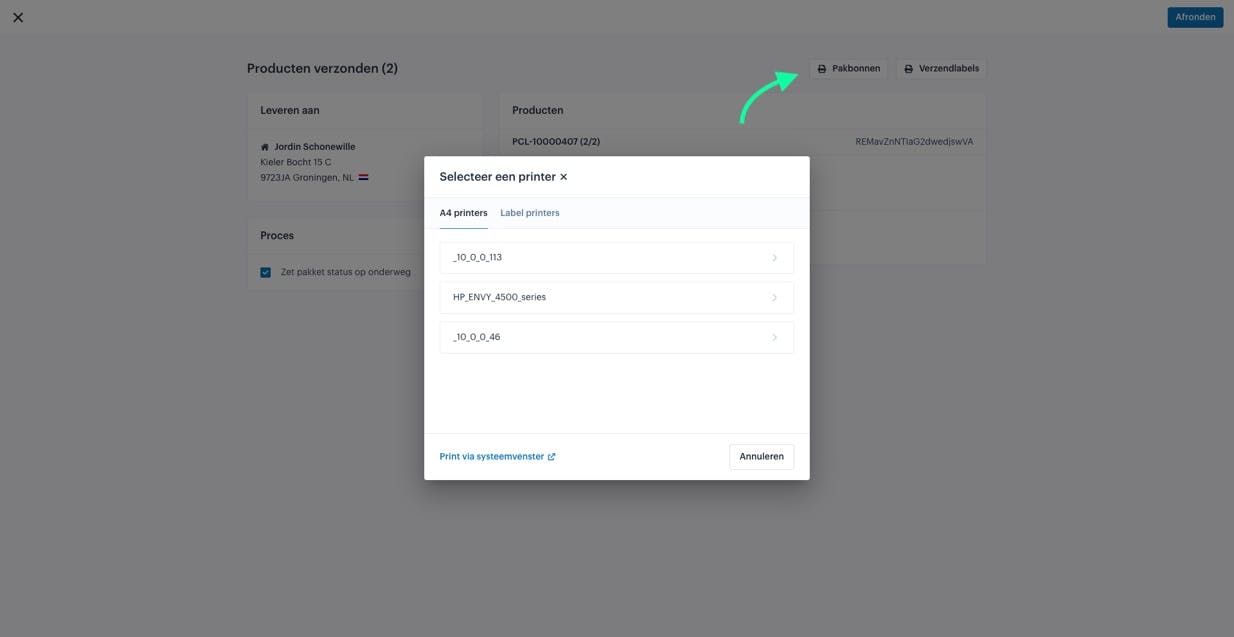
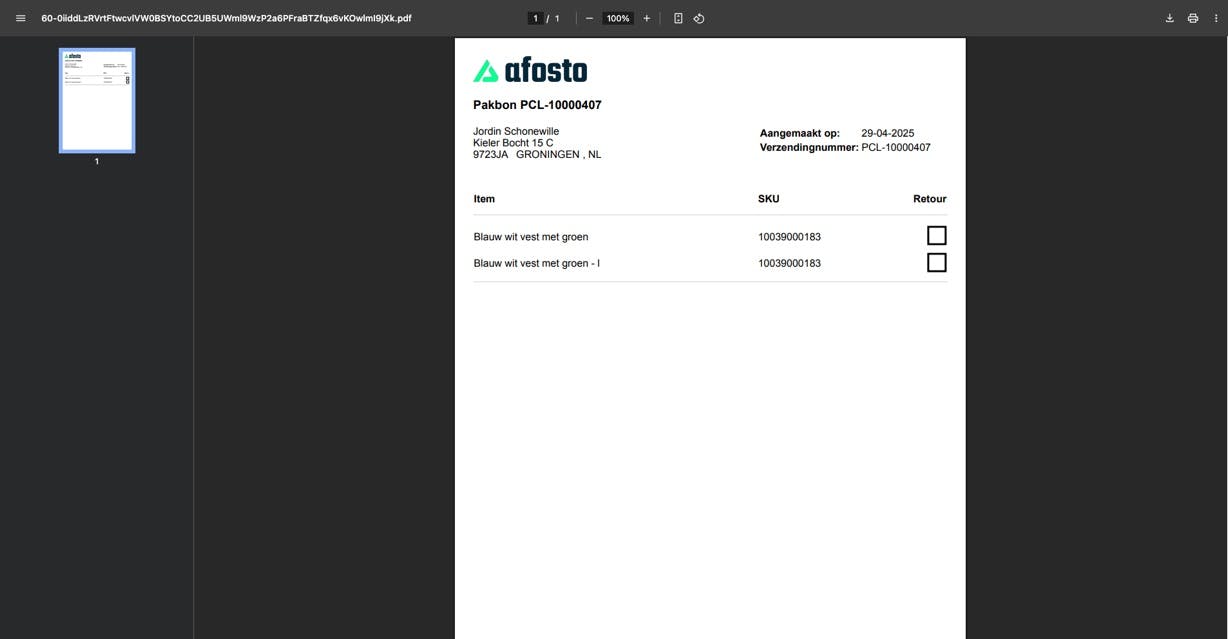
Select a connected printer, or open the packing slip in a system window to print or download it from there.
-
Confirm the action.
Automatic Printing (Optional)
Make sure your printer is connected via the Afosto Spooler. The Spooler connects all printers in your network through our software. This allows you to print your packing slips, shipping labels, and invoices quickly and automatically.
With this setup, you can save hours each week on your business processes.
Frequently Asked Questions (FAQ)
Why don’t I see an option for packing slips?
Packing slips only become available once you have created a shipment. Check whether the order status is set to “Ready for shipment.”
What if my printer does not appear when printing?
Check whether your printer is properly connected via the Afosto Spooler and that it is online. Restart the spooler or printer if needed.
Can I download a packing slip again?
Yes. Open the order and click the packing slip icon again.
Are packing slips customizable in layout?
No, the standard layout of packing slips cannot be customized. For custom solutions, you can contact [email protected].
Related documentation
Generating and Printing Invoices in Bulk
Leer stap voor stap hoe je in Afosto eenvoudig facturen tegelijk genereert en print via het orderoverzicht en de Spooler-app. Efficiënt en foutloos factureren.
Replenishment Lists
Managing Inventory & Warehouse Settings
Learn how to add stock and manage warehouse settings in Afosto. Follow our guide for efficient product management!
Add or Adjust Warehouse Stock per Product in Afosto
Leer stap voor stap hoe je handmatig magazijnvoorraad toevoegt of aanpast in Afosto. Inclusief tips voor bulkacties bij voorraadbeheer via spreadsheet of CSV.