

Packing slips and shipping labels print themselves
Spooler connects the printers in your warehouse, shop and office to Afosto. When an order comes in, the packing slip rolls out of the printer. Scan the packing slip after picking and the shipping label follows. No pop-ups, no downloads, no manual work.

What is a print spooler?
A print spooler is software that takes in print jobs, queues them and sends them to the right printer. Afosto Spooler is that layer between the Afosto platform and the printers in your business: the system sends a document, Spooler makes sure it comes out of the right printer. Three parts do the work:
Spooler is an app on the Afosto platform. The full installation and printer documentation lives in the Spooler manual.
Print jobs from your process
your order management sends packing slips, the point of sale sends receipts and the shipping process sends labels
A hub or desktop app
a small, pre-configured computer on your network, or the Spooler Desktop app on a Windows or Mac computer
Your own printers
receipt printers (ESC/POS), label printers (ZPL) and ordinary A4 printers (PCL), connected over the network or by USB
How it works
From new order to parcel, without a print button
This is the print route of a webshop order in Afosto: every step produces its own document, and not one of them asks for a download or a print dialog.
- Step 1
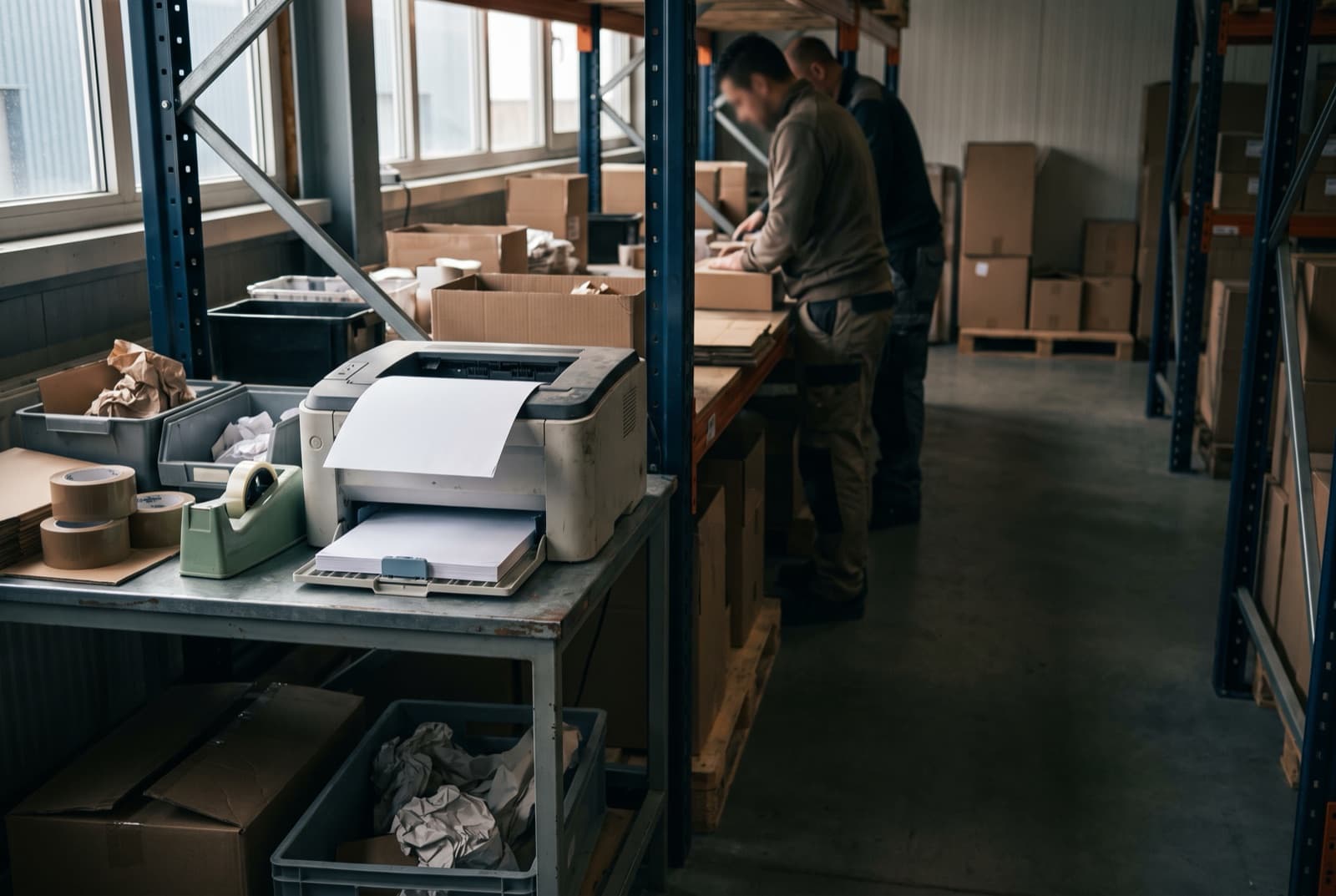
Order in, packing slip rolls out
As soon as an order comes in, Afosto sends the packing slip automatically to the printer in your warehouse. Per warehouse you set which printer prints packing slips, or which email address they are sent to. Start at nine in the morning and the packing slips from that night are already waiting.
- Step 2
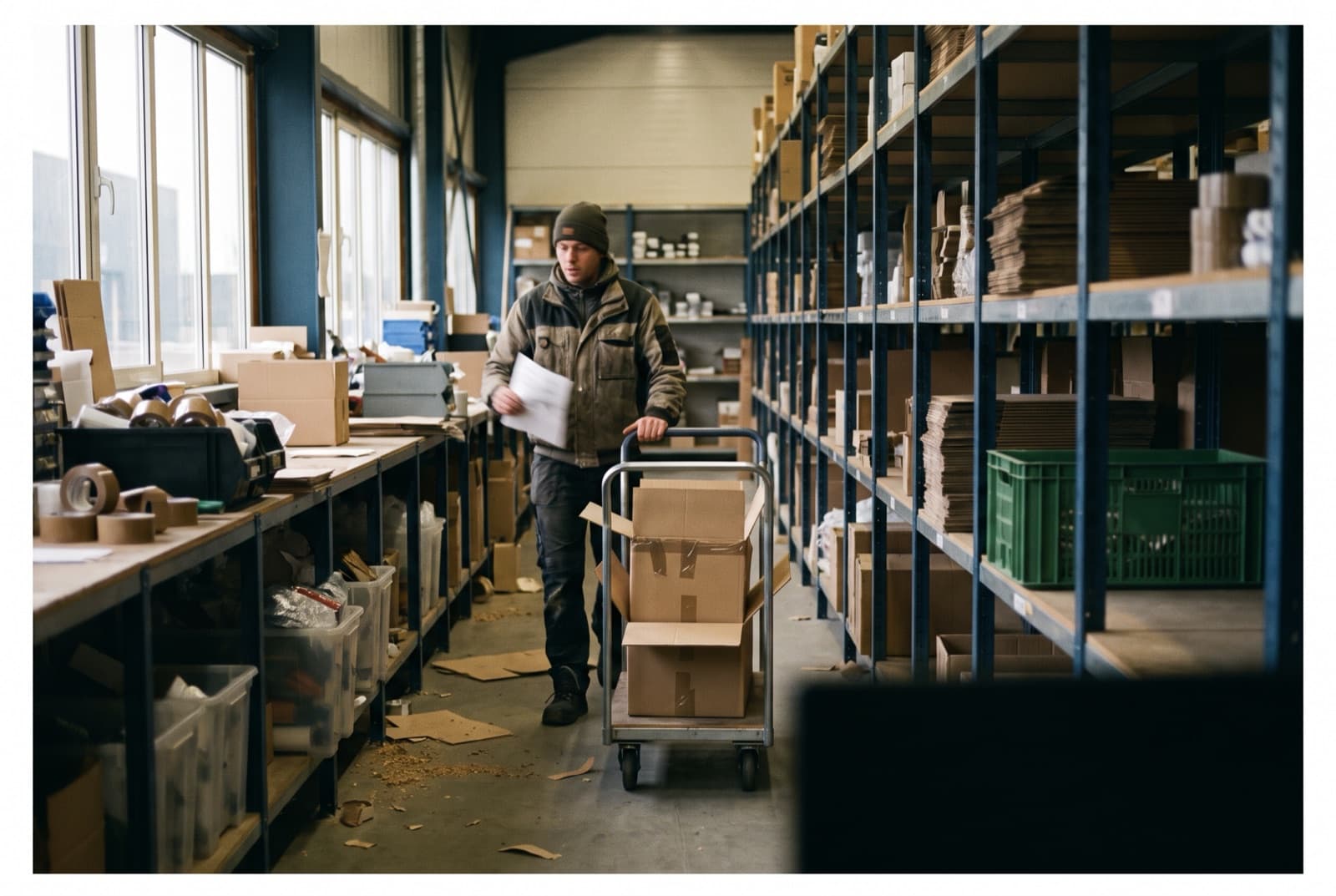
Pick the order with the packing slip in hand
In the warehouse you gather the items. If you work with the WMS app, the pick list is on your phone and Spooler prints labels and packing slips while you pick and ship your orders.
- Step 3
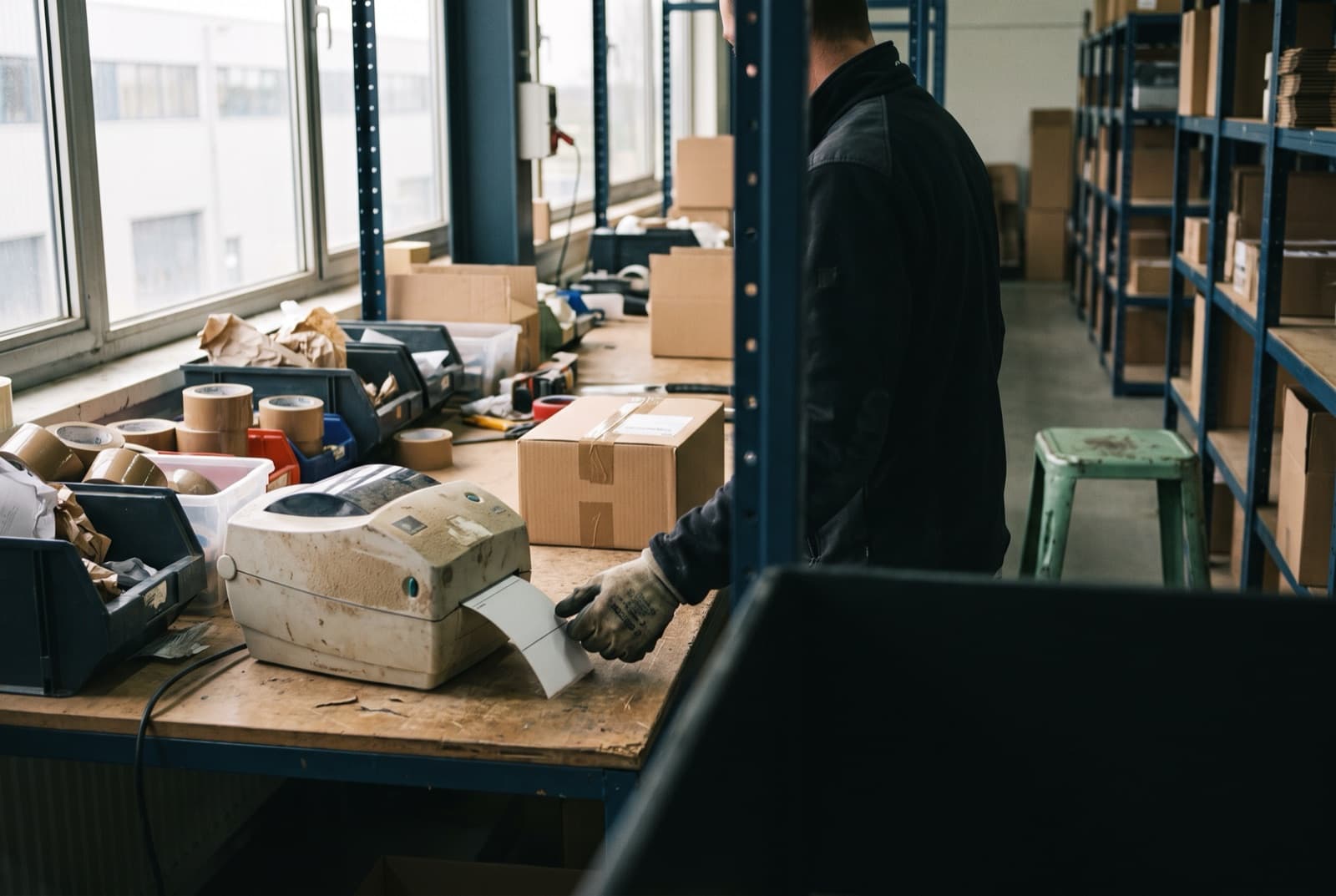
Scan the packing slip, the label follows
After picking, you scan the barcode on the packing slip. Afosto closes the order and the shipping label rolls out of the label printer on its own. Tape the box shut, stick the label on, ready for the carrier.
- Step 4
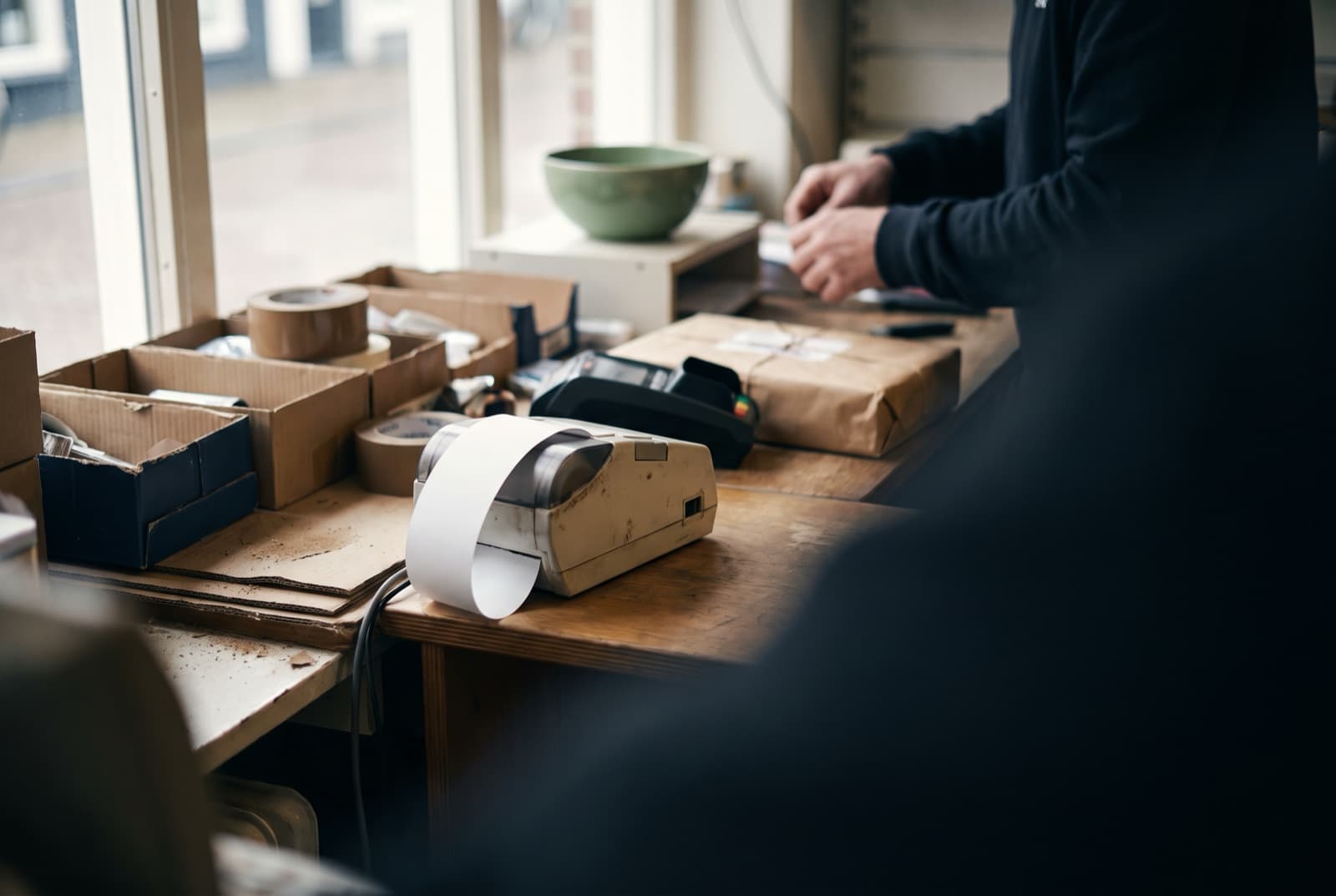
The same spooler prints your receipt
Your shop runs on Spooler too: when the point of sale closes a sale, the receipt goes to the receipt printer on the counter. One print system for warehouse, office and shop.
Printer offline or out of paper? In the Spooler job overview you see every print job and run it again with one click. The dashboard shows the status per hub and printer.
Works with the printers you already have
Receipt printer (ESC/POS)
For receipts on the counter. Dozens of models from the likes of Epson, Star and Bixolon are compatible, connected over the network or by USB.
Label printer (ZPL)
For shipping labels, straight off the roll. Models such as the Zebra ZD420d and ZD421 (direct thermal) are listed in the manual.
A4 printer (PCL)
For packing slips and documents: any printer with PCL support works, including the one you already have.
Hub or Spooler Desktop
Choose a pre-configured hub on your network, or install Spooler Desktop on a Windows or Mac computer. The network scan finds your printers on its own.
Job log
Every print job can be reviewed and run again; error messages per hub are kept in the logs.
Test print per printer
With one click you test a printer's connection; a successful test prints a test page straight away.
Send print jobs yourself through the API
Spooler is not only for the standard flows. Any integration or custom app can queue print jobs:
Building your own print flow? Start with our developer documentation, or first check the compatible hardware overview.
RAW or PDF
a print job contains raw printer data (such as ZPL for a label printer) or points to a PDF through a URL
Printer as destination
you pick the target printer per job; the type (paper or label) and the status (online or offline) can be queried per printer
Printing at the right moment
when you create a shipping label you pass a printer straight away, so the label is printed immediately
FAQ
Frequently asked questions about automatic printing
Straight answers to the questions webshops and shops ask most often about Spooler.
What is a print spooler?
A print spooler is software that takes in print jobs, queues them and sends them to the right printer. Afosto Spooler does this for the whole platform: the order process sends packing slips, the point of sale sends receipts and the shipping process sends labels. The spooler decides which printer each document comes out on.
How do I print packing slips automatically on new orders?
With Spooler plus the app for automatically emailing and printing packing slips, which Afosto activates for you. After that you set, per warehouse, which printer incoming packing slips are printed on, or which email address they are sent to. To print packing slips you need a printer with PCL support.
Can the shipping label be printed automatically after picking?
Yes. After picking, you scan the barcode on the automatically printed packing slip. The system marks the order as complete and prints the shipping label straight away on the connected label printer. So between picking and shipping you never send a single print job yourself.
Which printers work with Spooler?
Three kinds: receipt printers with ESC/POS (dozens of models from the likes of Epson, Star and Bixolon), label printers with ZPL (such as the Zebra ZD420d and ZD421) and A4 printers with PCL support. You connect printers over the network (wifi or ethernet); receipt printers can also connect by USB. The full list is in the documentation under compatible hardware.
Do I need extra hardware for Spooler?
Not necessarily. There are two options: a physical Spooler hub (a small computer that ships pre-configured and sits on your network) or Spooler Desktop, an application you install on a Windows or Mac computer on the same network as your printers. Both can scan the network for available printers.
What happens if a print job fails?
Every print job is recorded in the Spooler job overview. If a job fails, for example because a printer is offline, you see it there and run the job again with one click. Spooler keeps logs with error messages per hub, and per printer you test the connection with a test print.
Let the printer do the work
Book a demo and we walk through your print route together, from packing slip to shipping label. Or create a free account and explore the Afosto platform yourself first.